
Skip to content
SiteAuro

Visitor Logs

See everyone the pixel recorded on your website, what each visitor did, and choose which events are recorded.

Table of Contents
  1. The List
  2. Find Visitors
  3. One Visitor
  4. Choose Which Events Are Recorded
  5. Delete Visitors
  6. Next Step

Visitor Logs lists the visitors the SiteAuro pixel has recorded on your website who haven't told you who they are yet. In the menu, click Visitor Logs. At the top it says how many are anonymous, and how many are identified: those are on Contacts.
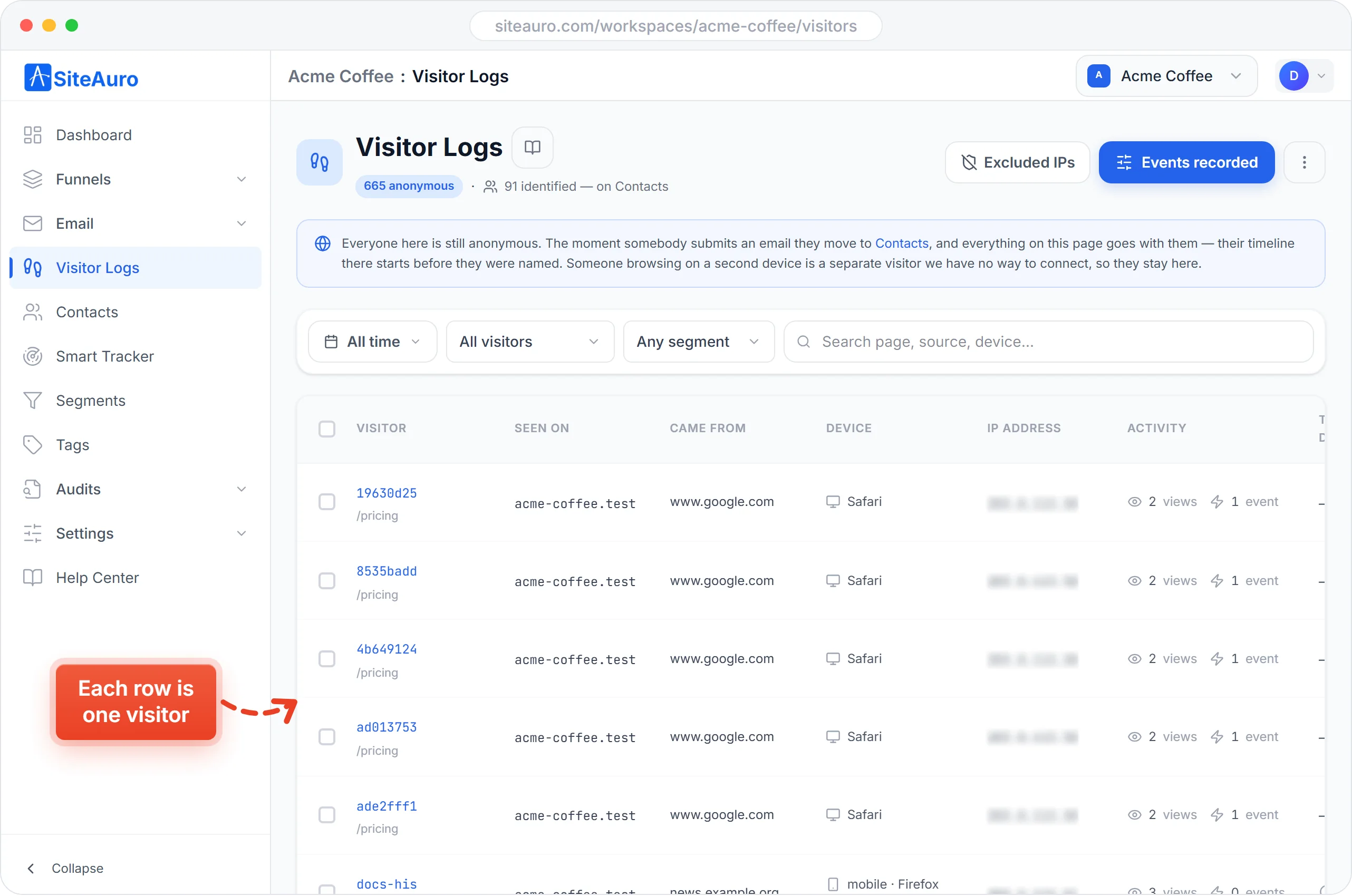
The Visitor Logs page of the Acme Coffee workspace, in a browser window: the filters All time, All visitors, Any segment and the search box in a row above a list of visitors showing where they were seen, where they came from, their device and country, their address (blurred) and their activity. In the menu below Settings, a red label reads "Each row is one visitor", with a dashed arrow to the list.
Visitor Logs.

The List

Each row is one visitor (one browser), with:

  • Visitor: a short ID for the visitor, and the page they landed on.
  • Seen on: which of your websites they were seen on.
  • Came from: where they arrived from, such as a search engine or a campaign.
  • Device, IP address, their Activity and Total Duration.
  • Last seen.

Find Visitors

The row above the list narrows it:

  • The date filter, All time to start: only the visitors seen in Last 7 days, Last 30 days, Last 90 days, Last 6 months or Last year, or between dates you pick on its calendar.
  • Any segment: only the visitors in a segment. Once the workspace has a landing page, All visitors shows only those who visited one of them.
  • Search page, source, device…: type to find a page, source or device.
  • Clear appears while anything narrows the list, and puts it back.
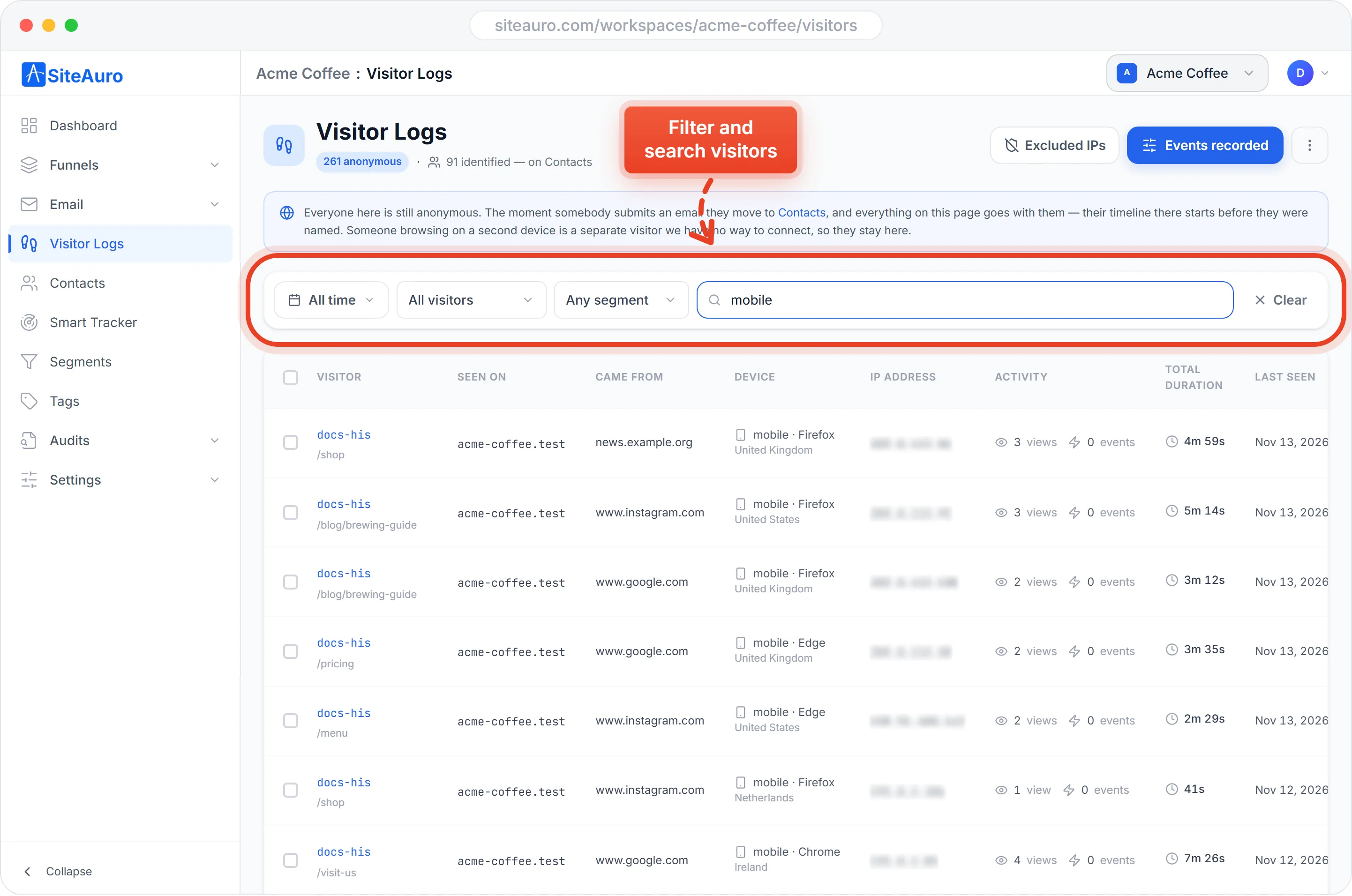
Visitor Logs with mobile typed in the search box, showing the visitors who used a phone. Their IP addresses are blurred. The row of filters, All time, All visitors, Any segment, the search box and Clear, is outlined in red, with the label "Filter and search visitors" and a dashed arrow pointing to it.
Search Visitor Logs.

One Visitor

Click View logs on a visitor's row to see everything about them. A panel opens on the right with the visitor's ID, when they were first seen, their browser and where they came from. Under All activity it counts their pages, page views, events and sessions; the date filter beside it, All time to start, narrows everything in the panel.
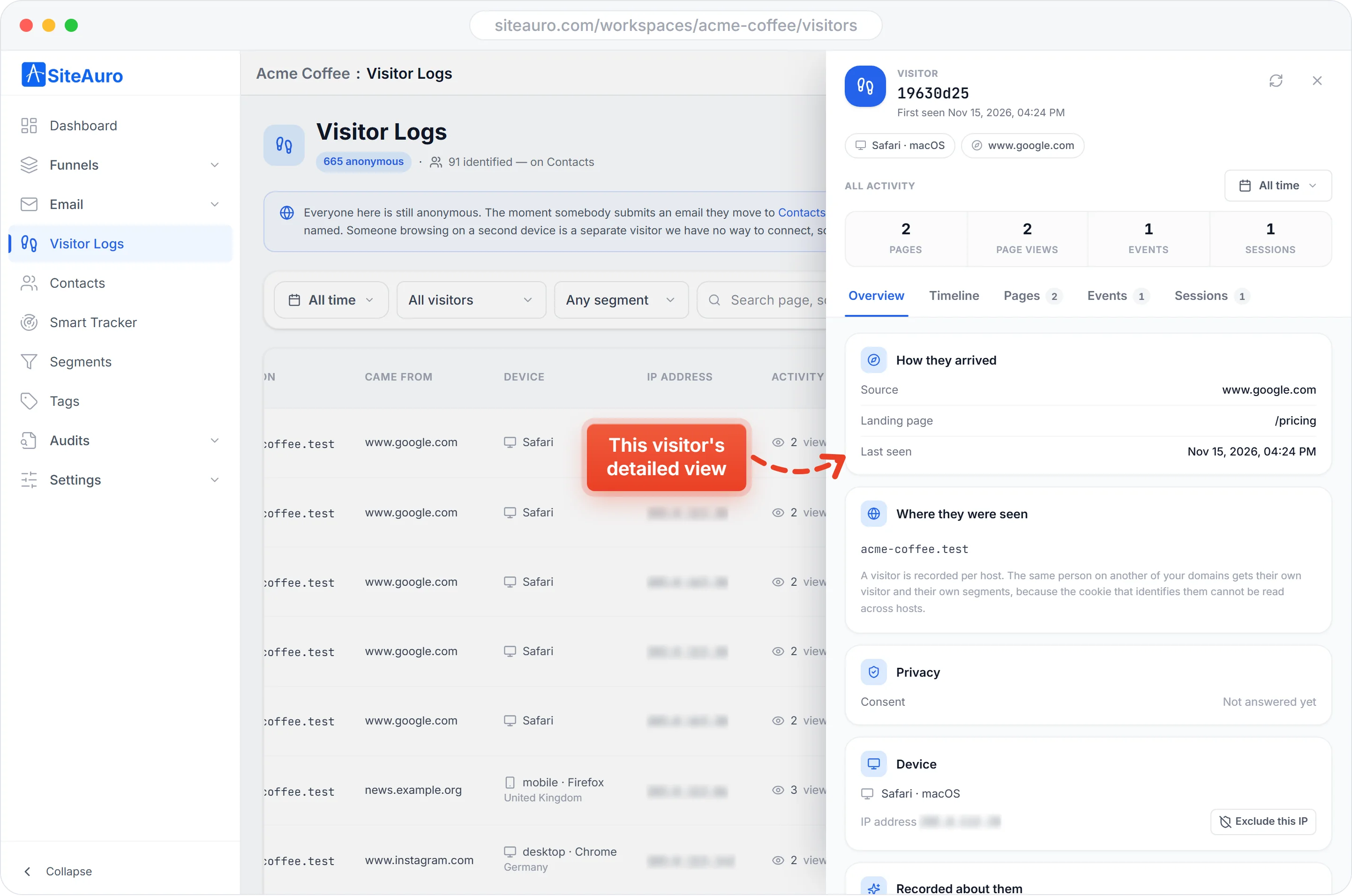
One visitor's logs open on the right: the visitor's ID, when they were first seen, their browser and where they came from, then All activity with All time, their pages, page views, events and sessions, and the tabs Overview, Timeline, Pages, Events and Sessions. Under Overview: How they arrived, Where they were seen, Privacy (Not answered yet), and Device with the IP address blurred and Exclude this IP. In the dimmed list on the left, a red label reads "This visitor's detailed view", with a dashed arrow to the panel.
One visitor's detailed view.

The panel has five tabs.

Overview shows how they arrived, where they were seen, their privacy choice, their device, the segments they are in, and what was recorded about them. Exclude this IP, beside their address, stops recording visits from it. See Exclude IP Addresses.

Timeline is their whole activity log, newest first and in your timezone, grouped by day: each page they opened, each thing they did, and any campaign that brought them.
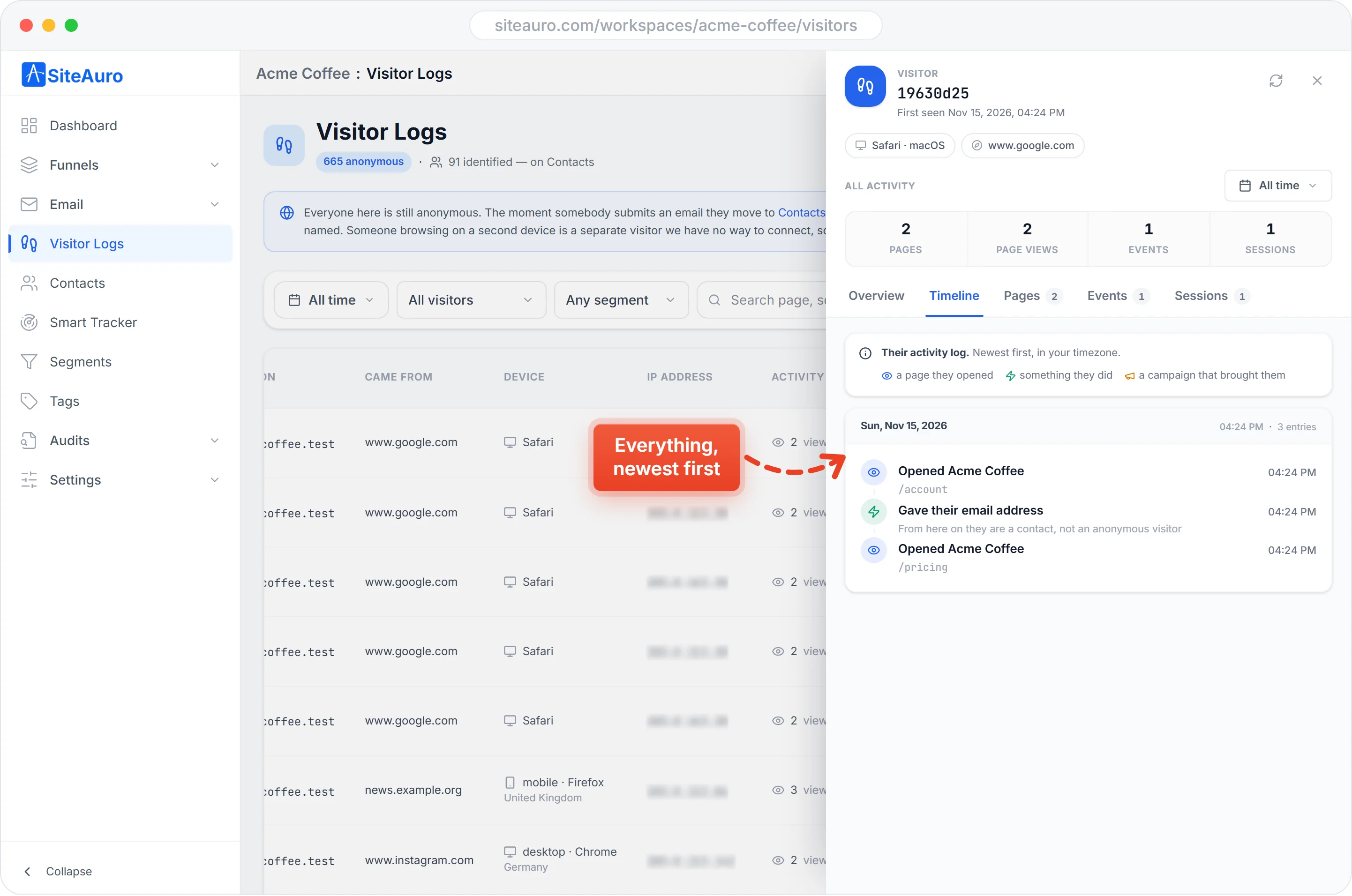
The visitor's Timeline tab: Their activity log, newest first, with what each icon means, then one day with Opened Acme Coffee /account, Gave their email address, and Opened Acme Coffee /pricing, each with its time. In the dimmed list on the left, a red label reads "Everything, newest first", with a dashed arrow to the panel.
The Timeline tab.

Pages lists each page they opened, with their Time on page and how far down they read (Read to). A page they opened more than once shows how many times.
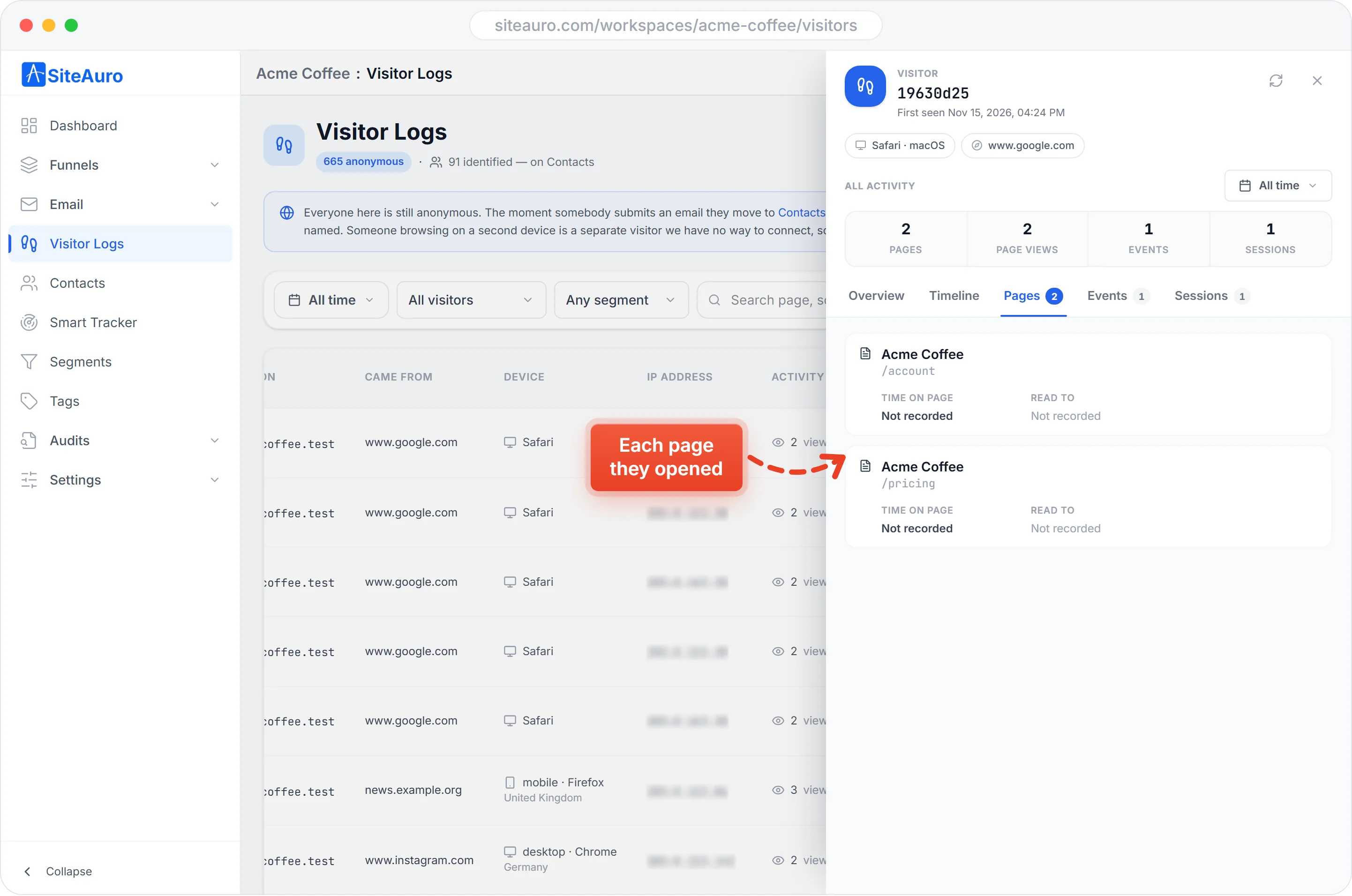
The visitor's Pages tab: two pages, /account and /pricing, each with Time on page and Read to. In the dimmed list on the left, a red label reads "Each page they opened", with a dashed arrow to the panel.
The Pages tab.

Events is the same log with the pages left out: only what they did, such as giving their email address.
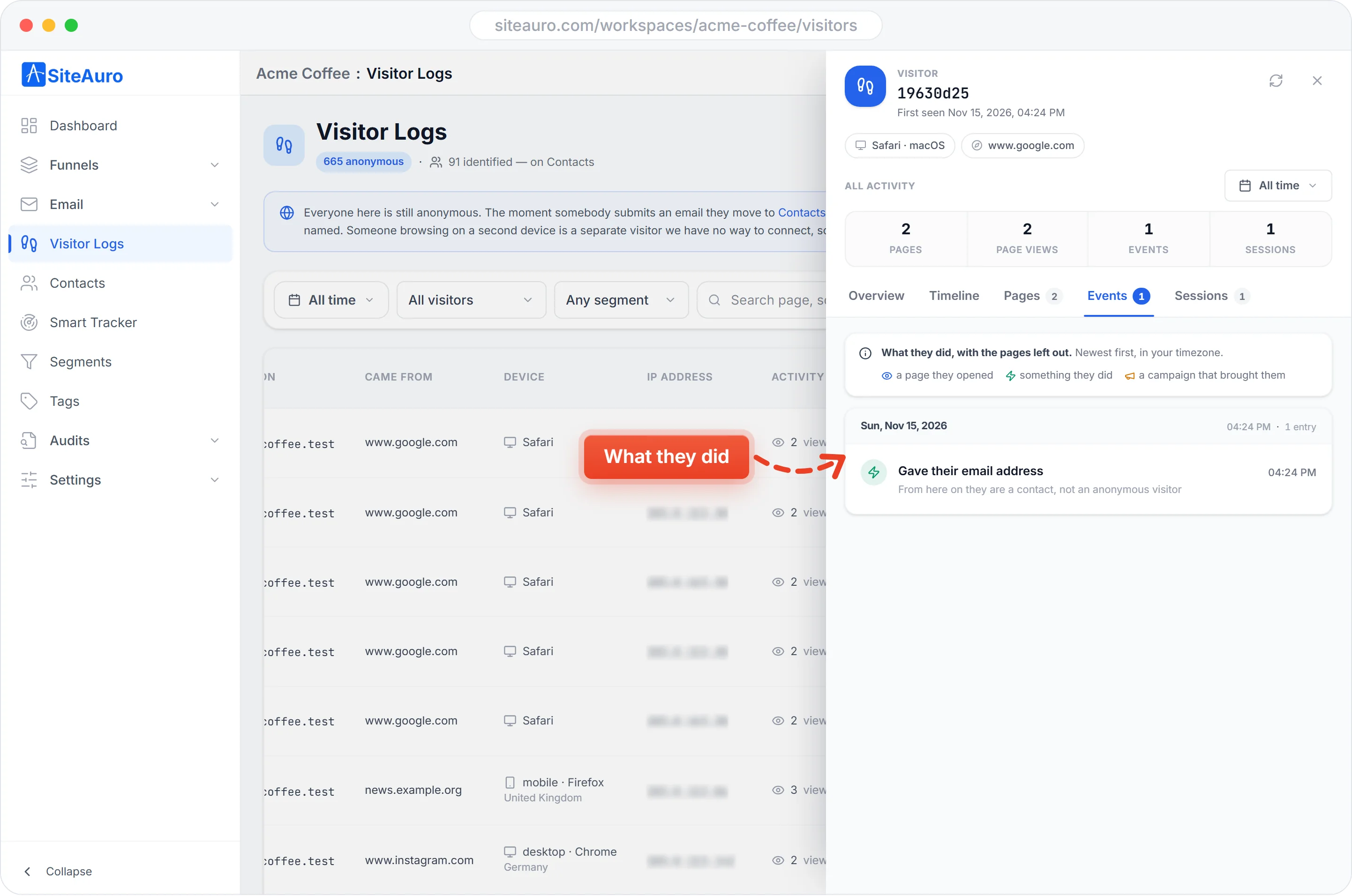
The visitor's Events tab: What they did, with the pages left out, newest first, then one day with Gave their email address. In the dimmed list on the left, a red label reads "What they did", with a dashed arrow to the panel.
The Events tab.

Sessions splits their activity into the visits they made. Each session shows when it started, how long it lasted, how many pages and events it had, where they came from and the path they took; their first is marked First visit. Click a session to open or close it.
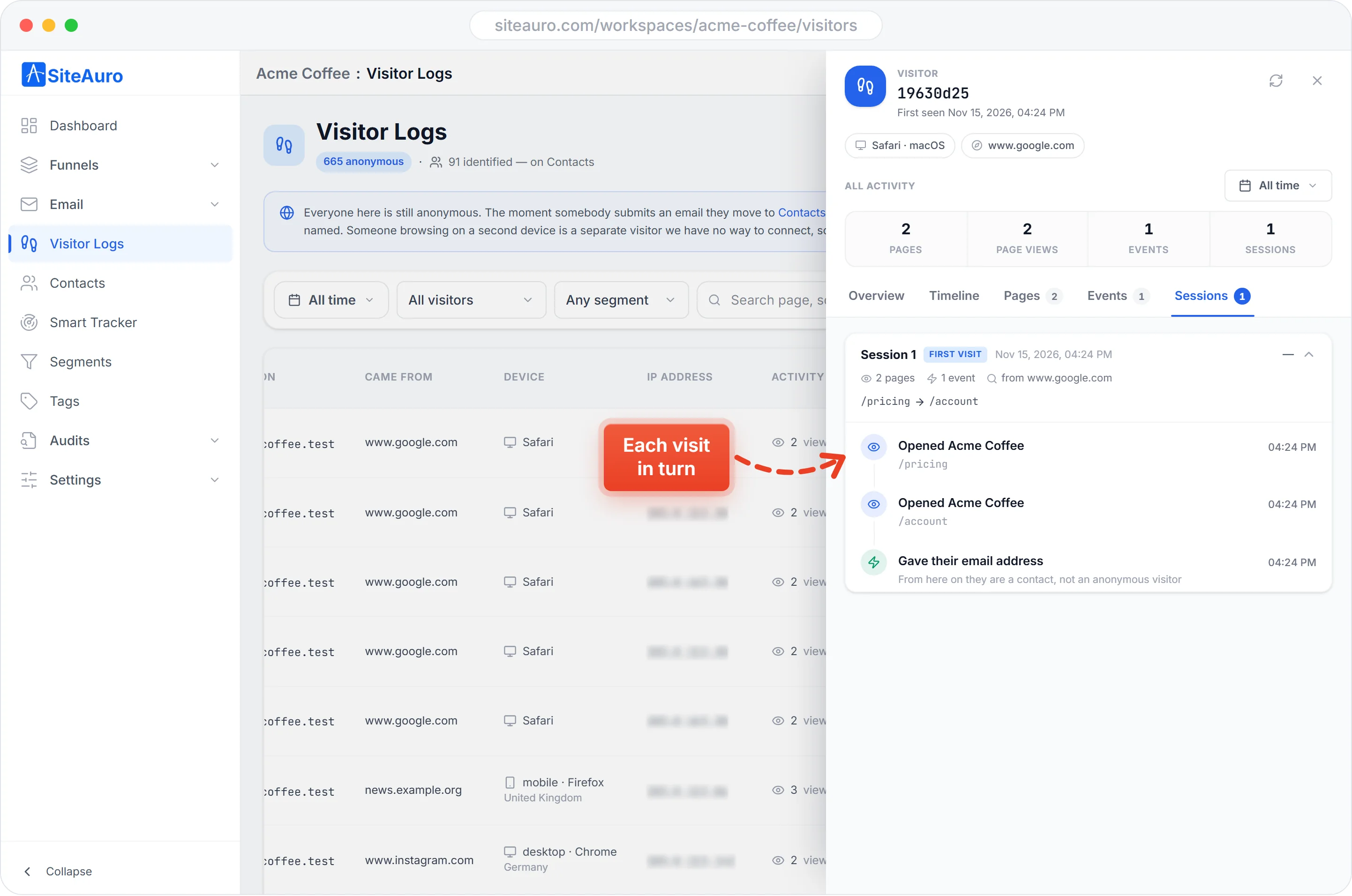
The visitor's Sessions tab: Session 1, marked First visit, with 2 pages, 1 event, from www.google.com and the path /pricing to /account, open to show its three entries. In the dimmed list on the left, a red label reads "Each visit in turn", with a dashed arrow to the panel.
The Sessions tab.

When a visitor becomes a contact, by submitting a form or signing in, they move from Visitor Logs to Contacts, and their history goes with them.

Choose Which Events Are Recorded

Events recorded, at the top of Visitor Logs, lists the events the pixel records. Switch off any you don't want, or all of them with All events on, then click Save changes. The change applies from each visitor's next visit.

  • You can switch off: Pop-up shown, Pop-up dismissed, Form started, Form field abandoned, Form submitted, Pop-up converted and Widget shown.
  • Always recorded: page views, identity, consent and Smart Tracker events.
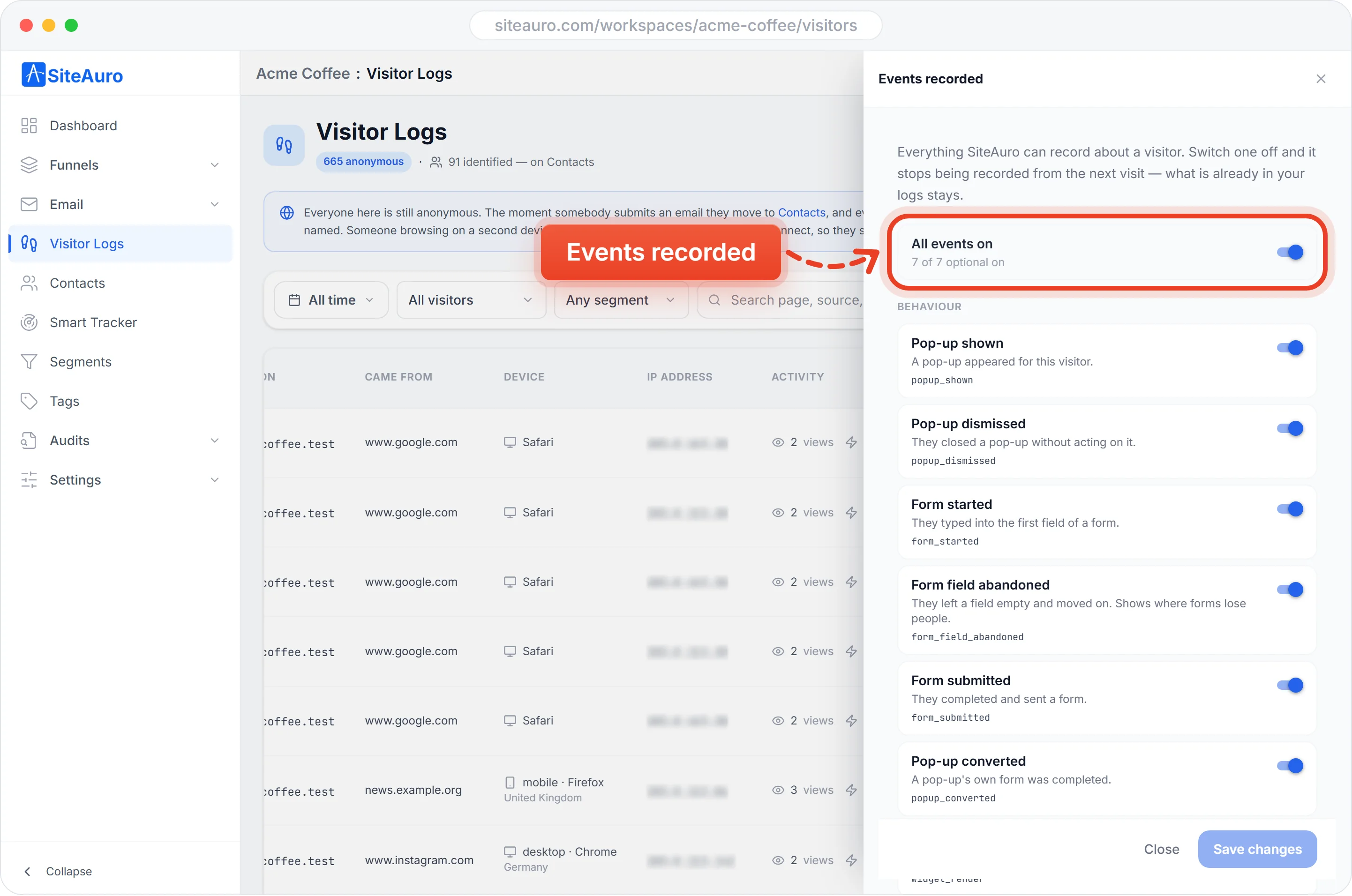
The Events recorded panel open on the right: All events on, 7 of 7 optional on, and under Behaviour a switch for each event, from Pop-up shown to Pop-up converted, each with what it means, and Close and Save changes at the bottom. The part this step is about is outlined in red, with the label "Events recorded" and a dashed arrow pointing to it.
Events recorded.

Delete Visitors

Tick the visitors you want, then click Delete in the bar above the list. To delete one, click the bin at the end of its row.
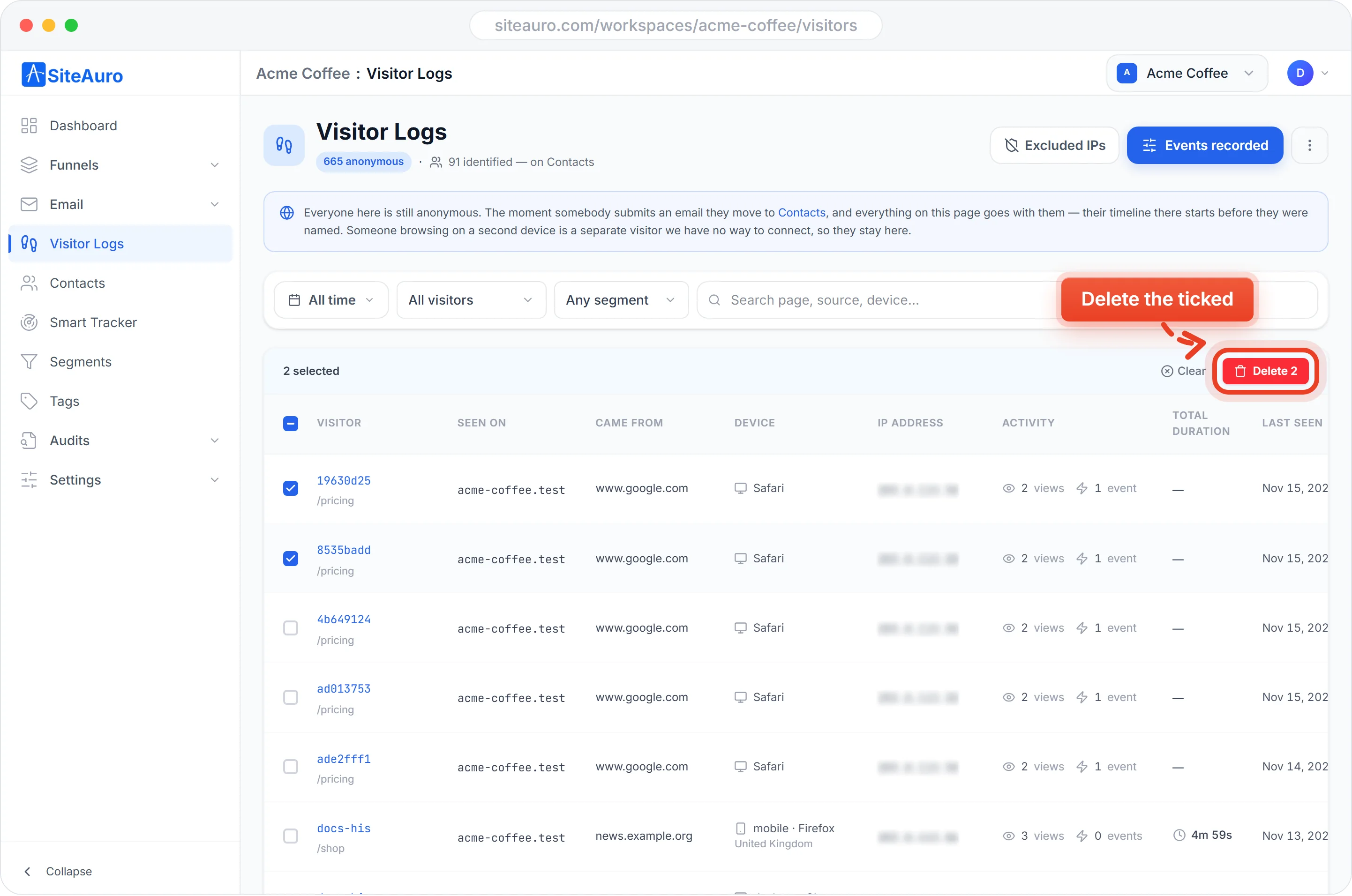
Two visitors ticked, with 2 selected, Clear and a red Delete 2 button above the list. The part this step is about is outlined in red, with the label "Delete the ticked" and a dashed arrow pointing to it.
Visitors ticked.

SiteAuro asks first: click Delete to confirm, or Cancel to keep them. Their page views, events and attribution go with them, and it can't be undone. Deleting a visitor doesn't delete the contact they became.
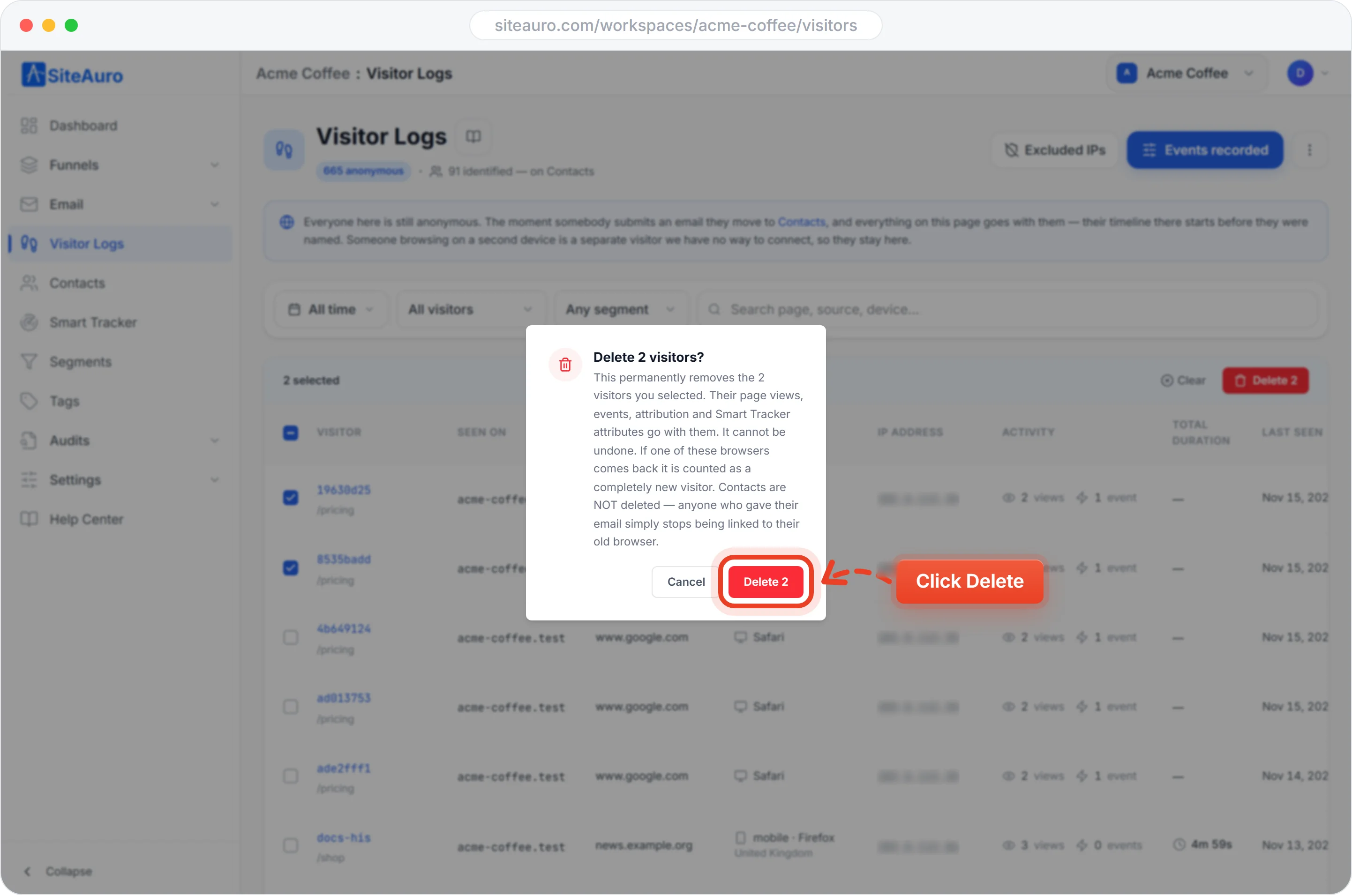
The question Delete 2 visitors?, saying what is removed with them and that contacts are not deleted, with Cancel and Delete 2. Delete 2 is outlined in red, with a red arrow labelled Click Delete.
The delete question.

Next Step

Install the SiteAuro Pixel on every page you want recorded. To stop recording your own visits, exclude your IP address.

Last updated