
An inbound webhook gives a funnel its own web address that other systems can send data to. Each request becomes a submission in the funnel, as if a visitor had filled it in, so it triggers the funnel's emails, webhooks and integrations too.
Open the funnel in the builder, click SETTINGS and choose Inbound Webhooks.
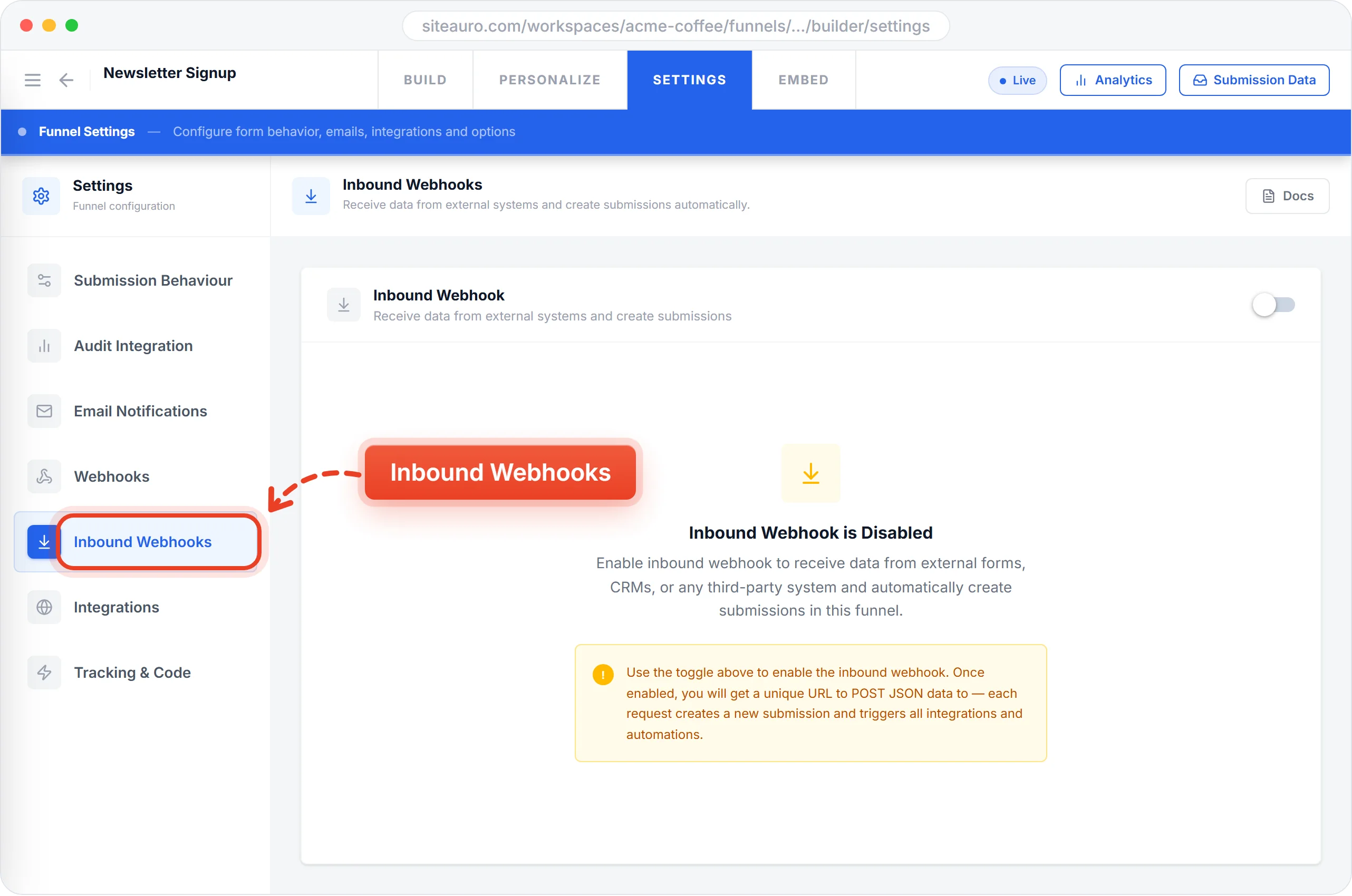
Turn It On
Switch it on
Until it is on, it says Inbound Webhook is Disabled. Click the switch at the top right.
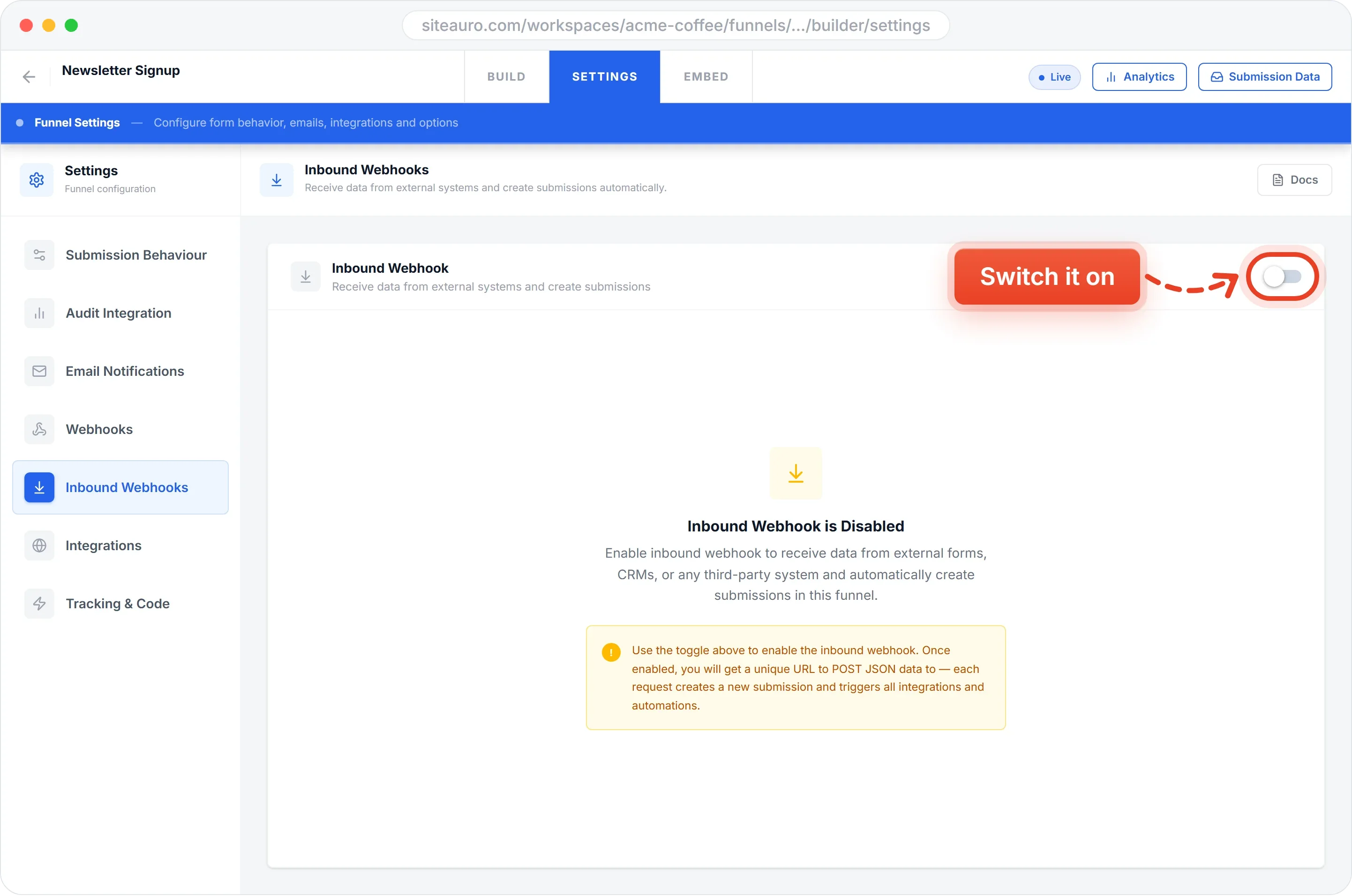
Inbound Webhook, off. Copy the Webhook URL
The funnel gets its own Webhook URL. Click Copy and paste it into the other system as the address to send data to.
Map the fields
Under Field Mapping, type each Incoming Key the other system sends and choose the Funnel Variable it fills. Add Row adds another. Keys you don't map are kept as they are.
Click Save Mapping
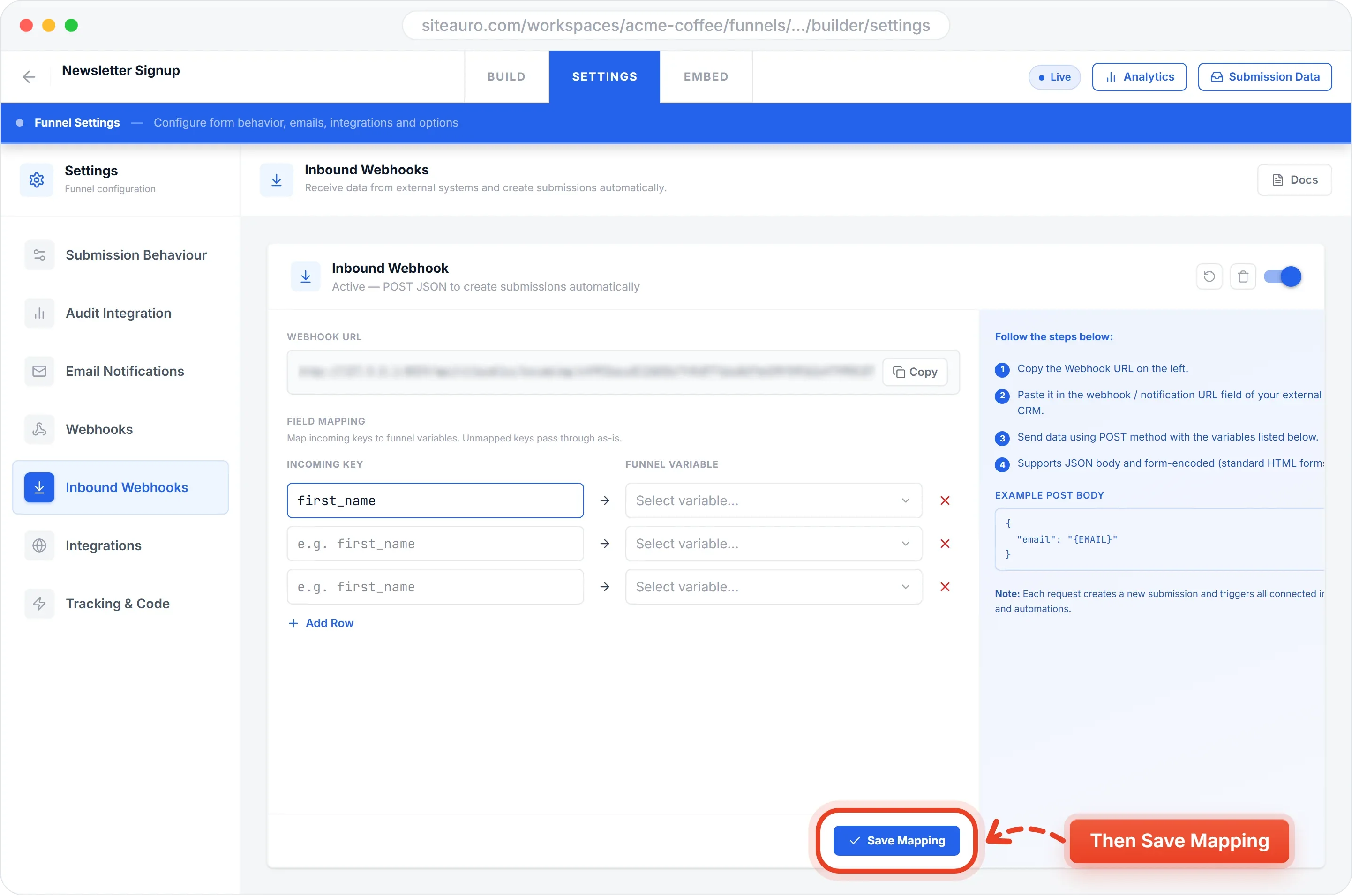
Inbound Webhook, on.
Send Data to It
Send a POST request to the Webhook URL, with a JSON body or as a standard HTML form. Each request creates one new submission. The Example POST body on the right shows one, with the funnel's own fields.
Warning
Treat the Webhook URL like a password. Anyone who has it can create submissions in your funnel, and the address is the only thing that is checked. Don't publish it in a web page or share it more than you need to. If it gets out, click the circular arrow at the top right of the card, beside the switch (its tip says Regenerate URL — invalidates old endpoint): the old address stops working at once. Then give the new one to the systems that should have it.
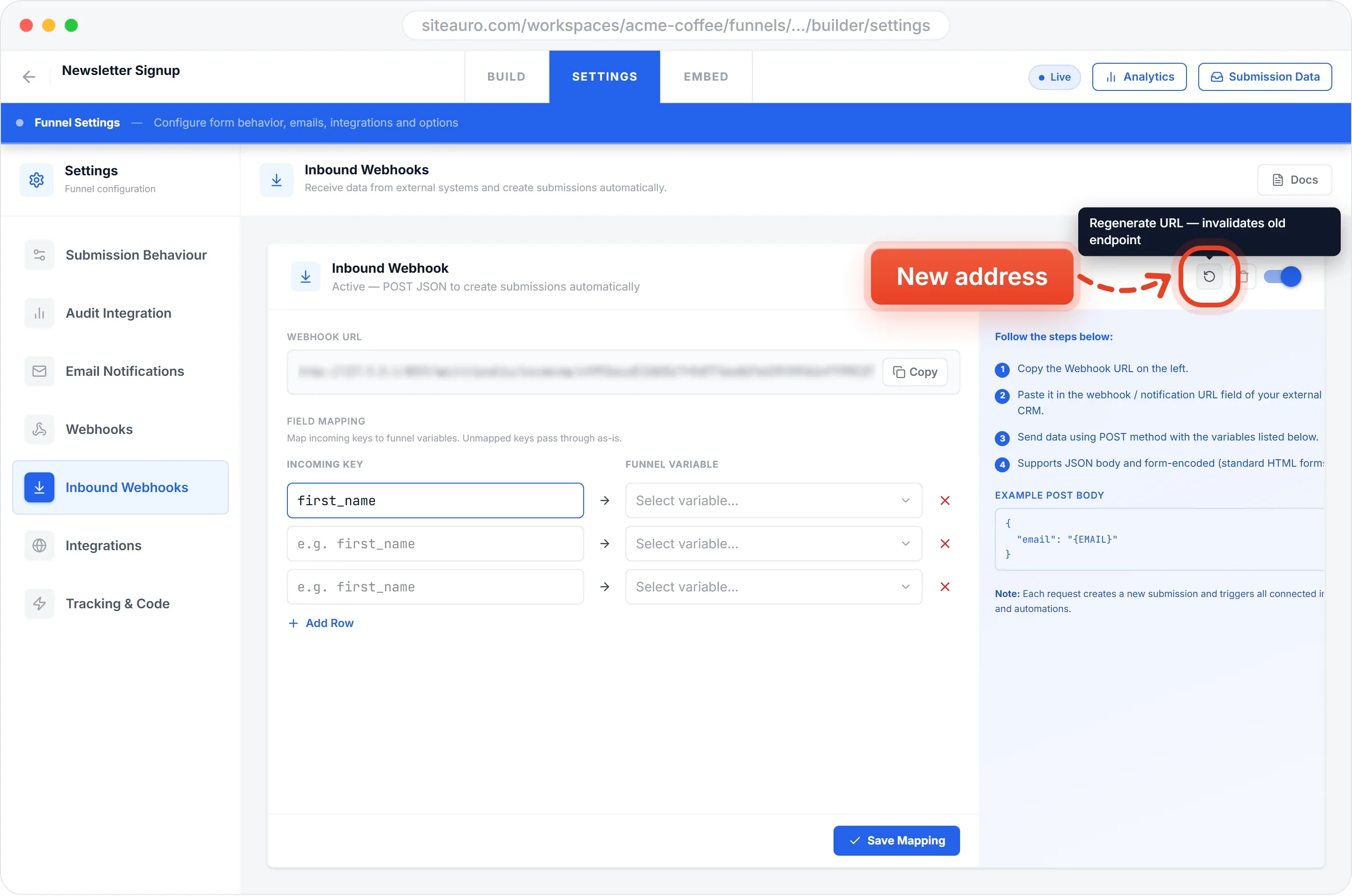
The bin beside it deletes the inbound webhook straight away, without asking; the address stops working.
Next Step
Outbound Webhooks send submissions the other way: from SiteAuro to another system.