
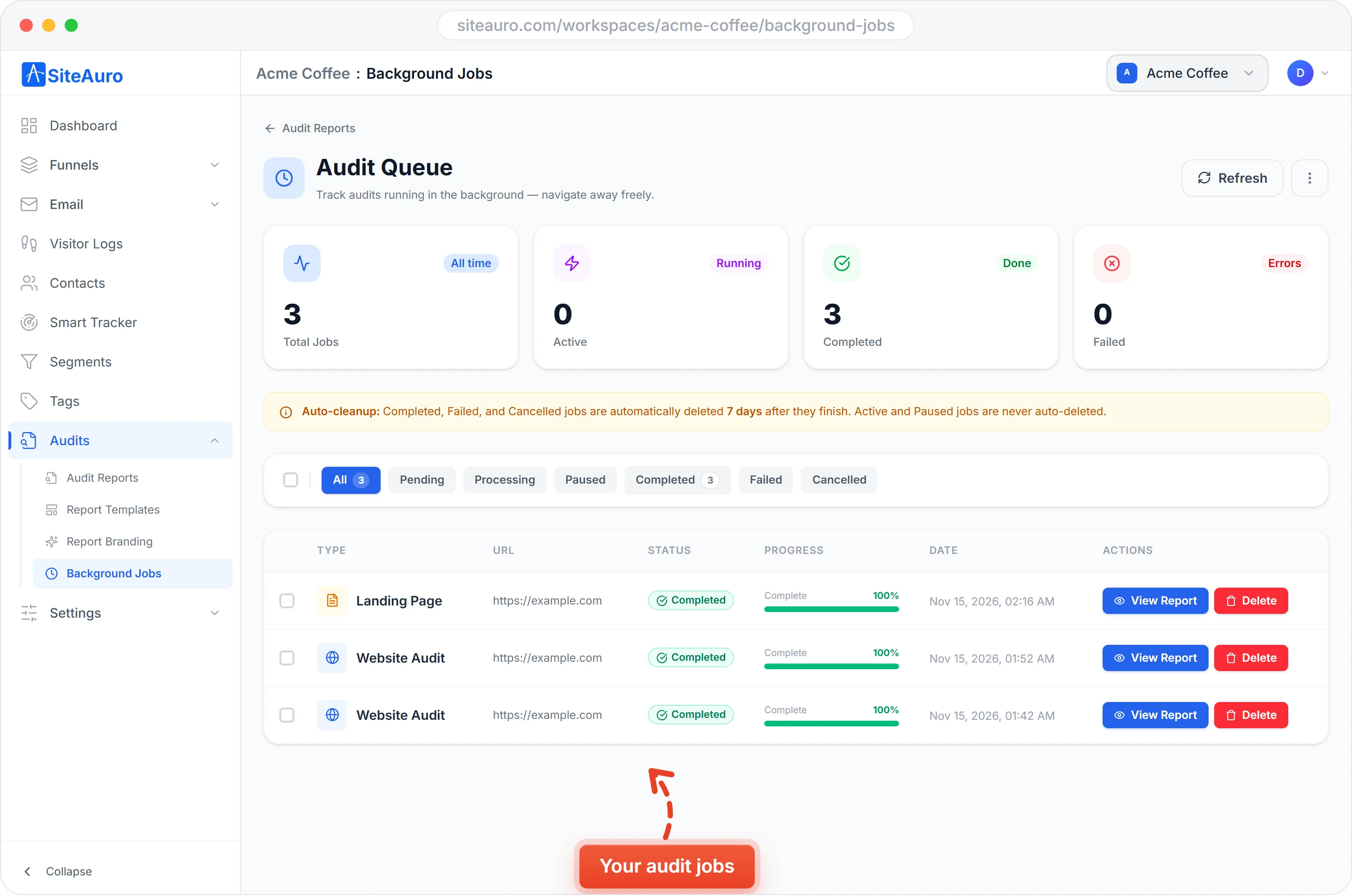
Audits take a few minutes, so they run in the background: you can start one and carry on with something else. Background Jobs shows each one as it goes.
In the menu, open Audits and choose Background Jobs, or click View Background Jobs while an audit runs.
What You See
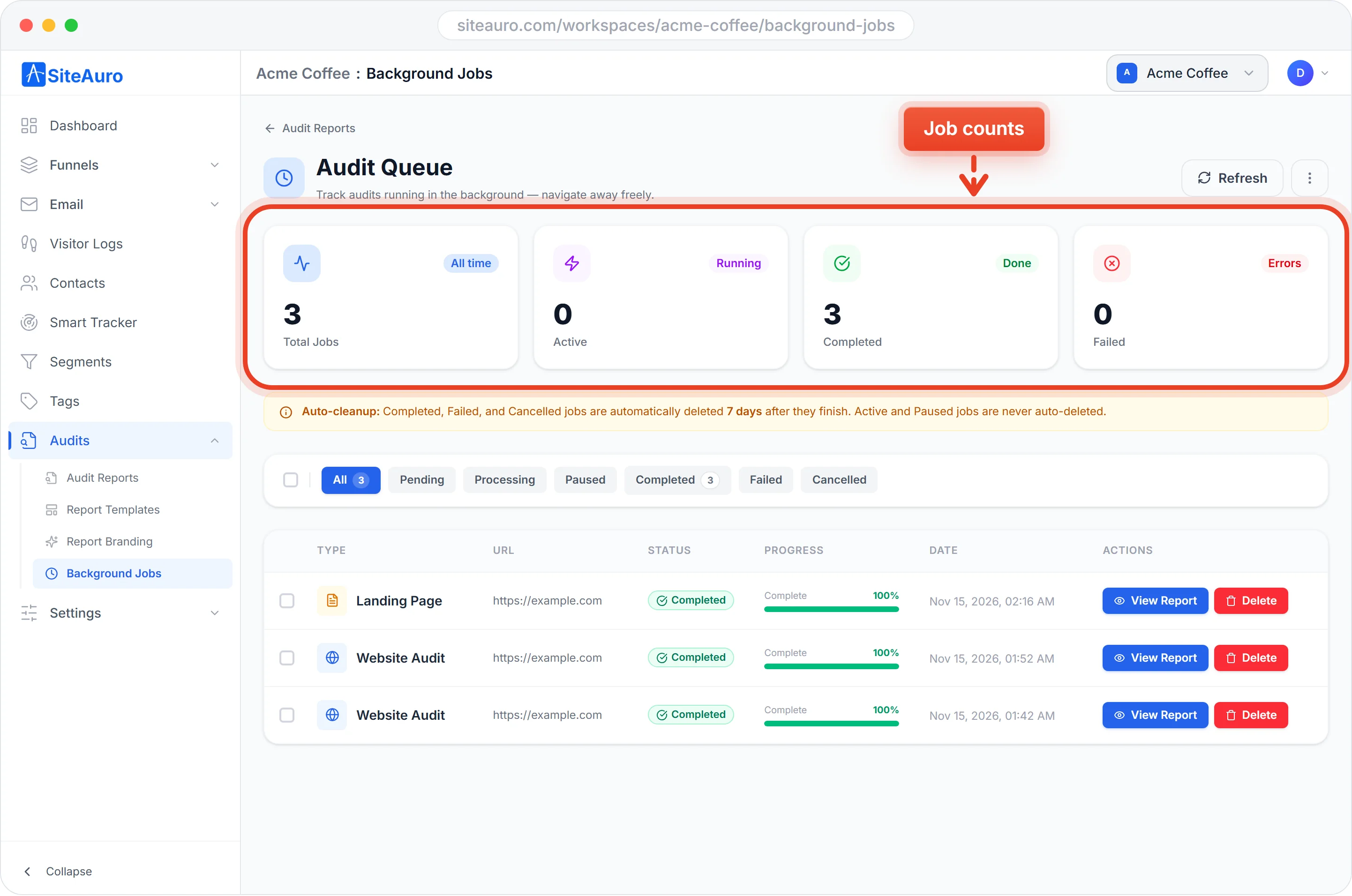
At the top, Total Jobs, Active, Completed and Failed count this workspace's jobs.
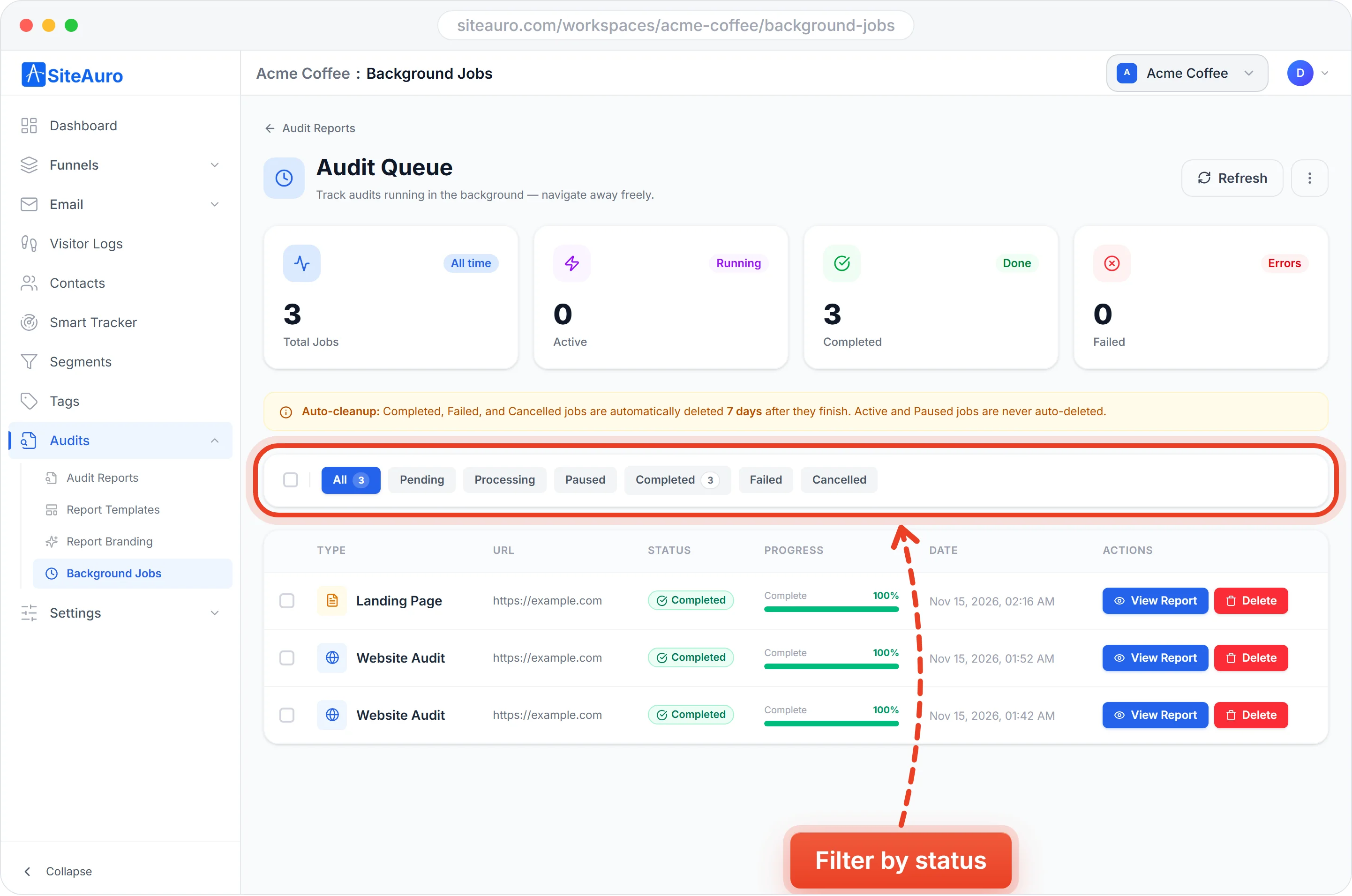
Filter the list by status: Pending, Processing, Paused, Completed, Failed or Cancelled.
Each job shows its type (Website Audit or Landing Page), the address audited, its status, its progress (the stage it has reached, or the reason it failed) and when it started. Running jobs update on their own, and Refresh checks now.
What You Can Do
A job's buttons are at the end of its row. Which ones it has depends on its status.
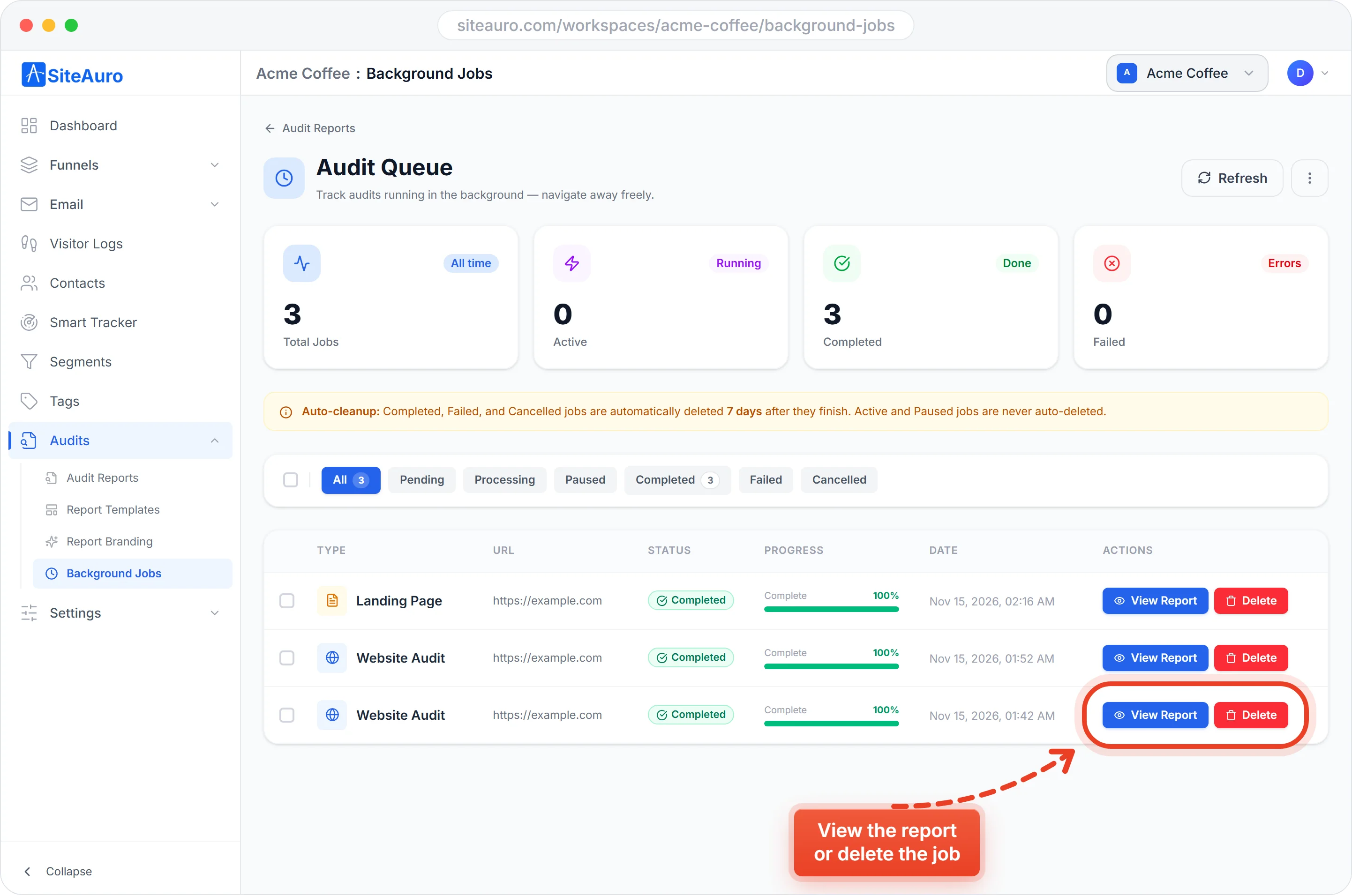
View Report: for a completed job.
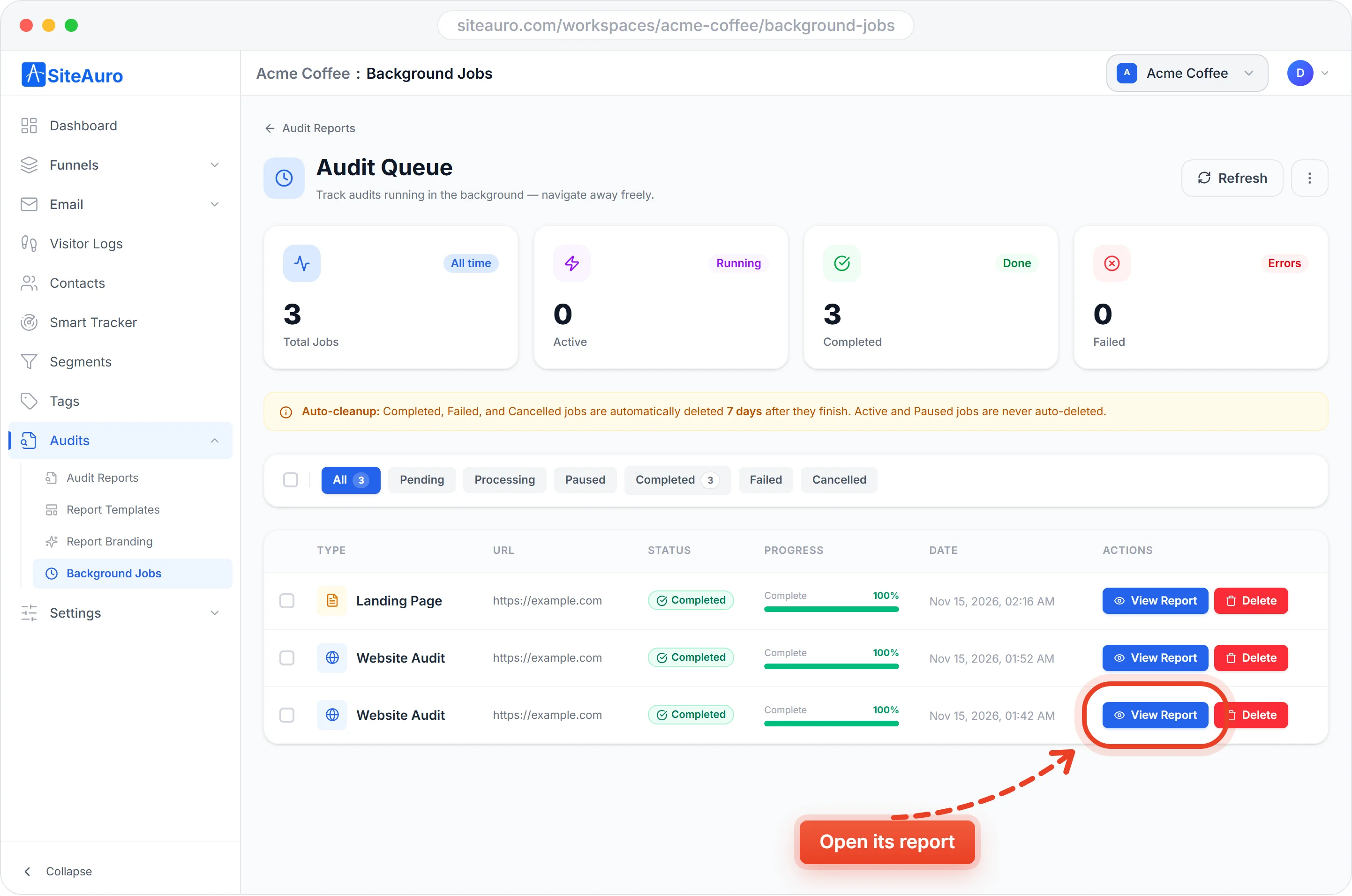
View Report. Cancel: stops a job that's still running. It's marked Cancelled.
Restart Audit: for a failed or cancelled job. The job runs again from the start, and its earlier report, if any, is replaced.
Delete: removes the record of a finished job. Tick several to delete them together.
Clearing Up
Completed, failed and cancelled jobs are deleted automatically 7 days after they finish. Deleting a job removes only its record here: a finished audit's report stays in Audit Reports.