
The Connected apps tab lists the AI apps you have allowed to reach your account. Disconnect one to stop it right away.
In the menu, click AI Connector (MCP), then the Connected apps tab. The number beside the tab's name is how many apps are connected.
What Each Row Shows
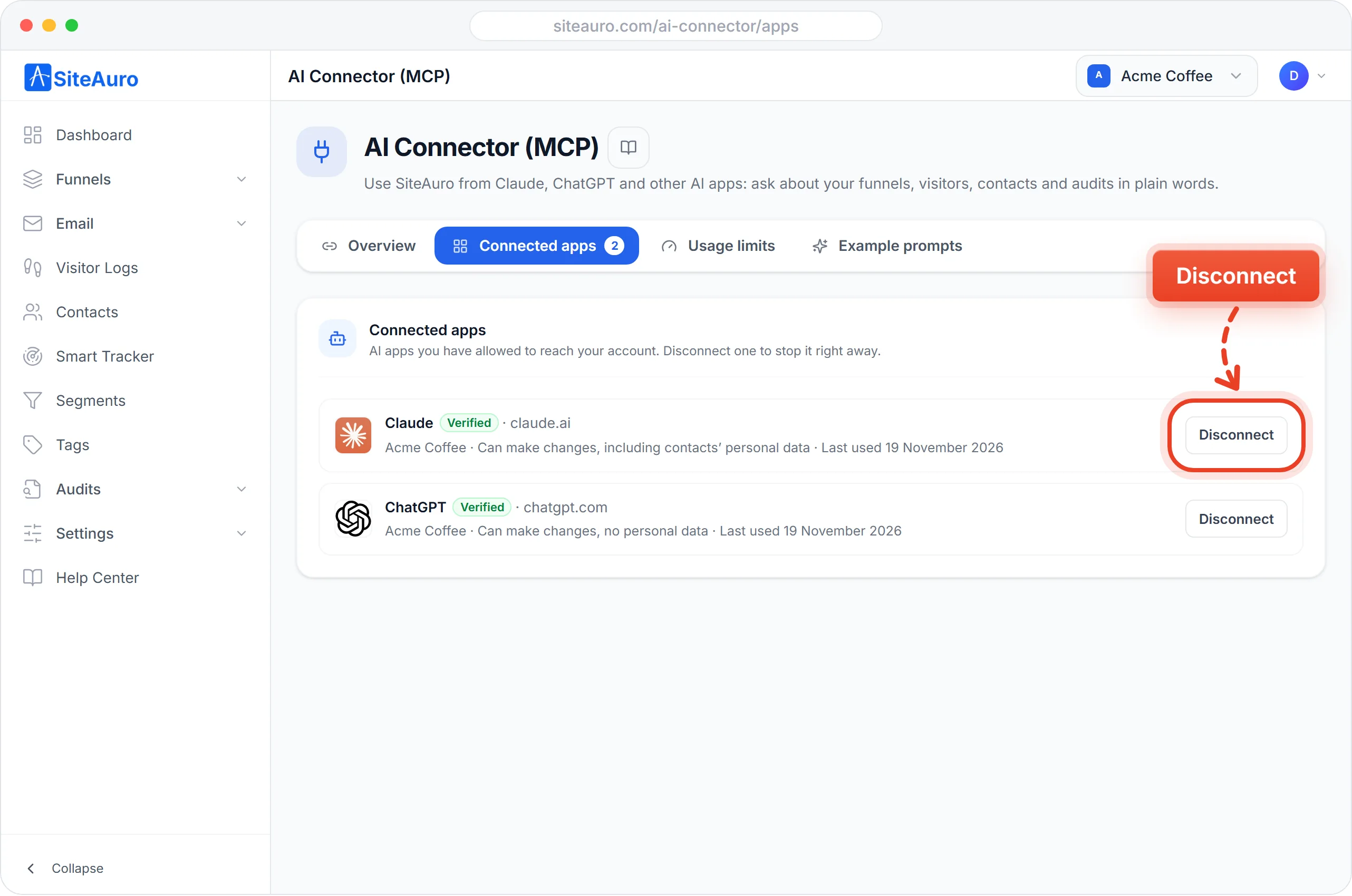
- The app's name, with its logo when SiteAuro can confirm which app it is (marked Verified), or the first letter of its name otherwise.
- The address the app returns you to after you sign in.
- The workspaces it may use.
- What it may do: Read only or Can make changes, and no personal data or including contacts' personal data, as you chose when you connected it.
- Last used and the day, or Not used yet.
Can make changes means the app may create and edit things in those workspaces. Anything that switches something on or off, such as publishing a funnel or resuming an automation, still waits for you to confirm it each time. See Confirming Changes.
With nothing connected, the tab says No AI apps connected yet. Connect your first AI app opens the Overview tab, where you connect an AI app.
Disconnect an App
Click Disconnect
On the app's row, click Disconnect.
Confirm
SiteAuro asks Disconnect [the app]?: the app will no longer be able to reach your SiteAuro account. Click Disconnect, or Cancel to keep it.
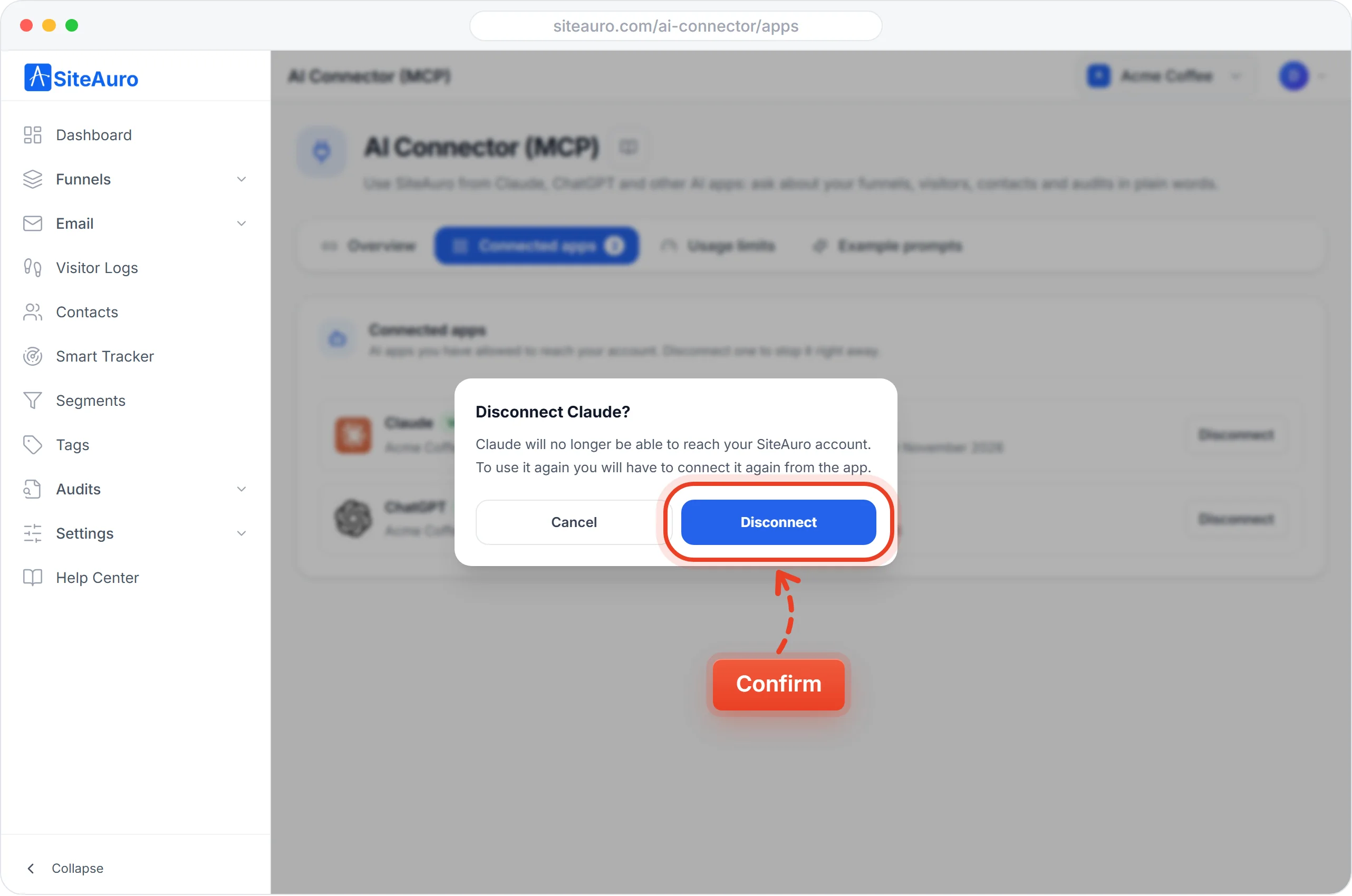
Confirm.
It stops at once. To use the app again, connect it again from the app.
Note
Changing your password, or resetting a forgotten one, disconnects every AI app. Signing out does not.
If you try to connect one more app than your account allows, the AI app is told to disconnect one in SiteAuro first. Connecting an app that is already connected doesn't count as another one. Usage Limits shows how many you're using.
Change What an App May Do
The row shows what you chose when you connected the app. To change it, for example to let it make changes or see contacts, disconnect it, then connect it again from the app and make the new choices on the Allow access page.
If you connect it again without disconnecting first, the list shows the app twice, each row with the choices made at the time. Disconnect the one you no longer want.
If Your Plan Ends or Changes
Connected apps keep their connection, but they stop working with your account:
- If your plan has ended, your AI app is told "Your SiteAuro plan has ended. Choose a plan to keep using the AI Connector."
- If your plan no longer includes the AI Connector, it is told "Your current SiteAuro plan doesn't include the AI Connector. Upgrade to keep using it."
Once you choose a plan that includes it, your apps work again, with nothing to reconnect. See Plan and Usage.
Next Steps
- Usage Limits: how much your AI apps can do, and what you've used.
- What Connected Apps Can Do: what an app reads, what it may change, and what it never does.
- Confirming Changes: how you say yes or no before something switches on or off.
- AI Connector Use Cases: step-by-step jobs to hand to your AI app.
- Example Prompts: ready-made questions to copy.
- Connect an AI App: set up a connection, or change what an app may do.