
Each funnel can carry your own tracking: Google Analytics, Google Tag Manager, the Meta (Facebook) pixel and the LinkedIn Insight Tag, plus any code of your own. They run on the funnel's own page, so you see its visits and conversions in those tools.
Open the funnel in the builder, click SETTINGS and choose Tracking & Code.
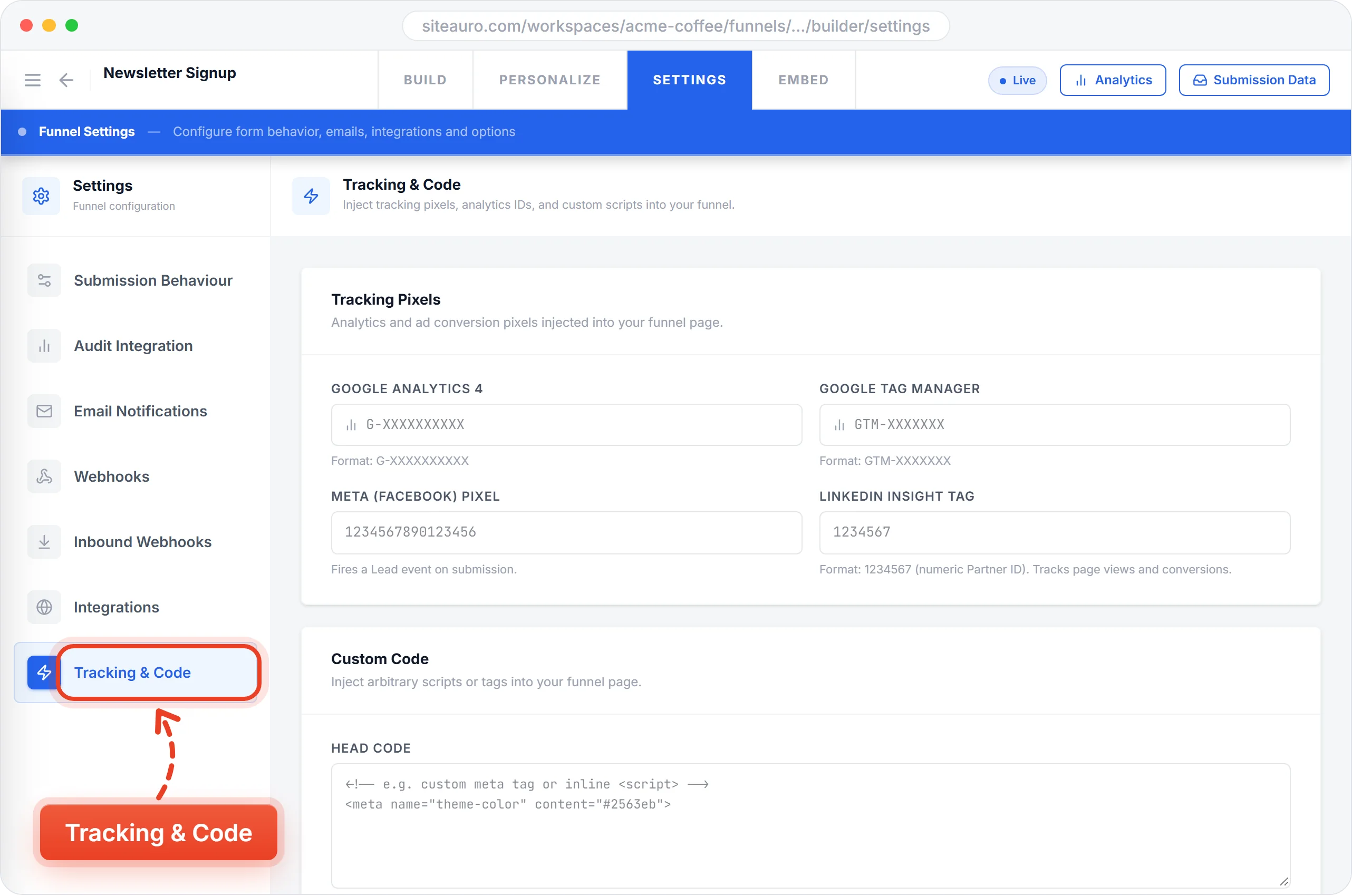
On a landing page, this section also has Track this page with the workspace pixel, so its visitors appear in Visitor Logs like the rest of your site.
Tracking Pixels
Paste the ID from each tool you use. Leave the others empty.
| Box | What to paste |
|---|---|
| Google Analytics 4 | Your measurement ID, such as G-XXXXXXXXXX. |
| Google Tag Manager | Your container ID, such as GTM-XXXXXXX. |
| Meta (Facebook) Pixel | Your pixel ID. It fires a Lead event when someone submits. |
| LinkedIn Insight Tag | Your numeric Partner ID, such as 1234567. It tracks page views and conversions. |
Your Own Code
- Head code goes inside the page's
<head>: for meta tags, preconnect hints or short scripts. - Body code goes into the page's body.
Use them for any other tool that gives you a snippet to paste.
Warning
Code you add here runs for every visitor of the funnel. Paste only code you trust, from the tool it came from.
Next Step
Other Integrations sends submissions to your CRM or email tool.