
Skip to content
SiteAuro

Create a Widget

Add a small overlay to pages you already have, such as recent sign-ups, reviews, a live counter or an announcement bar.

Table of Contents
  1. Create the Widget
  2. The Widgets
  3. The Widget Builder

A widget is a small overlay on pages you already have: a card in a corner showing who just signed up, your reviews, how many people are browsing, or a bar along the top of the page. Like popups, widgets reach your site through the SiteAuro pixel, so there is nothing else to paste.

Create the Widget

  1. Open Create funnel

    In the menu, open Funnels and choose Create funnel. Under What are you building?, choose Widget.
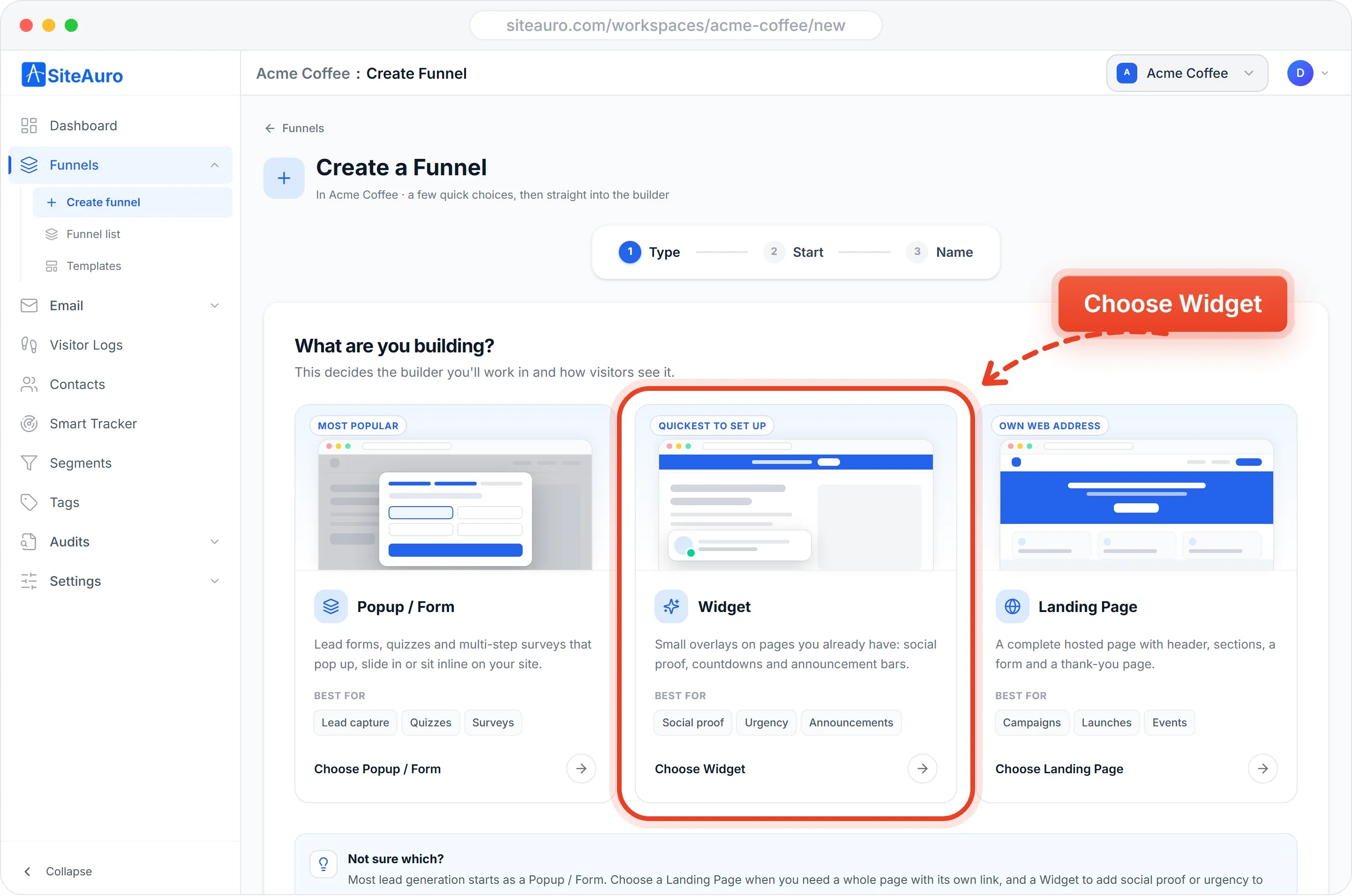
    The Create a Funnel page in a browser window, on the Type step, under What are you building?: three cards, Popup / Form (most popular), Widget (quickest to set up) and Landing Page (own web address), each with what it is best for and a Choose button. The part this step is about is outlined in red, with the label "Choose Widget" and a dashed arrow pointing to it.
    Choose Widget.
  2. Choose the widget

    Under Which widget?, choose the one that fits. Floating cards sit in a corner, over your page; Full-width bars run along the top or bottom. Click Use this widget on the one you want.
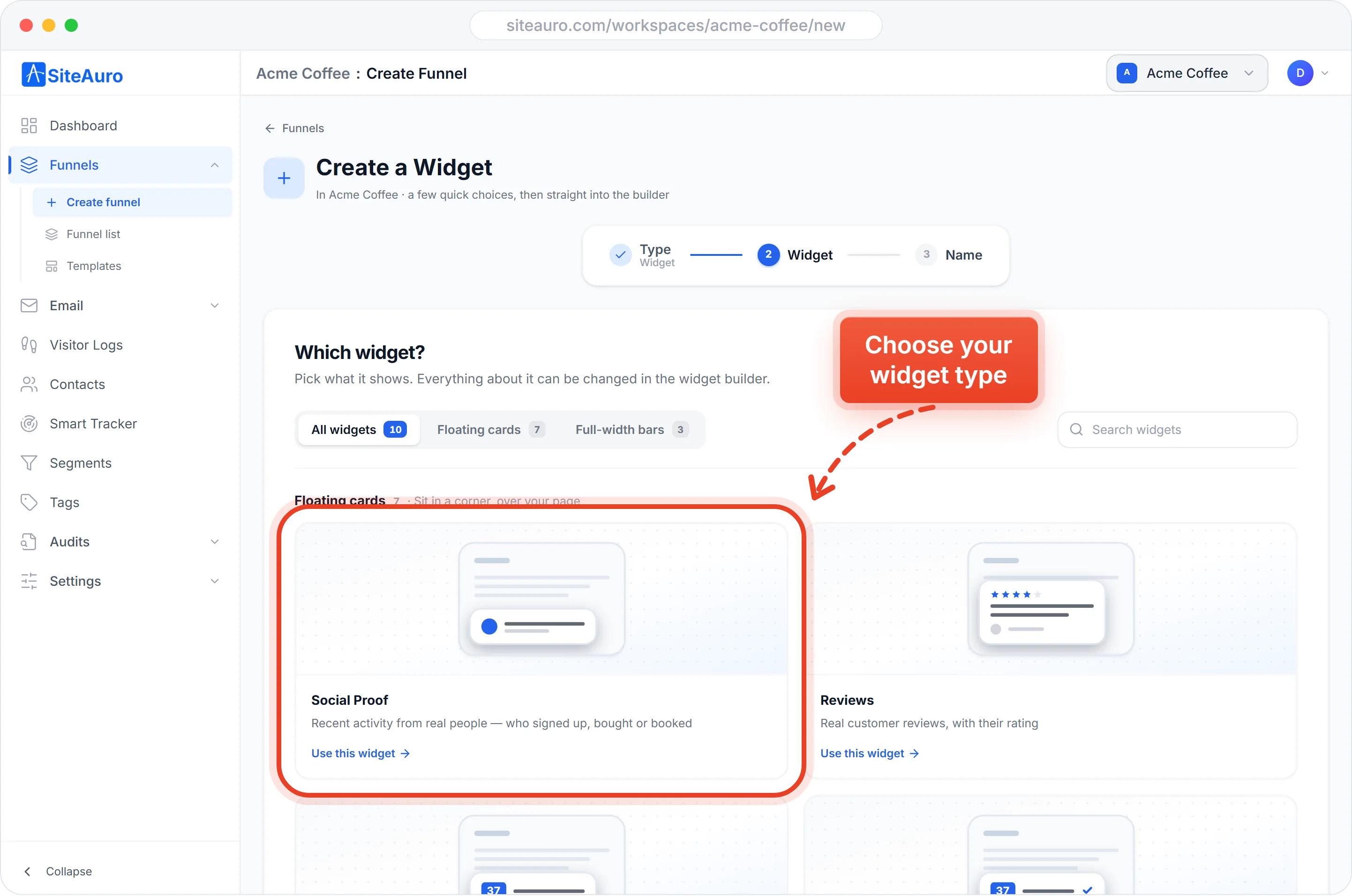
    The Create a Widget screen in a browser window, on the Widget step, with the buttons All widgets, Floating cards and Full-width bars, a Search widgets box, and the Social Proof and Reviews cards. The Social Proof card is outlined in red, with the label "Choose your widget type" and a dashed arrow pointing to it.
    Choose your widget type.
  3. Name it and click Create widget

    Type a Widget name you'll recognise, or keep the one suggested, and click Create widget. The widget builder opens.
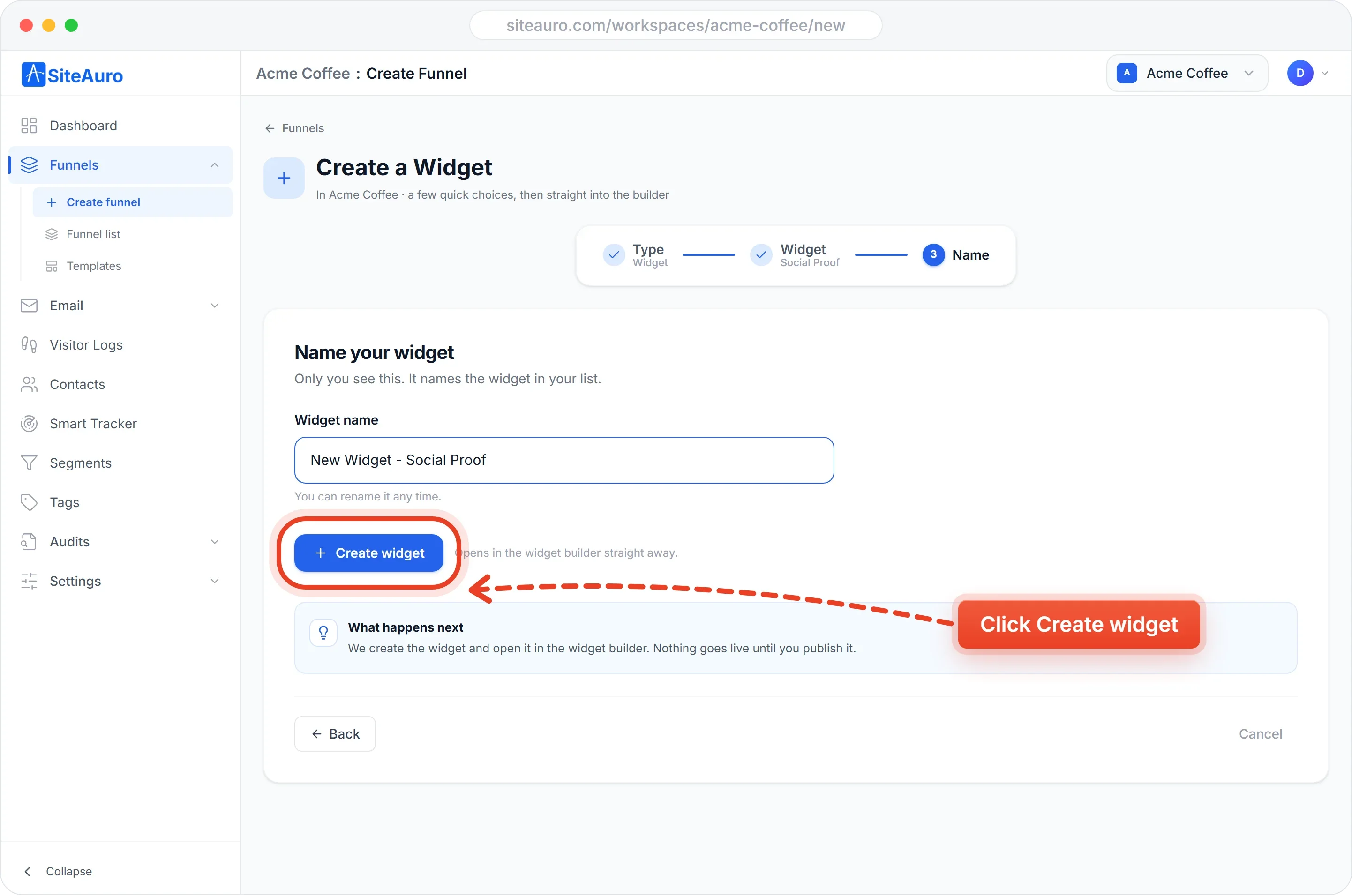
    The Name step of Create a Widget in a browser window, with Type Widget and Widget Social Proof ticked: Name your widget, the Widget name New Widget - Social Proof, the Create widget button, and What happens next: nothing goes live until you publish it. The part this step is about is outlined in red, with the label "Click Create widget" and a dashed arrow pointing to it.
    Name it.

The Widgets

There are ten widgets. The first seven are floating cards, which sit in a corner over your page. The last three are full-width bars, which run along the top or bottom of it. Each picture below shows a new widget of that kind in the widget builder, with the widget outlined in its preview, as it looks before you change anything.

Social Proof

Shows recent activity from real people: who signed up, bought or booked, where they are, and how long ago. You write the message once, such as {name} from {location} just {event}, and each item fills it in.
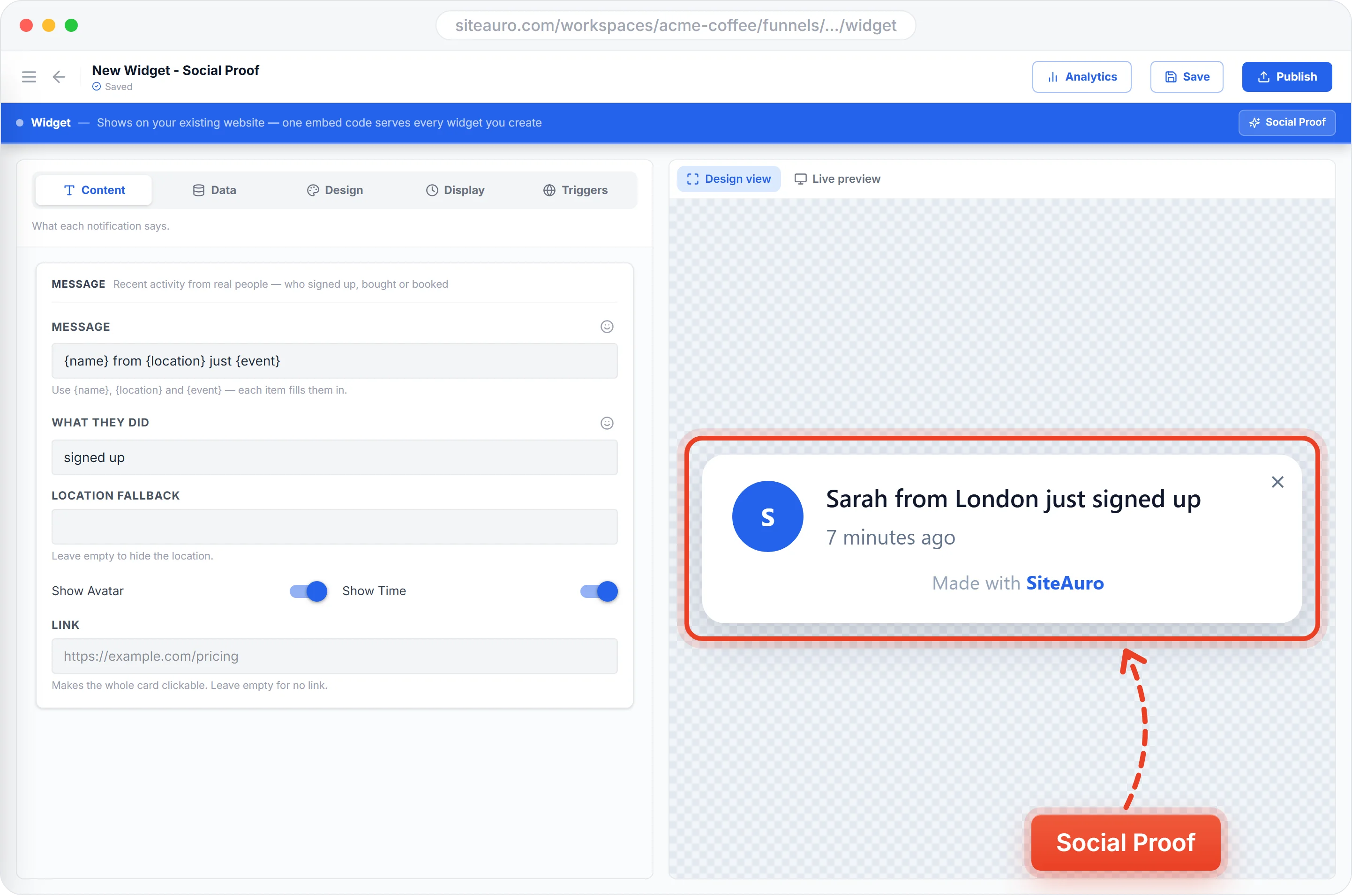
The widget builder for a Social Proof widget in a browser window. In the preview on the right, a card reads Sarah from London just signed up, 7 minutes ago. The card is outlined in red, with the label "Social Proof" and a dashed arrow pointing to it.
Social Proof.

Reviews

Shows real customer reviews, one at a time, with their star rating, the person's name and photo, and where they are. You choose how many lines of a quote to show and the lowest rating to include.
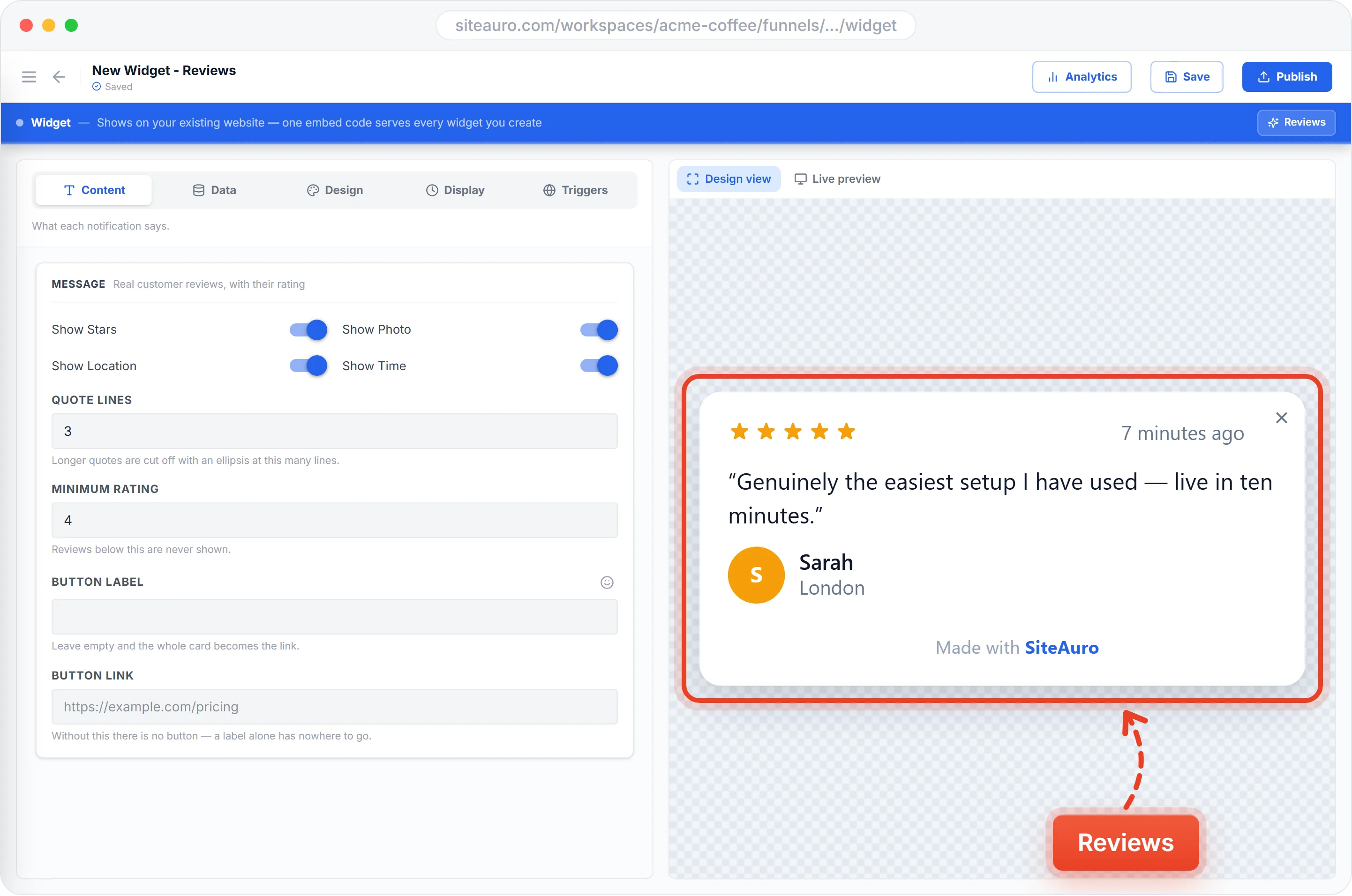
The widget builder for a Reviews widget in a browser window. In the preview on the right, a card shows five stars, the quote "Genuinely the easiest setup I have used — live in ten minutes.", and Sarah, London. The card is outlined in red, with the label "Reviews" and a dashed arrow pointing to it.
Reviews.

Popularity

Shows how many people viewed the page over a period you choose, or one recent visitor at a time. You choose the words for your visitors, such as trendsetter or shopper, and the card stays hidden until the count reaches your minimum.
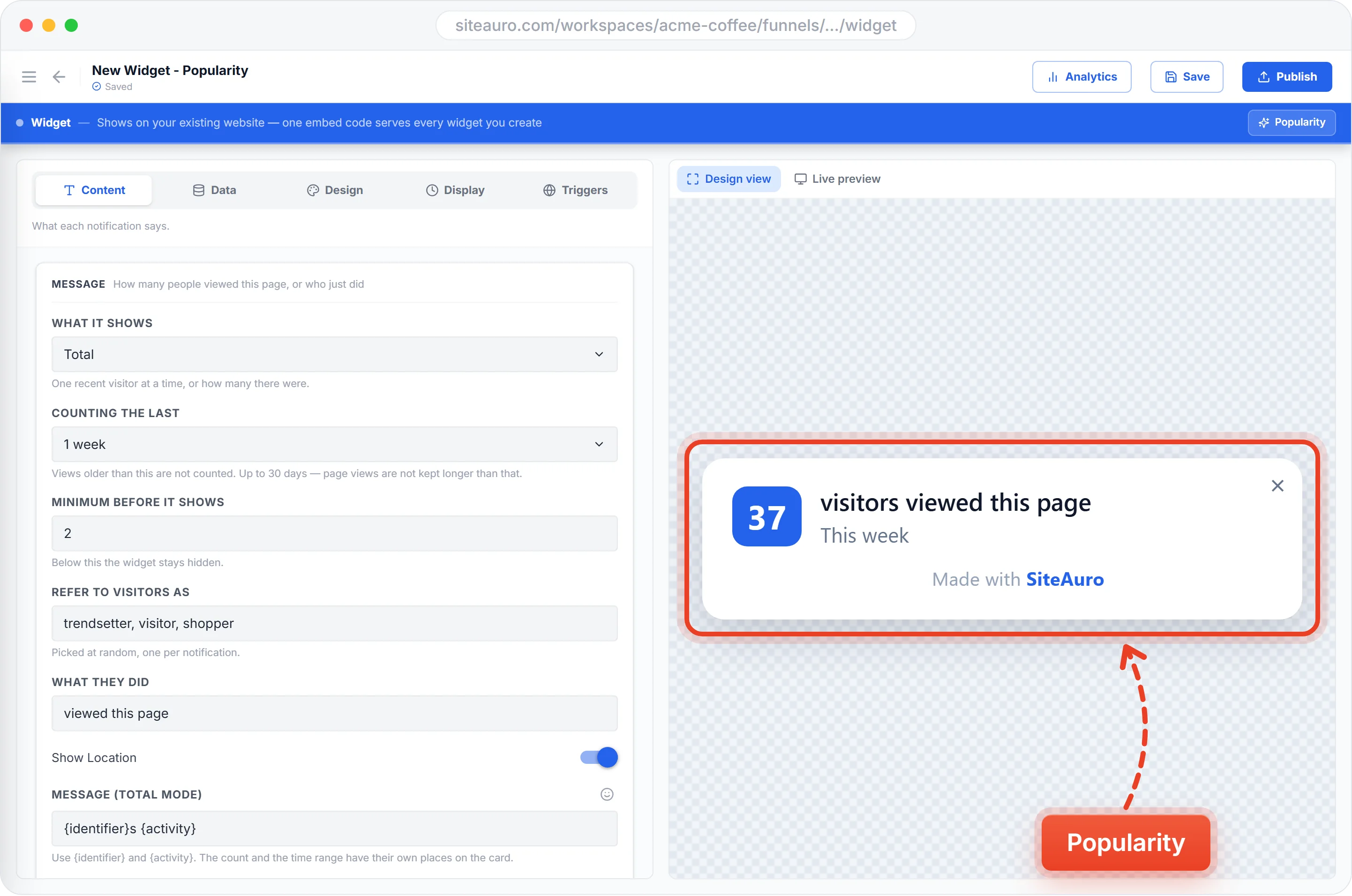
The widget builder for a Popularity widget in a browser window. In the preview on the right, a card reads 37 trendsetters viewed this page, This week. The card is outlined in red, with the label "Popularity" and a dashed arrow pointing to it.
Popularity.

Conversions Counter

Shows how many people signed up or bought over a period you choose, such as the last week. The card stays hidden until the count reaches your minimum.
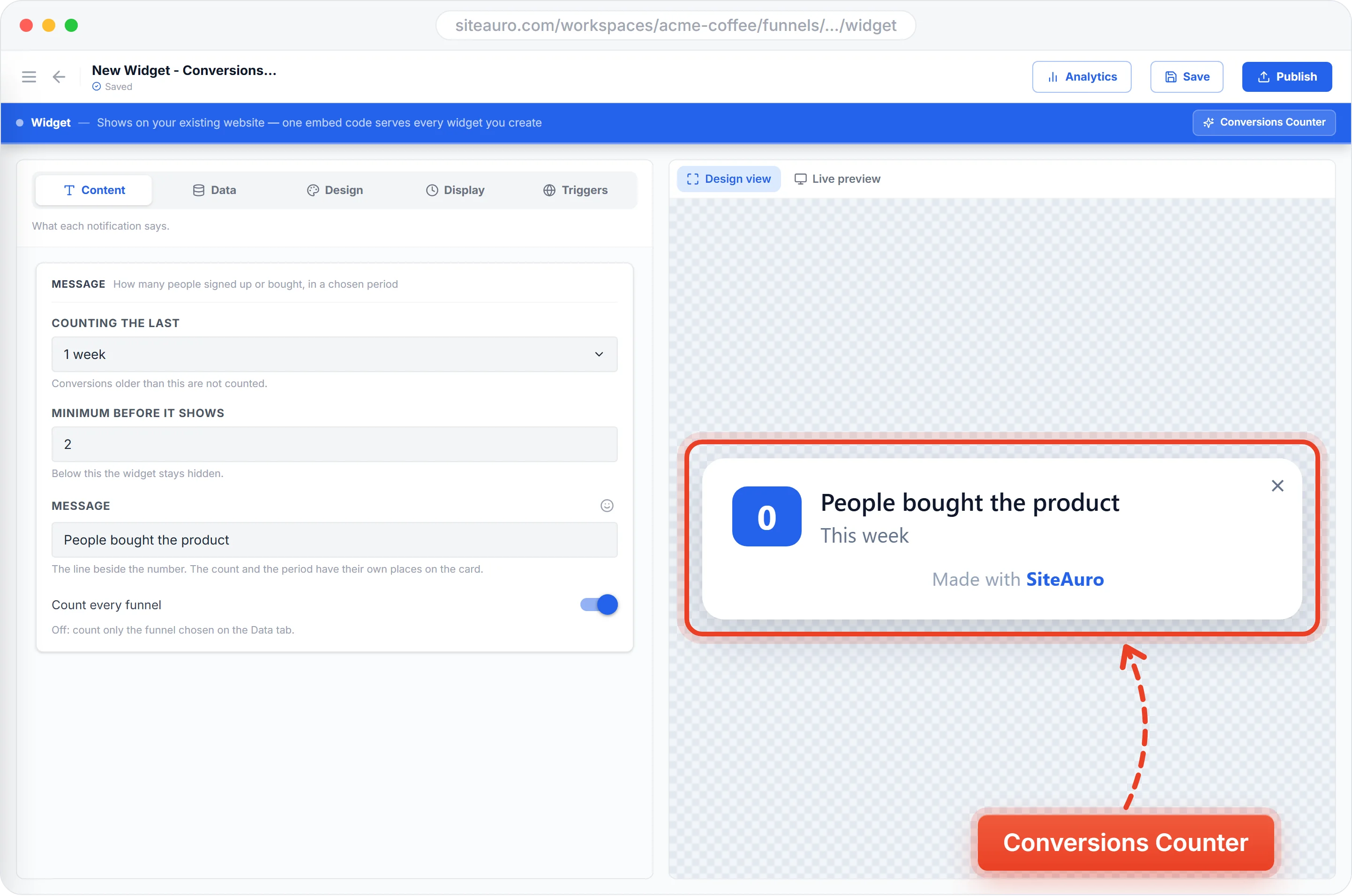
The widget builder for a Conversions Counter widget in a browser window. In the preview on the right, a card reads 16 People bought the product, This week. The card is outlined in red, with the label "Conversions Counter" and a dashed arrow pointing to it.
Conversions Counter.

Live Counter

Shows how many people are on your site right now. You choose how recently a visitor must have been seen to count, and the card stays hidden until the count reaches your minimum.
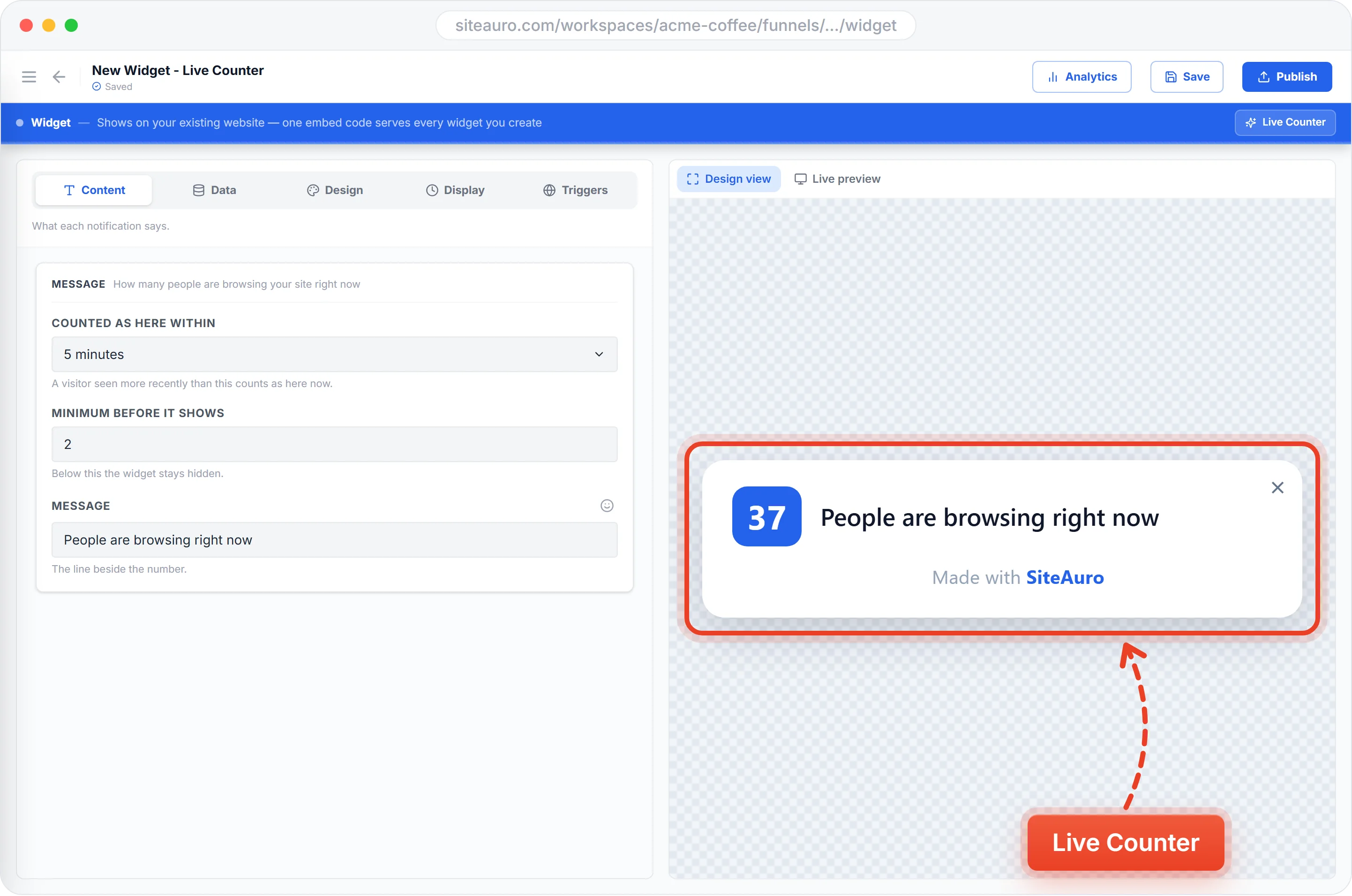
The widget builder for a Live Counter widget in a browser window. In the preview on the right, a card reads 37 People are browsing right now. The card is outlined in red, with the label "Live Counter" and a dashed arrow pointing to it.
Live Counter.

Feedback

Asks visitors to rate something, with stars, hearts, numbers, emoji or a like and dislike. You write the question and the thank-you message shown once someone answers.
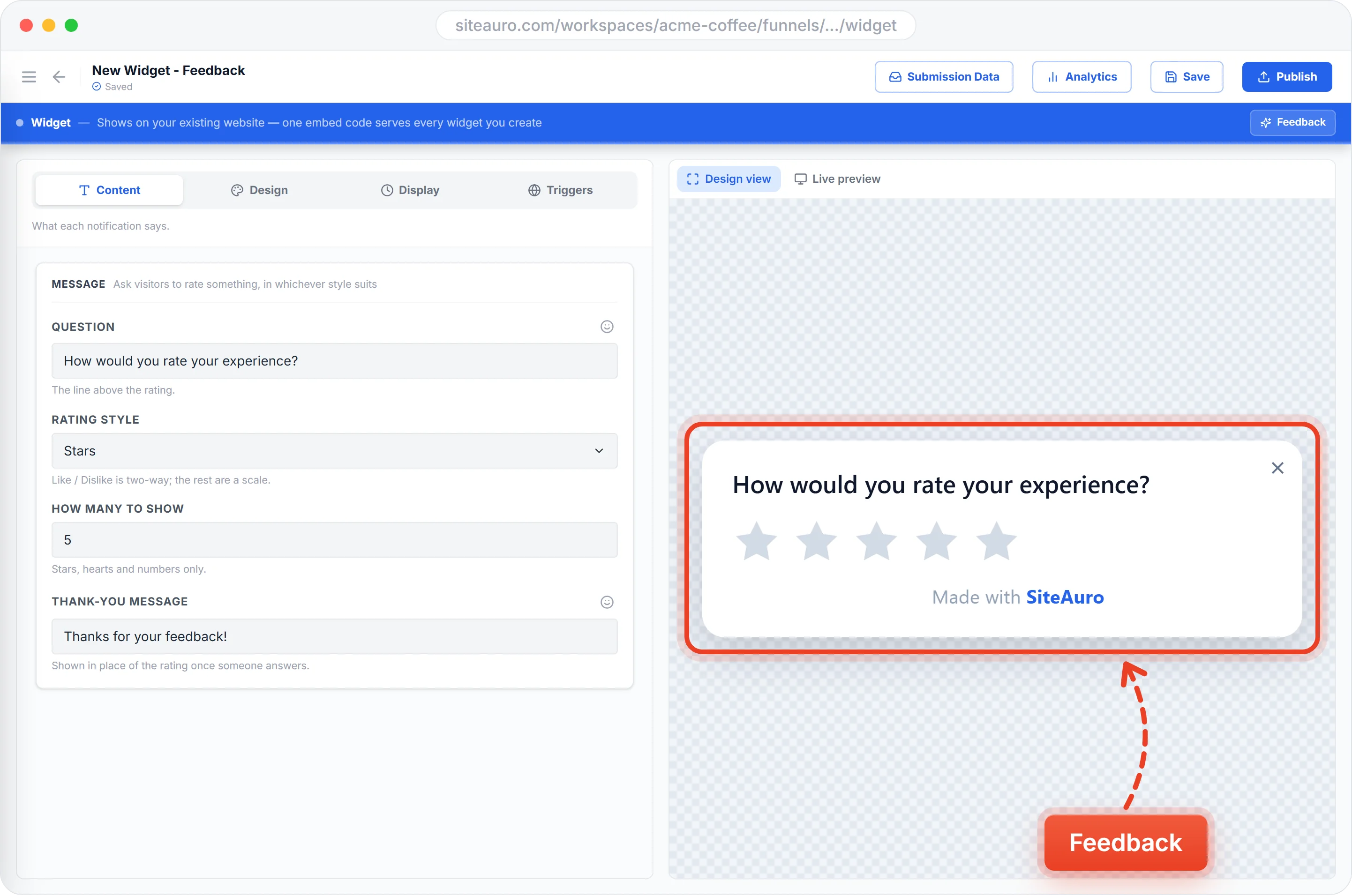
The widget builder for a Feedback widget in a browser window. In the preview on the right, a card asks How would you rate your experience? above five stars. The card is outlined in red, with the label "Feedback" and a dashed arrow pointing to it.
Feedback.

Custom Widget

Your own card: an icon or emoji, a heading, a message and, if you want one, a button with its link.
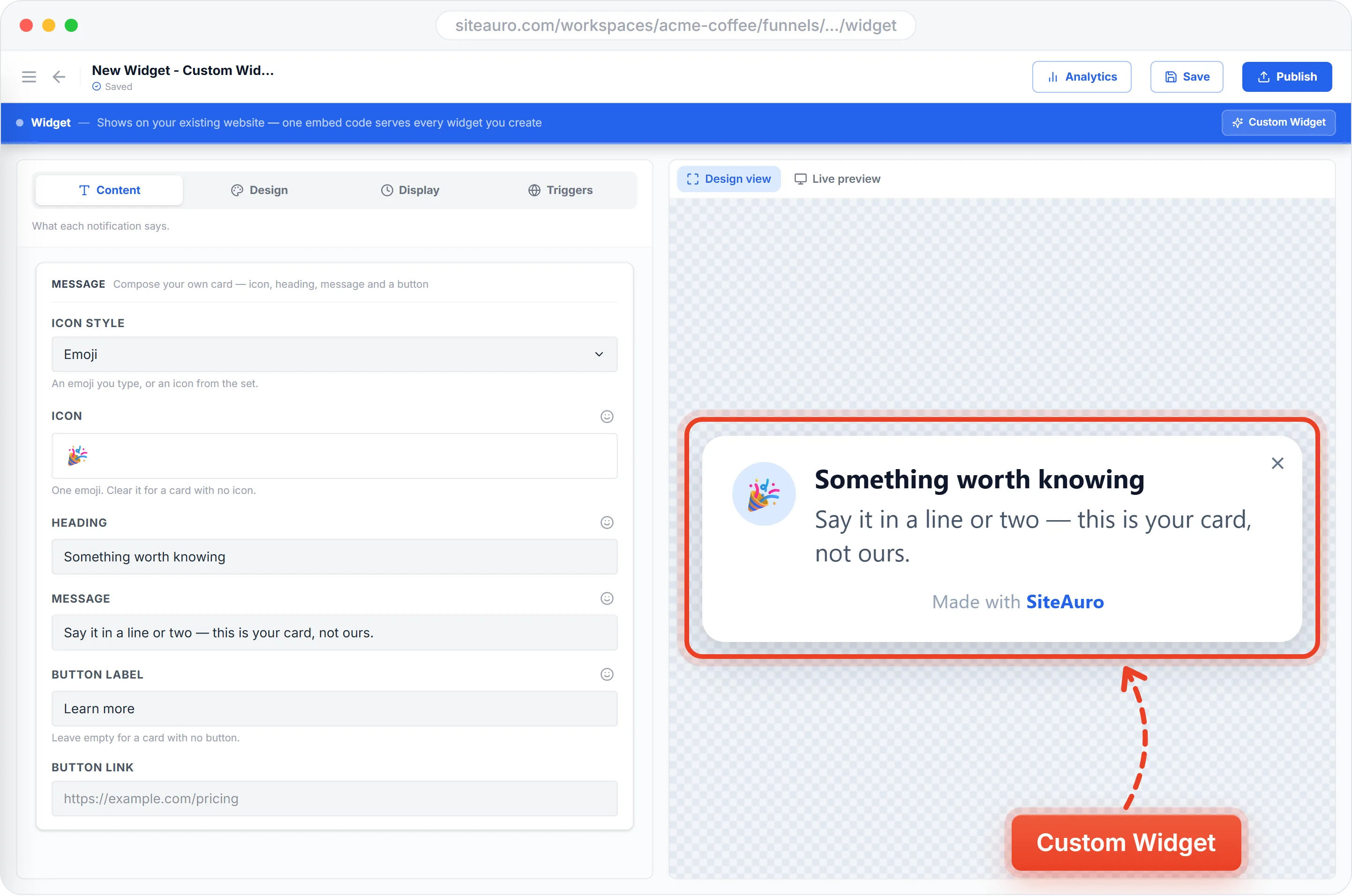
The widget builder for a Custom Widget in a browser window. In the preview on the right, a card with a party emoji reads Something worth knowing, and Say it in a line or two — this is your card, not ours. The card is outlined in red, with the label "Custom Widget" and a dashed arrow pointing to it.
Custom Widget.

Announcement Bar

A full-width bar with your message and a button, such as a sale and a Shop now link. It can make room for itself, so it doesn't cover the top of your page.
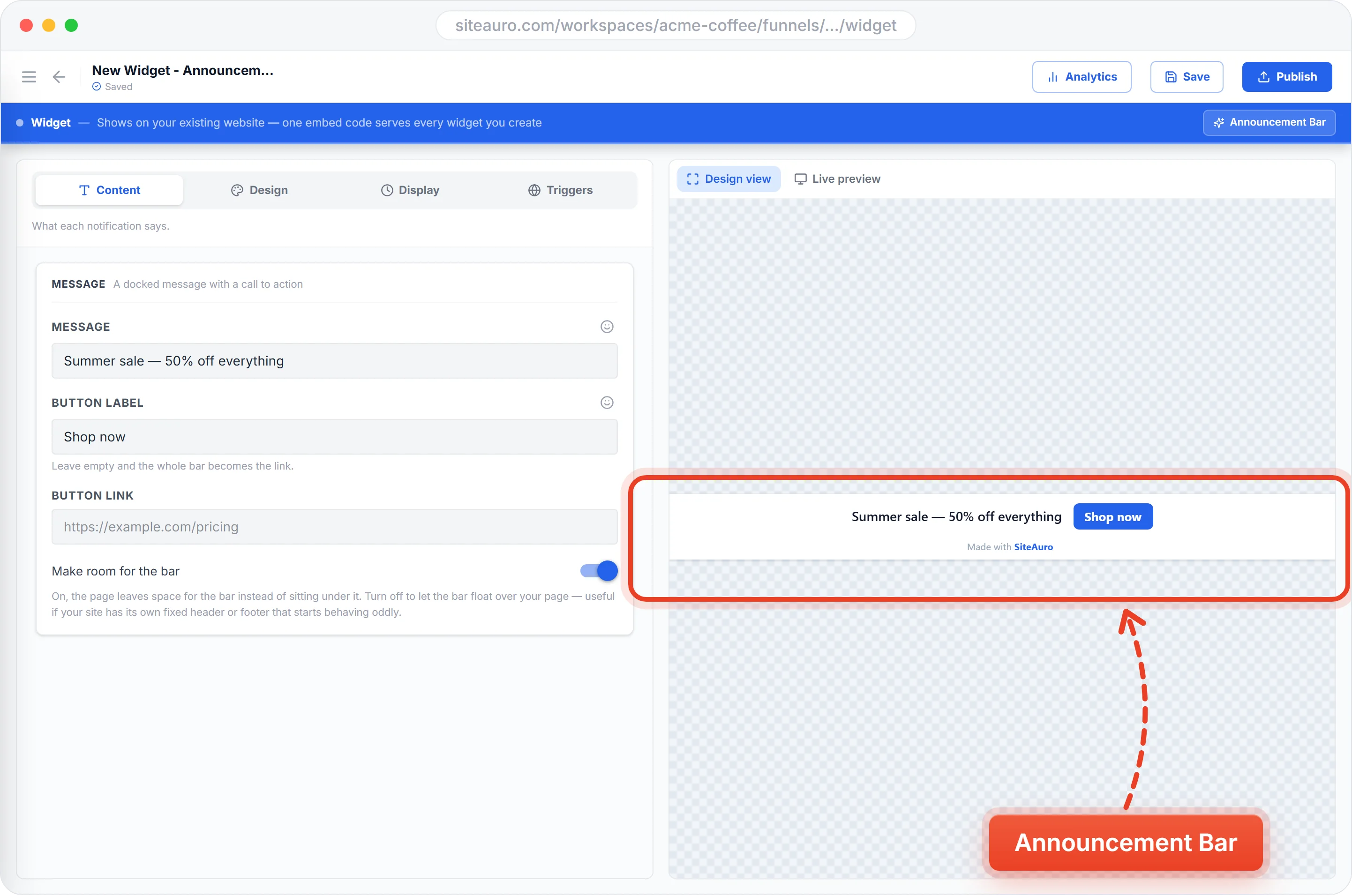
The widget builder for an Announcement Bar in a browser window. In the preview on the right, a bar reads Summer sale — 50% off everything, with a Shop now button. The bar is outlined in red, with the label "Announcement Bar" and a dashed arrow pointing to it.
Announcement Bar.

Urgency Bar

A full-width bar with your message, a live countdown to the date and time you set, and a button. You choose what happens when it reaches zero.
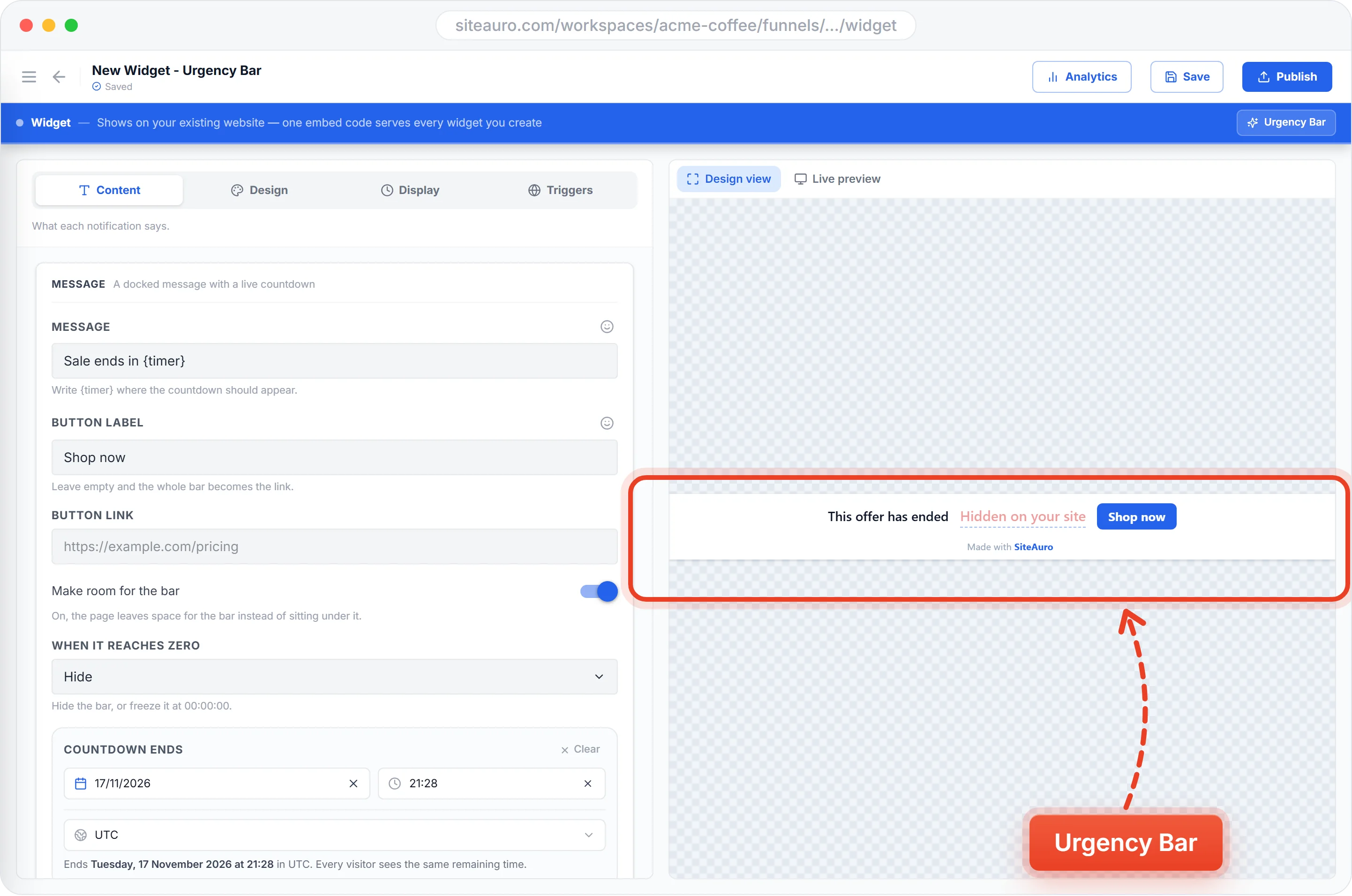
The widget builder for an Urgency Bar in a browser window. In the preview on the right, a bar reads Sale ends in, followed by a countdown in red and a Shop now button. The bar is outlined in red, with the label "Urgency Bar" and a dashed arrow pointing to it.
Urgency Bar.

NPS Survey

Asks one question in a full-width bar: how likely someone is to recommend you, from 0 to 10. Each answer is saved with its score, and you write the thank-you message shown afterwards.
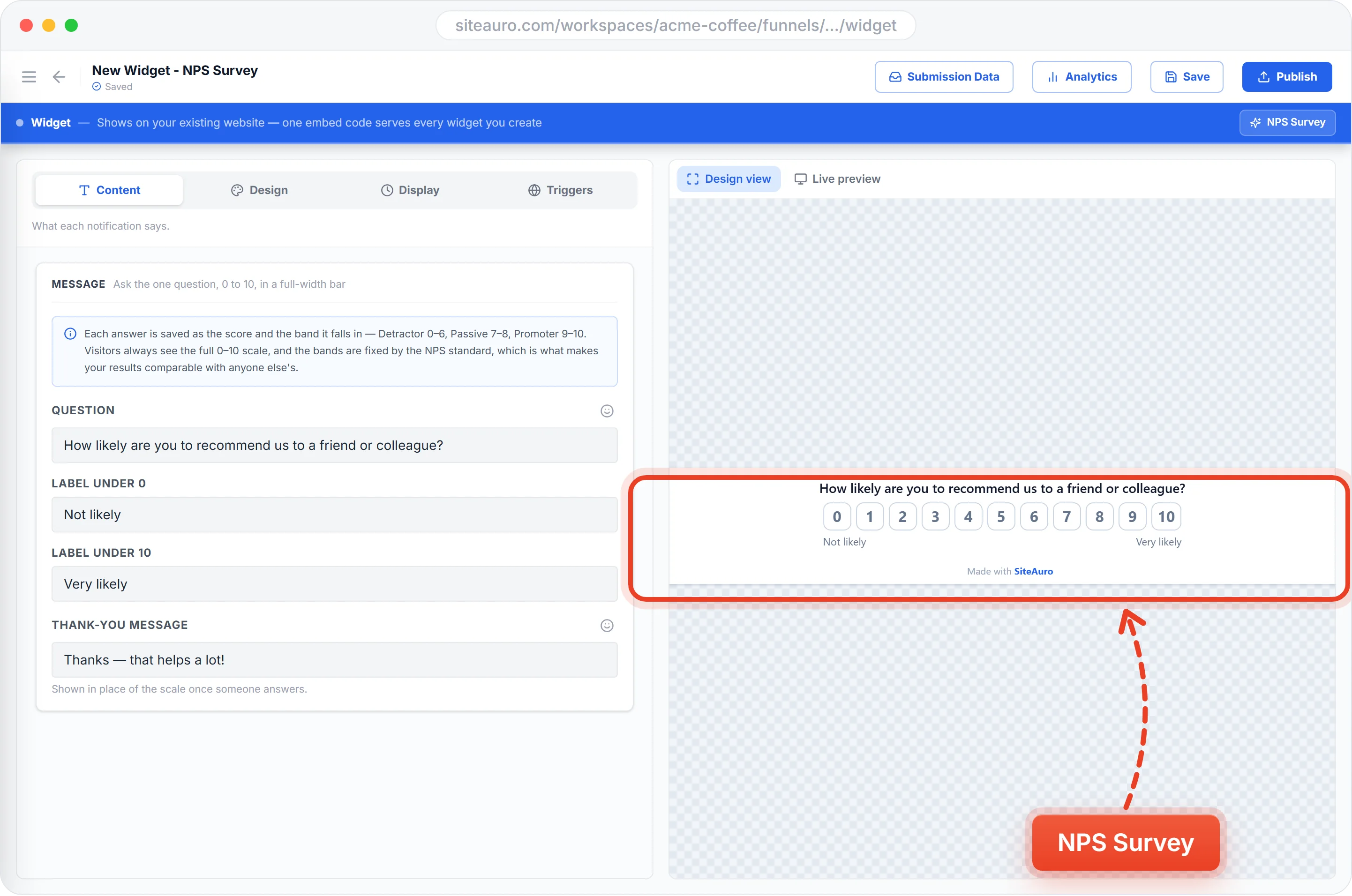
The widget builder for an NPS Survey in a browser window. In the preview on the right, a bar asks How likely are you to recommend us to a friend or colleague?, with the numbers 0 to 10 between Not likely and Very likely. The bar is outlined in red, with the label "NPS Survey" and a dashed arrow pointing to it.
NPS Survey.

The Widget Builder

The builder has five tabs, with the widget's preview on the right. Design view shows the widget on its own, and Live preview shows it over a page.

  • Content: what it says. For Social Proof, the message, what the person did, the place to show when their location isn't known, and an optional link.
  • Data: where its items come from. See Widget Data, Display and Publishing.
  • Design: colours, font, text size, width, corners, shadow, how it comes in and goes out, and its branding.
  • Display: where on the page it sits, when it first shows, and how long each item stays.
  • Triggers: where it appears and who sees it.
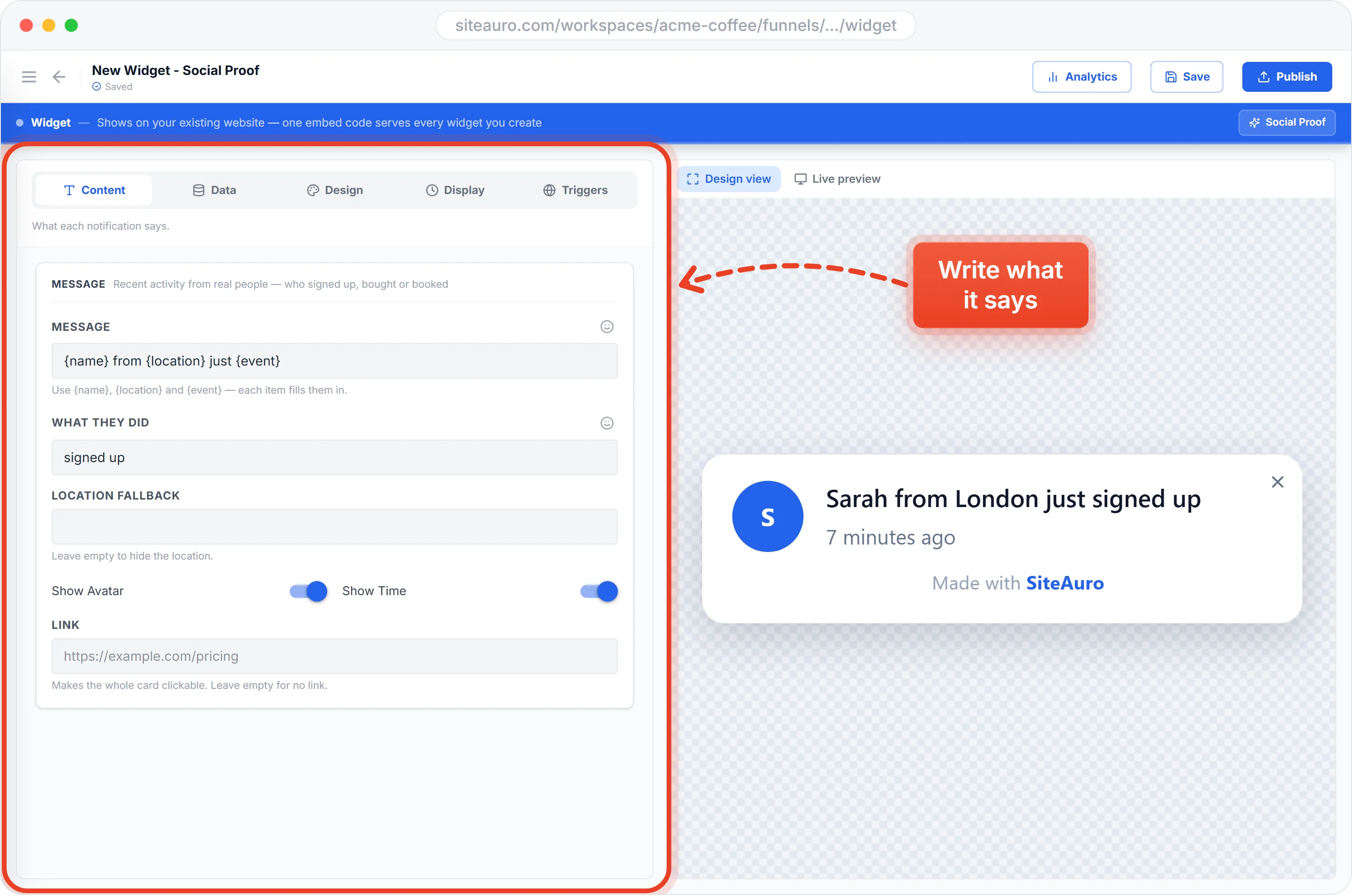
The widget builder in a browser window, on the Content tab of a Social Proof widget, with the tabs Content, Data, Design, Display and Triggers, the message fields, and a preview of the card on the right. The settings panel, with the tabs and the message fields, is outlined in red, with the label "Write what it says" and a dashed arrow pointing to it.
The widget builder.

Changes save on their own; the name at the top says Saved. A new widget isn't on your site until you publish it.

Last updated