
Skip to content
SiteAuro

Run a Website Audit

Check a website's SEO, speed, security and more, and get a report you can share with your client.

Table of Contents
  1. Run an Audit
  2. What the Report Shows
  3. Find Your Audits
  4. Next Step

A website audit checks a site, page by page, for what helps or hurts it: on-page and technical SEO, links, performance, security, tracking and more. You get a report, branded as yours, that you can share with a client or keep for yourself.

In the menu, open Audits and choose Audit Reports.
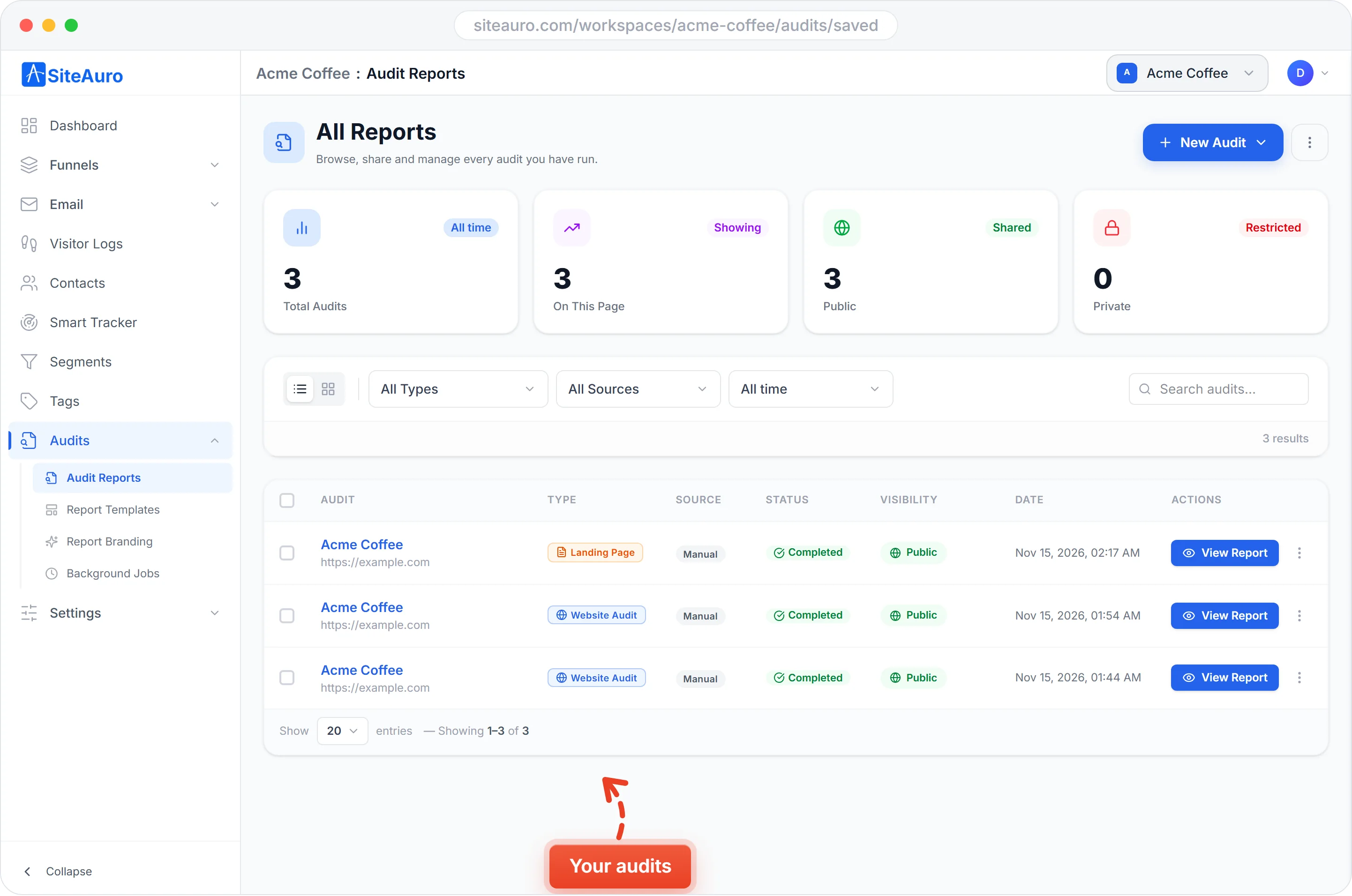
The All Reports page under Audit Reports: four figures (Total Audits, On This Page, Public, Private), the filters All Types, All Sources and All time with a search box, and three audits in the table, each Acme Coffee, https://example.com, Manual, Completed, Public, with View Report. Below the table, a red label reads "Your audits", with a dashed arrow up to it.
Audit Reports.

Run an Audit

  1. Click New Audit

    Click New Audit at the top right.
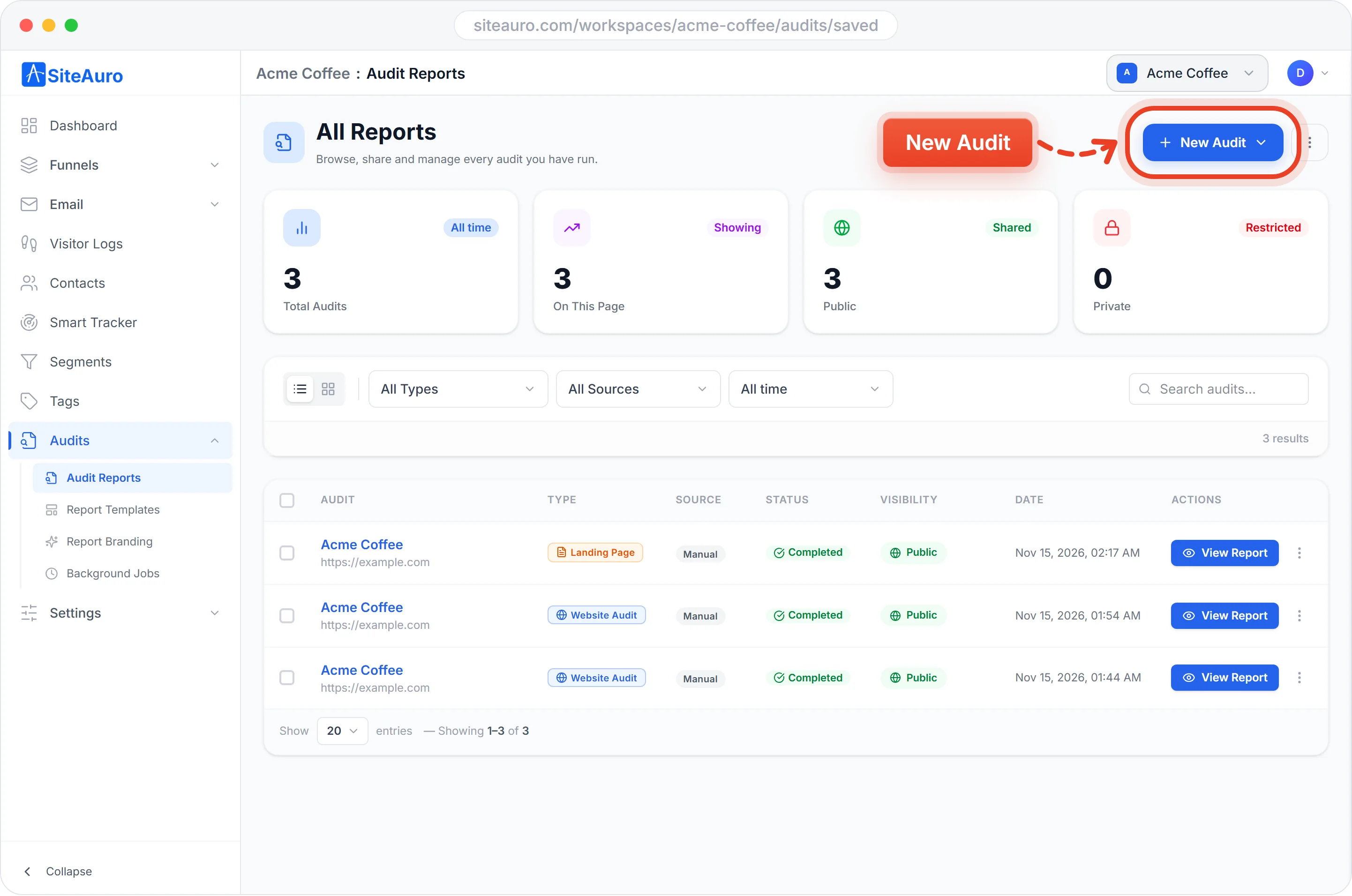
    The All Reports page with the New Audit button at the top right outlined in red, with the label "New Audit" and a dashed arrow pointing to it.
    New Audit.

    Then choose Website Audit.
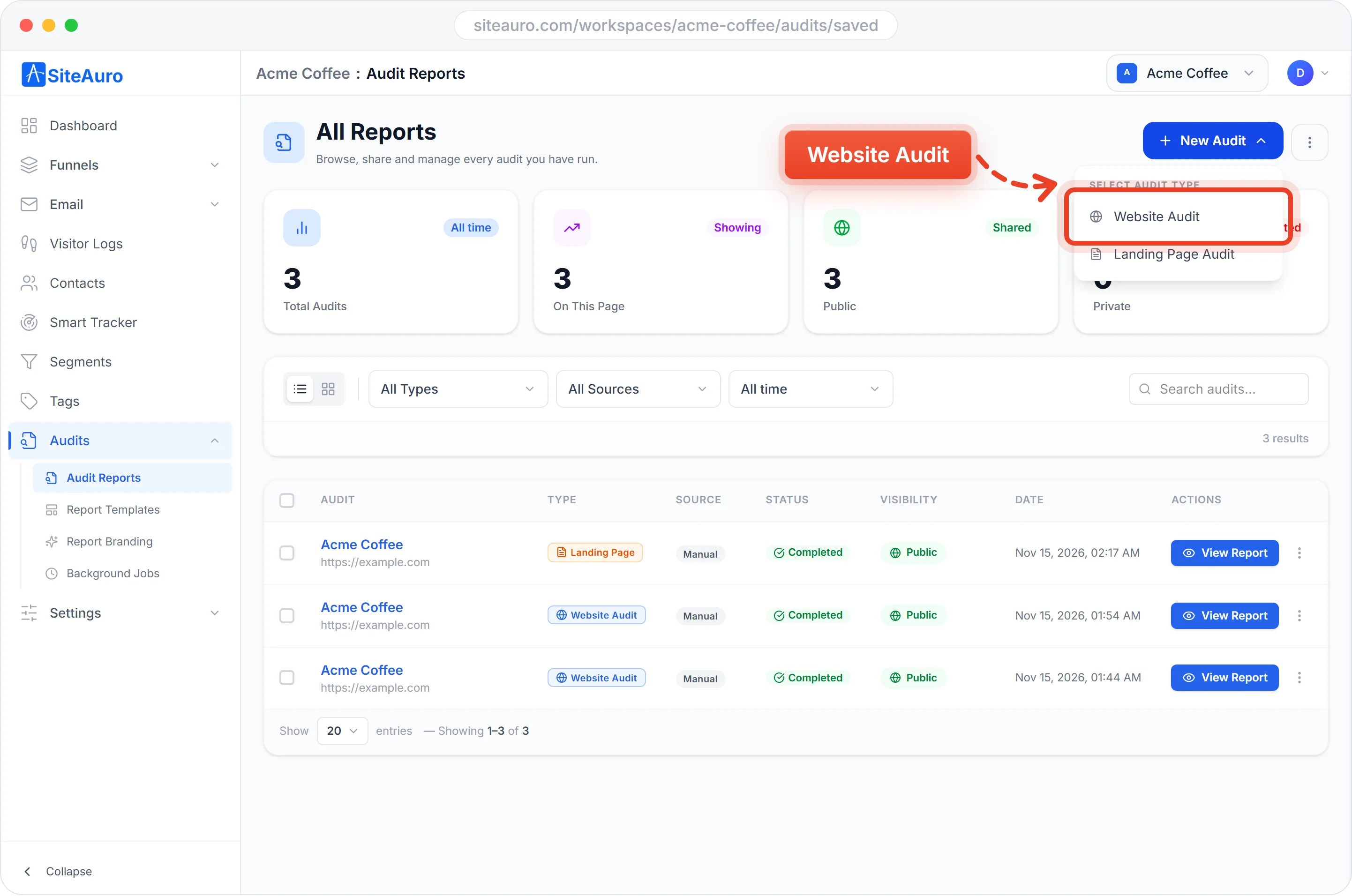
    The New Audit menu open under Select audit type, with Website Audit and Landing Page Audit. Website Audit is outlined in red, with the label "Website Audit" and a dashed arrow pointing to it.
    Choose Website Audit.
  2. Fill in the details

    Under Audit Details, type the Company Name and the Website URL. You can leave out https://: it's added for you. Target Keywords is optional: type the keywords the site should rank for, separated by commas.
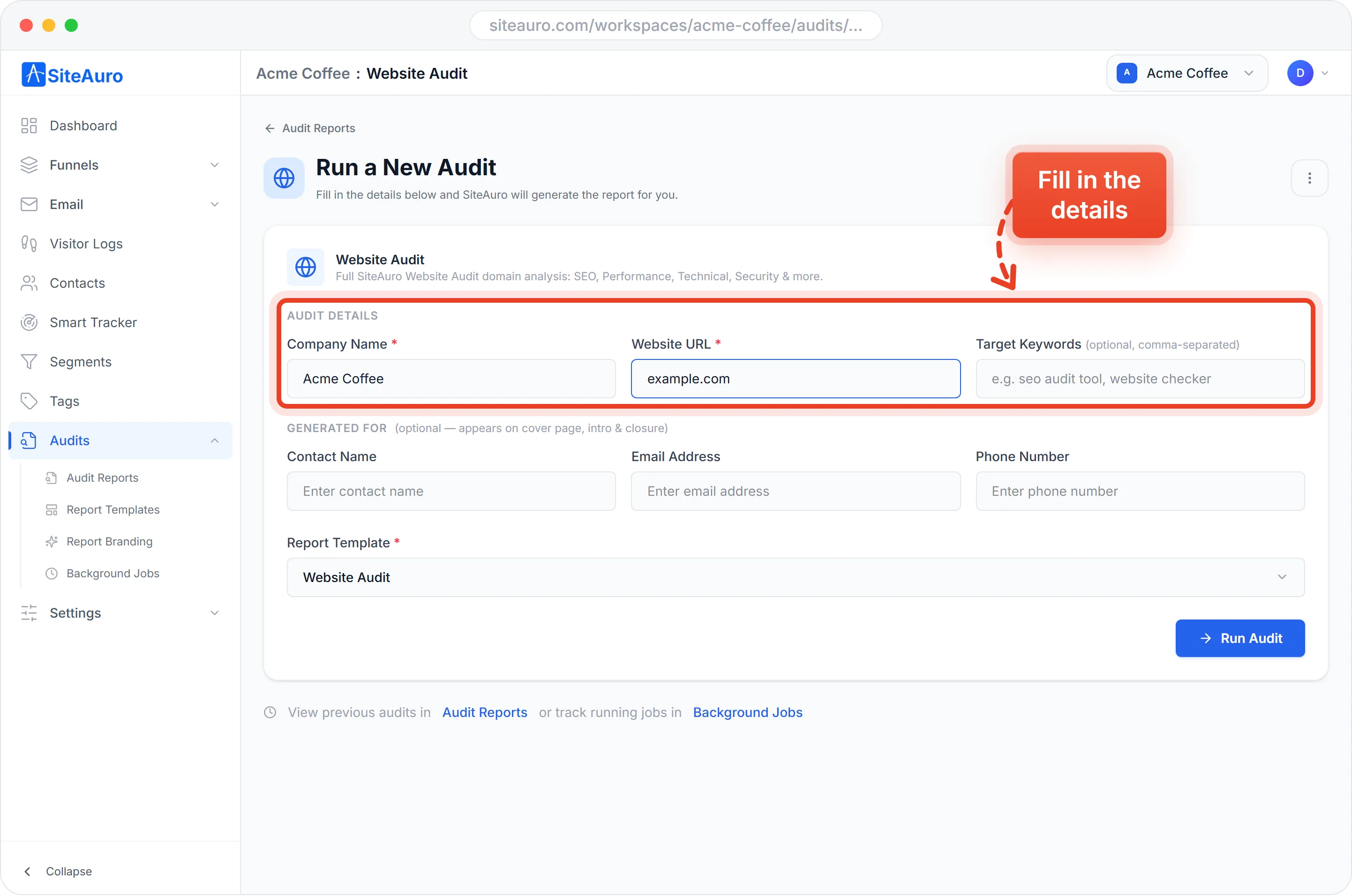
    The Run a New Audit page for a Website Audit: Audit Details, with Company Name Acme Coffee, Website URL example.com and Target Keywords empty, is outlined in red, with the label "Fill in the details" and a dashed arrow pointing to it.
    Audit Details.
  3. Say who it's for

    Generated For is optional. The Contact Name, Email Address and Phone Number you type here appear on the report's cover page, introduction and closing page.
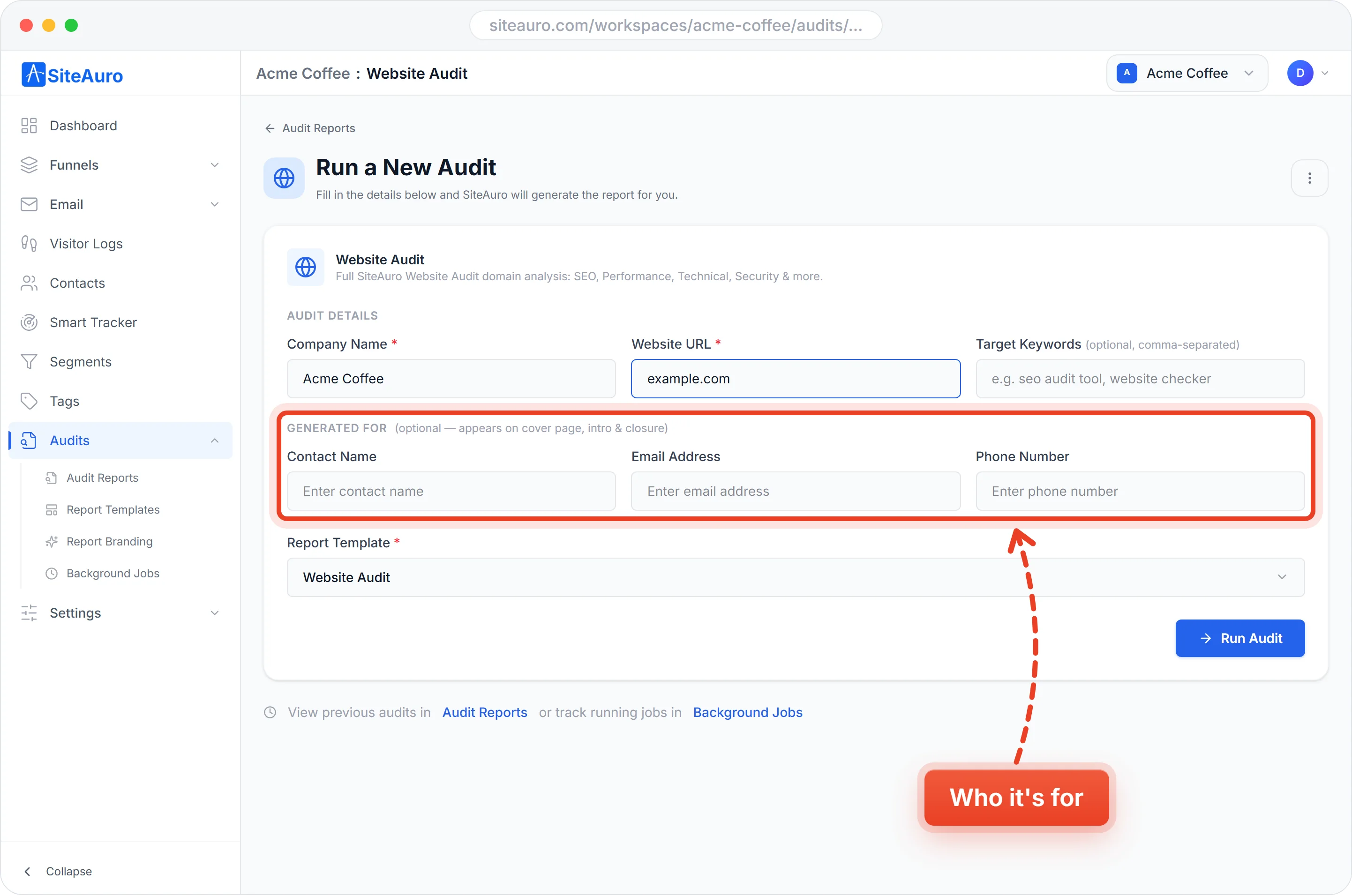
    The Run a New Audit page with Generated For, with Contact Name, Email Address and Phone Number empty, outlined in red, with the label "Who it's for" and a dashed arrow pointing to it.
    Generated For.
  4. Choose a template

    Report Template decides how the report looks. The default one is already chosen. See Report Templates and Branding.
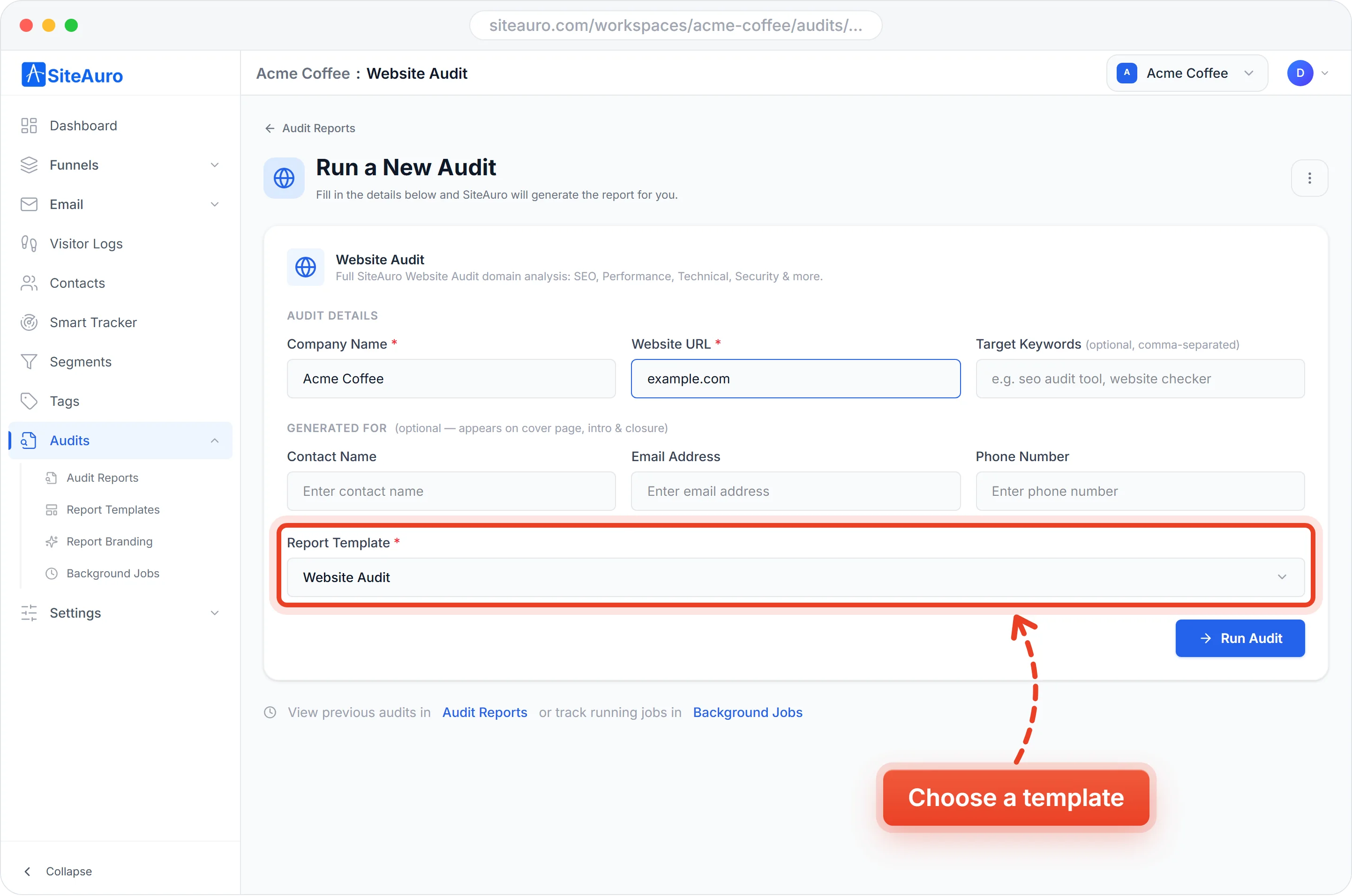
    The Run a New Audit page with Report Template, set to Website Audit, outlined in red, with the label "Choose a template" and a dashed arrow pointing to it.
    Report Template.
  5. Click Run Audit

    The audit is queued and then runs, with a progress bar. You can leave the page: the audit carries on in the background, and Background Jobs shows how it's going.
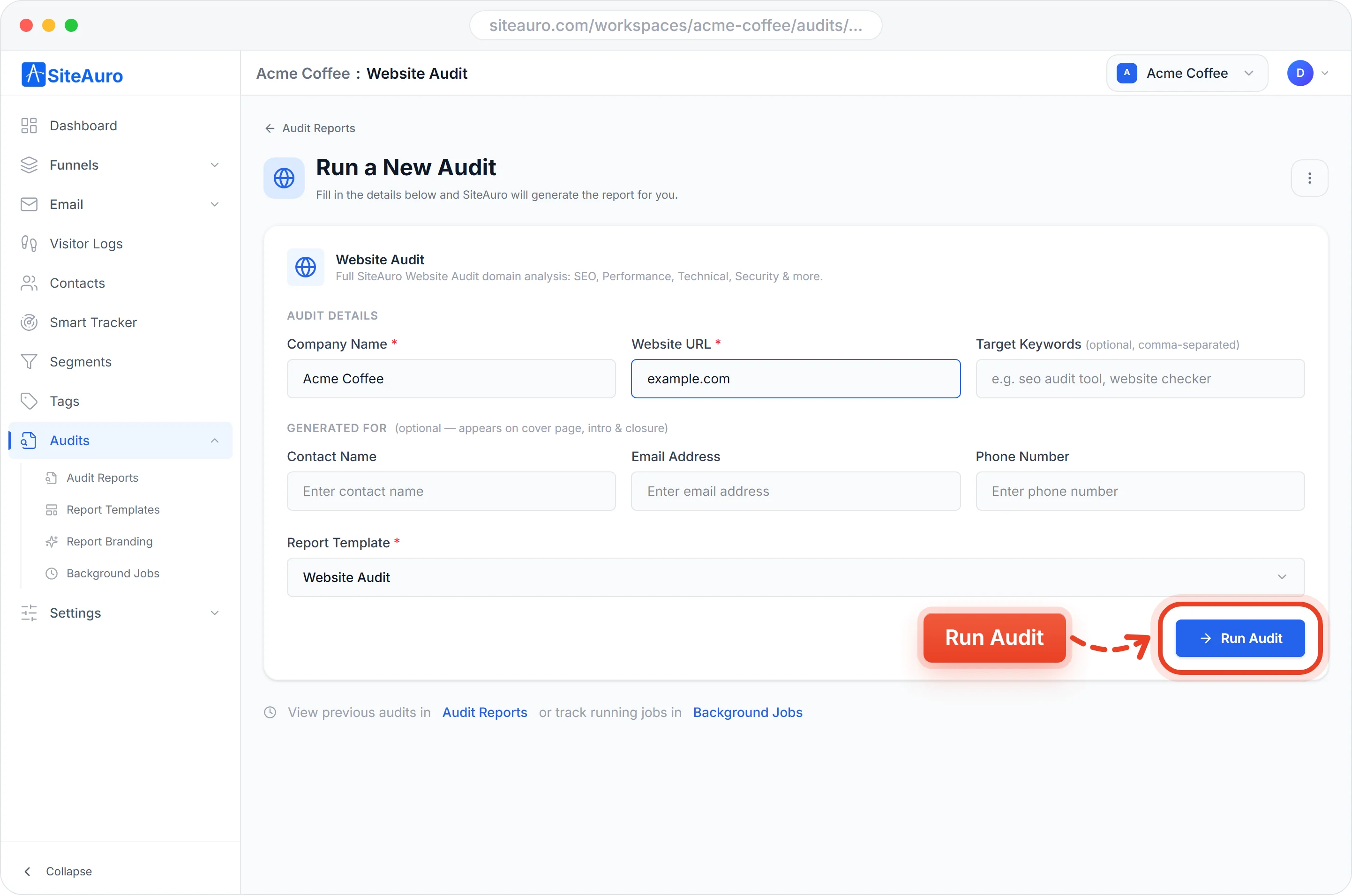
    The Run a New Audit page filled in, with the Run Audit button at the bottom right outlined in red, with the label "Run Audit" and a dashed arrow pointing to it.
    Run Audit.

When it's finished, you see Audit complete! and Report Ready. Click View Report to open the report in a new tab. If the audit couldn't finish, you see Audit Failed with the reason, and Try again.
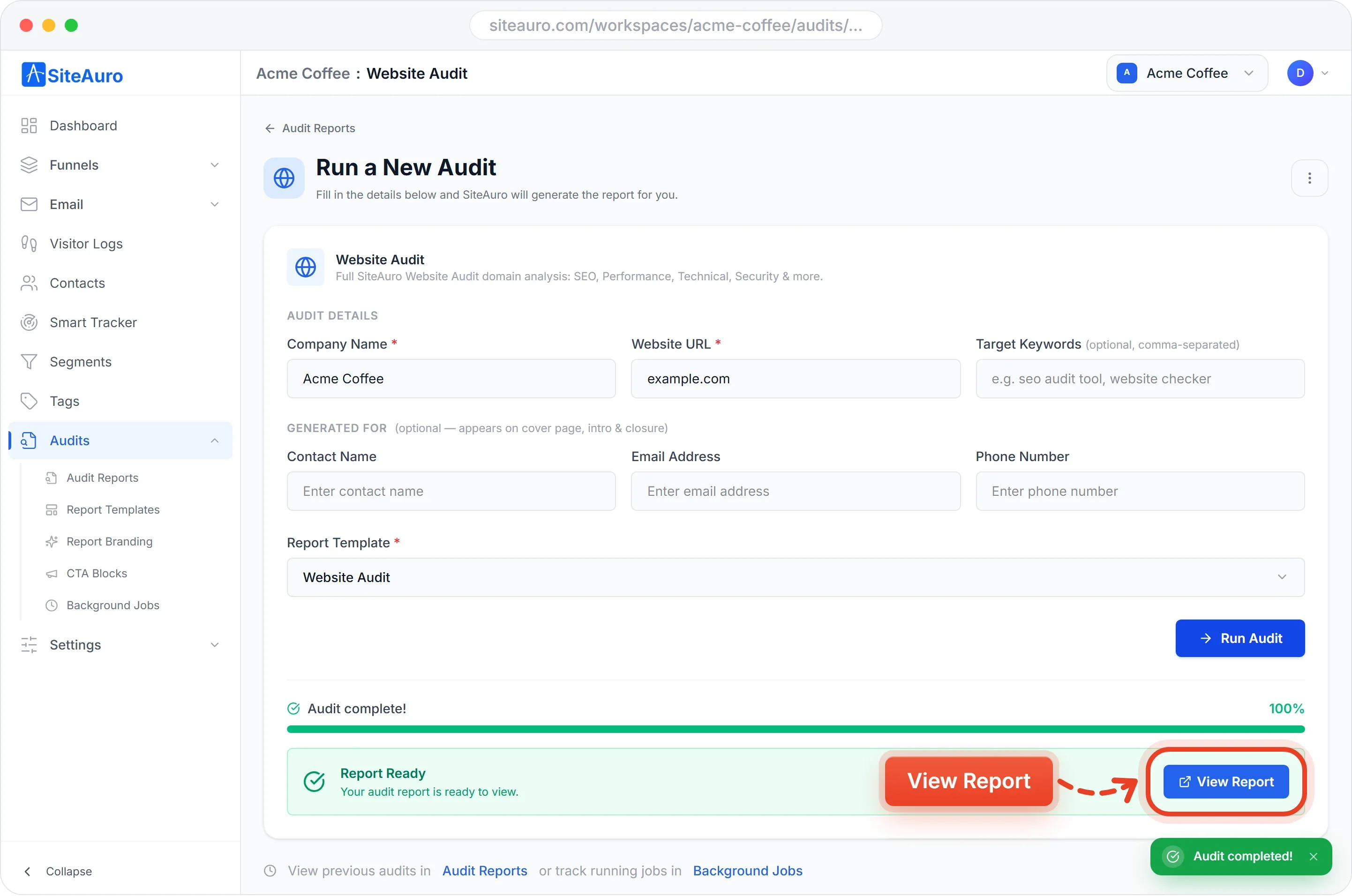
The Run a New Audit page after the audit, in a browser window: under the form, Audit complete! at 100%, and a green Report Ready box saying Your audit report is ready to view, with a View Report button. View Report is outlined in red, with the label "View Report" and a dashed arrow pointing to it.
Audit complete.

What the Report Shows

The report opens on its cover page. Report Sections on the left lists its pages: an overview and summary, the issues found, the recommendations, a closing page and Get Expert Help, with your contact details and call to action.

Each area of the site is scored: On-Page SEO, Technical SEO, Link Analysis, User Experience, Performance, Security, Technology, Social Media, Backlinks & Authority, Website Tracking, Local SEO and E-E-A-T. The overall score is the average of the area scores.

At the top, Visit Site opens the audited site, and Export PDF saves the report as a PDF.
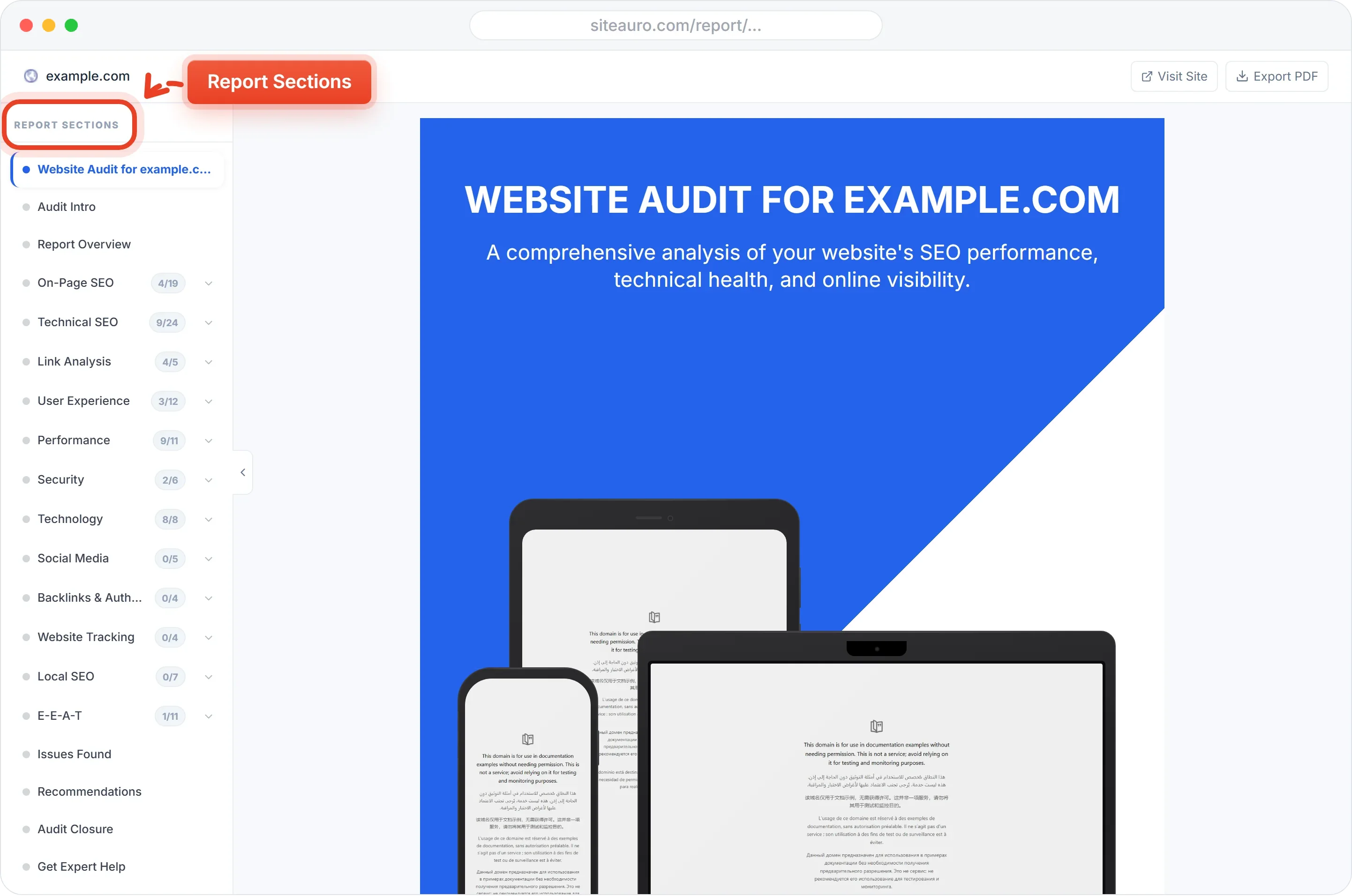
A website audit report for example.com, in a browser window: on the left, Report Sections lists the cover, Audit Intro, Report Overview, each scored area (On-Page SEO, Technical SEO, Link Analysis, User Experience, Performance, Security, Technology, Social Media, Backlinks & Authority, Website Tracking, Local SEO, E-E-A-T) with its count, then Issues Found, Recommendations, Audit Closure and Get Expert Help. The cover page reads Website Audit for example.com; Visit Site and Export PDF are at the top right. Report Sections is outlined in red, with the label "Report Sections" and a dashed arrow pointing to it.
A website audit report.

Find Your Audits

Audit Reports lists every audit in the workspace, newest first. Filter them by type, by where they came from (Manual, or Funnel for audits a funnel made), by date and by funnel. An audit that failed has Retry.

A new report is public: anyone with its link can open it. Share, Edit and Track an Audit Report explains how to make it private.

Next Step

Run a Landing Page Audit.

Last updated