
This article covers getting into your SiteAuro account and keeping it safe: signing in and out, passwords, two-factor login, and the browsers and devices that are signed in.
Sign in
- Go to siteauro.com/login.
- Type your Email and Password.
- Tick Remember me to stay signed in on this browser for 30 days. Without it, you stay signed in for 7 days.
- Click Sign in.
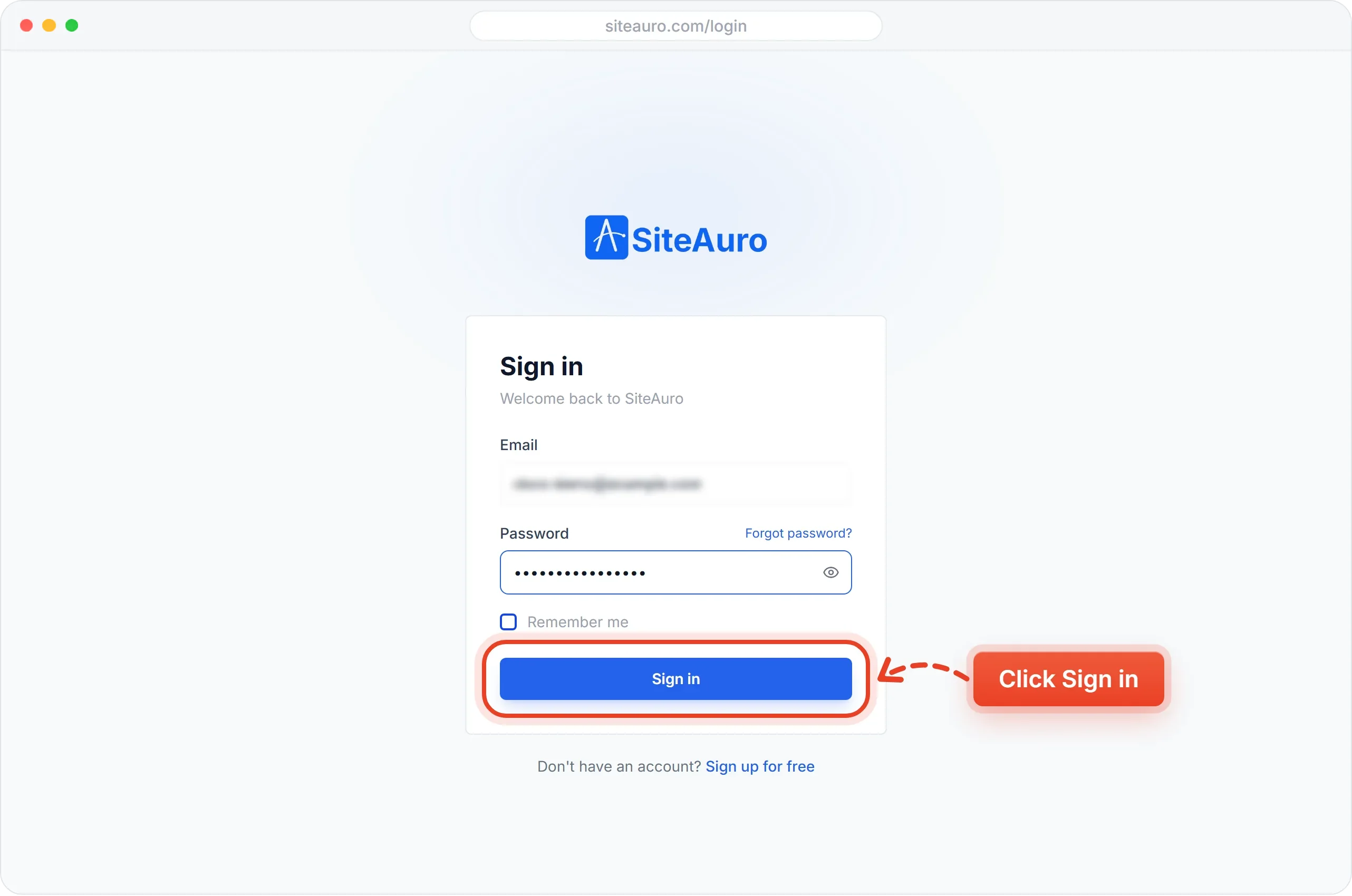
You land in the workspace you used last.
If two-factor login is on, SiteAuro emails you a 6-digit code before you are signed in. Type it and click Verify and sign in. A code lasts 10 minutes and works once. If it doesn't arrive, click Resend code, which you can do 30 seconds after the last one. After five wrong codes the sign-in ends, and you start again from your email and password.
Sign out
Click your initial at the top right and choose Sign out.
Note
Signing out signs you out everywhere: every browser and device signed in to your account, not only this one. To sign out one other device and stay signed in here, use Manage sessions.
Forgot your password
Ask for a reset link
On the sign-in page, click Forgot password?, above the password box.
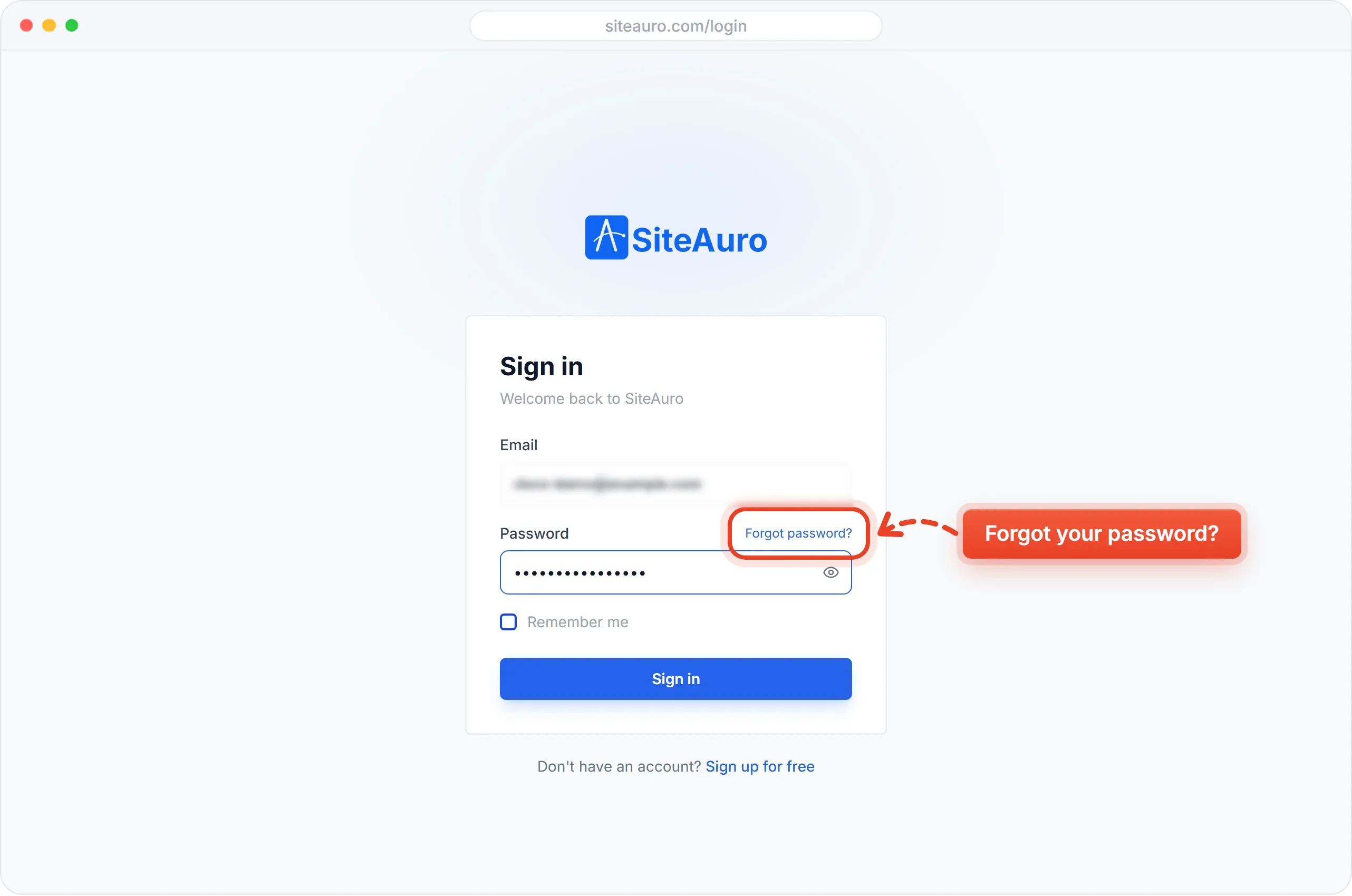
Forgot password? On Reset password, type your email address and click Send reset link.
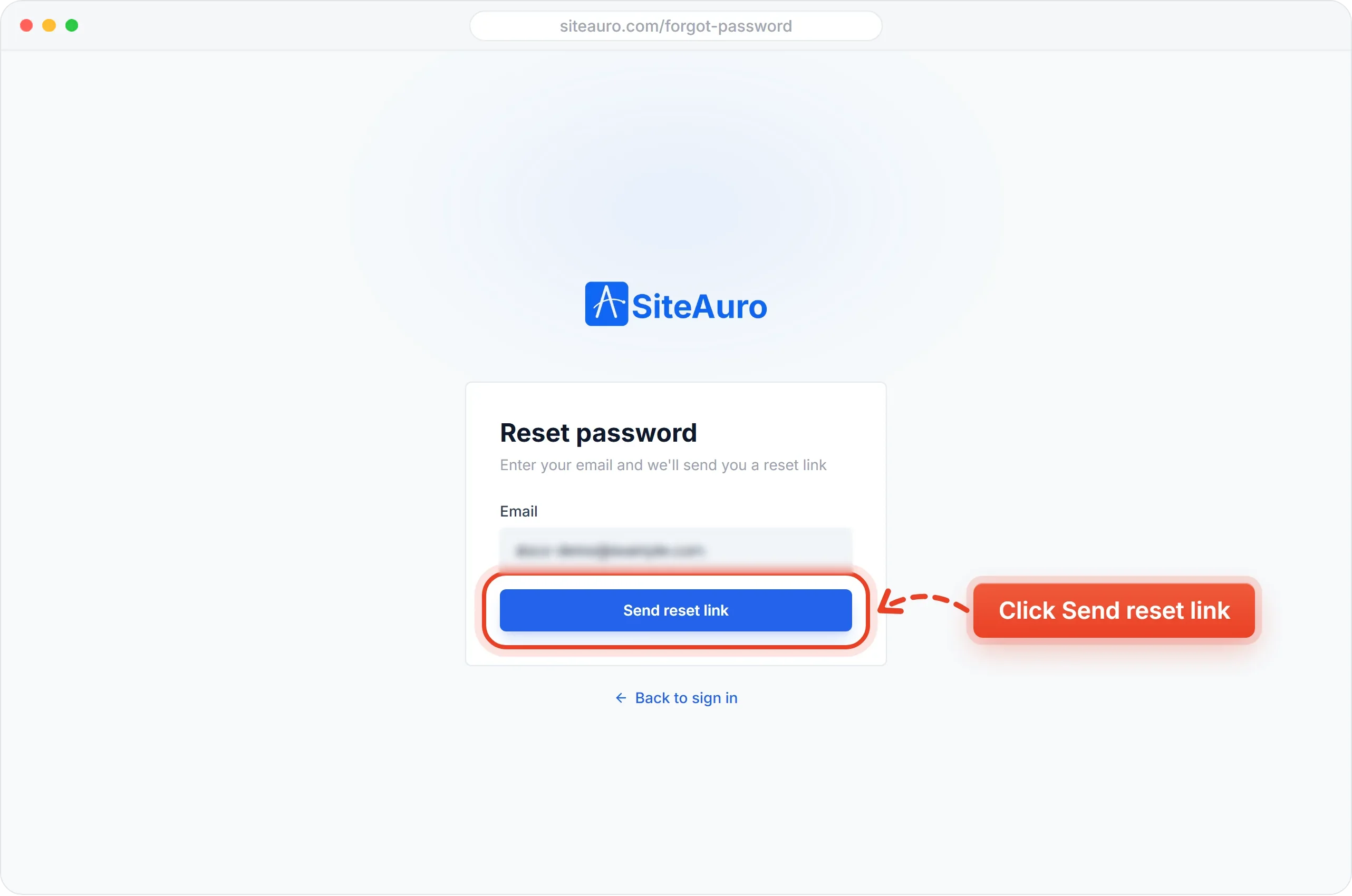
Reset password. You see Check your inbox. For your security, the page says the same whether or not the address has an account. If the email doesn't come, click Send again.
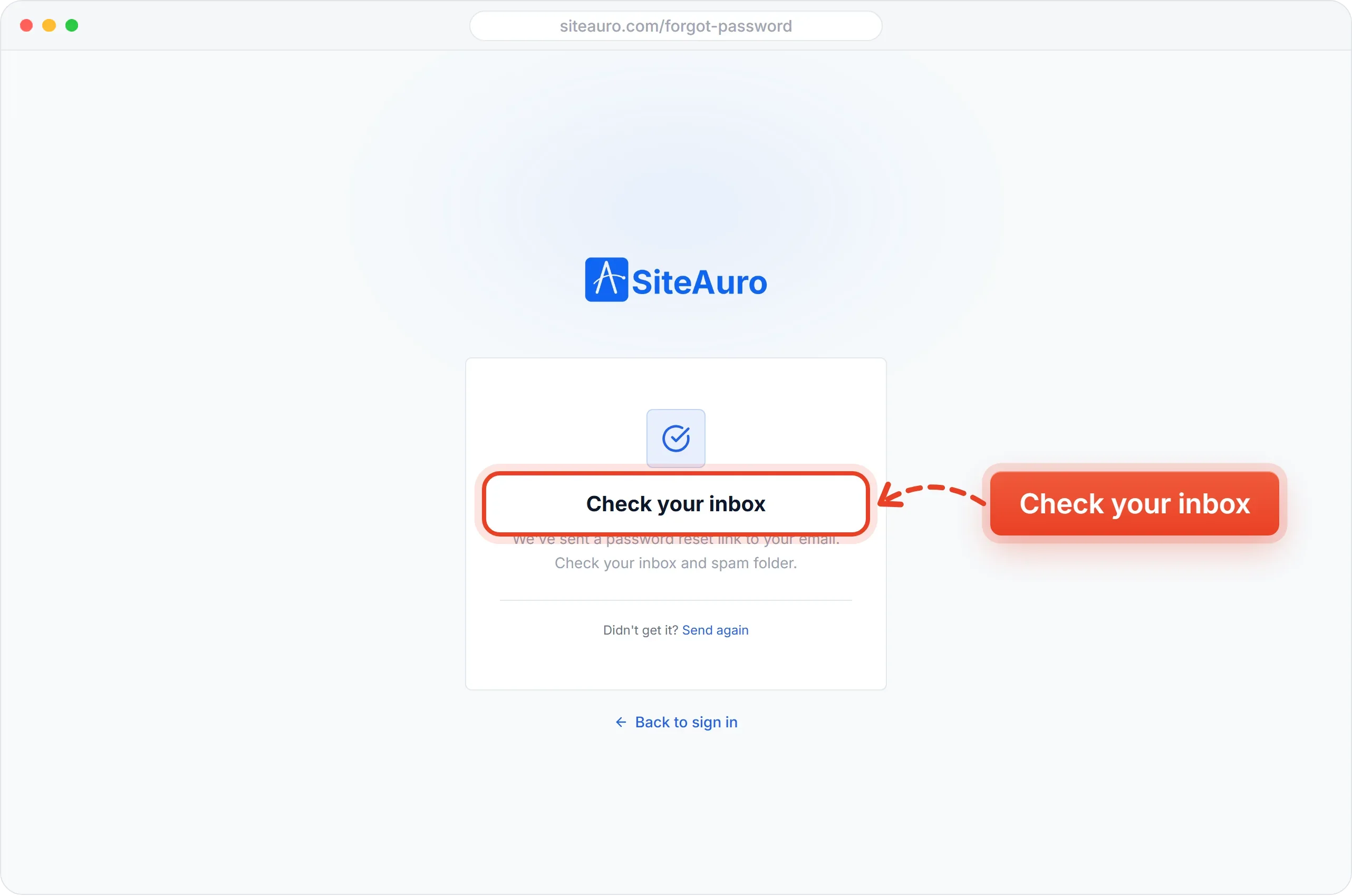
Check your inbox. Open the link in the email
The link works for 1 hour. It opens Set new password.
Choose a new password
Type it in New password and again in Confirm password, then click Reset password. You see Password reset!. Click Go to sign in and sign in with the new password.
Resetting your password doesn't sign out browsers that are already signed in. If you reset it because you think someone else knows it, also sign out your other sessions.
Change your password
Open Security
Click your initial at the top right and choose Security. The Change Password tab opens.
Type your passwords
Type your Current password, then your new one twice. The new password needs at least 8 characters, with at least one capital letter and one number, and must be different from the current one.
Click Update password
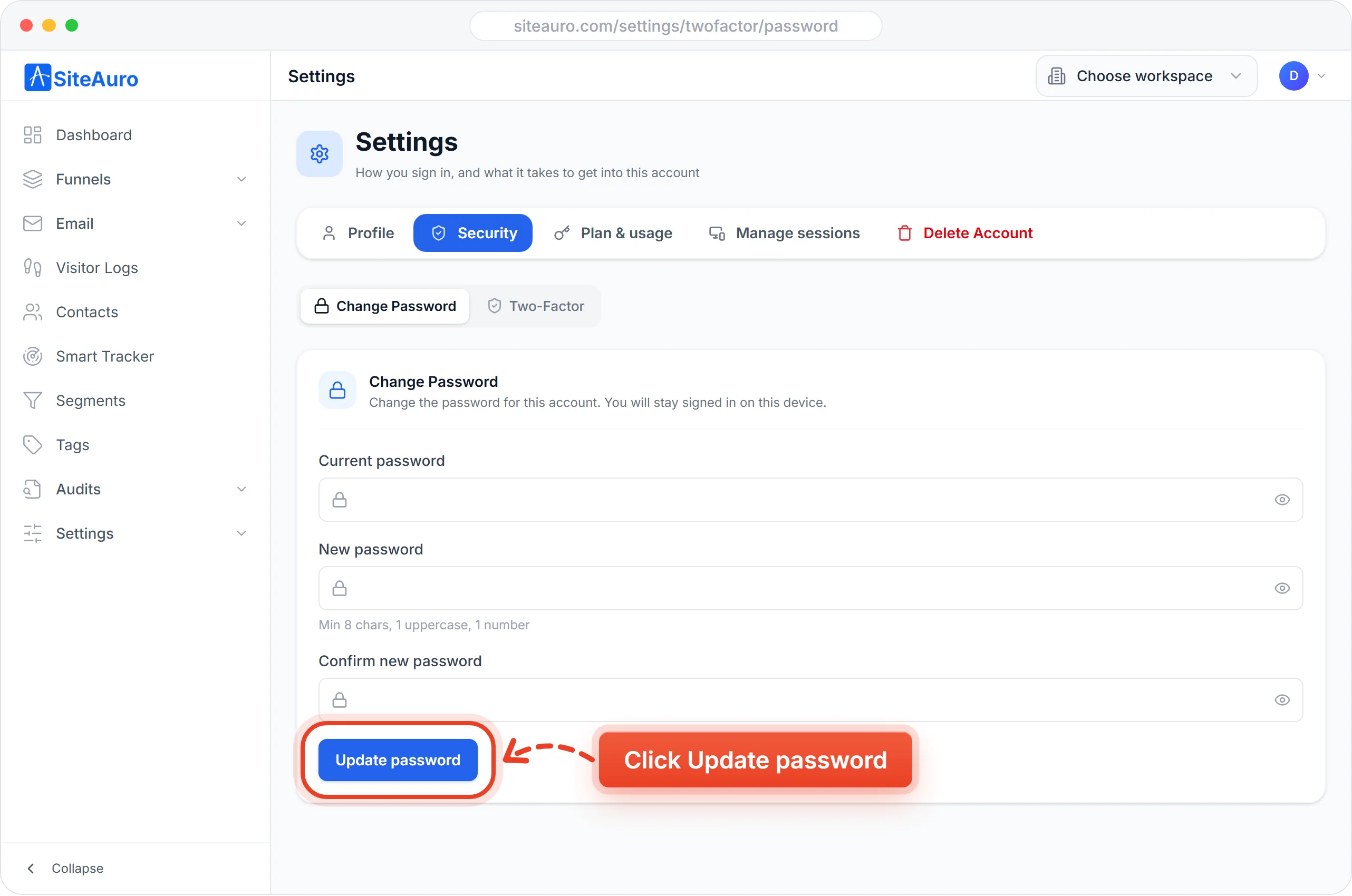
Change Password, under Security.
Warning
Changing your password signs you out everywhere, this browser included. Sign in again with your new password.
Turn on two-factor login
With two-factor login on, signing in needs your password and a code we email you. Someone who knows only your password can't get in.
Open Two-Factor
Click your initial at the top right, choose Security, then the Two-Factor tab.
Click Turn on two-factor login
We email a code to your account's address.
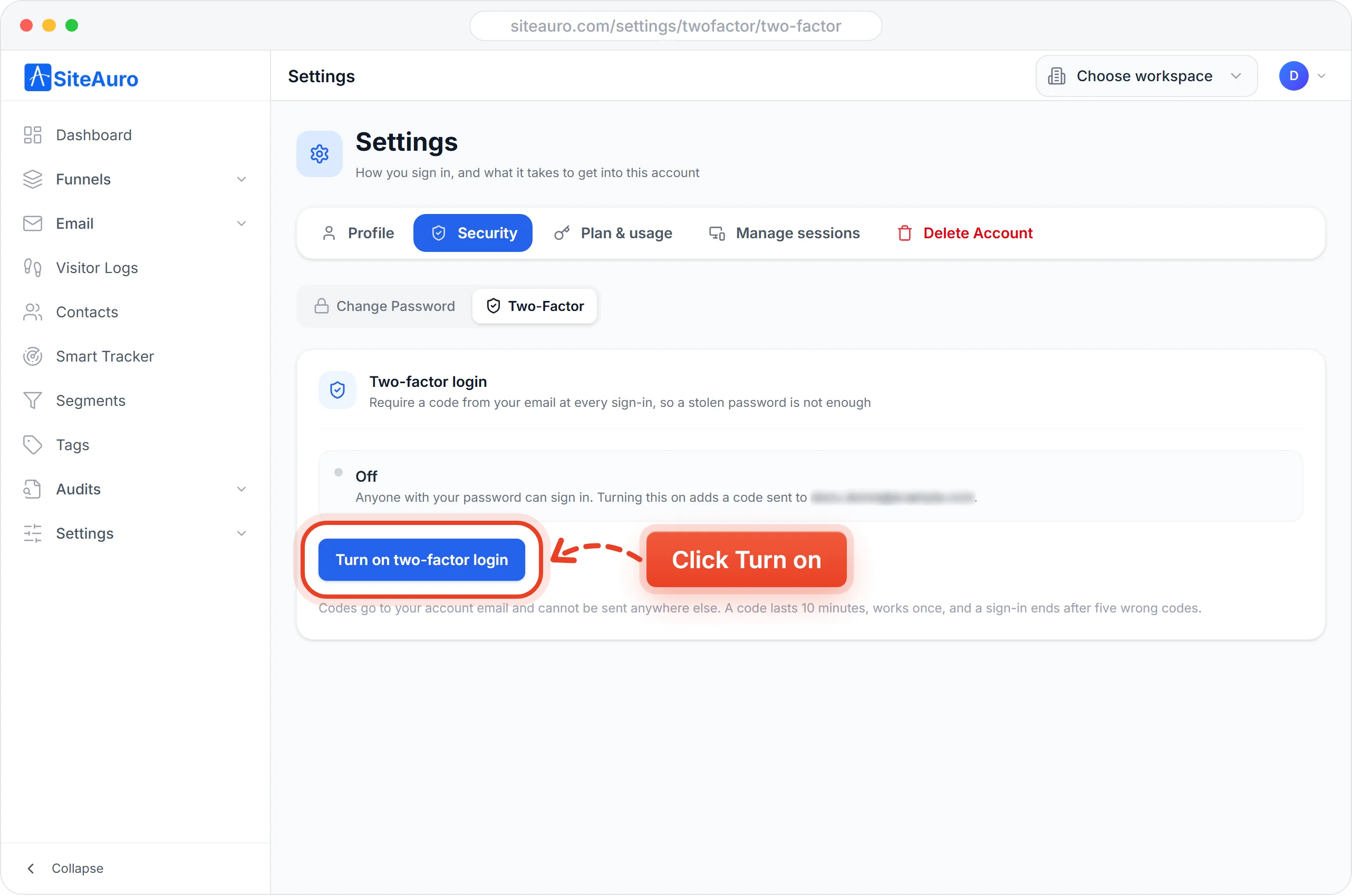
Two-factor login, under Security. Type the code
Type the code from the email and click Confirm and turn on. You see Two-factor login is on.
Codes always go to your account's email address and can't be sent anywhere else.
To turn it off, open the same tab, click Turn off, type your password and click Turn off two-factor login.
See where you're signed in
Click your initial at the top right, choose Profile, then the Manage sessions tab, in the row of tabs under the title. Each browser or device signed in to your account is a row: Current session is the one you're using, and each Other session shows the browser and when it expires.
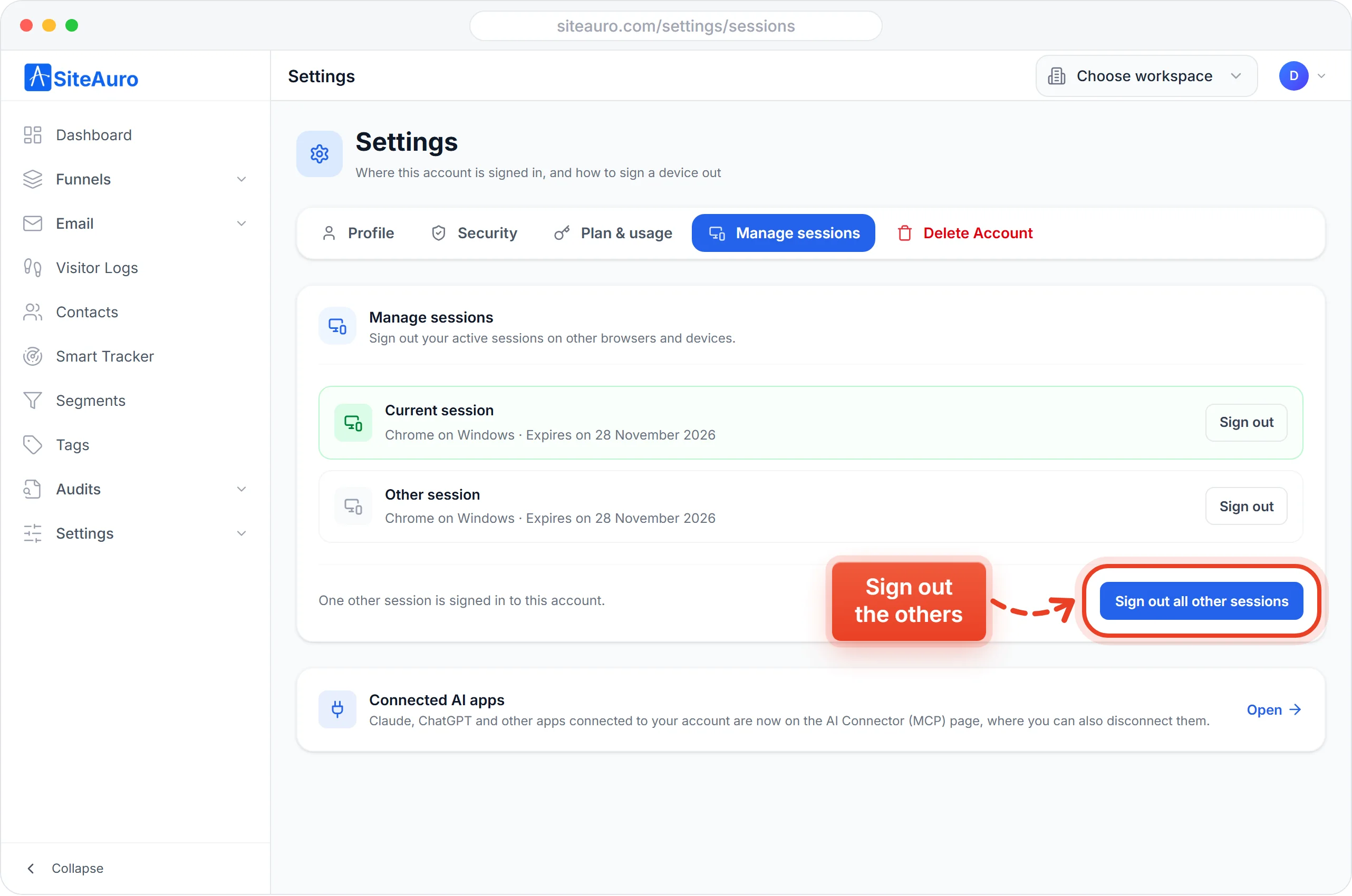
- Sign out on a row signs out that browser or device. Nothing else changes and nothing is deleted.
- Sign out all other sessions signs out every browser and device except the one you're using. SiteAuro asks first; click Sign out others to go ahead.
- Sign out on your Current session signs you out, and your other sessions with it.
Connected AI apps are on the AI Connector page now. Connected AI apps, at the bottom of this tab, opens them there. See Connected Apps.
Tip
Signed in on a shared or lost computer? Sign out that session here, then change your password.