
A popup collects leads on your own website: a sign-up form, a quiz or a short survey. You create it in four quick choices, then build it in the builder.
Create the popup
Open Create funnel
In the menu, open Funnels and choose Create funnel.
Choose Popup / Form
Under What are you building?, choose Popup / Form.
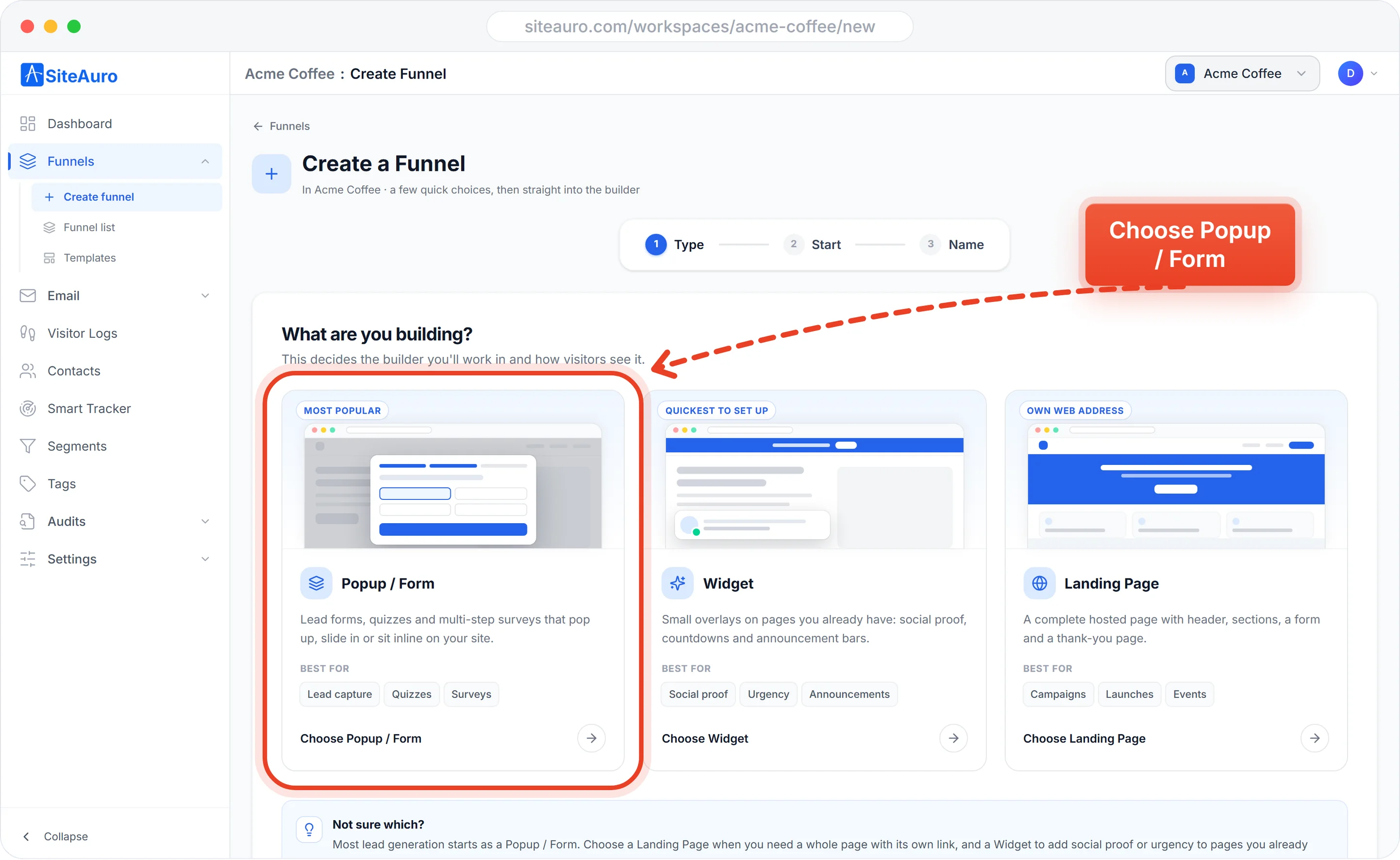
Choose what you are building. Choose how it should work
Under How should it work?, choose Smart to ask one question at a time, with a flow that can branch on each answer, or Standard to design everything on one canvas. Smart is marked Recommended and suits most lead generation.
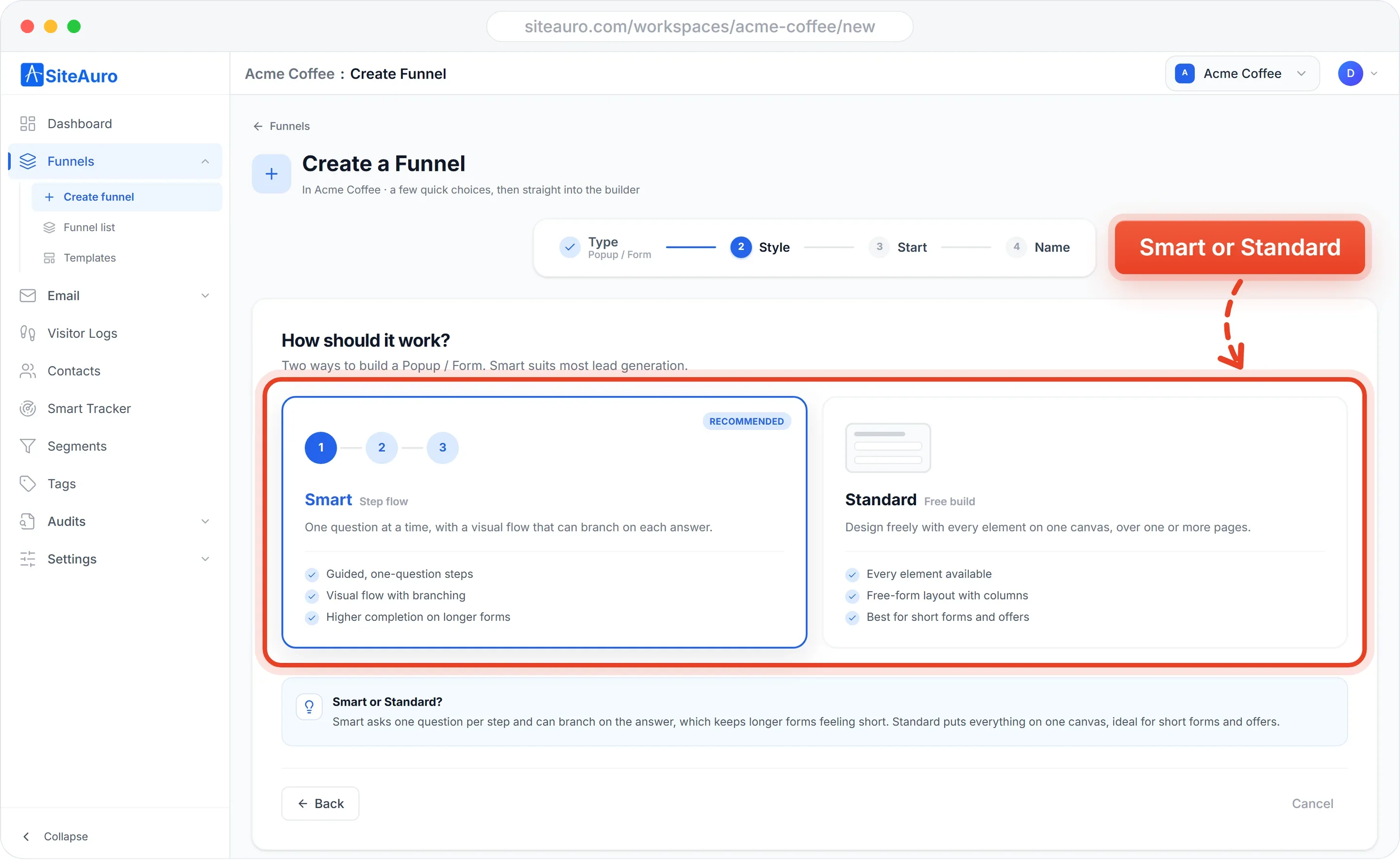
Choose Smart or Standard. Choose how to start
Under How do you want to start?, choose Blank canvas to start from the default pages, or Template to start from a ready-made design.
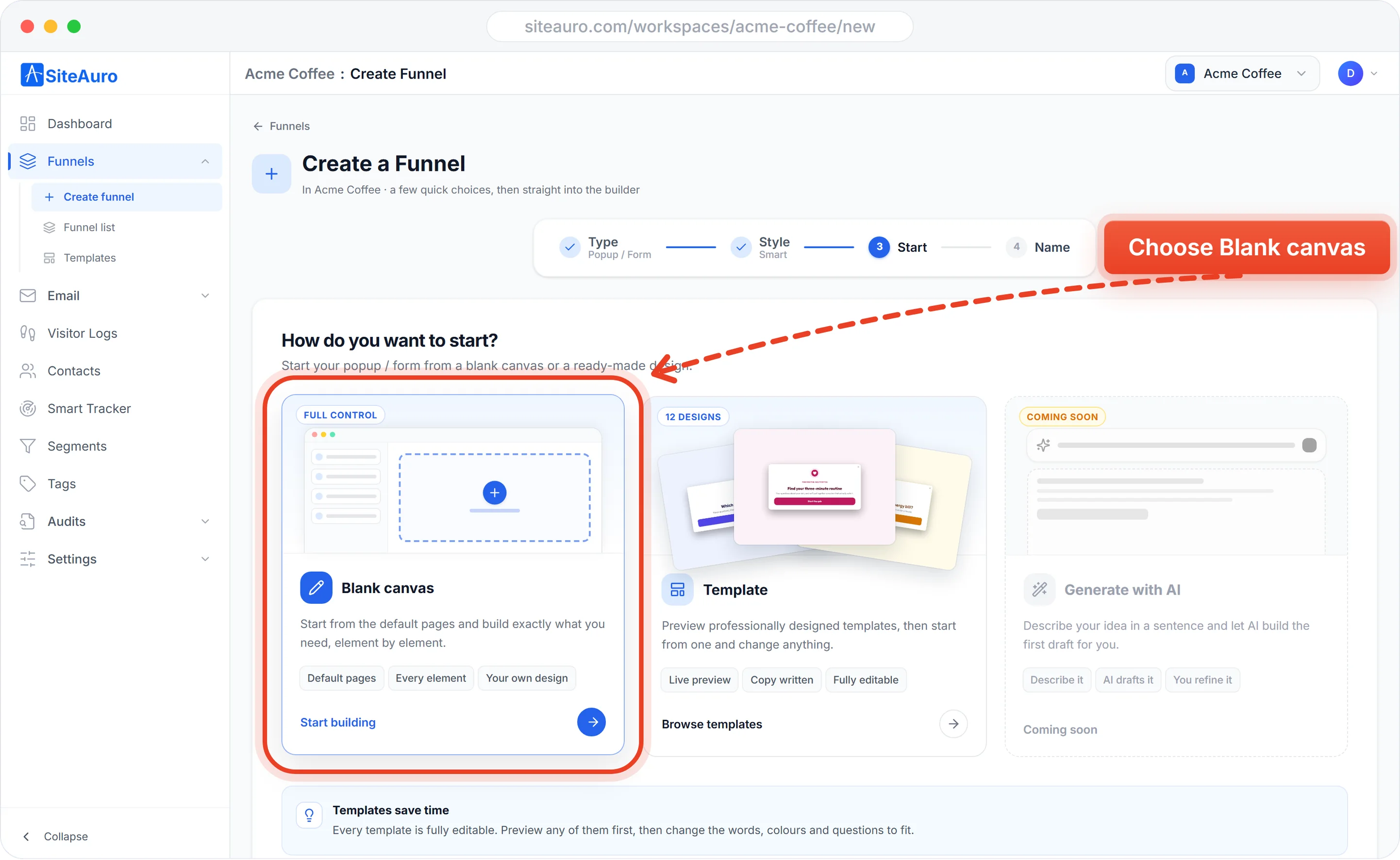
Choose how to start. Name it and click Create funnel
Under Name your funnel, type a Funnel name you'll recognise, such as
Coffee club sign-up, and click Create funnel. Only you see the name, and you can rename it any time.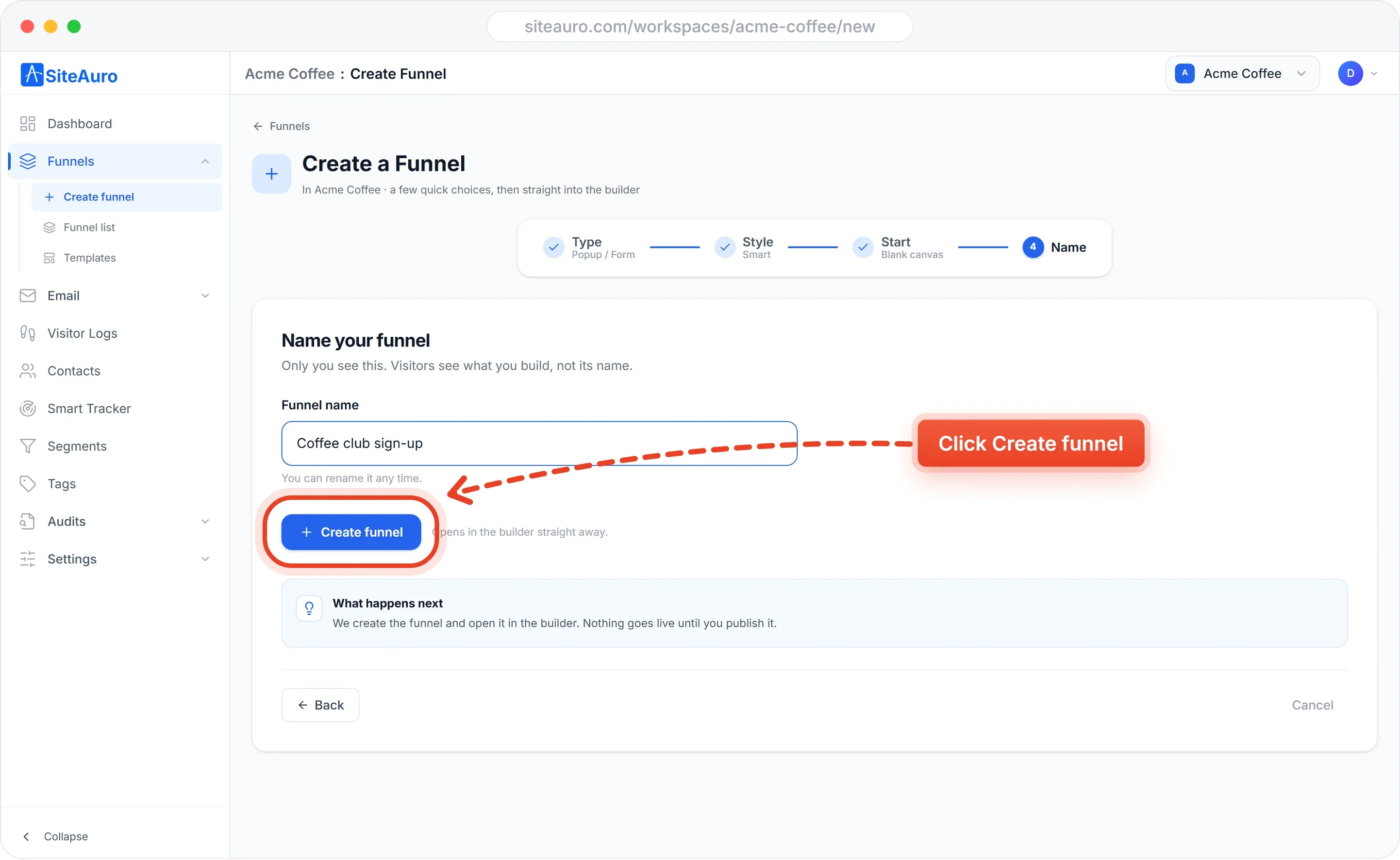
Name your funnel.
You can go back a step at any time with Back, and the steps along the top show what you have chosen so far.
The builder
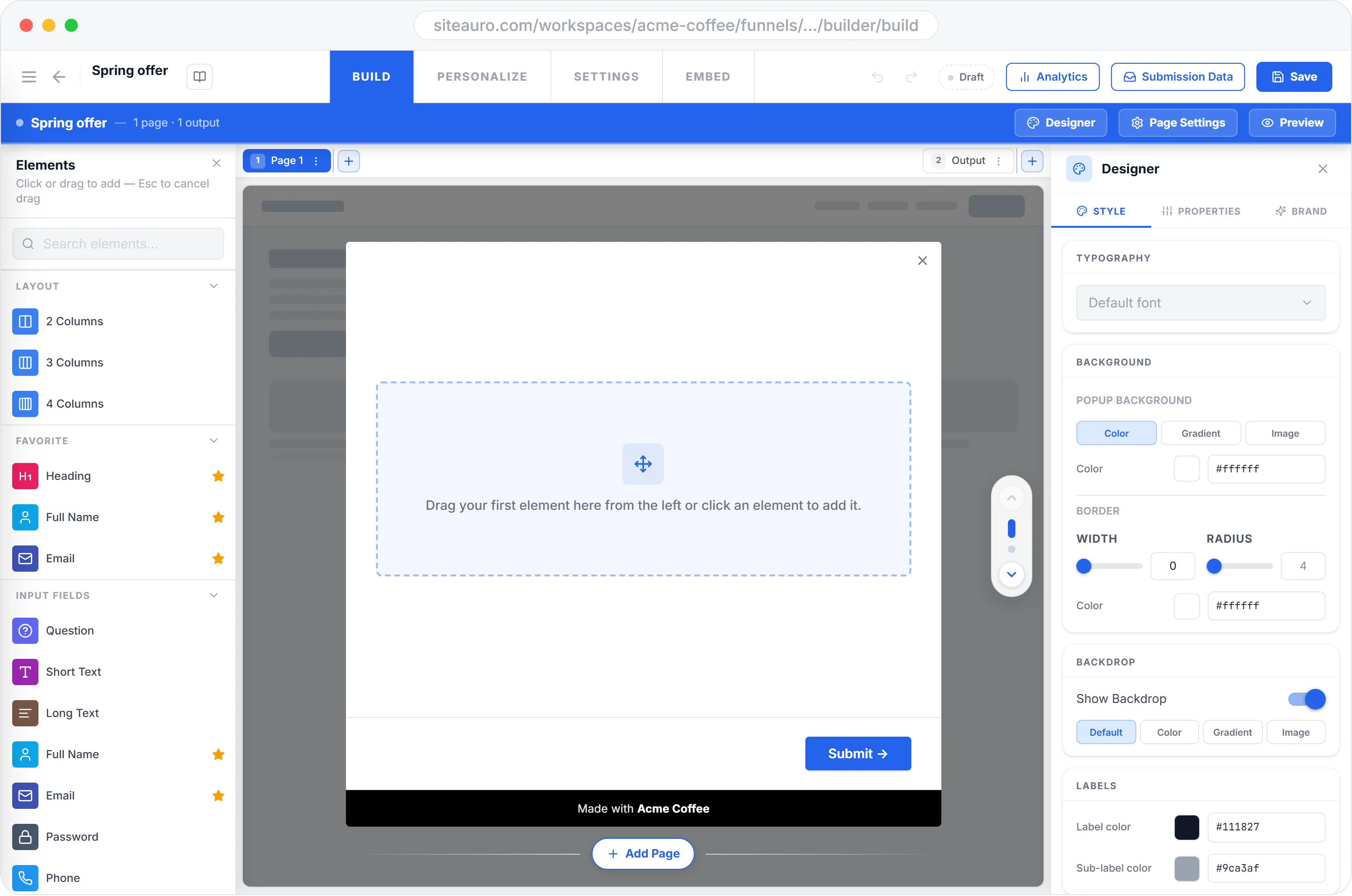
Your new popup opens in the builder. A Standard popup opens on BUILD, with its first page ready for elements:
A Smart popup opens on FLOW instead, with a Welcome page and a first question already in place. See Smart Funnels: The Flow Tab.
The builder fills the whole window, so SiteAuro's left menu is out of the way. To open it, click the menu button (three lines) at the top left: the menu slides in over the builder, so you can go anywhere in SiteAuro. The arrow beside it takes you back to the funnel's overview.
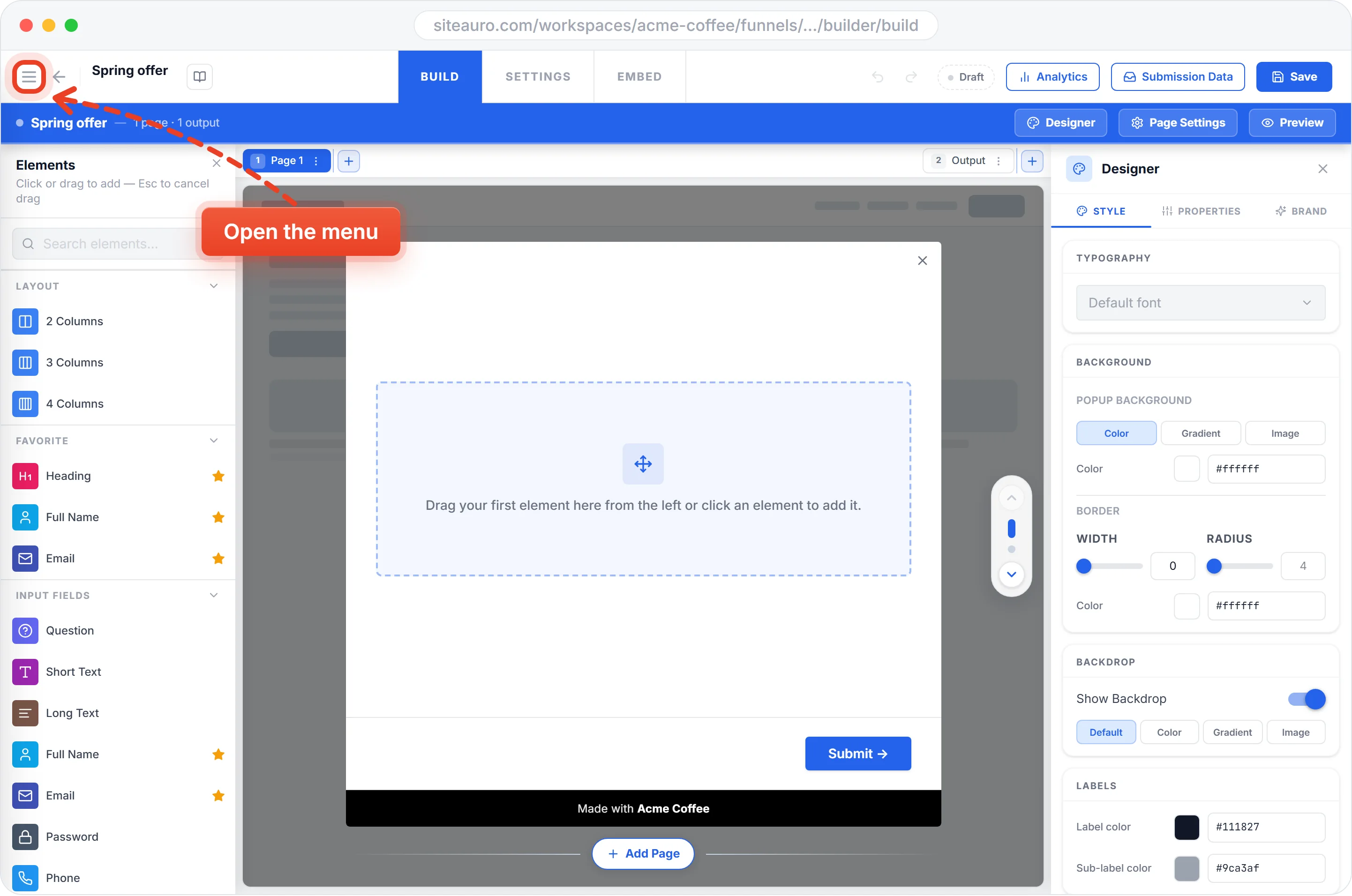
The menu opens on the left, with the builder dimmed behind it. Pick any item to go there, or close the menu with the X beside it, a click on the builder, or Esc.
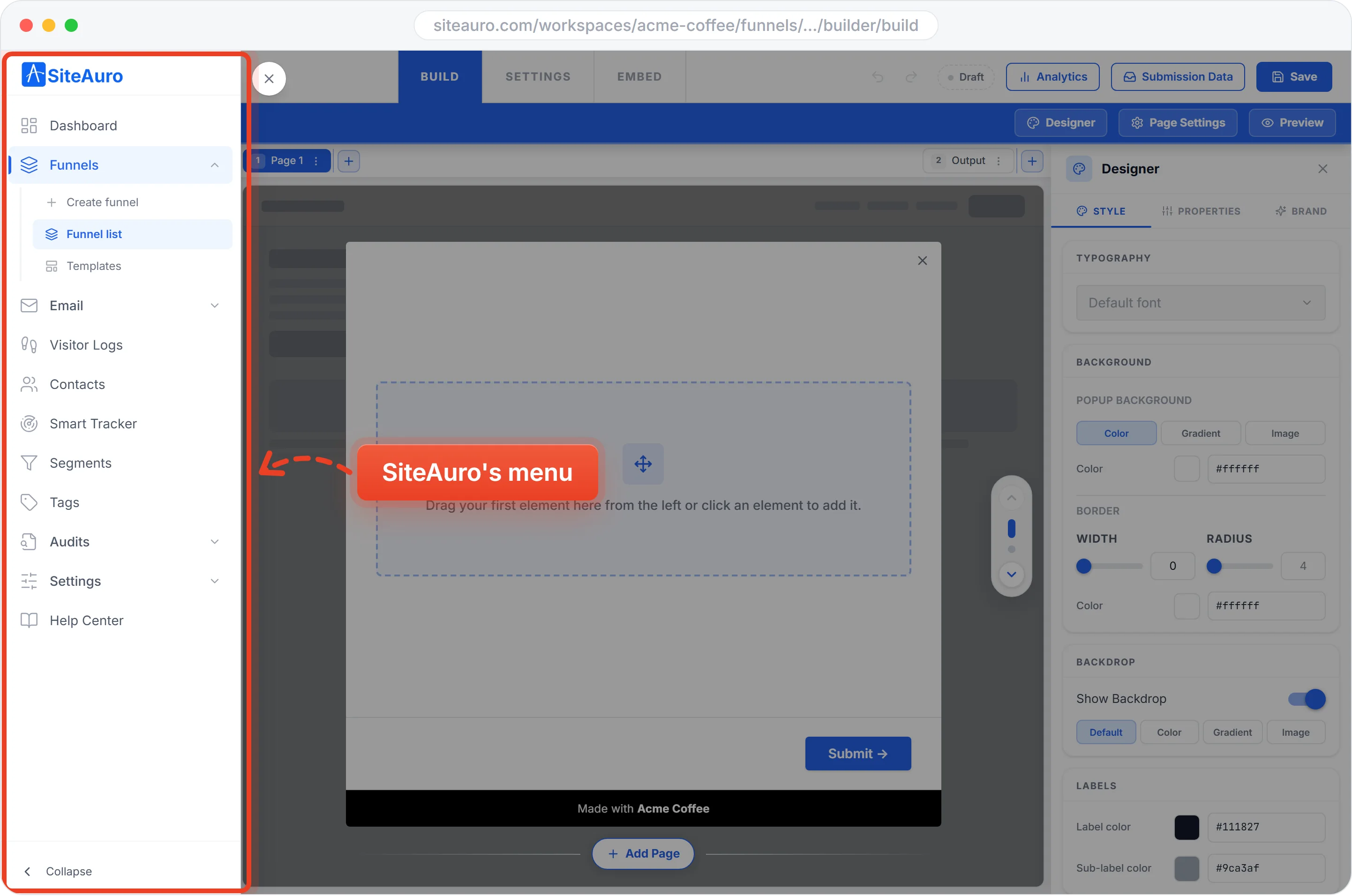
Along the top are the builder's tabs (see The Builder: Pages, Elements and Submission Behaviour):
- FLOW (Smart popups only): the order of the pages, and where each answer leads. See Smart Funnels: The Flow Tab.
- BUILD: what each page shows, element by element.
- PERSONALIZE: different words for different visitors. See Personalization.
- SETTINGS: what happens when someone submits, emails, webhooks, integrations and tracking.
- EMBED: how and when the popup shows on your website. See Show a Popup on Your Site.
Changes save on their own as you work.
Note
A Smart popup needs at least one Output page to finish on. Until it has one, the builder says Add at least one Output page to finish the funnel.
Note
A new popup starts switched Off: the Funnel list shows it as Off, the badge at the top of the builder says Draft, and nothing shows on your site while you build it. When it's ready, switch it to Active in the Funnel list, at the top of its EMBED tab, or with Activate in the notice on that tab (Show a Popup on Your Site). Once it's Active, every change you save goes live straight away.
Next step
Popups, Widgets and Landing Pages explains the other kinds of funnel.