
The Example prompts tab has ready-made questions to ask your AI app once SiteAuro is connected. Copy one, paste it into a chat in your AI app, and change it to suit you. For whole jobs, step by step, see AI Connector Use Cases.
In the menu, click AI Connector (MCP), then the Example prompts tab. The Overview tab links here too, from Not sure what to ask?.
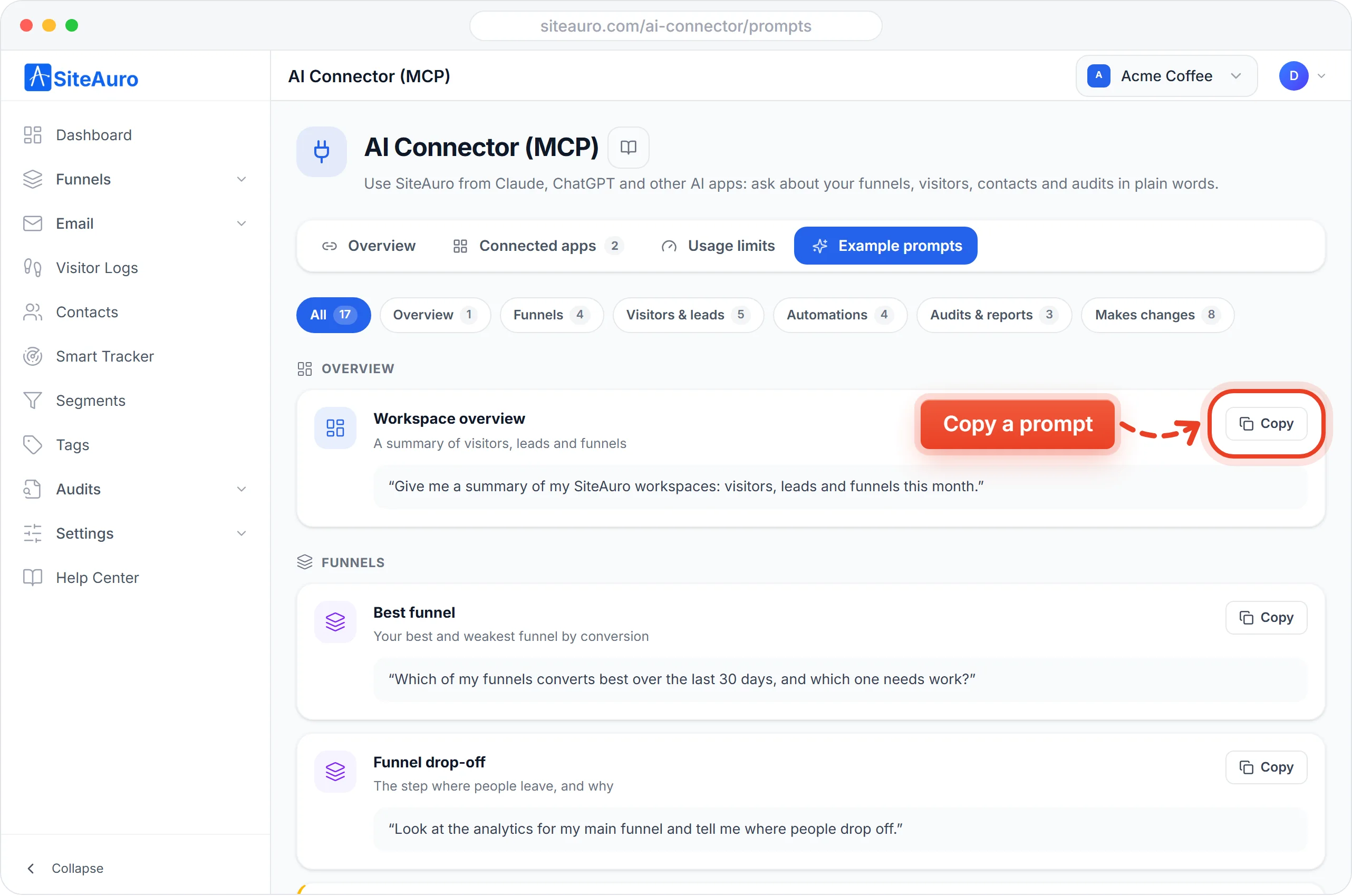
Find a Prompt
The filters along the top show All the prompts, one group (Overview, Funnels, Visitors & leads, Automations or Audits & reports), or only those that Makes changes. Each filter shows how many prompts it holds.
Each card shows the prompt's name, a line on what you get back, and the prompt itself.
The Prompts
Overview
- Workspace overview: "Give me a summary of my SiteAuro workspaces: visitors, leads and funnels this month."
Funnels
- Best funnel: "Which of my funnels converts best over the last 30 days, and which one needs work?"
- Funnel drop-off: "Look at the analytics for my main funnel and tell me where people drop off."
- Draft a funnel (makes changes): "Create a draft lead magnet funnel for a free SEO checklist. Do not publish it."
- Publish a funnel (makes changes, after you click Accept): "Publish my free SEO checklist funnel."
Visitors & leads
- Hot visitors: "Who are my most engaged website visitors this week, and which pages did they look at?"
- Recent leads: "List the contacts added in the last 7 days and the funnel each one came from."
- Segment check: "How many contacts are in each of my segments, and which segment grew the most?"
- Tag a company (makes changes): "Create a tag called "Acme deal" and put it on every contact whose company is Acme."
- Switch on a rule (makes changes, after you click Accept): "Switch on my Smart Tracker rule for visitors who read the pricing page."
Automations
- Automation check: "List my automations. Which ones are running, and what does each one send?"
- Build a welcome series (makes changes): "Create a welcome automation: when a contact gets the tag "Newsletter", send a welcome email, wait 2 days, then send a follow-up with my three best articles."
- Edit an automation (makes changes): "In my welcome automation, change the wait before the follow-up email from 2 days to 3."
- Resume an automation (makes changes, after you click Accept): "Resume my welcome automation."
Audits & reports
- Audit results: "Summarise my latest website audit: the three most important issues and how to fix them."
- Share a report: "Get me a share link for my latest audit report so I can send it to a client."
- Run an audit (makes changes): "Start a website audit for example.com and tell me when it is ready."
Use a Prompt
Copy it
Click Copy on the card. It changes to Copied.
Paste it into your AI app
Paste it into a chat in the AI app you connected, and send it. Change the words to suit you: the prompts are a starting point.
Prompts That Make Changes
Prompts marked Makes changes, with an amber edge, ask the app to create something, for example "Create a draft lead magnet funnel for a free SEO checklist. Do not publish it." or "Start a website audit for example.com and tell me when it is ready."
Some switch something on, for example "Publish my free SEO checklist funnel." or "Resume my welcome automation." For those, your AI app shows you what will happen first, and nothing changes until you say yes. See Confirming Changes.
A new automation starts paused, and changes to a running one wait as a draft until you publish them in SiteAuro. See Automations From an AI App.
They work only if you switched on Allow this app to make changes when you connected the app. See Sign In and Allow Access. Prompts about contacts need Contacts' personal data switched on.
Next Steps
- AI Connector Use Cases: step-by-step jobs to hand to your AI app.
- Confirming Changes: how you say yes or no before something switches on or off.
- What Connected Apps Can Do: what an app reads, what it may change, and what it never does.
- Connect an AI App: set up a connection, or change what an app may do.
- Connected Apps: see the apps you've connected, and disconnect one.
- Usage Limits: how much your AI apps can do, and what you've used.