
Zapier connects SiteAuro to thousands of other apps. Once a funnel is connected, every submission is sent to a Zap, which can add it to a spreadsheet, a CRM, a chat channel or anything else Zapier supports.
In Zapier: Make a Zap That Catches the Submissions
- In Zapier, create a new Zap.
- For the trigger, choose Webhooks by Zapier, then Catch Hook.
- Copy the webhook address Zapier gives you. It starts with
https://hooks.zapier.com/.
In SiteAuro: Connect the Funnel
Open Integrations
Open the funnel in the builder, click SETTINGS and choose Integrations.
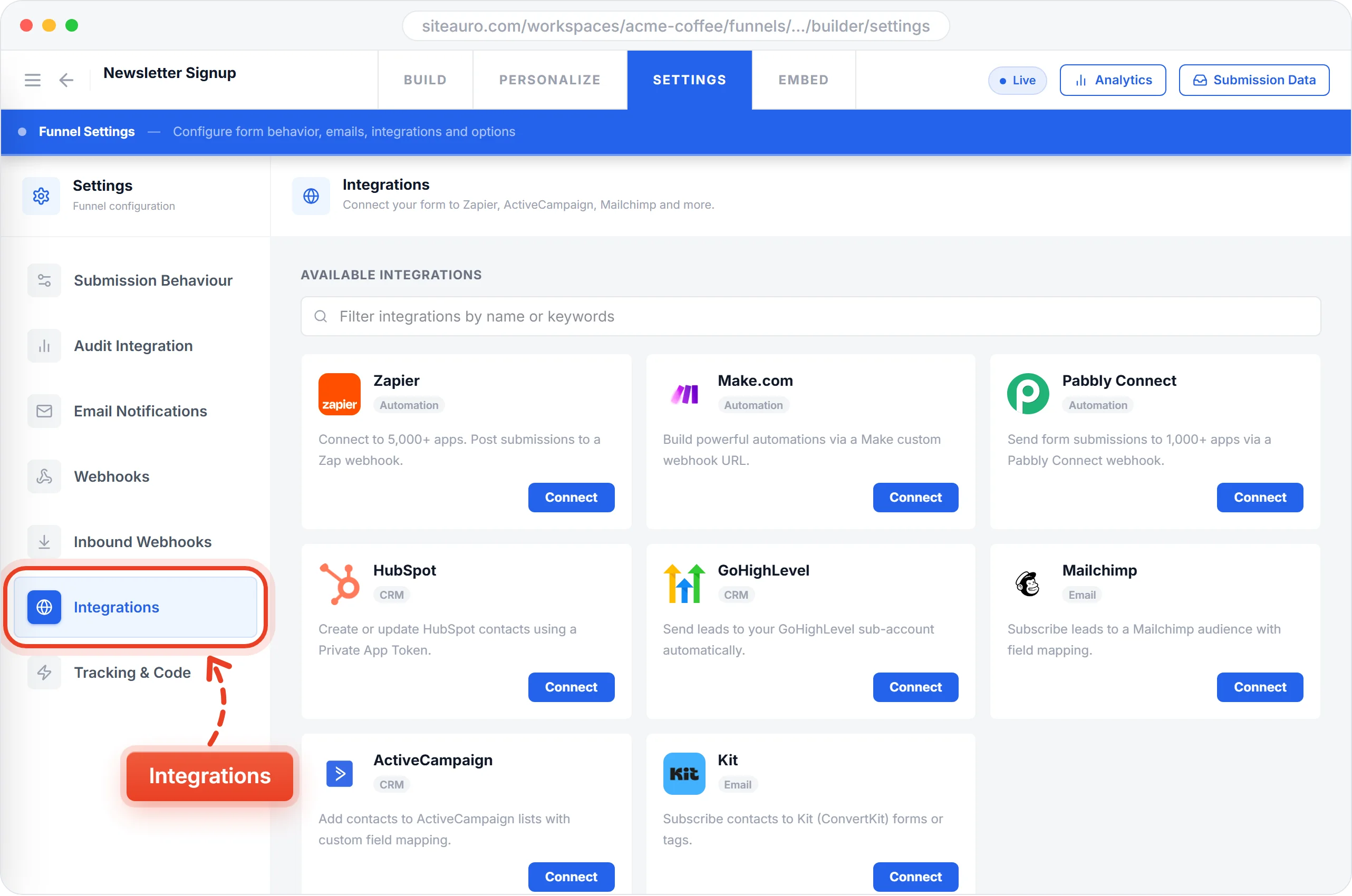
Integrations, under SETTINGS. Click Connect on Zapier
Type Zapier in the filter box to find it quickly.
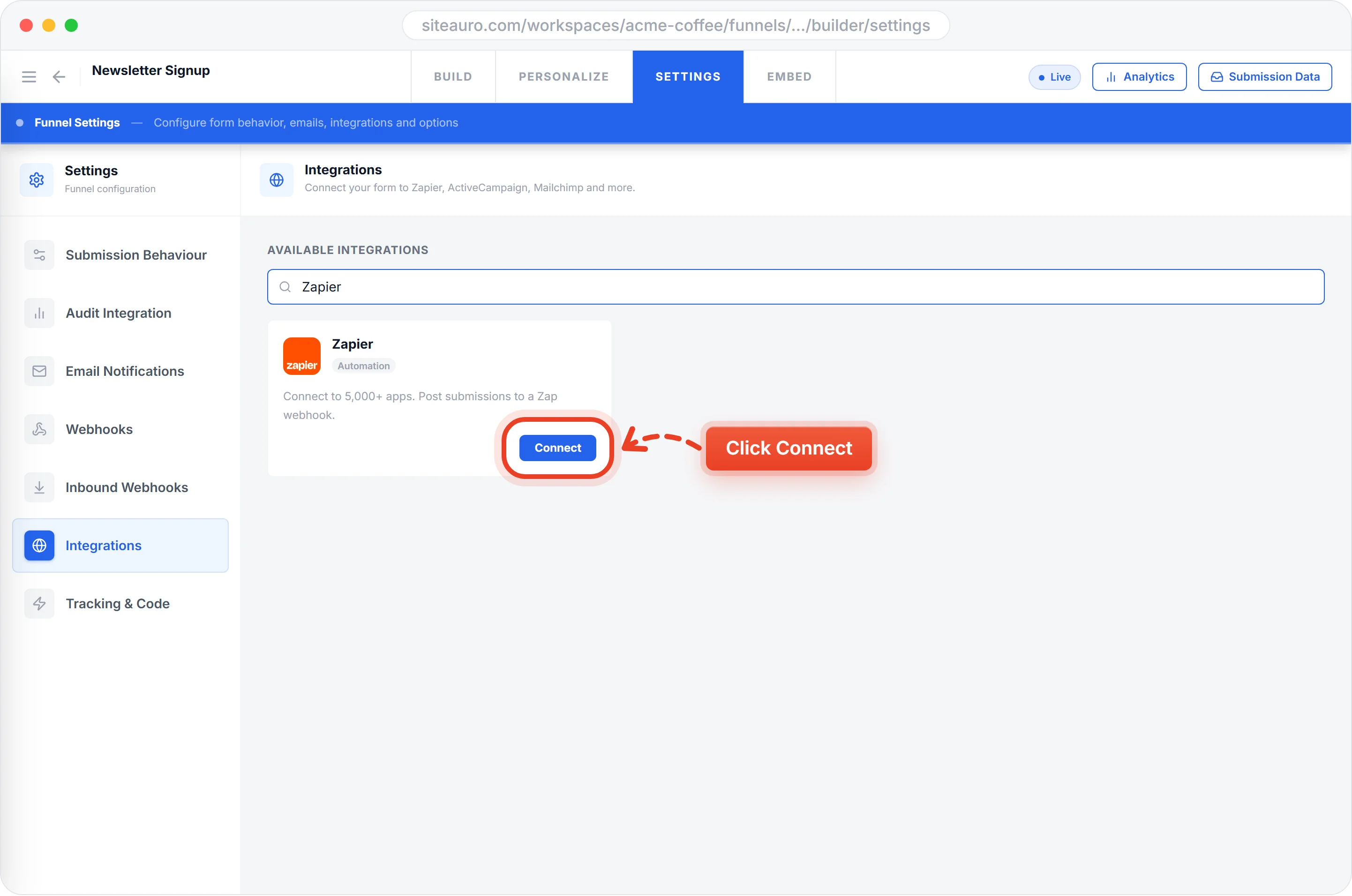
Zapier in Integrations. Paste the address and click Connect Zapier
The window asks for the Webhook URL, from your Zap's trigger: Webhooks by Zapier, Catch Hook. The address must start with
https://. SiteAuro sends a test record to it, and connects when Zapier answers.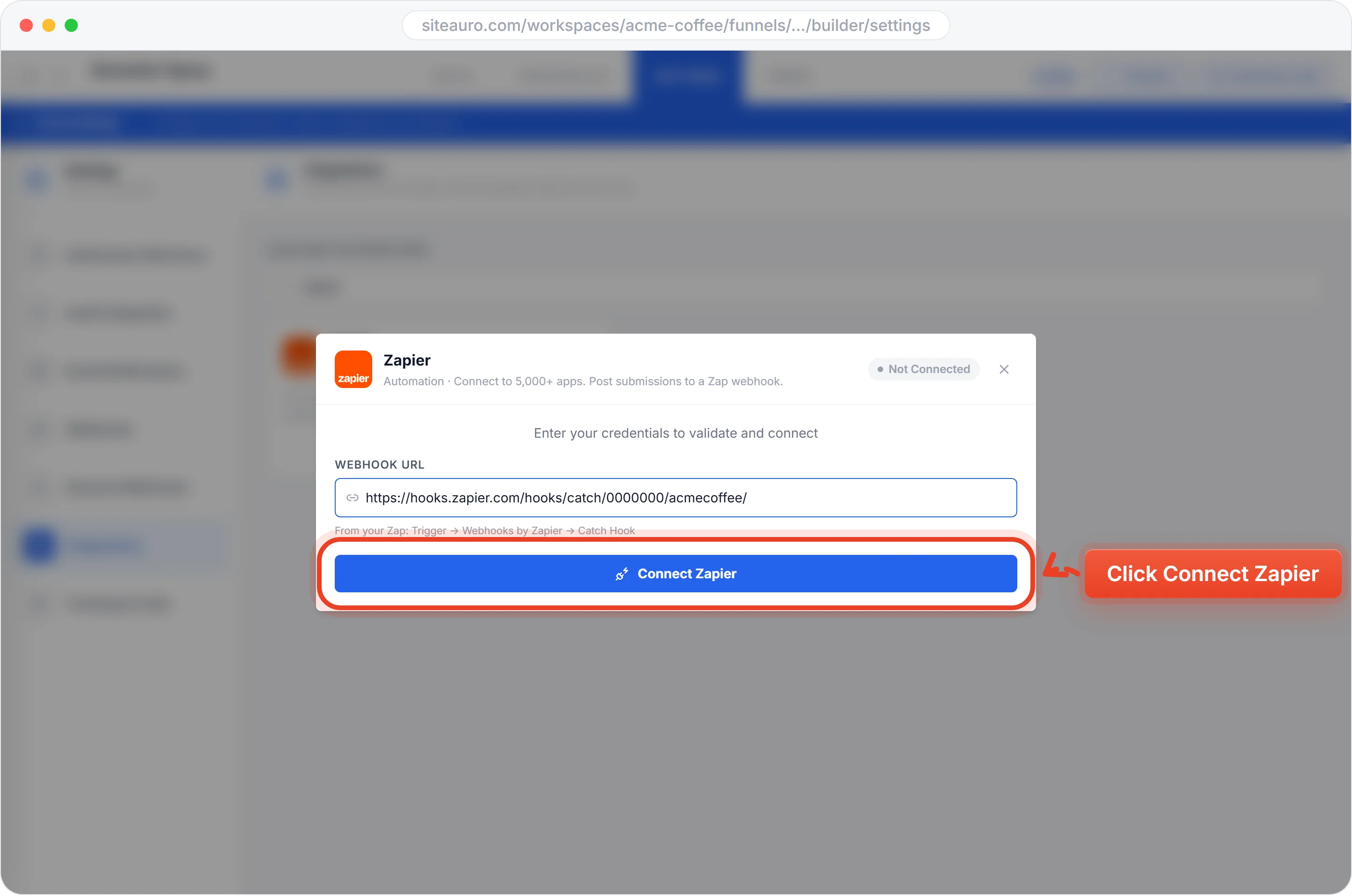
Connect Zapier.
Submit the funnel once yourself, then go back to Zapier and test the trigger: the submission appears there, and you can finish building the Zap.
Manage the Connection
Open the Zapier connection in Integrations to:
- Send a test record, to check the Zap receives it.
- Pause it, so nothing is sent until you resume it.
- See the Delivery Logs: each submission sent, and whether it arrived. A failed one can be retried.
- Disconnect it. The delivery logs are kept.
Tip
Want to send submissions somewhere Zapier doesn't reach, or to your own server? Use an outbound webhook instead.
Next Step
Outbound Webhooks send submissions to any address you choose. To send them straight to Make.com, HubSpot, Mailchimp or another tool, see Other Integrations.