
Smart Tracker rules record facts about each visitor as they browse, in your own words: "has looked at pricing", "came from the newsletter", "number of demo-page visits". You can then use those facts in segments.
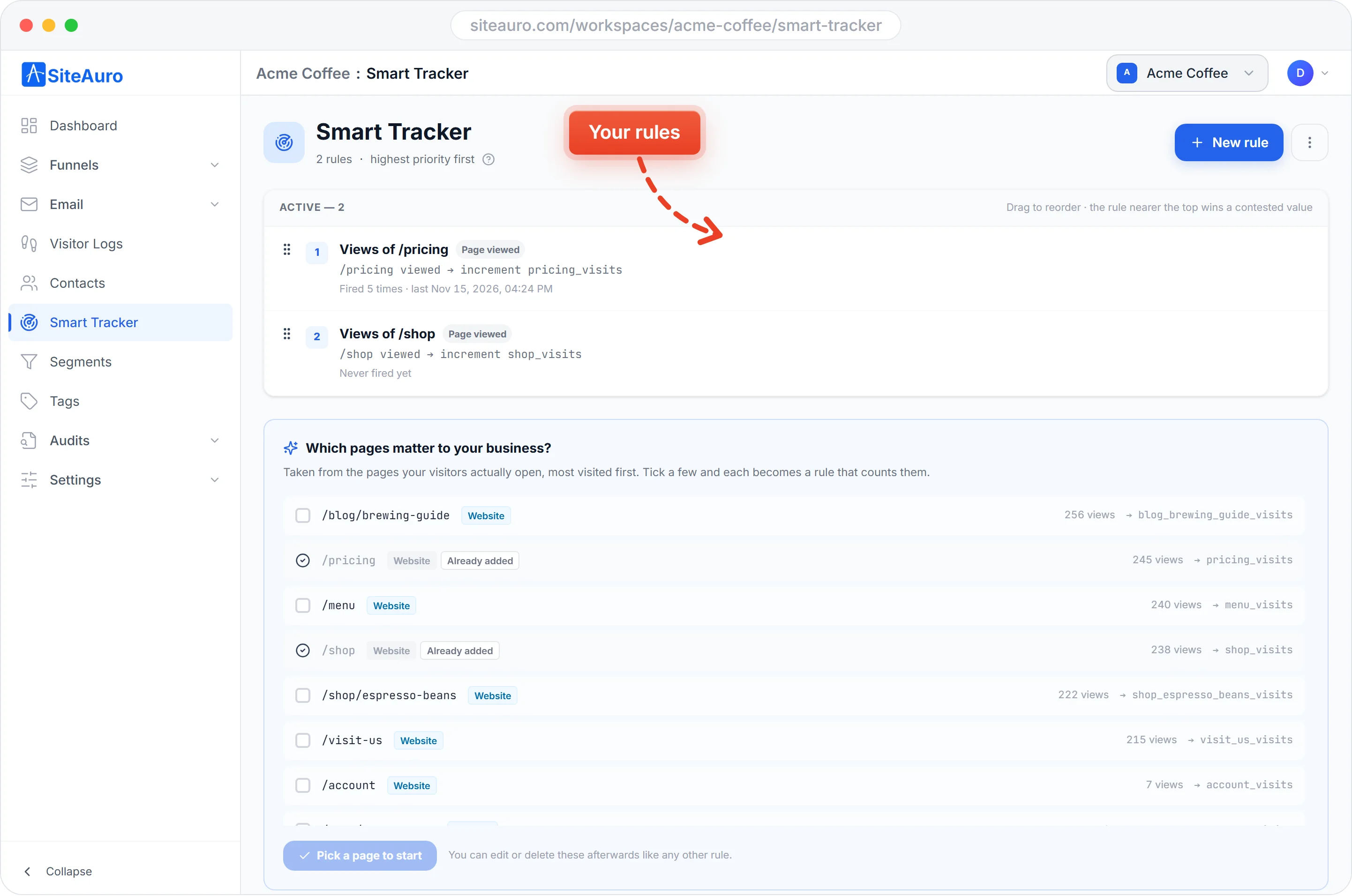
In the menu, click Smart Tracker. Your rules are listed in order, each with what it does and how often it has fired.
Create a Rule
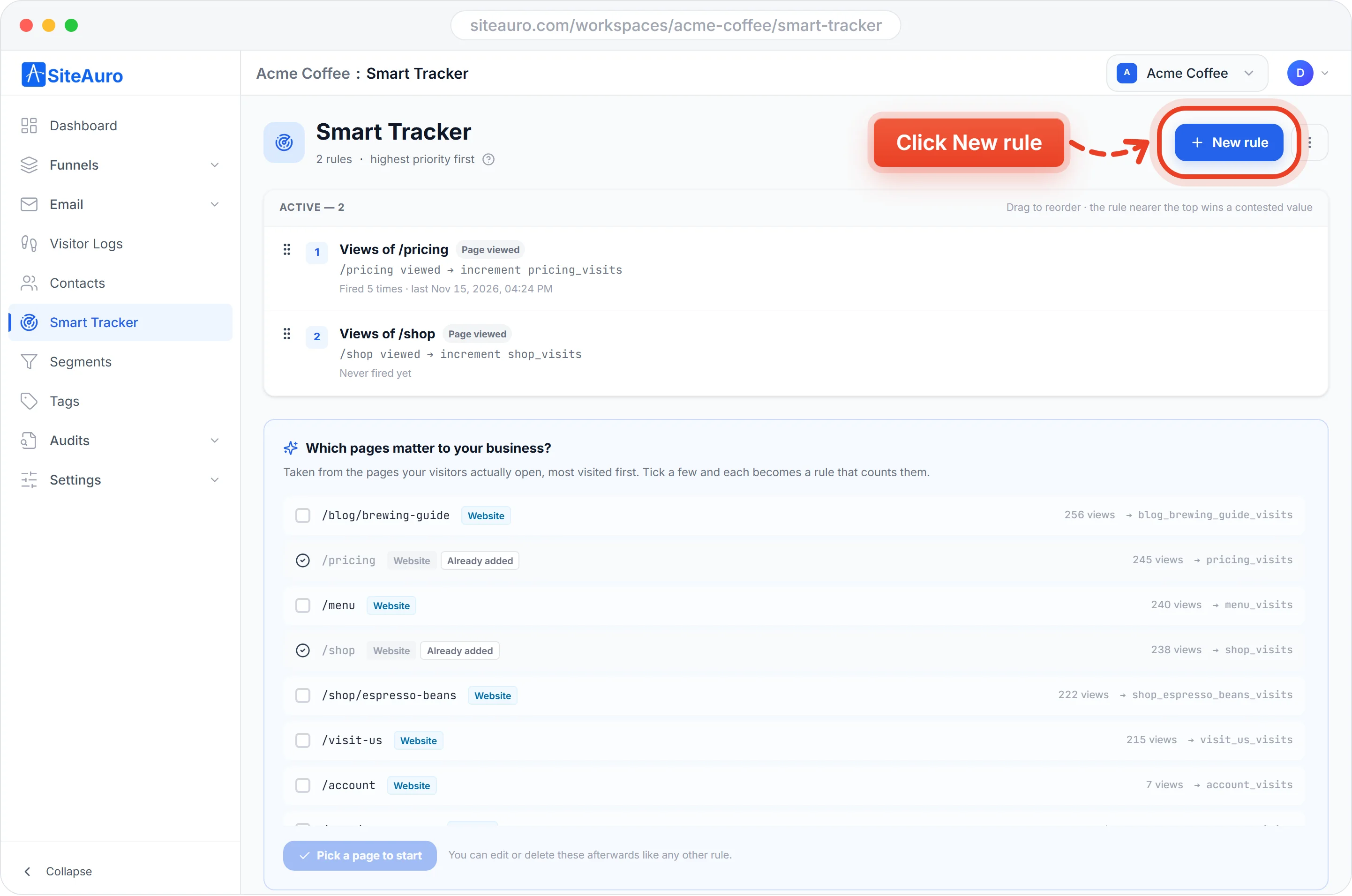
Click New rule, and name it
Click New rule at the top right (Create your first rule when there are none).
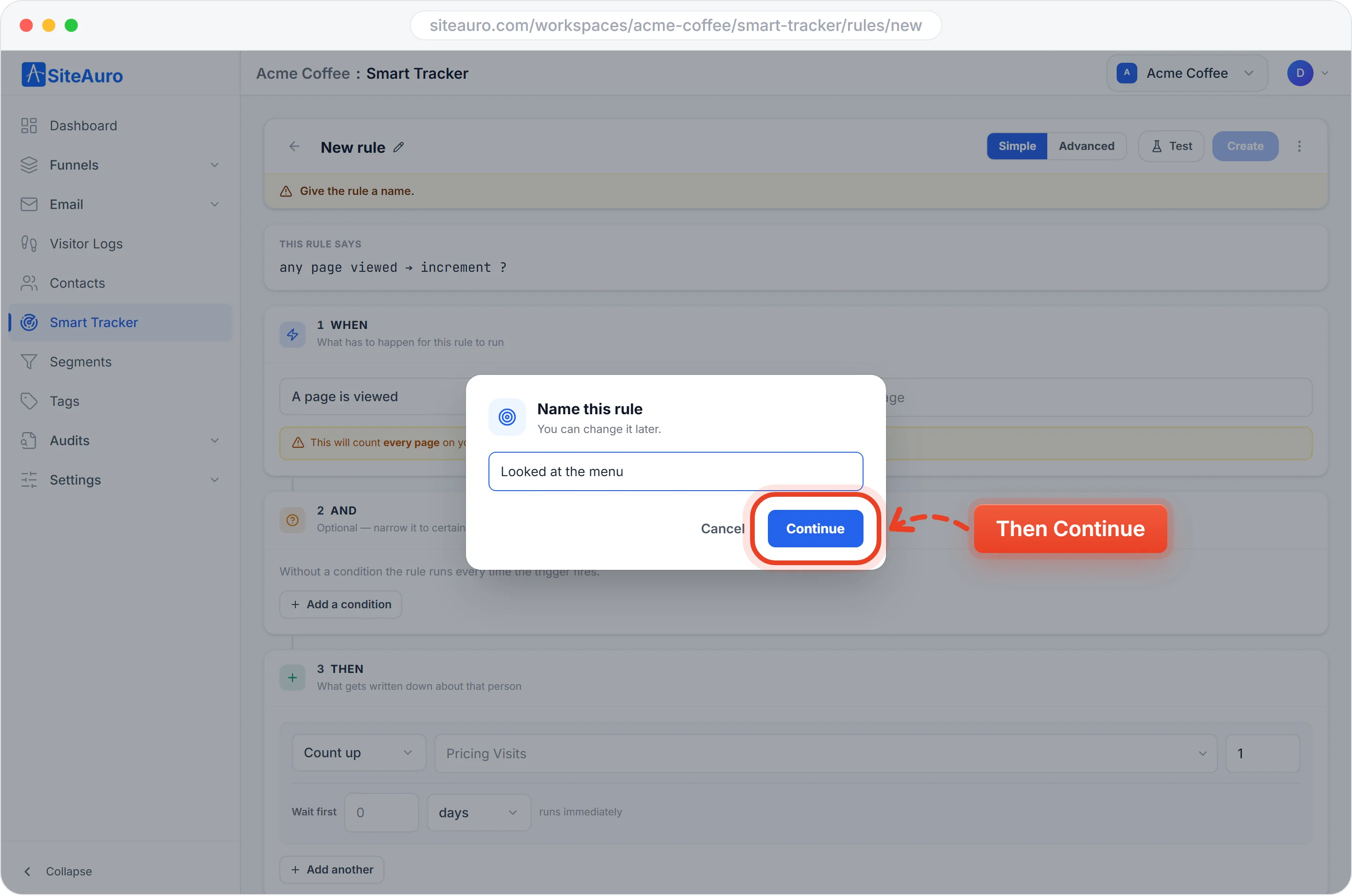
New rule. Give the rule a name you'll recognise, and click Continue. You can change the name later.
Name the rule. When: choose what starts it
- A page is viewed: a page whose address contains, matches exactly, starts with or ends with what you type, on your site or a particular domain. Leave the address empty for every page.
- They arrive from a source: a visitor comes from a particular place, such as a campaign.
- A contact is created.
And: add conditions, if you need them
Optionally, with Add a condition, only when other things are also true. Choose whether all of them or any of them must match.
Then: choose what to record
- Count up: add one to a number, such as "pricing visits".
- Set a value: set a fact, such as "came from newsletter" to yes.
Type the name of what it records; if it is new, choose Create in the list. Wait first delays it, if you want. This rule says, at the top, reads the rule back as one line.
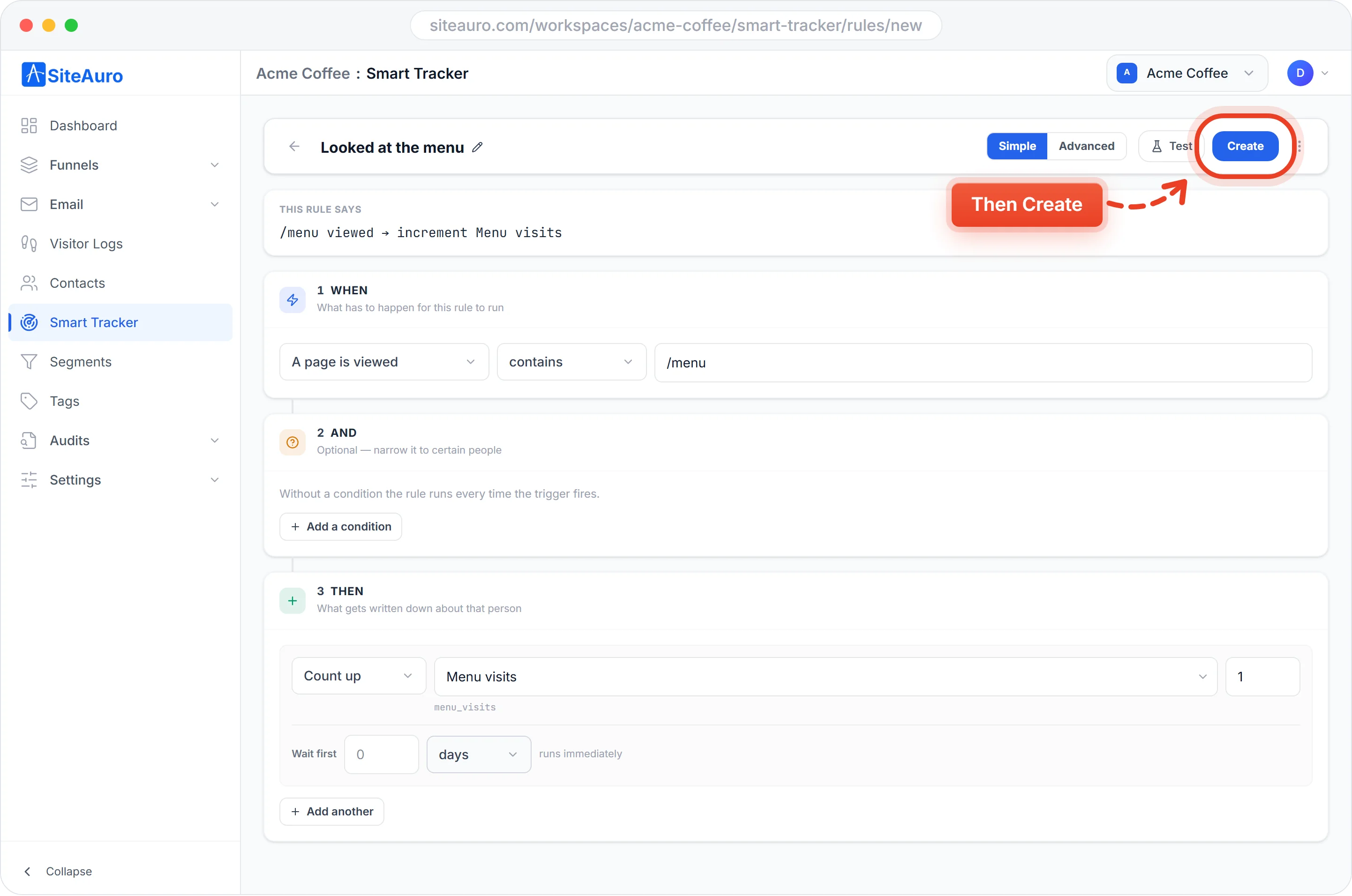
A rule, ready to create. Click Create
You see Rule created. The rule starts recording from then on.
Start From Your Pages
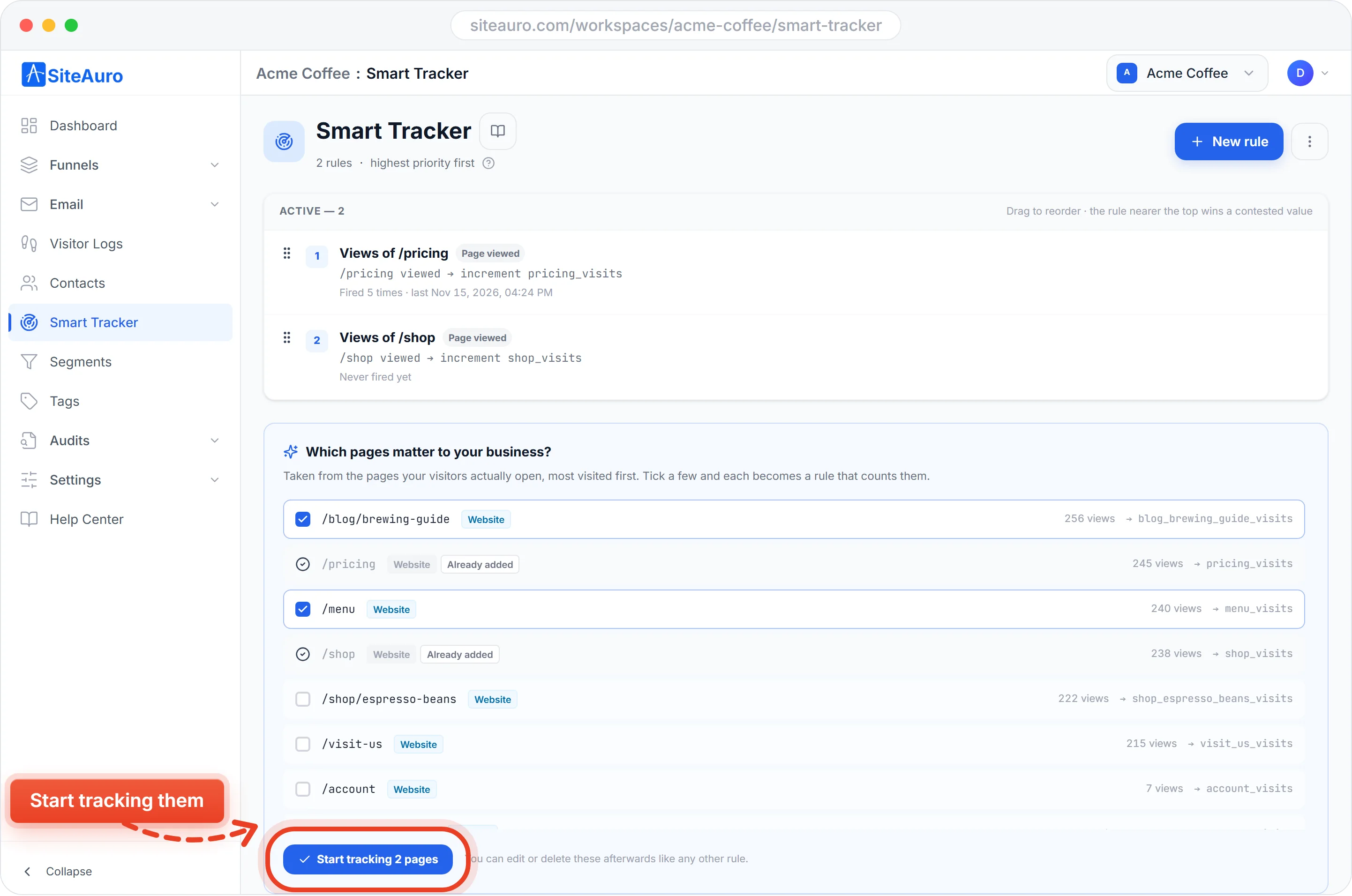
The Smart Tracker page asks Which pages matter to your business? It lists the pages your visitors actually open, most visited first, with Search pages… to find one. Pages seen on the parts of your site you marked on the Install page are tagged Website or Inside app, and a page a rule already counts is marked Already added. Beside the search, choose All pages, Website or Inside app to list only the pages with that tag. Pages marked Already added follow the filter like the rest. The search and the filter appear once the list is long enough to need them. Tick the ones that matter and click Start tracking: each tick becomes a rule that counts visits to that page, which you can change or delete like any other. Until the workspace has a rule, the list sits under Create your first rule; after that, it stays below your rules while there are pages left to suggest.
Manage Your Rules
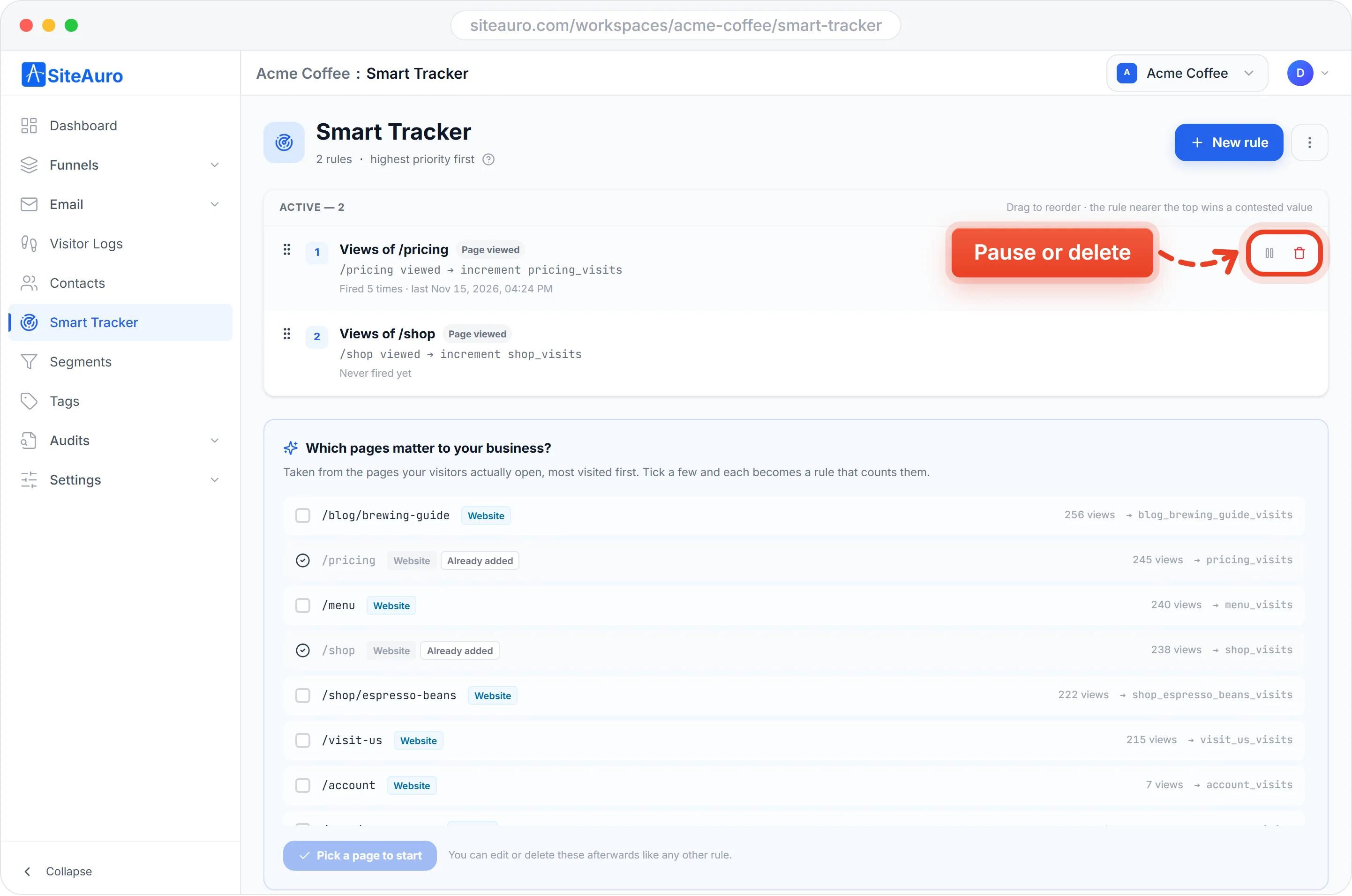
- Order: drag the rules into order. When two rules set the same thing, the higher one wins.
- Click a rule to open it: change it, Test it on a sample page, or see its Insights.
- Point at a rule to show its buttons: Pause stops it for now, and the bin deletes it.
Note
Some things are counted for you already. If a rule would record something SiteAuro already counts, it says so, so you don't count it twice.
Next Step
Segments use what your rules record.