
Creating a SiteAuro account takes a minute. You fill in one form, we email you a link, and once you confirm your address you can sign in. Your free trial starts when you confirm, so nothing is lost while the email waits in your inbox.
Create your account
Open the sign-up page
Go to siteauro.com/signup. You don't need a credit card.
Choose your plan
At the top of the form, choose the plan your free trial is for.
Fill in your details
- Full name: at least 2 characters.
- Email: the address you will sign in with. We send the confirmation link here.
- What best describes your business?: choose the closest one. If you choose Other, describe your business in a few words.
- Country: start typing to find yours.
- Password and Confirm password: at least 8 characters, with at least one capital letter and one number.
Click Create account
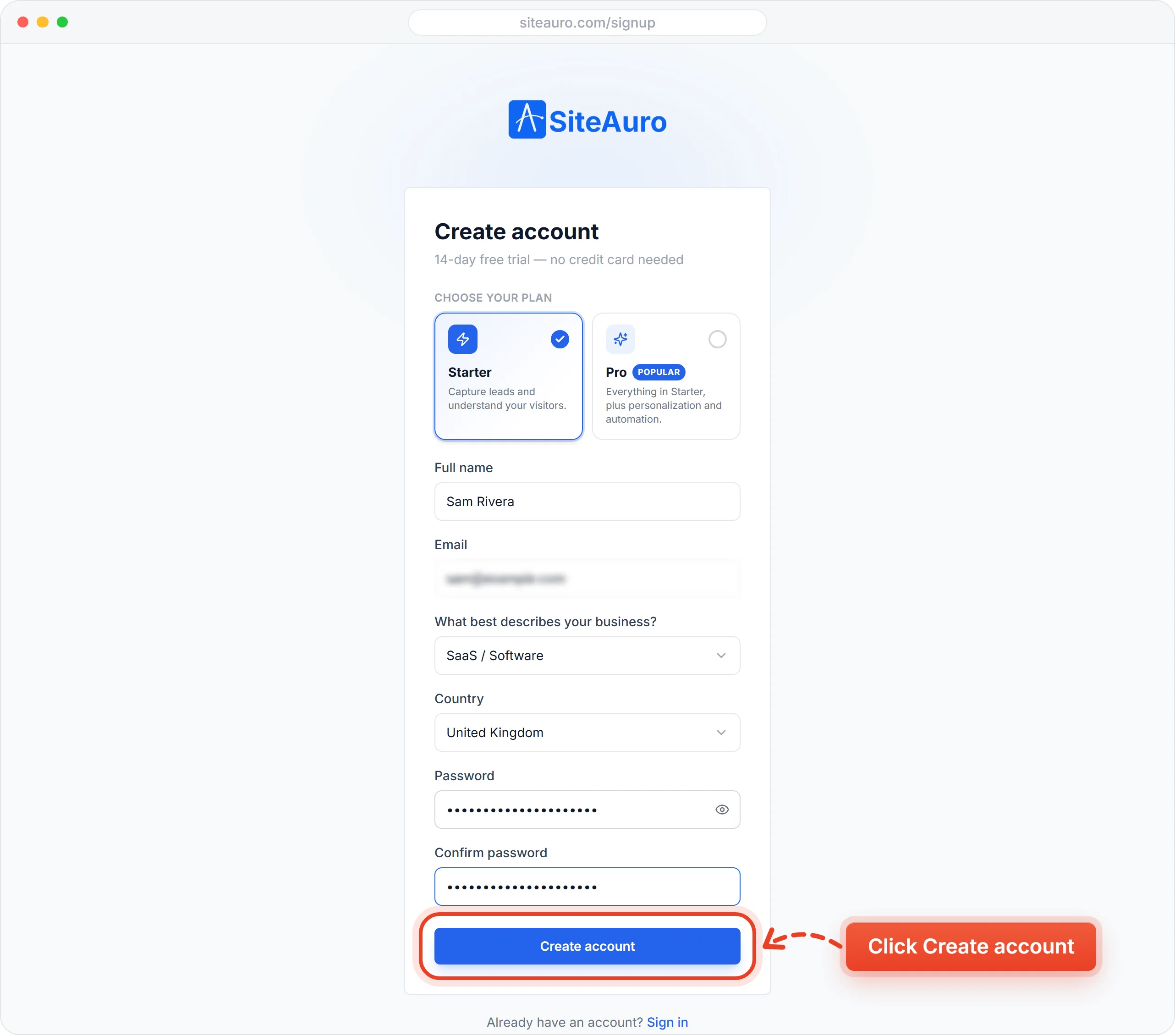
The sign-up form, filled in.
Check your email
Your account is ready, but you can't sign in yet. The form is replaced by Check your email, which shows the address we sent the link to, with part of it hidden.
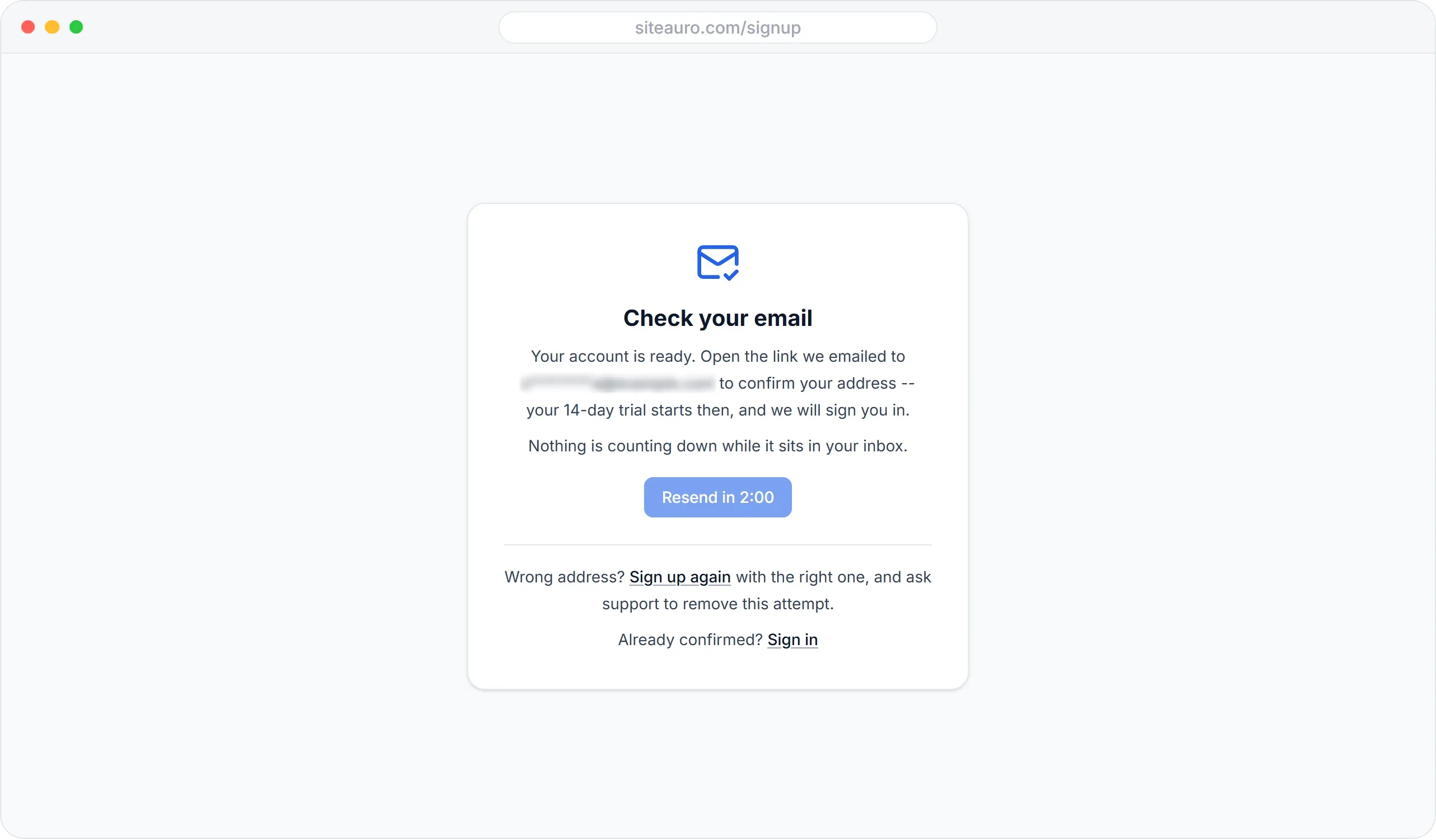
The email is titled Confirm your email address. If it hasn't arrived after a few minutes:
- Look in your spam or junk folder.
- Click Resend another link. The button counts down for 2 minutes after each link we send, then you can ask again.
Note
Typed the wrong address? Click Sign up again and use the right one, then ask support to remove the account with the wrong address. You can't sign in to that account to correct it, because its address was never confirmed.
Confirm your address
Open the link in the email
Click Confirm this address in the email, or copy the link into your browser. It works in any browser and on any device, even one you are not signed in on.
Click Confirm this address
Opening the link doesn't confirm anything by itself. Mail scanners and link previews open every link in an email before you do, so the page waits for you to press the button.
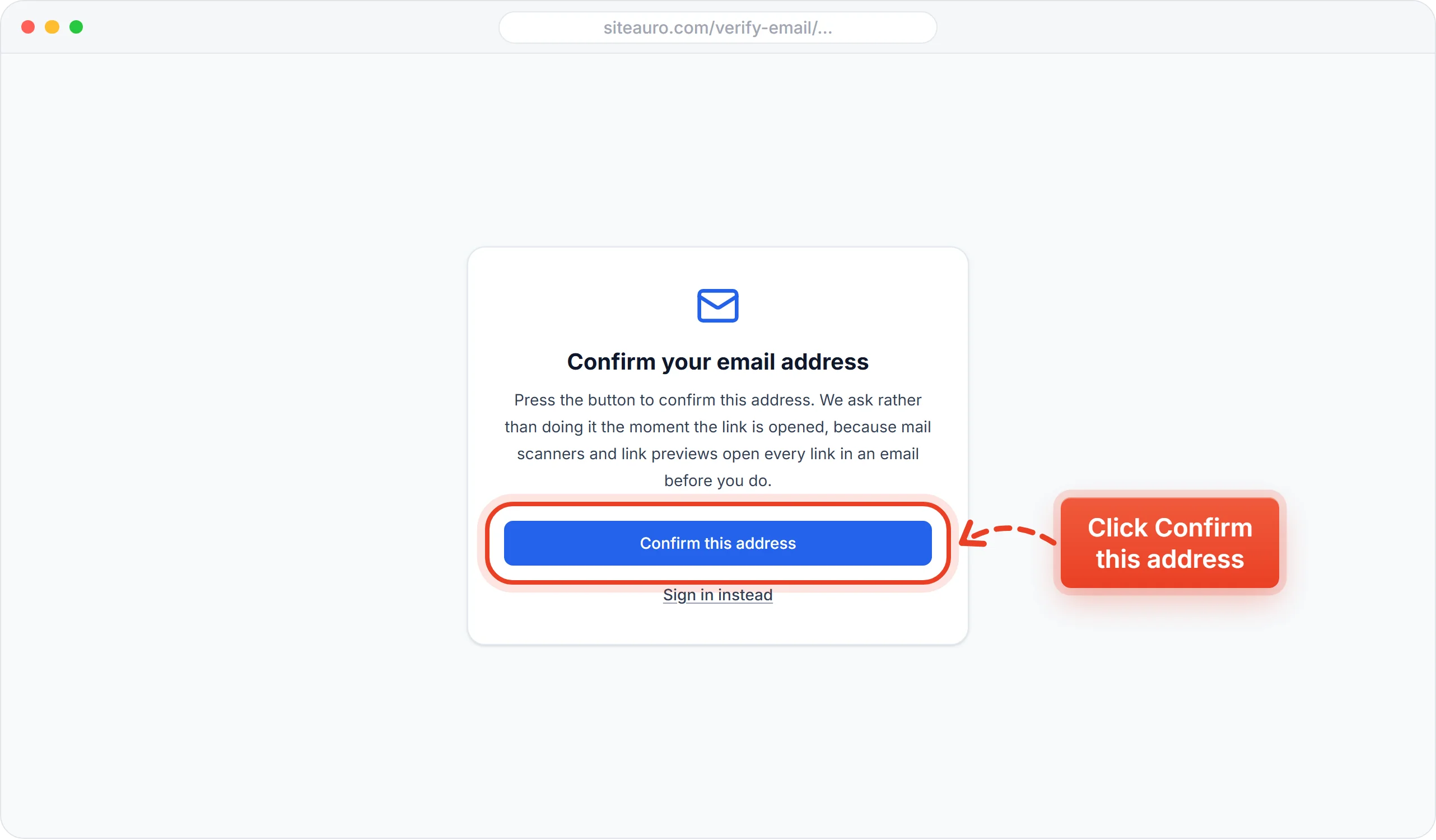
The page the link opens. Click Sign in
You see That's confirmed. Confirming doesn't sign you in, so click Sign in and sign in with your email address and password.
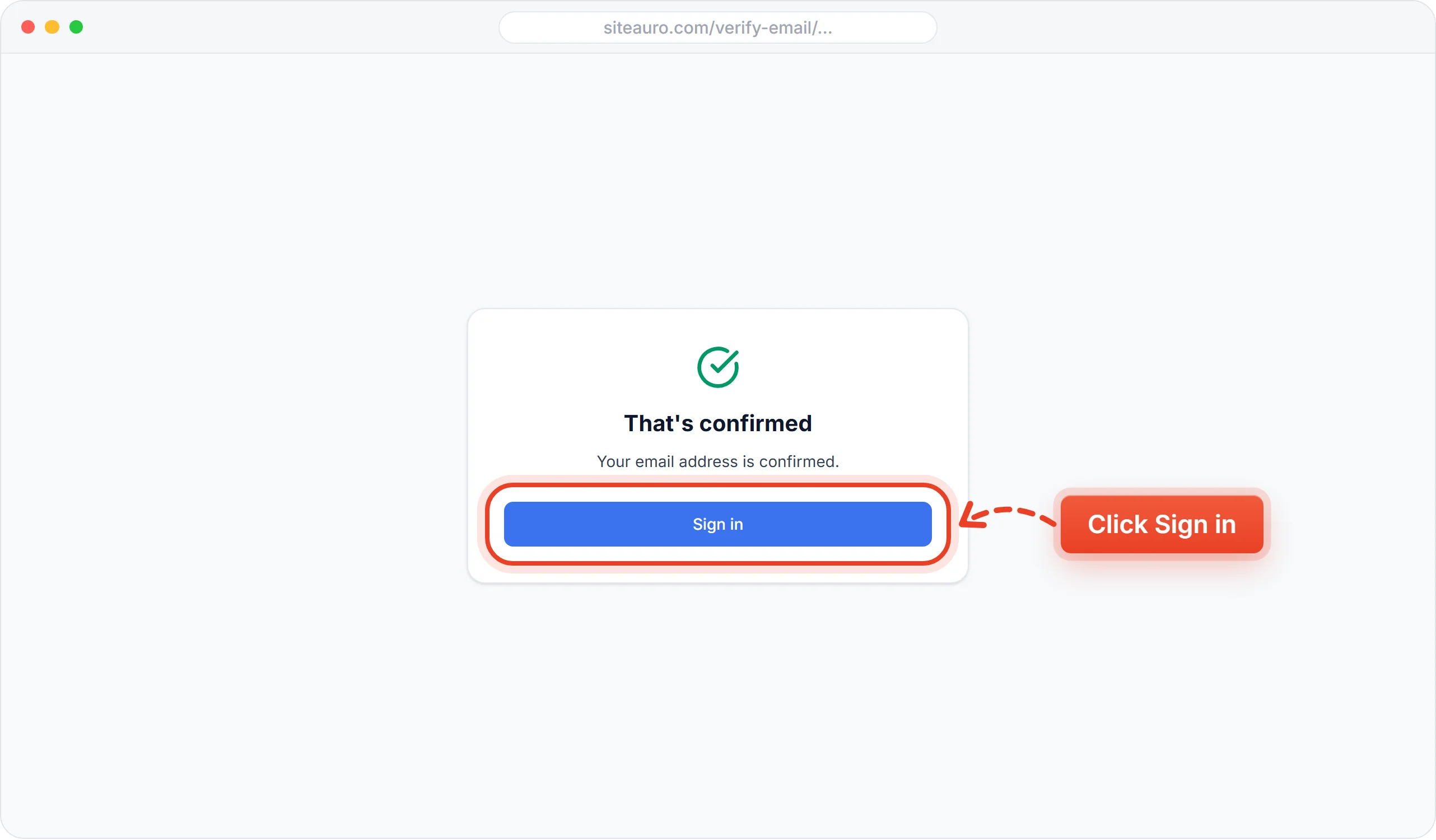
Your address is confirmed.
A link works for 24 hours, and only the newest link works: when you ask for another one, the earlier links stop working. An old link shows That confirmation link is not valid any more. Ask for a new one from the sign-in page.
If you sign in before confirming
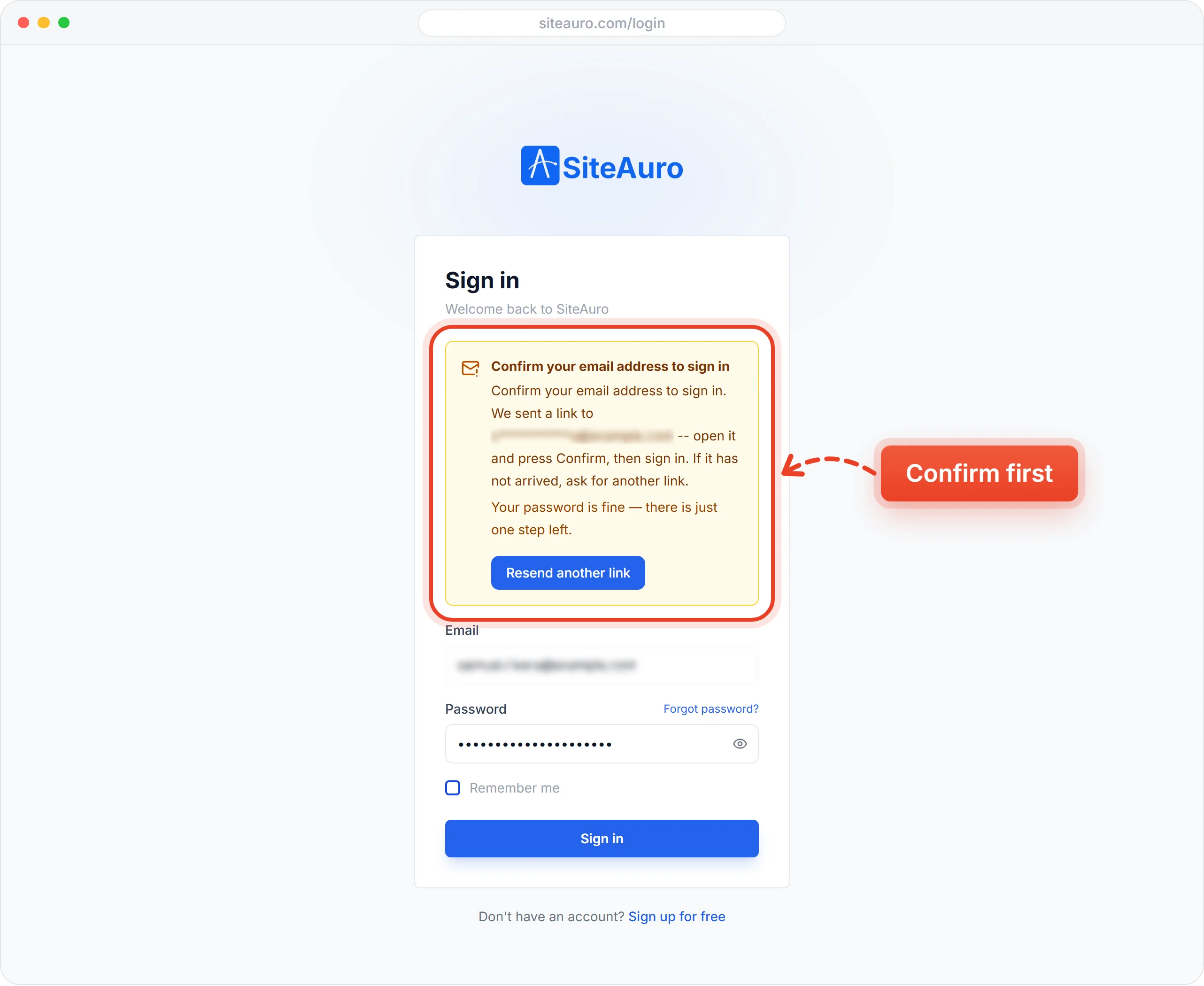
Your password is accepted, but you are not signed in. The sign-in page shows Confirm your email address to sign in, with a Resend another link button. Confirm your address with the link, then sign in again.
Tip
If you didn't sign up for SiteAuro and the email reached you anyway, you can ignore it. Nothing is confirmed unless somebody opens the link and presses the button.
Next step
You're signed in. Follow Getting Started with SiteAuro to create your first workspace. To keep your account safe, see Sign In, Sign Out, Passwords and Two-Factor.