
Skip to content
SiteAuro

Manage Your Funnels

Find a funnel, switch a popup on or off, duplicate, rename or delete it, from the Funnel list.

Table of Contents
  1. Find a Funnel
  2. Switch a Popup On or Off
  3. Other Actions
  4. Next Step

The Funnel list shows every popup, widget and landing page in the workspace. In the menu, open Funnels and choose Funnel list.
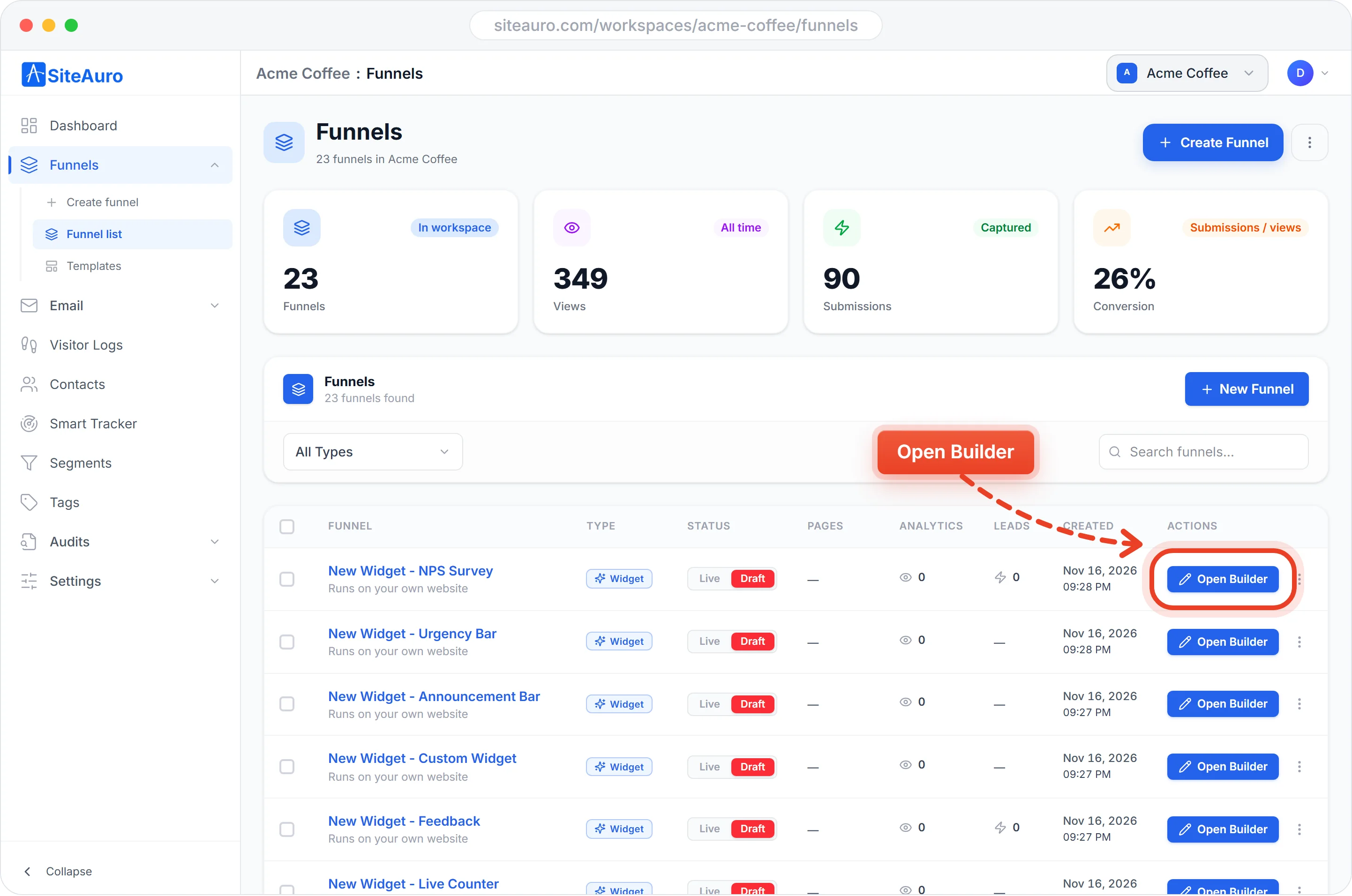
The Funnels page in a browser window: totals for Funnels, Views, Submissions and Conversion, then the list of the Acme Coffee workspace's funnels with All Types and Search funnels above it; each row shows the funnel's name, its type, its Live and Draft status, its pages, views, leads, the date it was created and an Open Builder button. The first Open Builder button is outlined in red, with the label "Open Builder" and a dashed arrow pointing to it.
The Funnel list.

At the top are totals for the whole workspace: Funnels, Views, Submissions and Conversion (submissions divided by views). Below, each funnel has a row with its type, its status, how many pages it has, its views and leads, and when it was created.

Find a Funnel

Choose a kind in All Types to show only that kind, or type in Search funnels to find one by name. Open Builder goes straight to the builder.
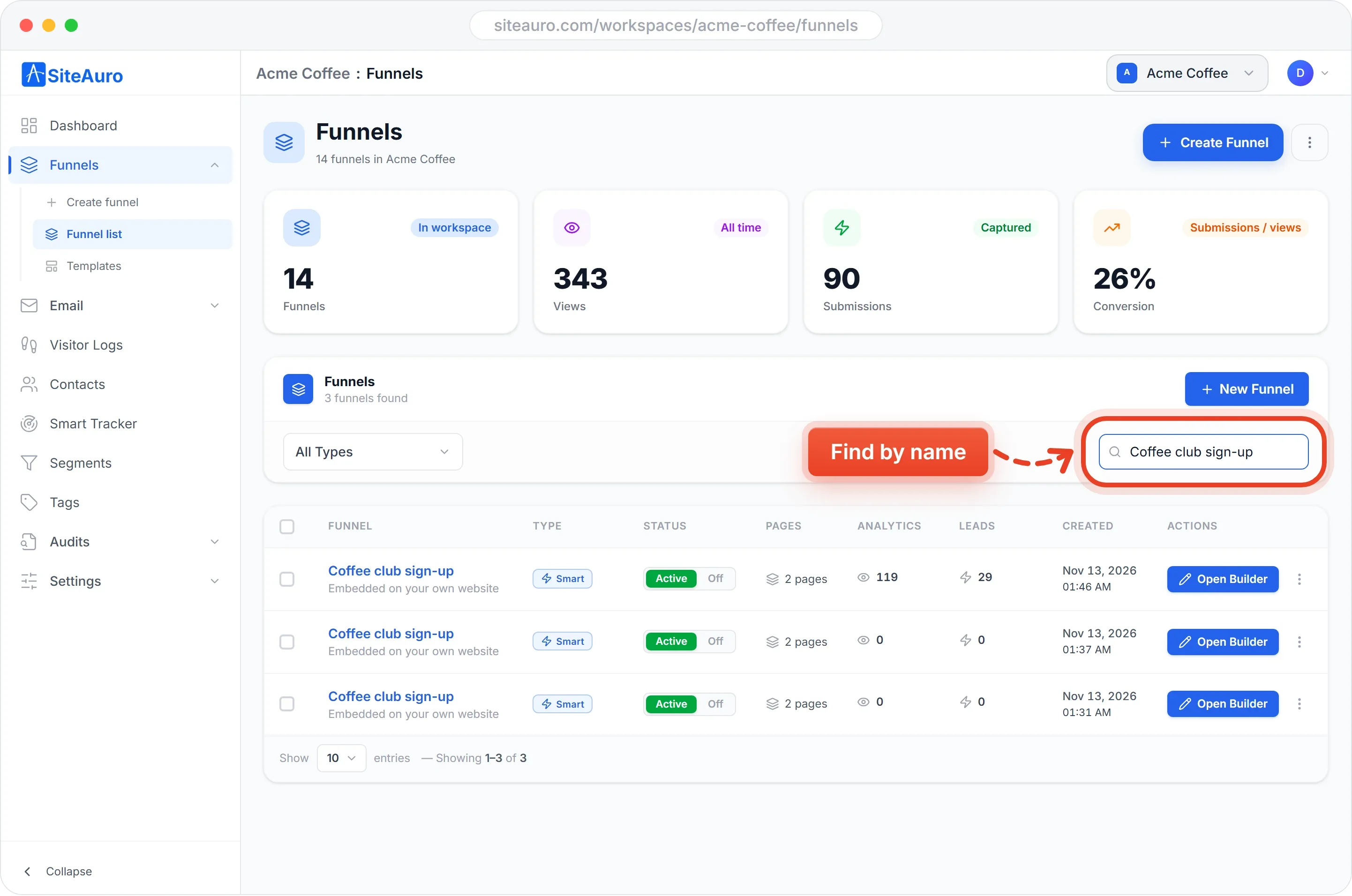
The Funnels page in a browser window, with Coffee club sign-up typed in the search box and three funnels found, each a Smart funnel with its Active and Off switch, pages, views, leads, the date it was created and Open Builder. The search box is outlined in red, with a red arrow labelled Find by name.
Find a funnel.

Click a funnel's name to open its overview: its pages, views, submissions and conversion, links to the Funnel builder, Responses and Analytics, a chart of the last 30 days, its details and its live link.
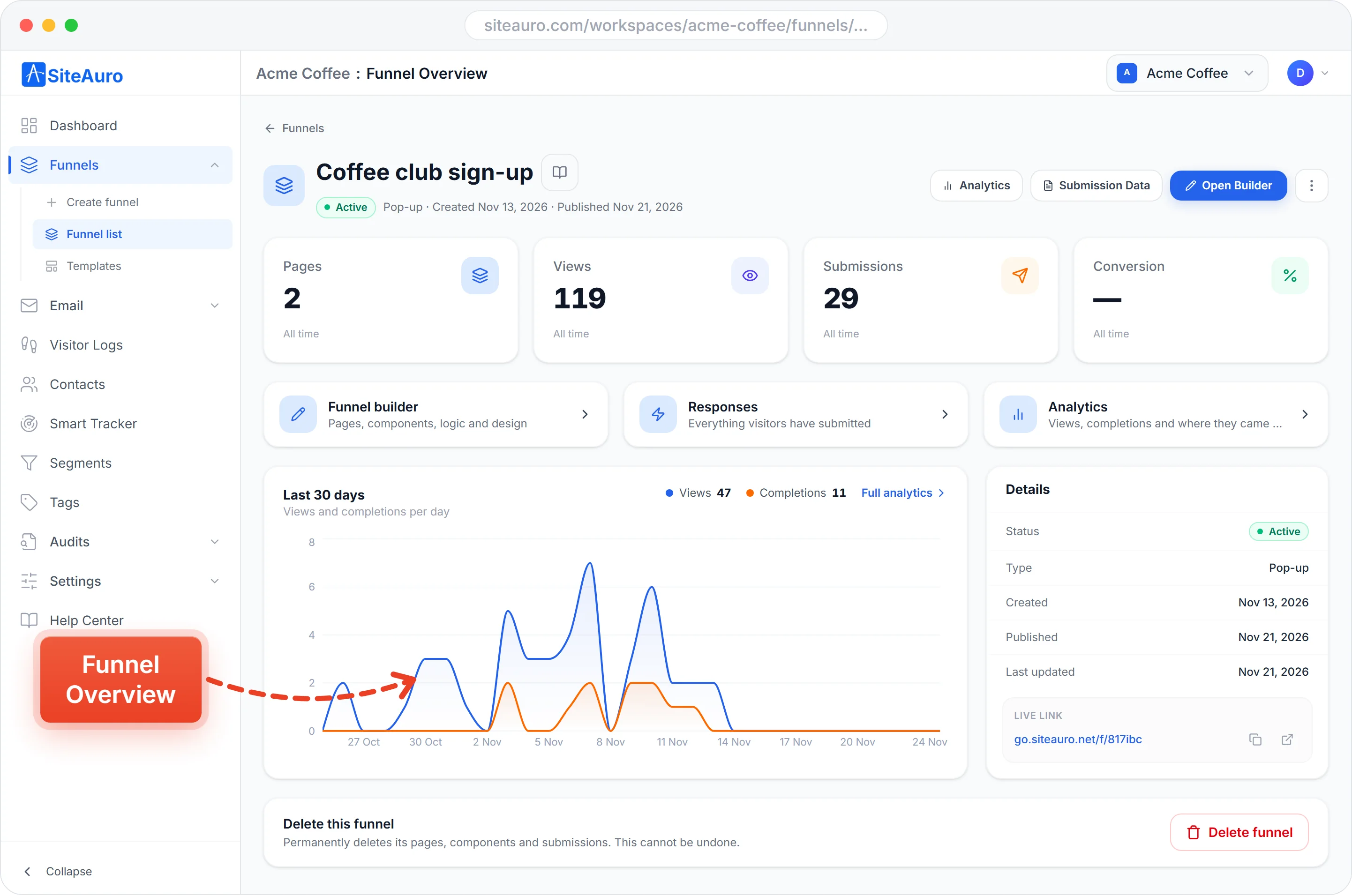
The Funnel Overview of Coffee club sign-up in a browser window, with a red Funnel Overview label in the menu and a dashed arrow pointing into the page: Active, Pop-up and its dates under the name, Analytics, Submission Data and Open Builder at the top right, the totals Pages, Views, Submissions and Conversion, links to Funnel builder, Responses and Analytics, a Last 30 days chart, Details with its status, type and dates and its live link, and Delete this funnel at the bottom.
A funnel's overview.

Switch a Popup On or Off

A popup's Status has two settings, Active and Off. A new popup starts Off. Click Off to stop it showing on your website, and Active to show it again. The same switch is at the top of the popup's EMBED tab (Show a Popup on Your Site).

Landing pages and widgets show Live or Draft instead. Click it to publish or unpublish (Landing Pages: Publish, SEO and Address).

Other Actions

The ⋮ menu at the end of each row has the other actions:
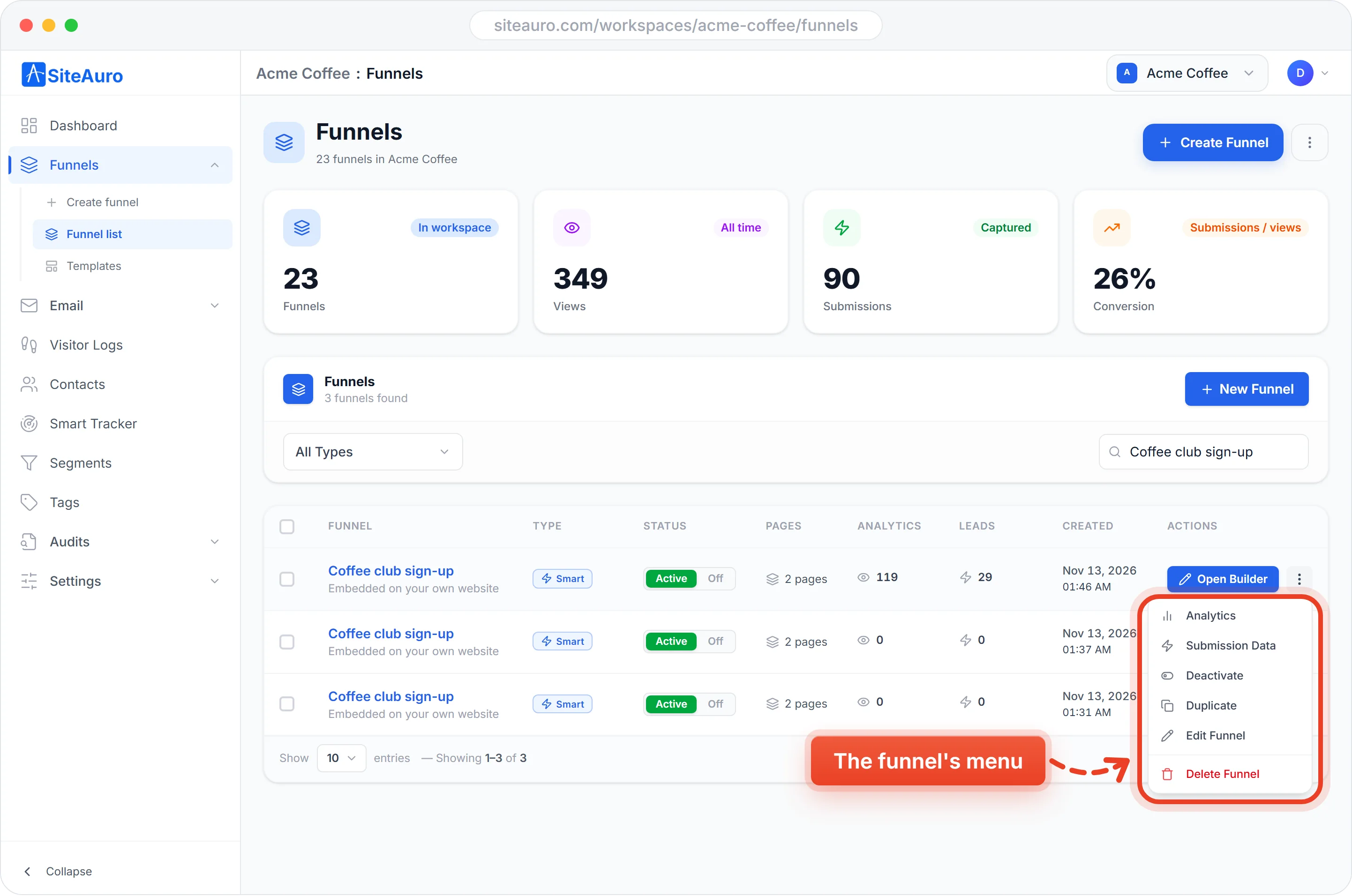
The Funnels page in a browser window, with the ⋮ menu of the first Coffee club sign-up row open: Analytics, Submission Data, Deactivate, Duplicate, Edit Funnel and Delete Funnel. The whole menu is outlined in red, with the label "The funnel's menu" and a dashed arrow pointing to it.
The funnel's menu.
  • Analytics and Submission Data: its figures and submissions.
  • Deactivate: the same as switching it Off.
  • Duplicate: makes a copy of the funnel (see below).
  • Edit Funnel: renames it.
  • Edit URL: changes its web address (only for funnels that have one).
  • Delete Funnel: deletes it, after you confirm (see below).

Duplicate a Funnel

Click Duplicate in the funnel's menu. SiteAuro asks first: the copy gets all the funnel's pages and settings. Click Duplicate to make it, and you see Funnel duplicated successfully. The copy appears in the list, ready to change without touching the original.
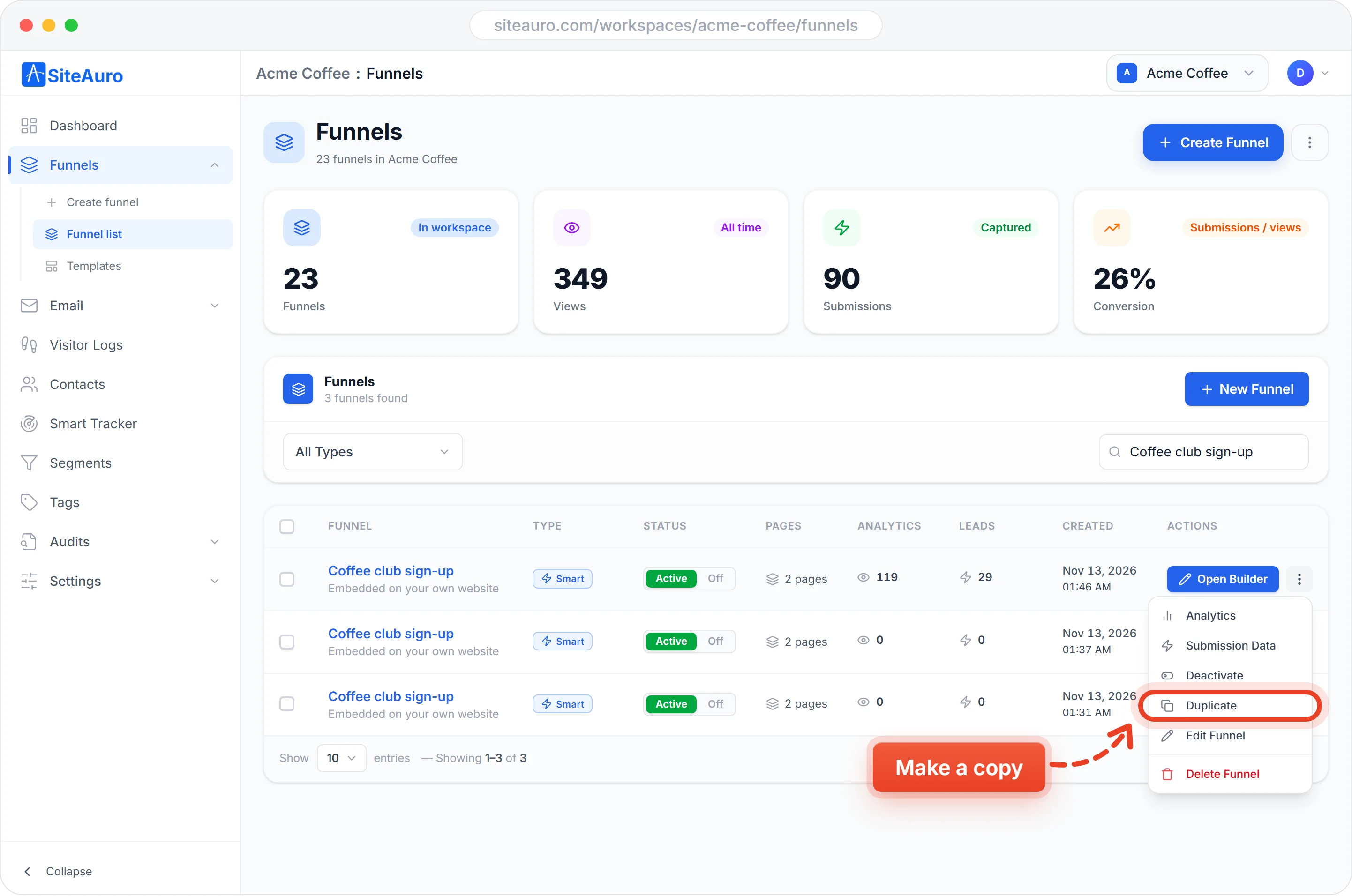
The Funnels page in a browser window, with the ⋮ menu of the first Coffee club sign-up row open. The Duplicate item is outlined in red, with the label "Make a copy" and a dashed arrow pointing to it.
Duplicate makes a copy.

Delete a Funnel

Click Delete Funnel at the bottom of the funnel's menu, then Delete to confirm.
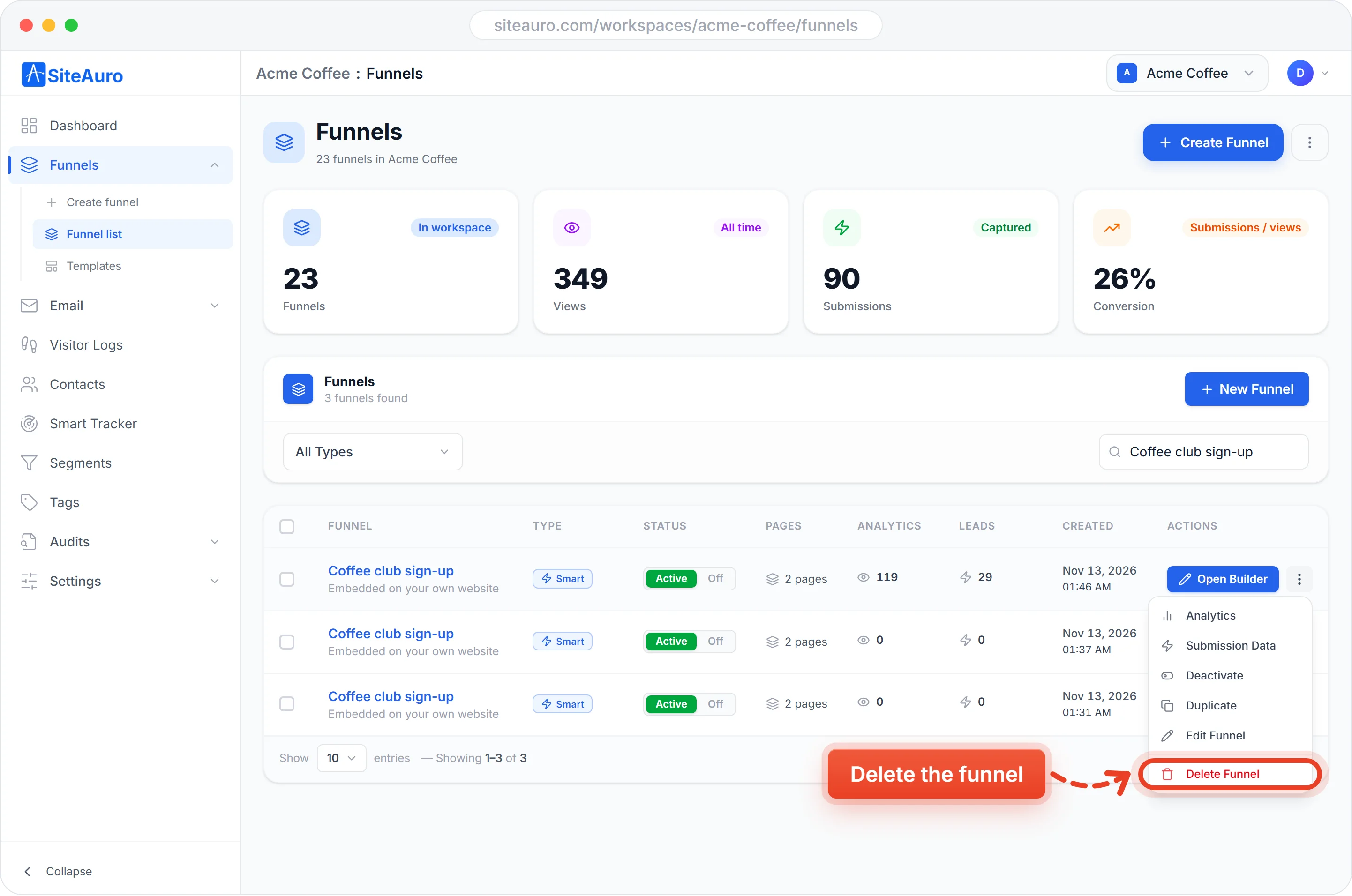
The Funnels page in a browser window, with the ⋮ menu of the first Coffee club sign-up row open. The Delete Funnel item, in red at the bottom of the menu, is outlined in red, with the label "Delete the funnel" and a dashed arrow pointing to it.
Delete Funnel, at the bottom of the menu.

Warning

Deleting a funnel deletes all its pages, submissions and data, and it can't be undone. If you might want it again, switch it Off or unpublish it instead.
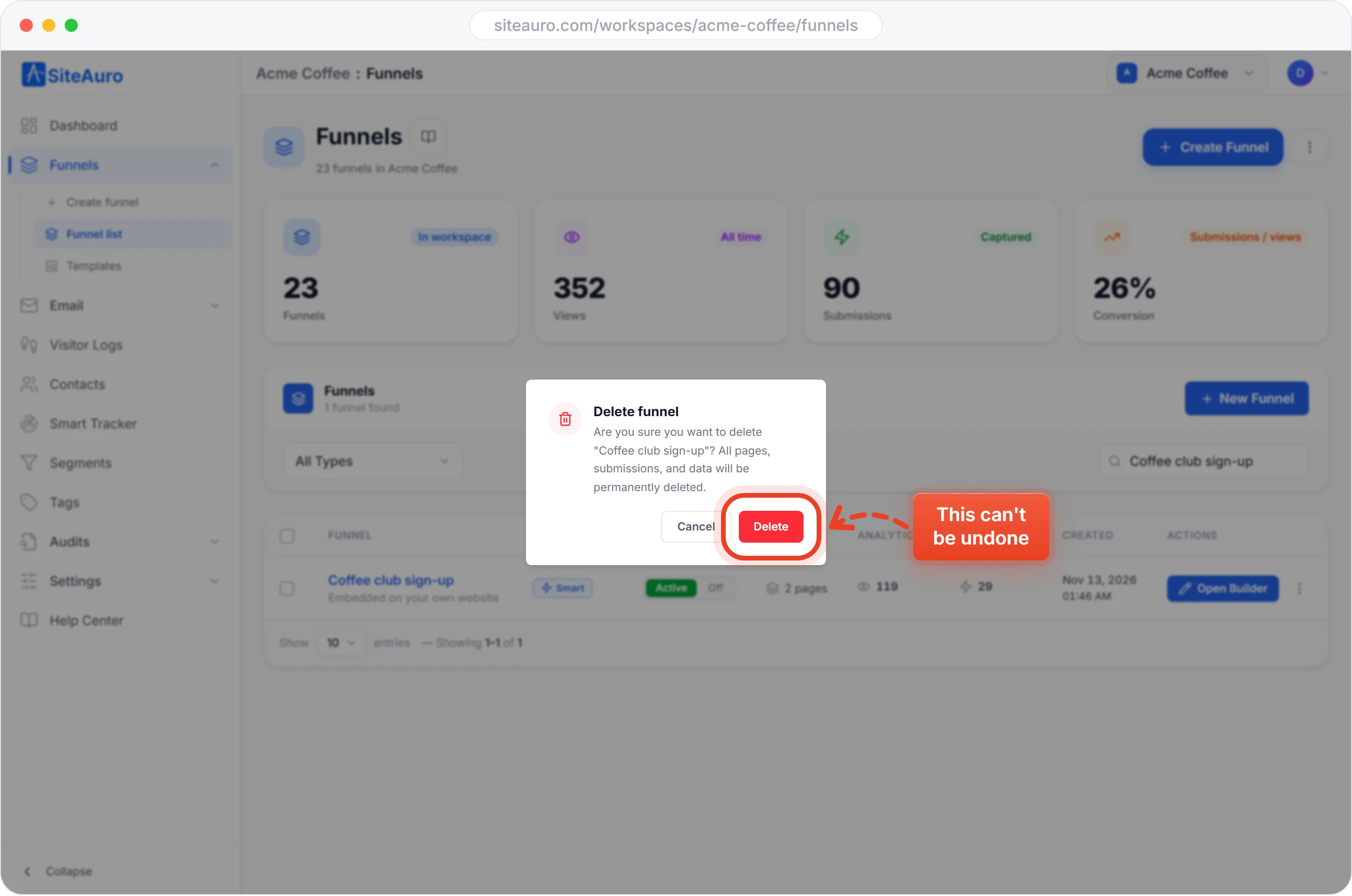
The Delete funnel question over the Funnels page, in a browser window: Are you sure you want to delete "Coffee club sign-up"? All pages, submissions, and data will be permanently deleted, with Cancel and Delete. The part this step is about is outlined in red, with the label "This can't be undone" and a dashed arrow pointing to it.
SiteAuro asks first.

To delete several funnels at once, tick the box at the start of each row and click Delete.

Next Step

Create Your First Popup.

Last updated