
Skip to content
SiteAuro

Sending Window

Choose the hours and days your workspace's emails go out. Mail due outside them waits for the next permitted moment.

Table of Contents
  1. Set Your Window
  2. What It Moves
  3. Switch It Off
  4. Next Step

A sending window keeps your emails to the hours you choose, such as weekdays from 9 to 5. It moves mail, it never stops it: an email that comes due at 3am goes out at the start of your next window instead. Nothing is dropped, and there is no queue to release.

In the menu, open Settings and choose Sending window.
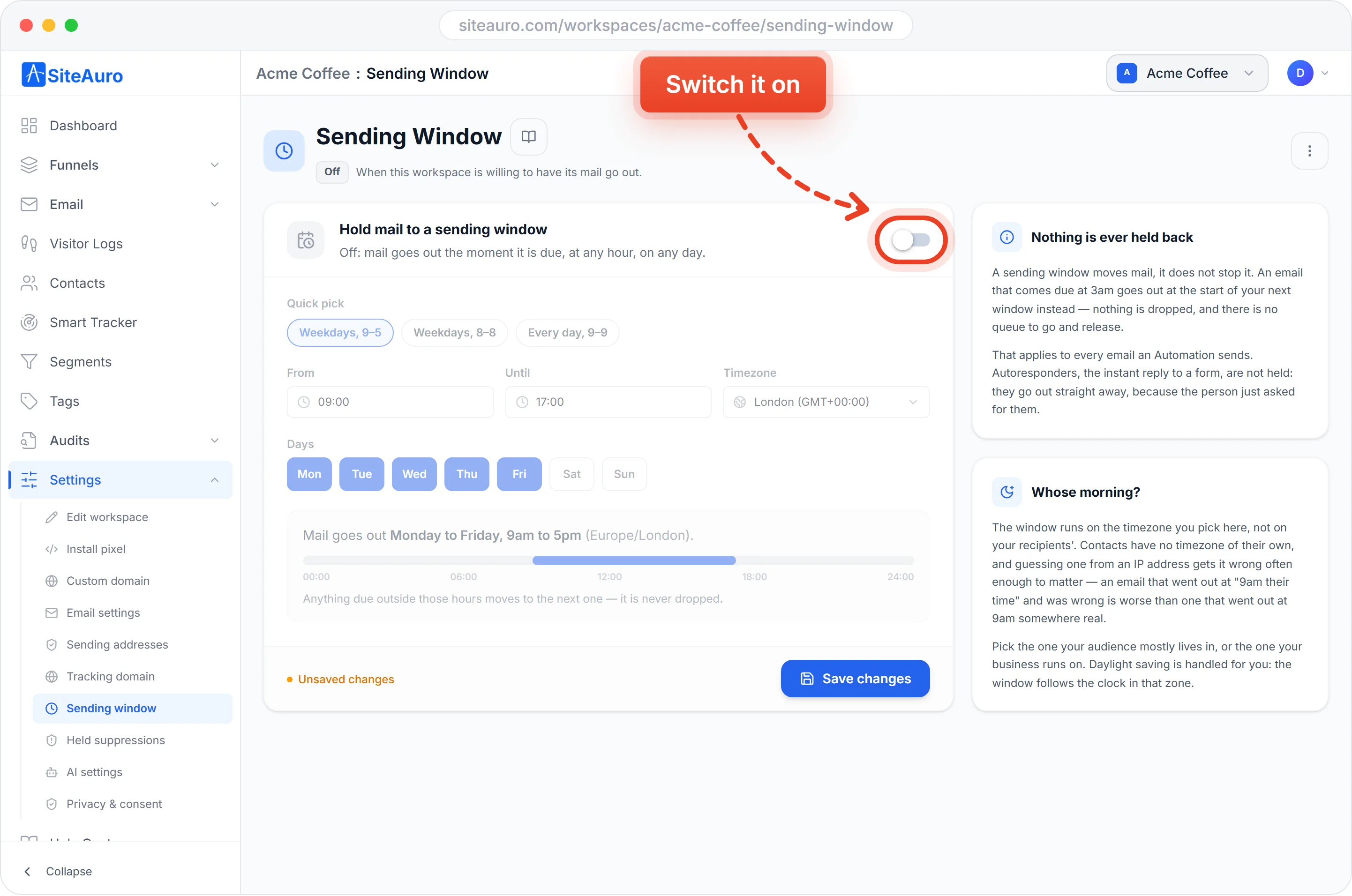
The Sending Window page, Off, in a browser window: the Hold mail to a sending window switch, the presets Weekdays, 9–5, Weekdays, 8–8 and Every day, 9–9, From, Until and Timezone, the days Mon to Sun, and Save changes, with the notes Nothing is ever held back and Whose morning? on the right. The switch is outlined in red, with the label "Switch it on" and a dashed arrow pointing to it.
Sending Window.

Set Your Window

  1. Switch it on

    Switch on Hold mail to a sending window. While it is off, mail goes out the moment it is due, at any hour, on any day.

  2. Choose the hours

    Under Quick pick, choose Weekdays, 9–5, Weekdays, 8–8 or Every day, 9–9, or set From and Until yourself. The window has to end after it starts.
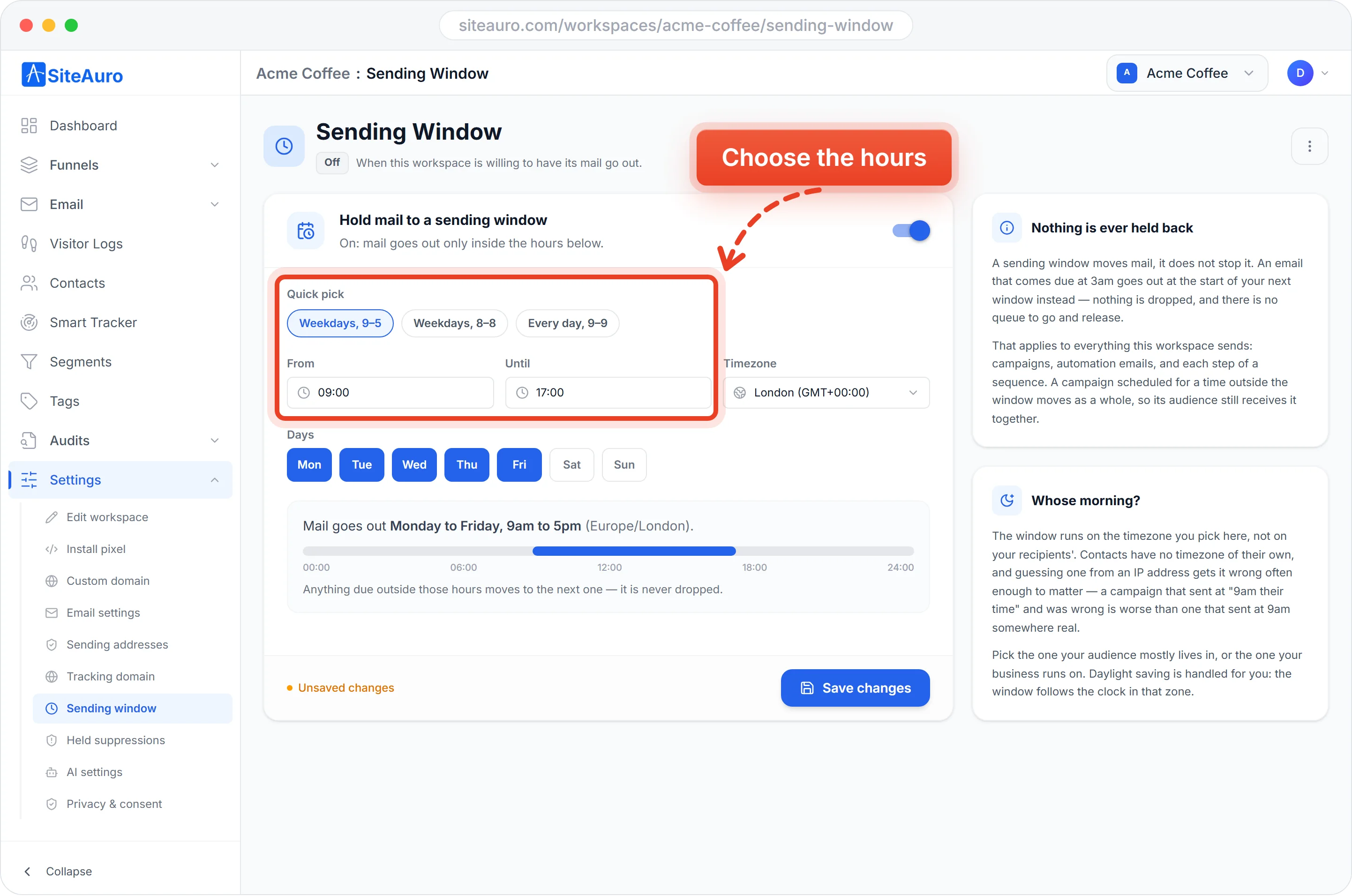
    The Sending Window card switched on: Quick pick with Weekdays, 9–5 chosen, Weekdays, 8–8 and Every day, 9–9, and under them From 09:00 and Until 17:00. Quick pick, From and Until are outlined in red, with the label "Choose the hours" and a dashed arrow pointing to them.
    Choose the hours.
  3. Choose the timezone

    Timezone is the clock the window runs on: the one your audience mostly lives in, or the one your business runs on. Daylight saving is handled for you.
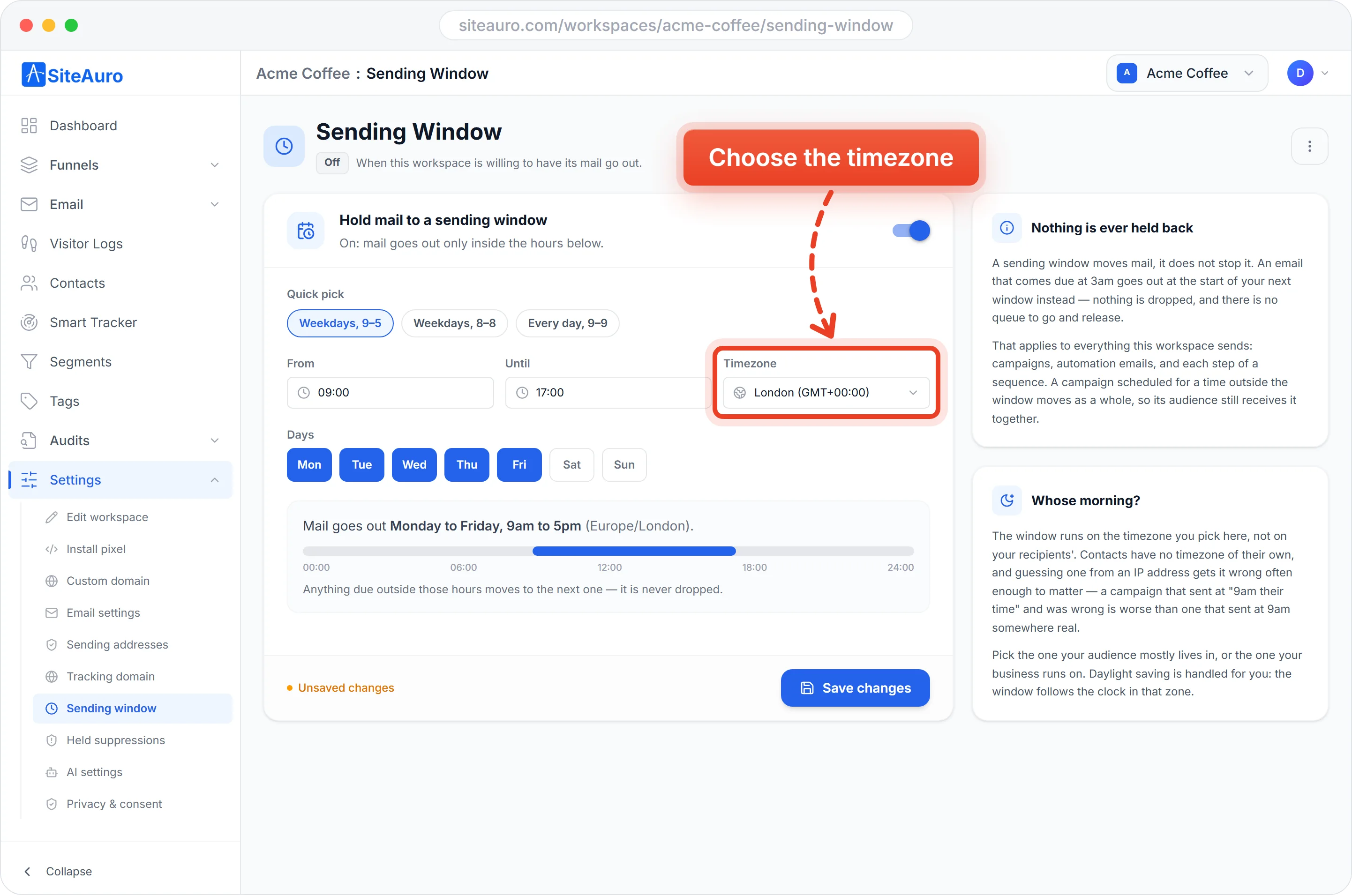
    The Sending Window card with the Timezone box, London (GMT+00:00), outlined in red, with the label "Choose the timezone" and a dashed arrow pointing to it.
    Choose the timezone.
  4. Choose the days

    Click a day to send on it or not. Pick at least one.
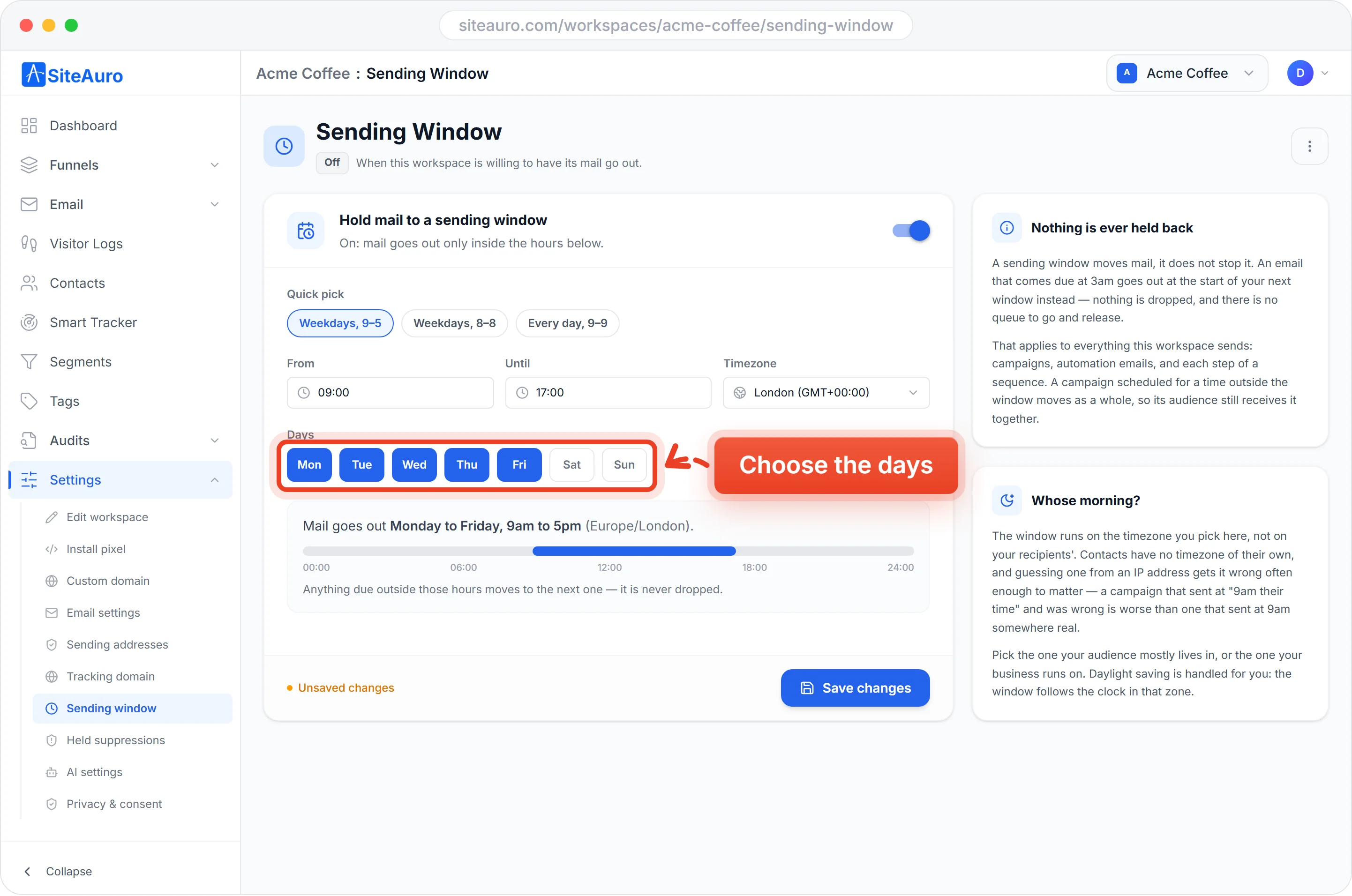
    The Sending Window card with the days Mon to Sun outlined in red, Mon to Fri chosen and Sat and Sun not, with the label "Choose the days" and a dashed arrow pointing to them.
    Choose the days.
  5. Click Save changes

    Under the days, the page says in words when mail goes out, with a bar showing the window across the 24 hours of the day. Click Save changes at the bottom of the card. You see Sending window saved.
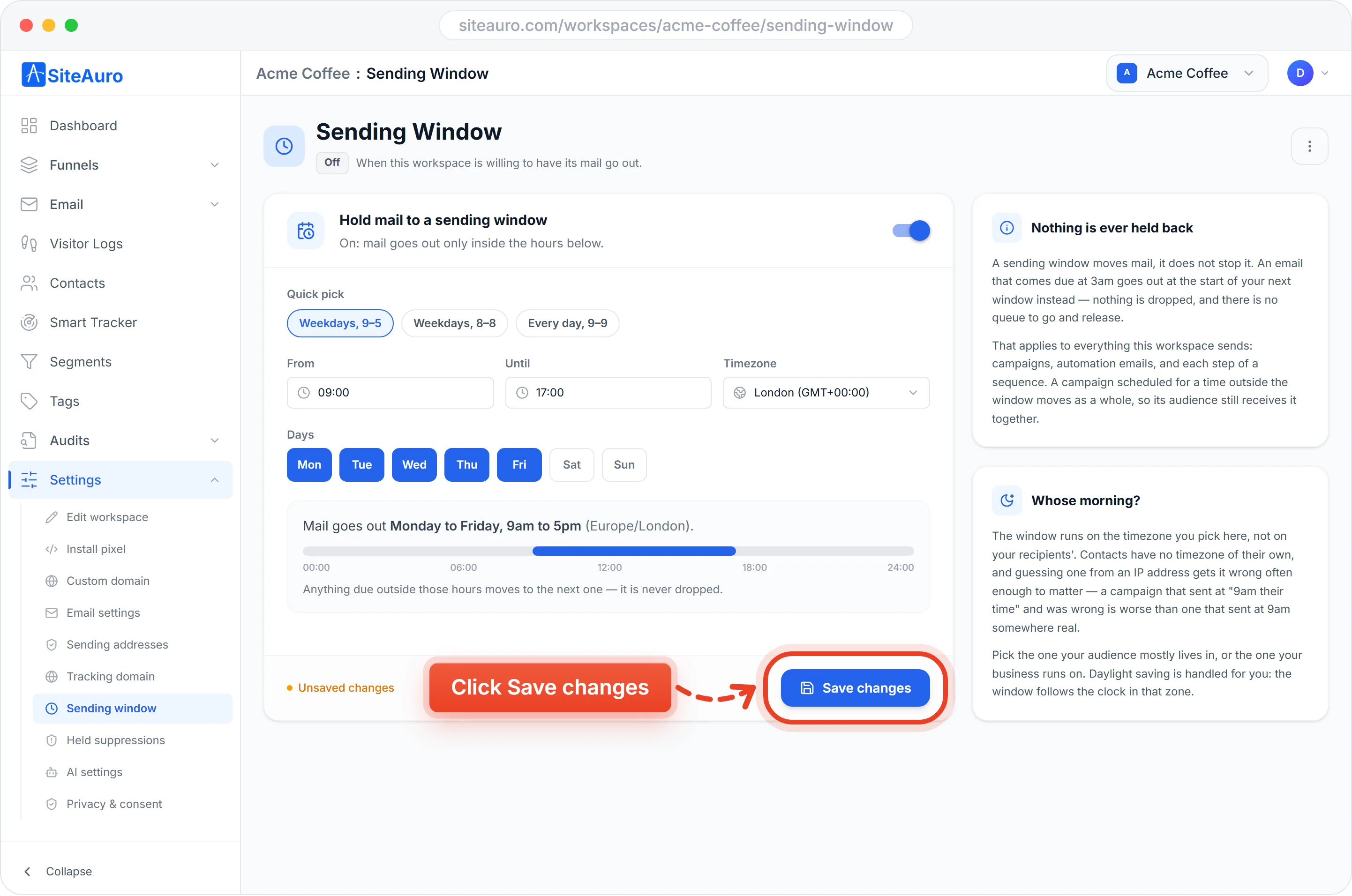
    The Sending Window page switched on, Weekdays, 9–5 chosen: From 09:00, Until 17:00, Timezone London (GMT+00:00), Mon to Fri chosen and Sat and Sun not, and under them Mail goes out Monday to Friday, 9am to 5pm. The Save changes button is outlined in red, with the label "Click Save changes" and a dashed arrow pointing to it.
    A sending window, ready to save.

What It Moves

The window covers the emails your automations send.

Funnel emails, the autoresponder and the admin notification, are not moved: they go out as soon as they are due.

The window runs on the timezone you picked, not on each recipient's: contacts have no timezone of their own.

Switch It Off

Switch off Hold mail to a sending window and click Save changes. You see Sending window switched off, and mail goes out the moment it is due again.

Next Step

Held Suppressions.

Last updated