
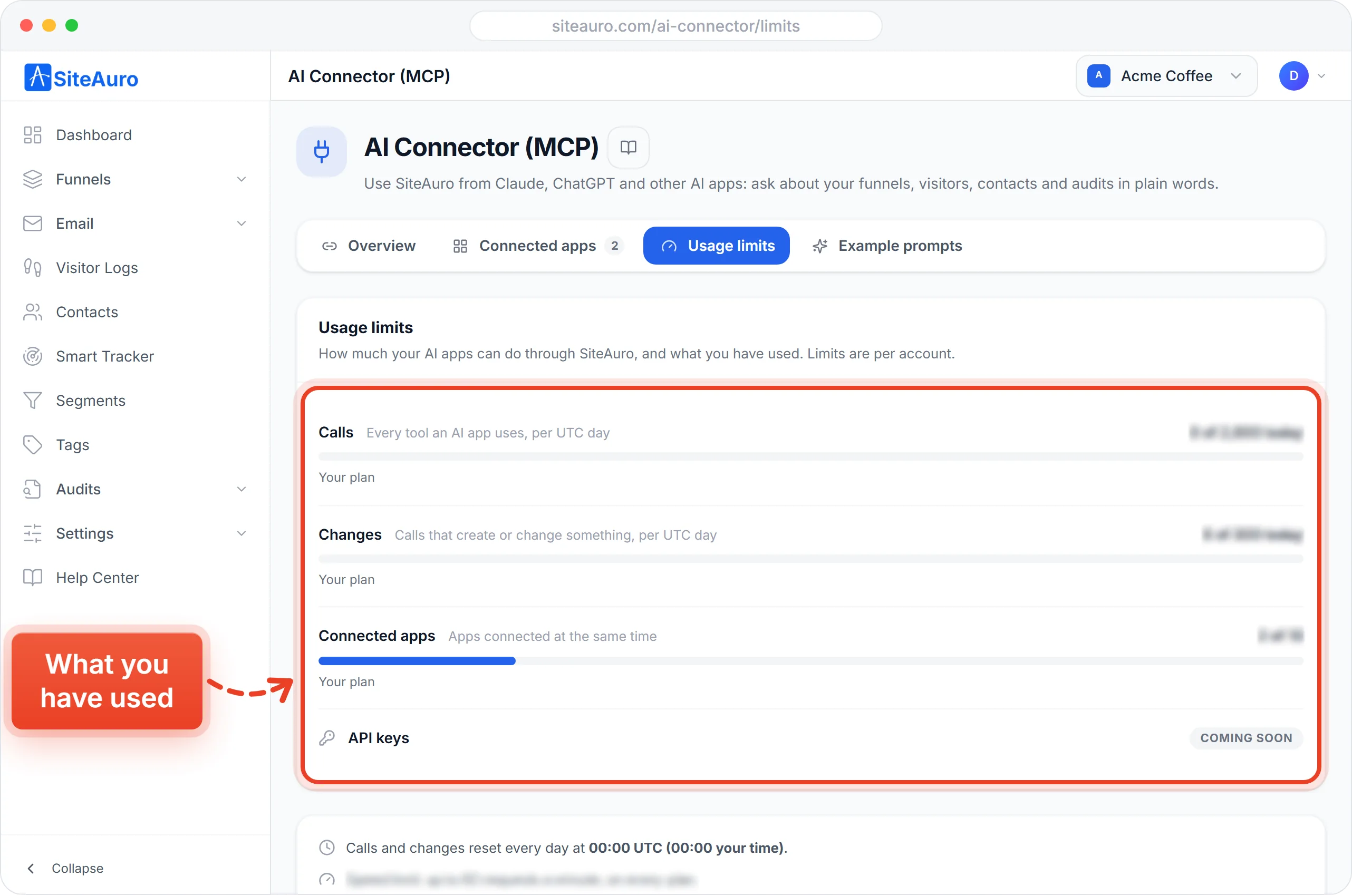
The Usage limits tab shows how much your AI apps can do through SiteAuro, and what you have used. Limits are per account: every app you connect shares them.
In the menu, click AI Connector (MCP), then the Usage limits tab.
The Rows
- Calls: every tool an AI app uses, such as reading a funnel's analytics or listing contacts, counted per UTC day.
- Changes: the calls that create or change something, such as starting an audit, creating a draft funnel or editing an automation, counted per UTC day. Each change is also a call.
- Connected apps: the apps connected at the same time.
Each row shows what you've used against what you're allowed, with today after the daily ones, and a bar that fills as you use it: blue, then amber, then red as you get close. Below the bar, Your plan means the number comes from your plan; Personal limit means a number set for your account, and the line then also shows what your plan allows.
The API keys row is marked Coming soon.
How Confirmations Count
A change that needs your confirmation, such as publishing a funnel, is counted in two parts:
- The preview your AI app shows you first is counted as a call, not a change. If you say no, that is all it uses.
- The change itself, once you confirm, is counted as a change.
When It Resets
Under the card:
- Calls and changes reset every day at 00:00 UTC, with the same moment in your own time beside it.
- A speed limit on requests a minute applies on every plan.
- Usage is counted but not limited yet appears while limits are not applied: your use is counted, and nothing is refused.
When a Limit Is Reached
Your AI app is told so, in words it shows you:
- Calls: the daily limit is reached, and it resets at 00:00 UTC, with how long until then.
- Changes: nothing was changed, reading still works, and the limit resets at 00:00 UTC.
- Too many changes in a short time: wait a minute and try again. This is a short speed limit on changes, separate from the daily one.
- Too many requests: the app asked too fast; try again shortly.
- Connected apps: disconnect one in SiteAuro, under AI Connector, Connected apps, then try again. See Connected Apps.
If SiteAuro can't check today's count for a moment, a change is refused ("nothing was changed. Try again shortly."), while reading still works.
If the AI Connector isn't included in your plan, each row says Not on this plan, with See Plan & Usage.
Does the AI Connector Use My AI App's Tokens?
Yes, on your AI app's side. This is separate from the calls and changes above: those are SiteAuro's own daily limits, and tokens are not one of them.
Tokens are counted by your AI app, such as Claude or ChatGPT, under your plan with that app, not by SiteAuro. While the SiteAuro connector is switched on in your AI app:
- The app reads SiteAuro's list of tools, which tells it what it can ask SiteAuro for.
- Everything the app asks SiteAuro for, such as a funnel's analytics or a list of contacts, comes back into your chat, and the app reads it.
There is no fixed number of tokens per question: it depends on your AI app, and on how much data each question brings back.
To use fewer tokens:
- Switch the connector on only when you need it. Most AI apps let you turn a connector on or off for each chat.
- Ask for specific data. "Views and submissions for my Spring offer popup this week" brings back less than "show me everything about my funnels".
- Start a new chat for each topic. A long chat carries everything said and read so far.
Next Steps
- Example Prompts: ready-made questions to copy.
- AI Connector Use Cases: step-by-step jobs to hand to your AI app.
- Confirming Changes: how you say yes or no before something switches on or off.
- What Connected Apps Can Do: what an app reads, what it may change, and what it never does.
- Connect an AI App: set up a connection, or change what an app may do.
- Connected Apps: see the apps you've connected, and disconnect one.