
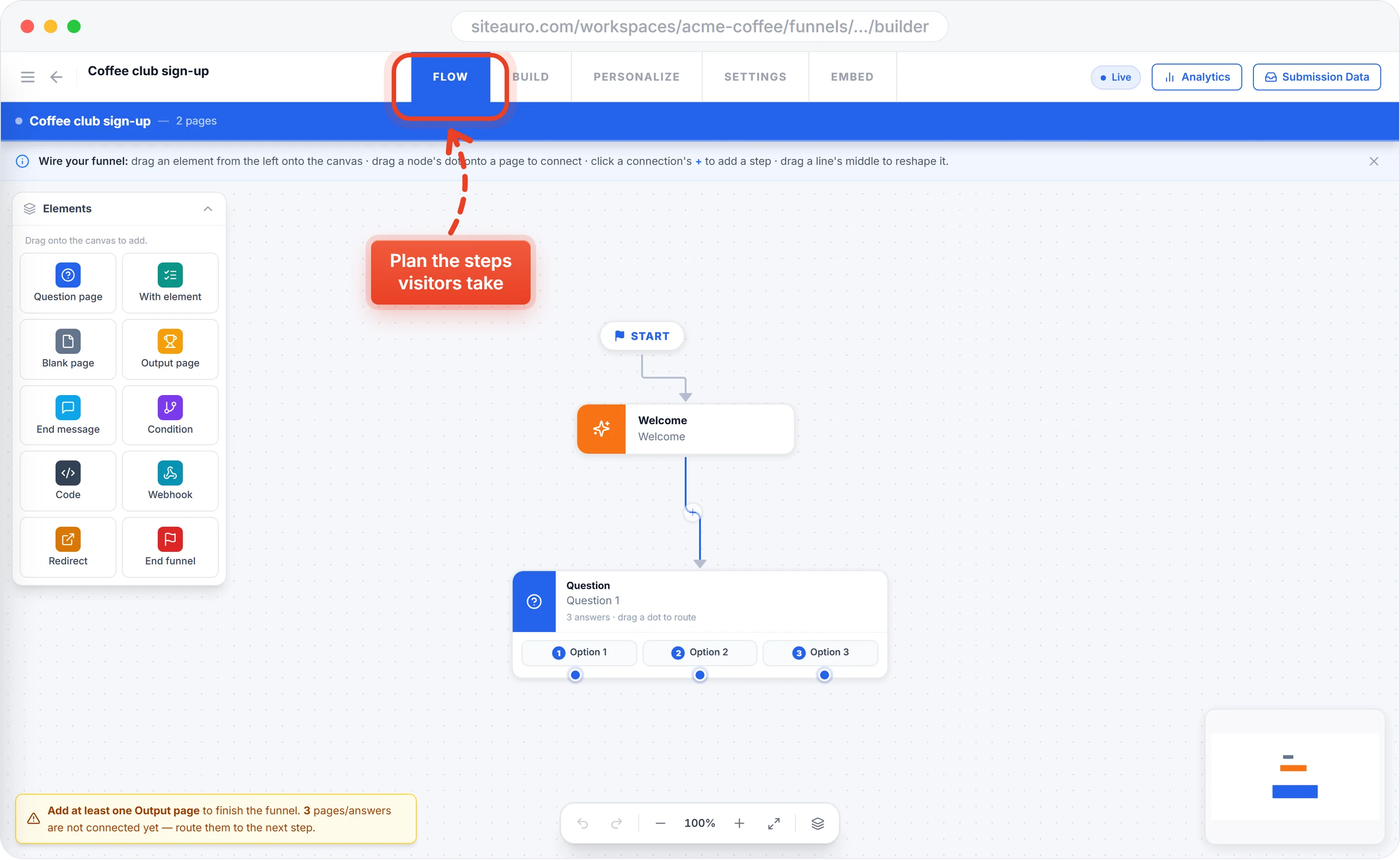
A Smart popup asks one question at a time. Its FLOW tab is a map of the whole funnel: every page, and where each answer leads. It is the first tab when you open a Smart popup in the builder.
Find your way around
- START marks where the funnel begins. The line from it leads to the first page.
- Each page is a box. A question page shows its answers along the bottom, each with a dot.
- The Elements panel on the left lists what you can add.
- The buttons at the bottom undo and redo, zoom in and out, and fit the whole flow on the screen.
The bar across the top sums it up: drag an element from the left onto the canvas, drag a node's dot onto a page to connect them, click a connection's + to add a step between, and drag a line's middle to reshape it.
Add steps
Drag any of these from the Elements panel onto the canvas:
| Element | What it does |
|---|---|
| Question page | A page with a question and its answers. |
| With element | A page that starts with an element you choose. |
| Blank page | An empty page to build yourself. |
| Output page | A result page, such as a score or a thank-you. Every Smart funnel needs at least one. |
| End message | A message to finish on. |
| Condition | Sends the visitor one way or another, based on their answers. |
| Code | Runs your own JavaScript, then carries on. |
| Webhook | Sends data to a web address, then carries on. |
| Redirect | Sends the visitor to another web address. |
| End funnel | Ends the funnel here. |
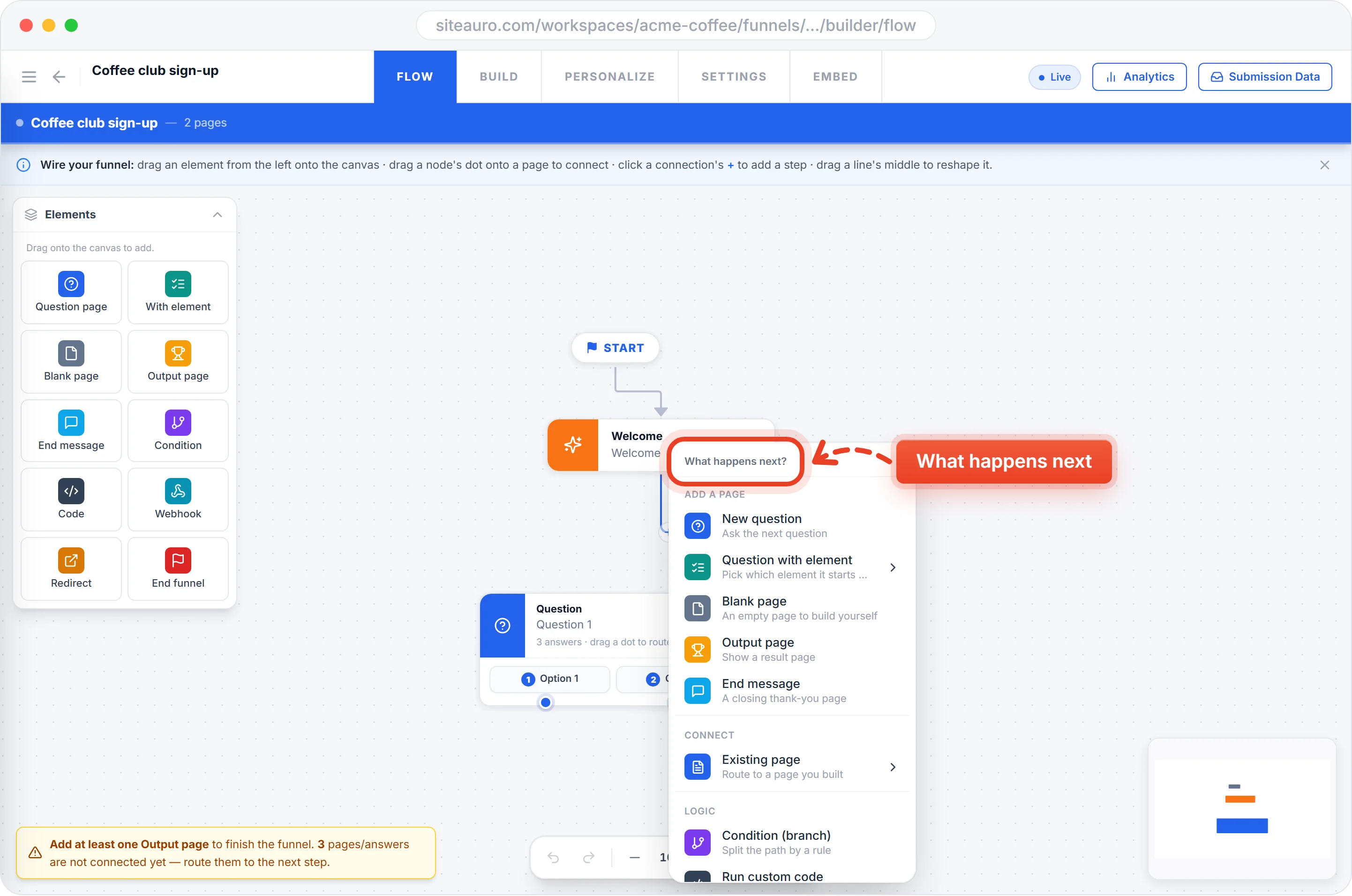
You can also click the + in the middle of a line between two steps. A menu asks What happens next?: add a page there (New question, Question with element, Blank page, Output page, End message), connect to an Existing page, add a logic step (Condition (branch), Run custom code, Send to a webhook, Redirect to a URL), or End the funnel.
Connect the steps
Drag the dot under an answer onto the page that should come next. Each answer can lead somewhere different, which is how a Smart funnel branches. Drag the dot at the bottom of any other step onto the step that follows it.
Click a line to change it: a Connection panel can add a rule (WHEN) and choose what happens (THEN): Go to a page, Redirect to a URL or End the funnel. To remove a line, right-click it and choose Delete connection.
Change a page
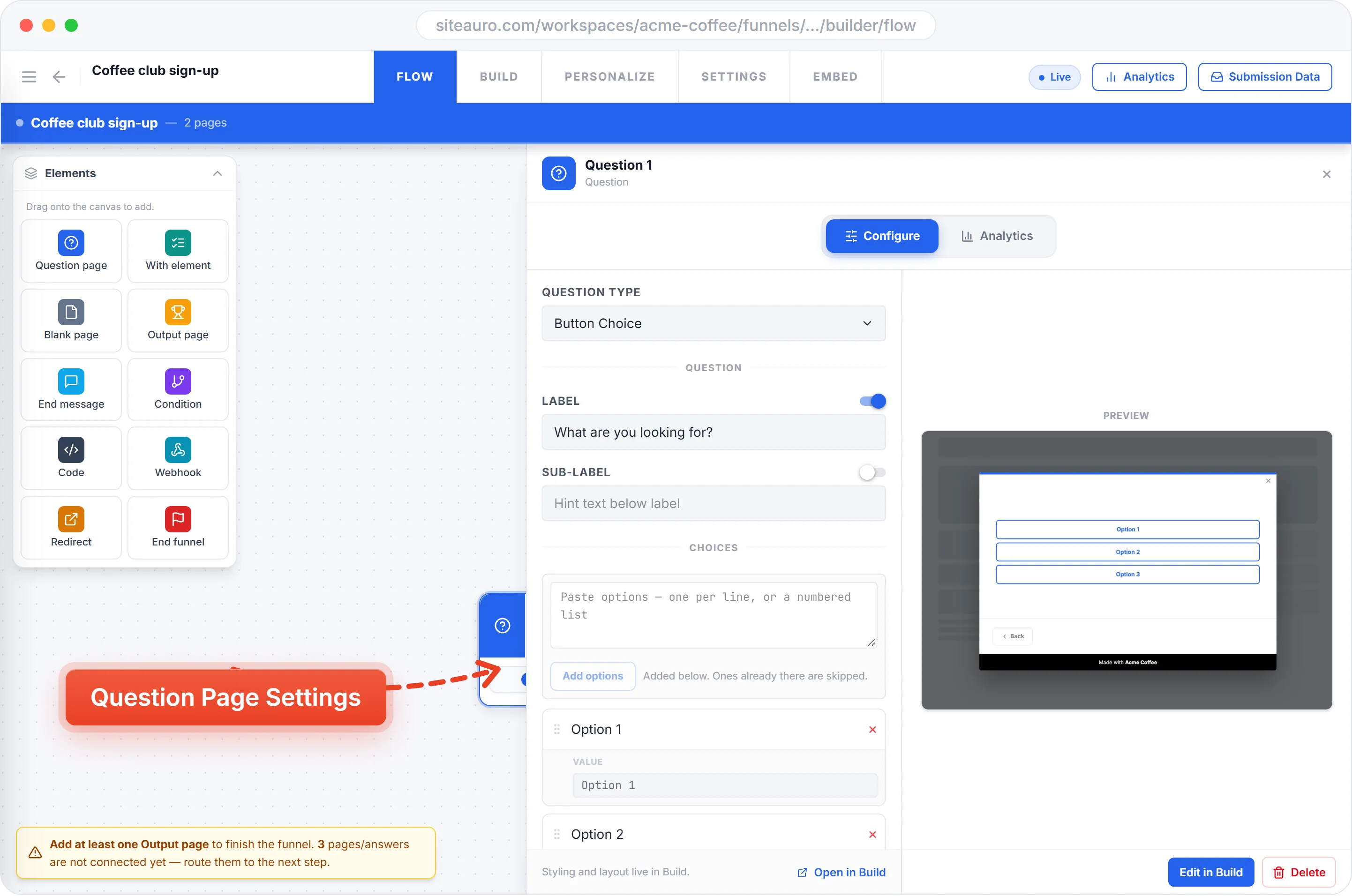
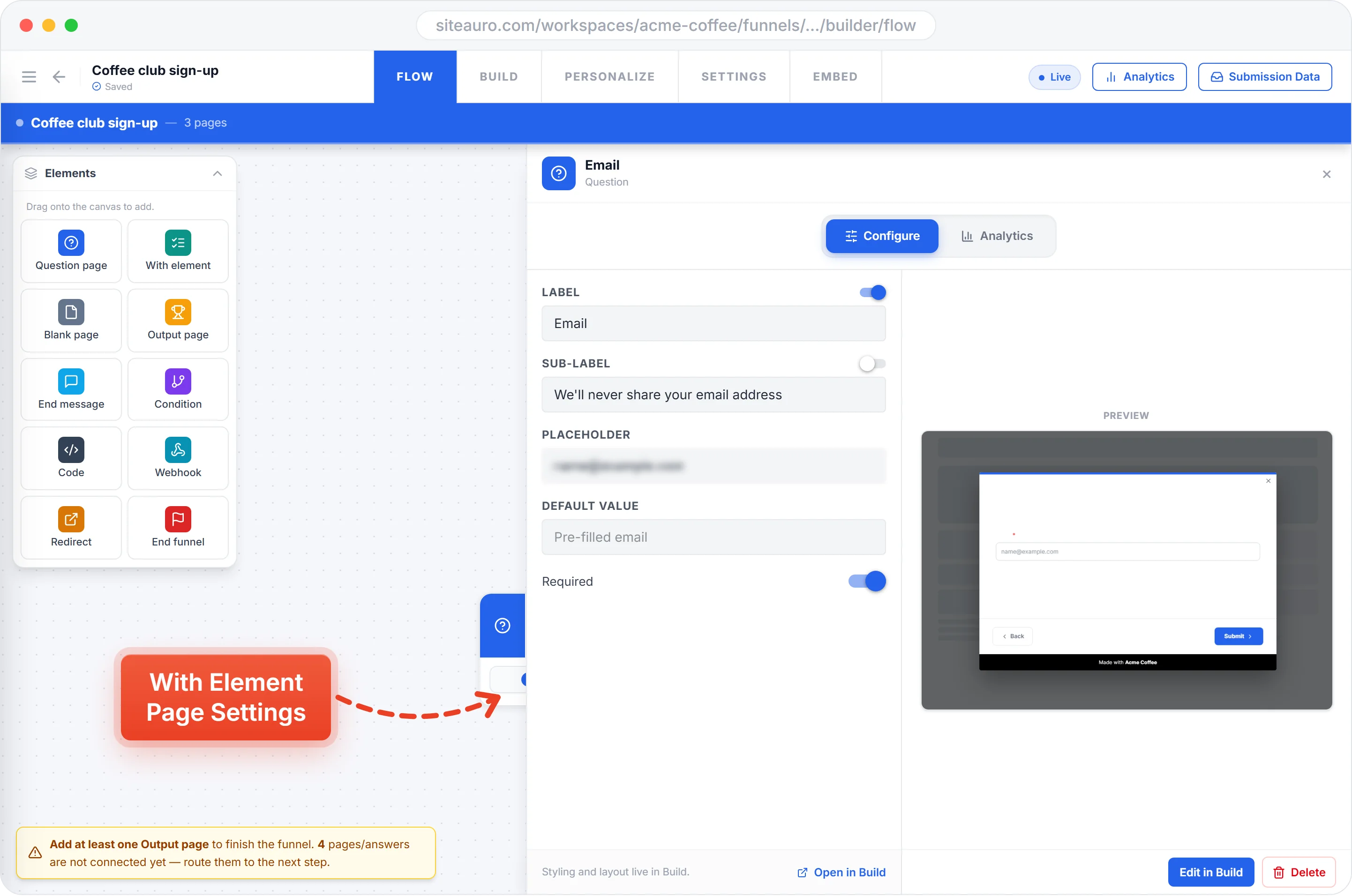
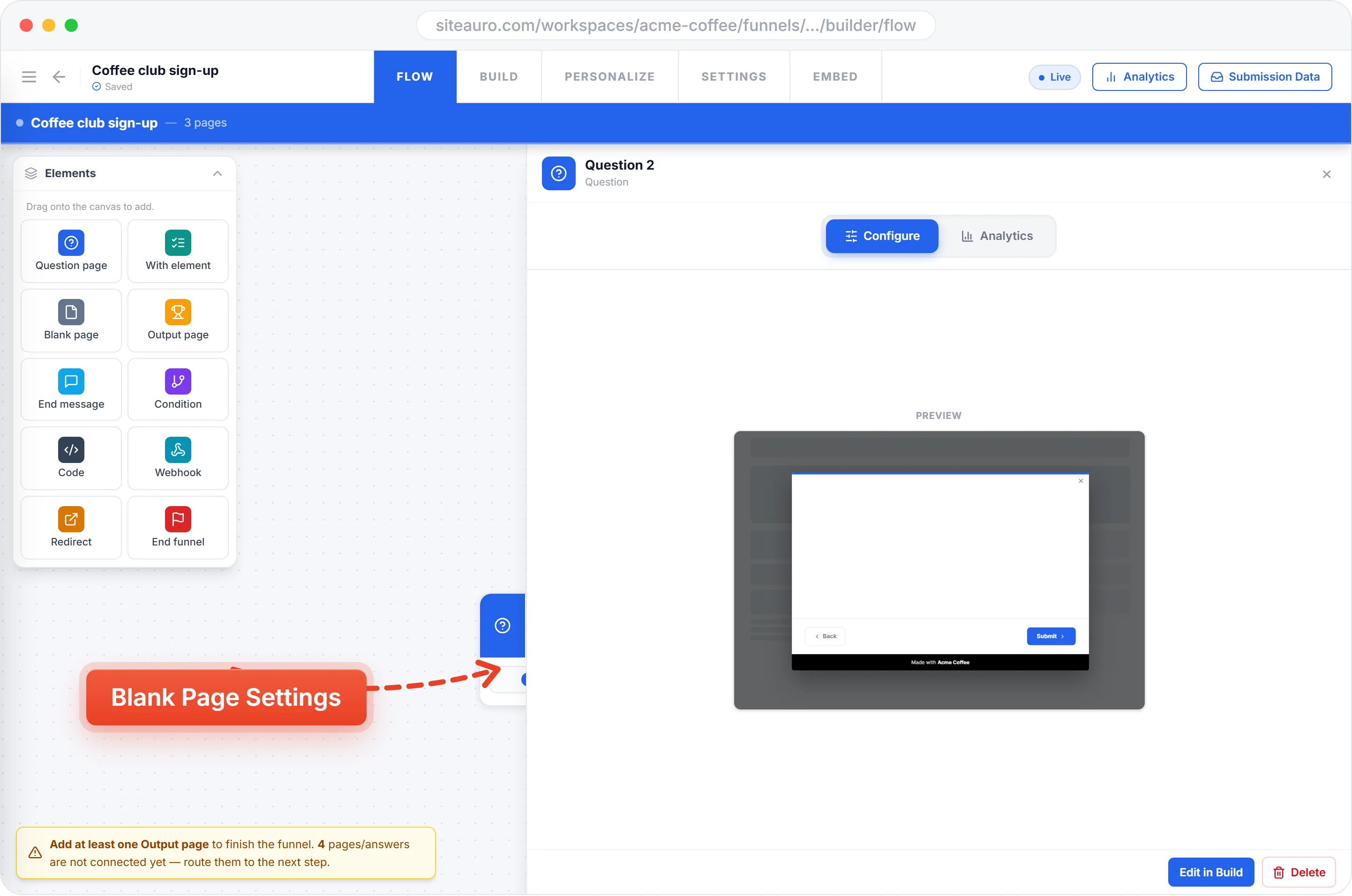
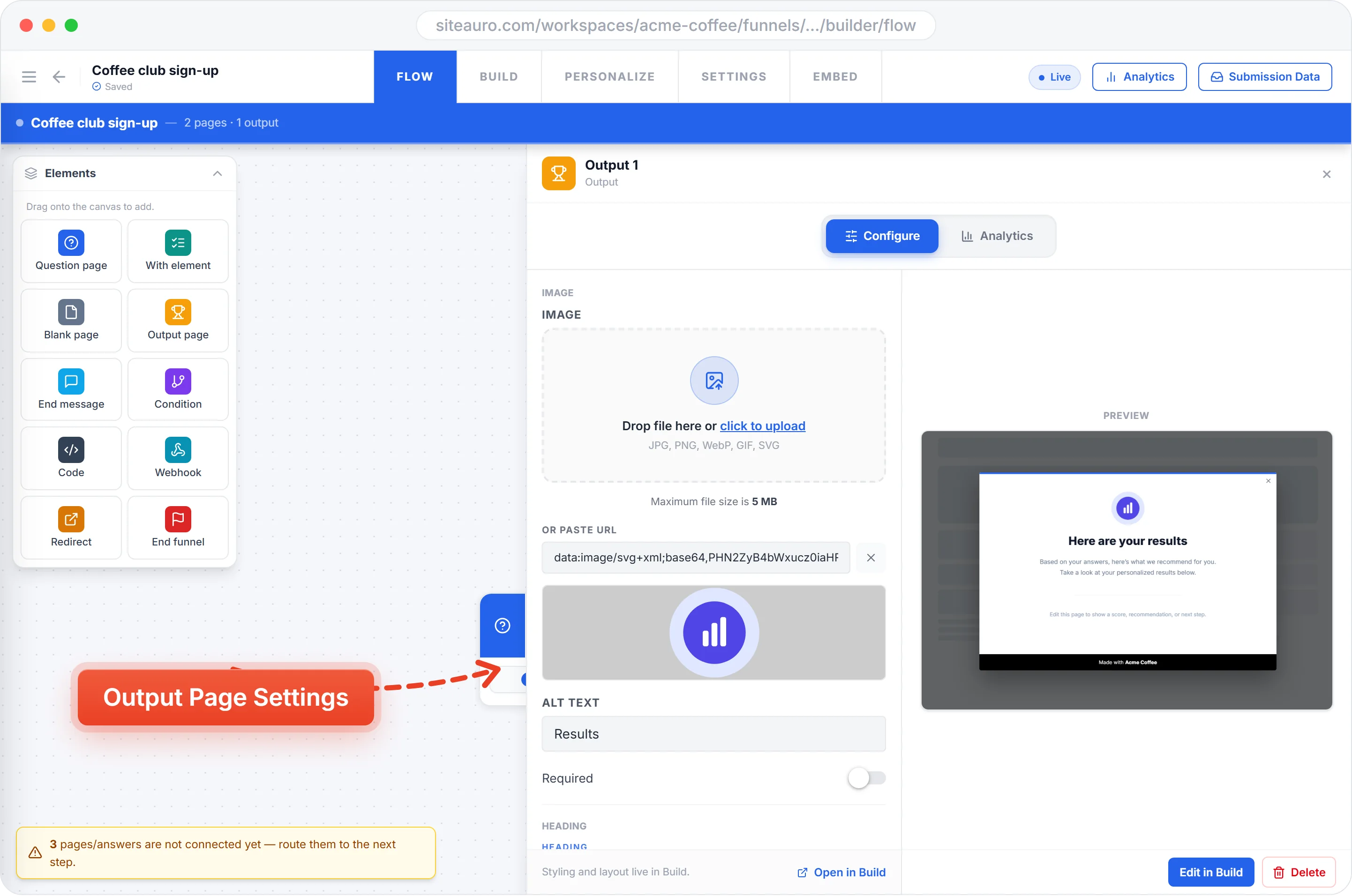
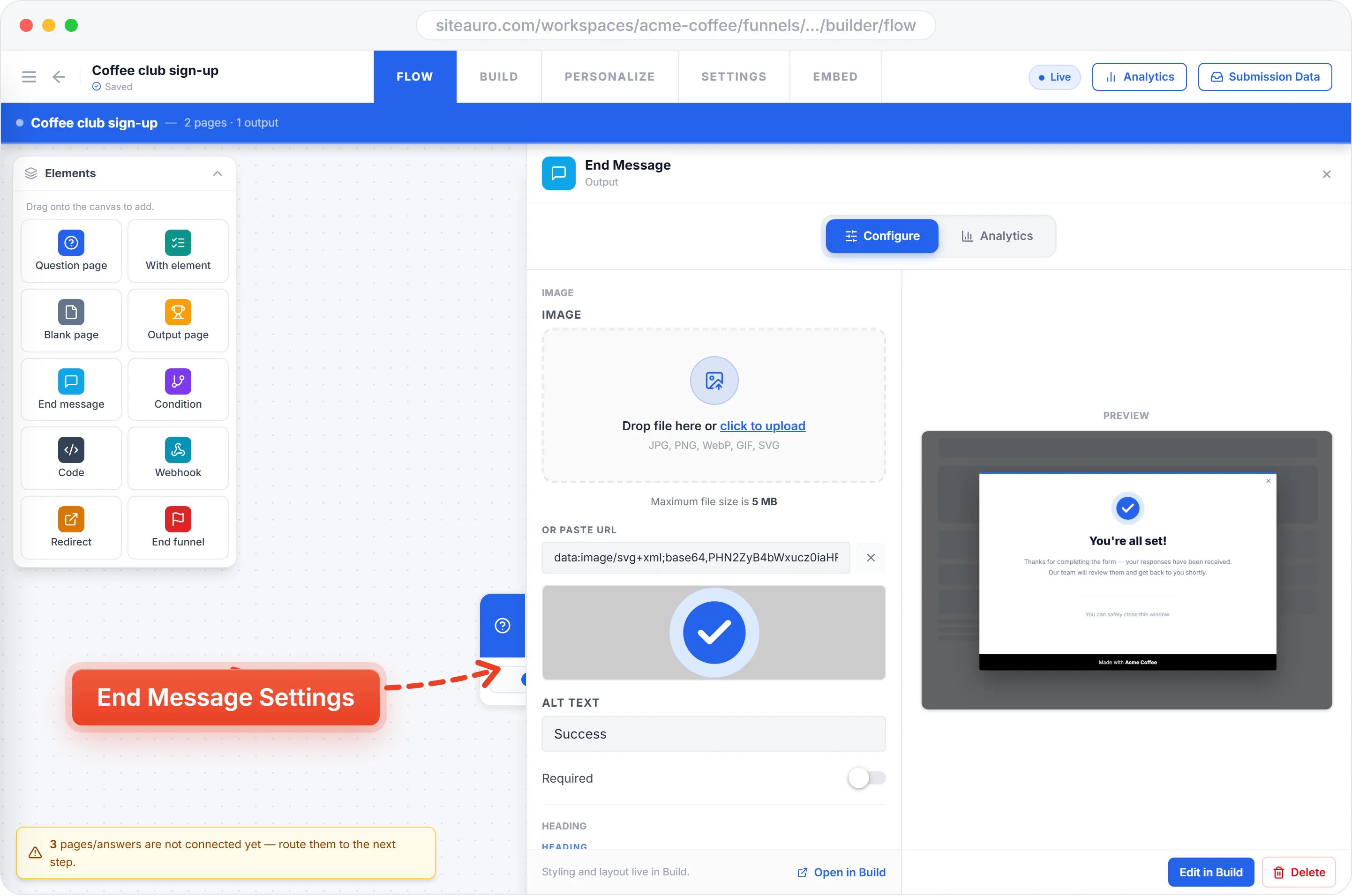
Click a page on the canvas. Its panel opens on the right, the same for all five kinds of page (Question page, With element, Blank page, Output page, End message); only what the page starts with differs.
- Configure has the fields of the page's elements, such as a question's Question Type, Label and choices, and whether an answer is Required. A Preview of the page sits beside them.
- Analytics shows how many people reached the page and went on.
- Styling and layout are on the BUILD tab: Edit in Build or Open in Build takes you there. Delete removes the page and everything on it.
Each kind of page opens the same panel, with what that page holds:
Question page
With element
Blank page
Output page
End message
Conditions
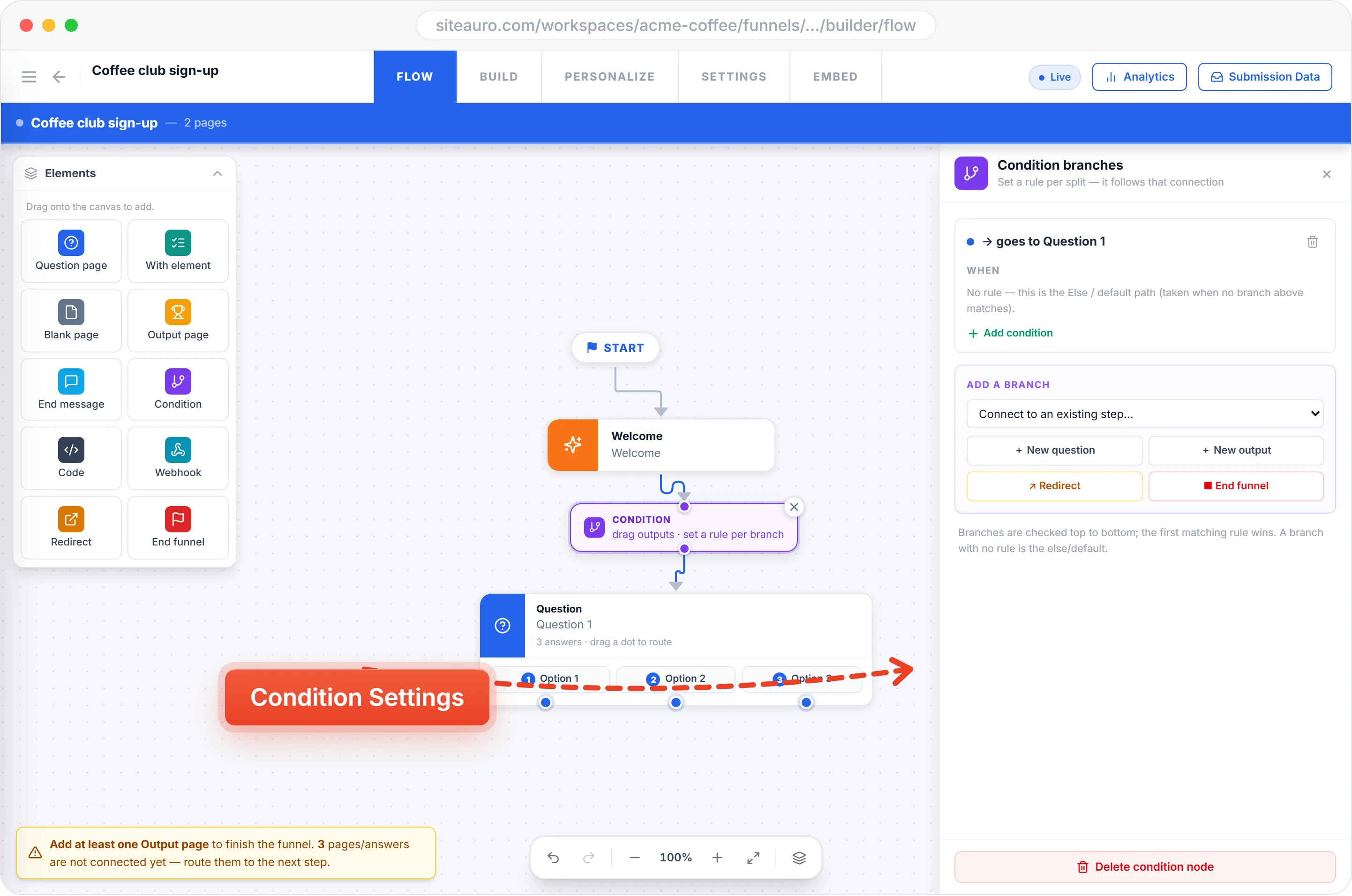
A Condition step sends the visitor one way or another. Drag its bottom dot onto each step it can lead to: every line you draw is a branch. Click the step to set the rules.
- Each branch says where it goes to, and under WHEN has its rules: a question, a comparison (is, is not, contains, doesn't contain, greater than, less than, ≥, ≤, is empty, is not empty) and a value. With more than one rule, choose whether ALL or ANY must match. Add condition adds a rule.
- ADD A BRANCH connects the condition to an existing step, or to a New question, New output, Redirect or End funnel.
- Branches are checked from the top down, and the first one that matches wins. A branch with no rule is the default: it catches everyone the others didn't.
Code
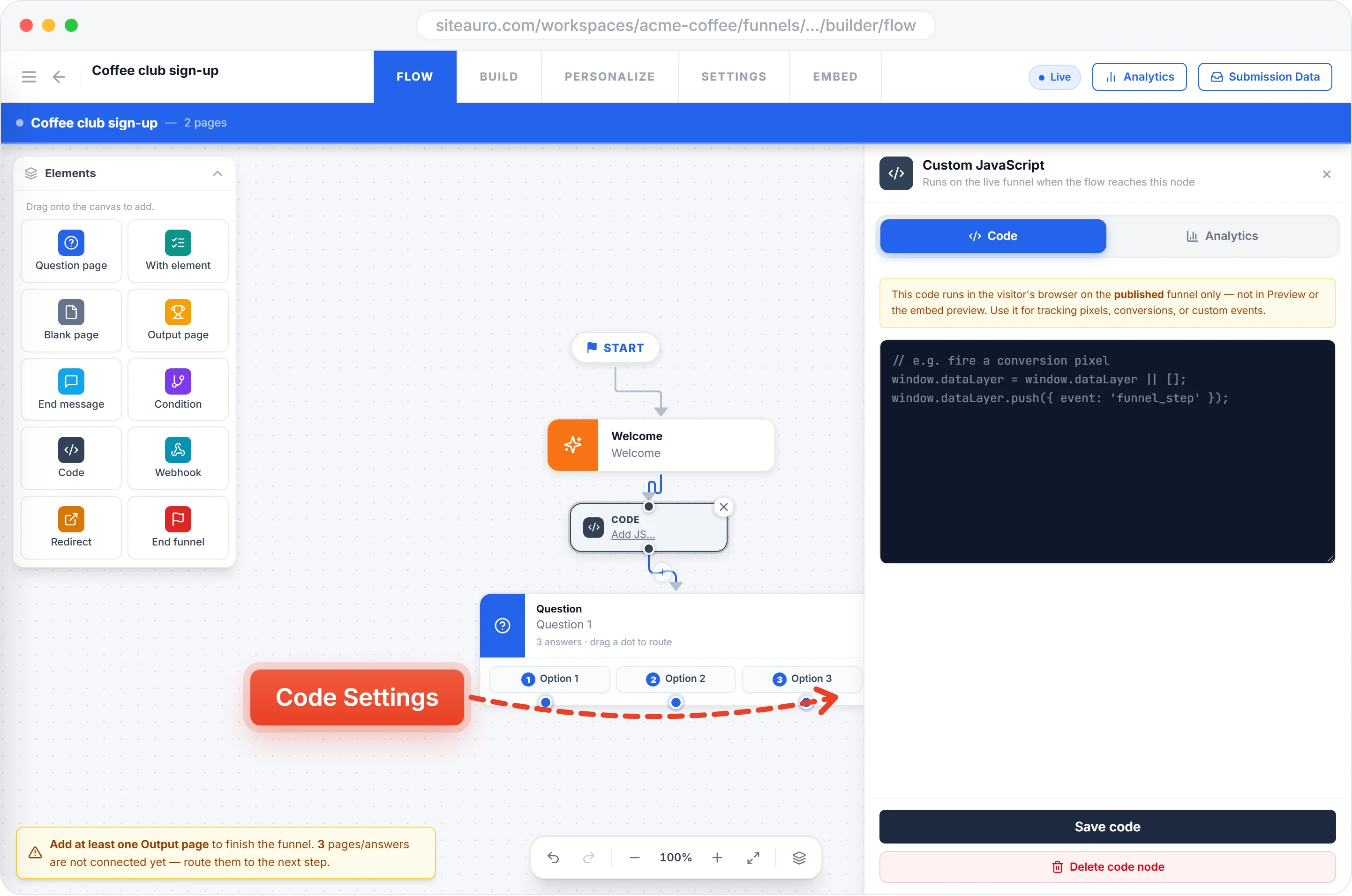
A Code step runs your own JavaScript when a visitor reaches it, then carries on. Its panel, Custom JavaScript, has a box for the code and Save code. The code runs in the visitor's browser on the published funnel only, not in a preview. Use it for tracking pixels, conversions or your own events.
Webhook
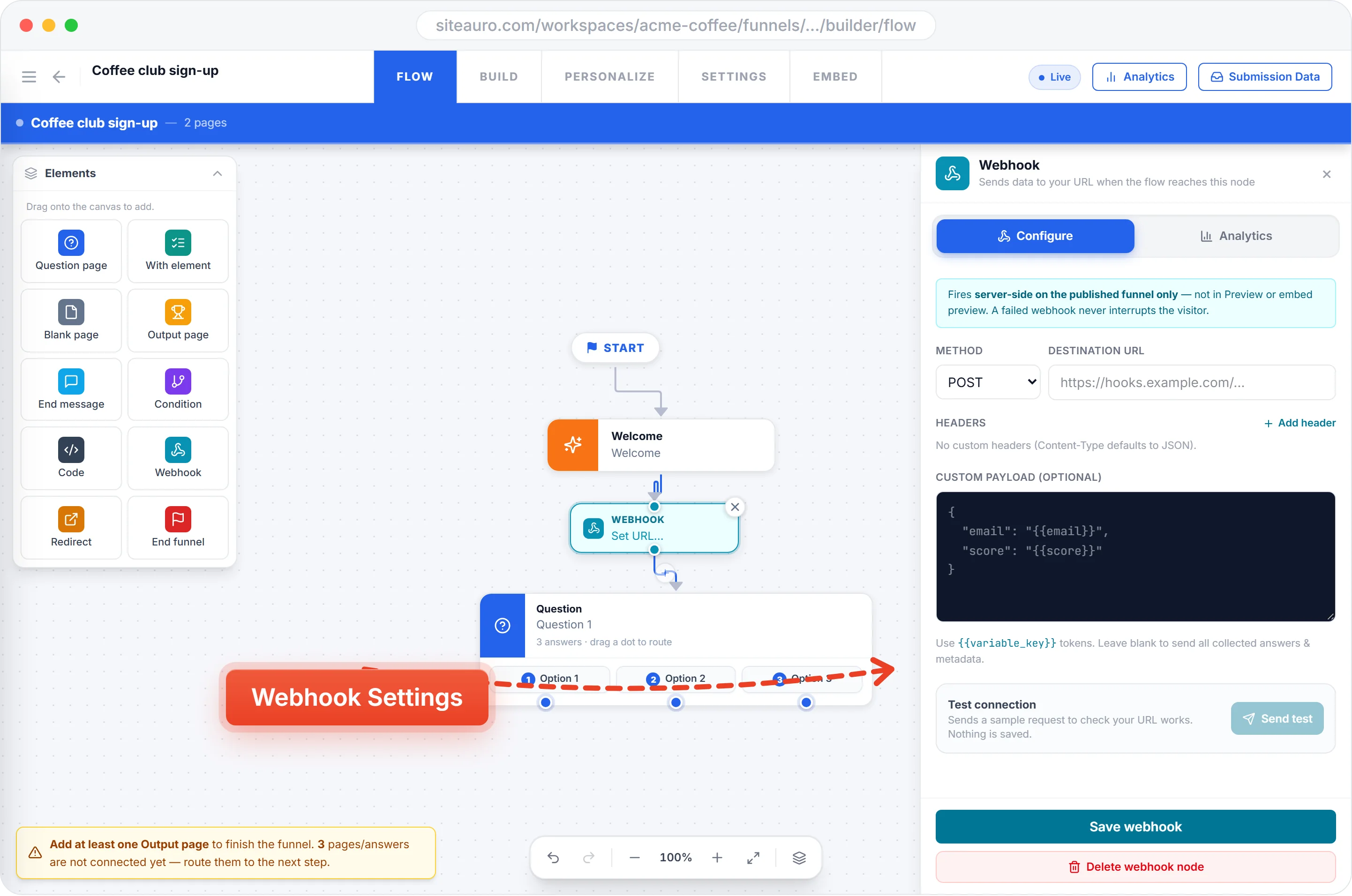
A Webhook step sends the funnel's data to a web address of yours when a visitor reaches it, then carries on. It is sent from SiteAuro's server, on the published funnel only, and a webhook that fails never stops the visitor.
- METHOD: POST (the usual), GET, PUT, PATCH or DELETE, and the DESTINATION URL.
- HEADERS: Add header for any your address needs. Without any, the data is sent as JSON.
- CUSTOM PAYLOAD (OPTIONAL): what to send, with
{{variable_key}}tokens for answers. Left empty, every answer and its details are sent. - Test connection: Send test sends a sample to check the address works. Nothing is saved.
Click Save webhook when it's ready. To send every submission of a funnel, not just one point in its flow, see Outbound Webhooks.
Redirect
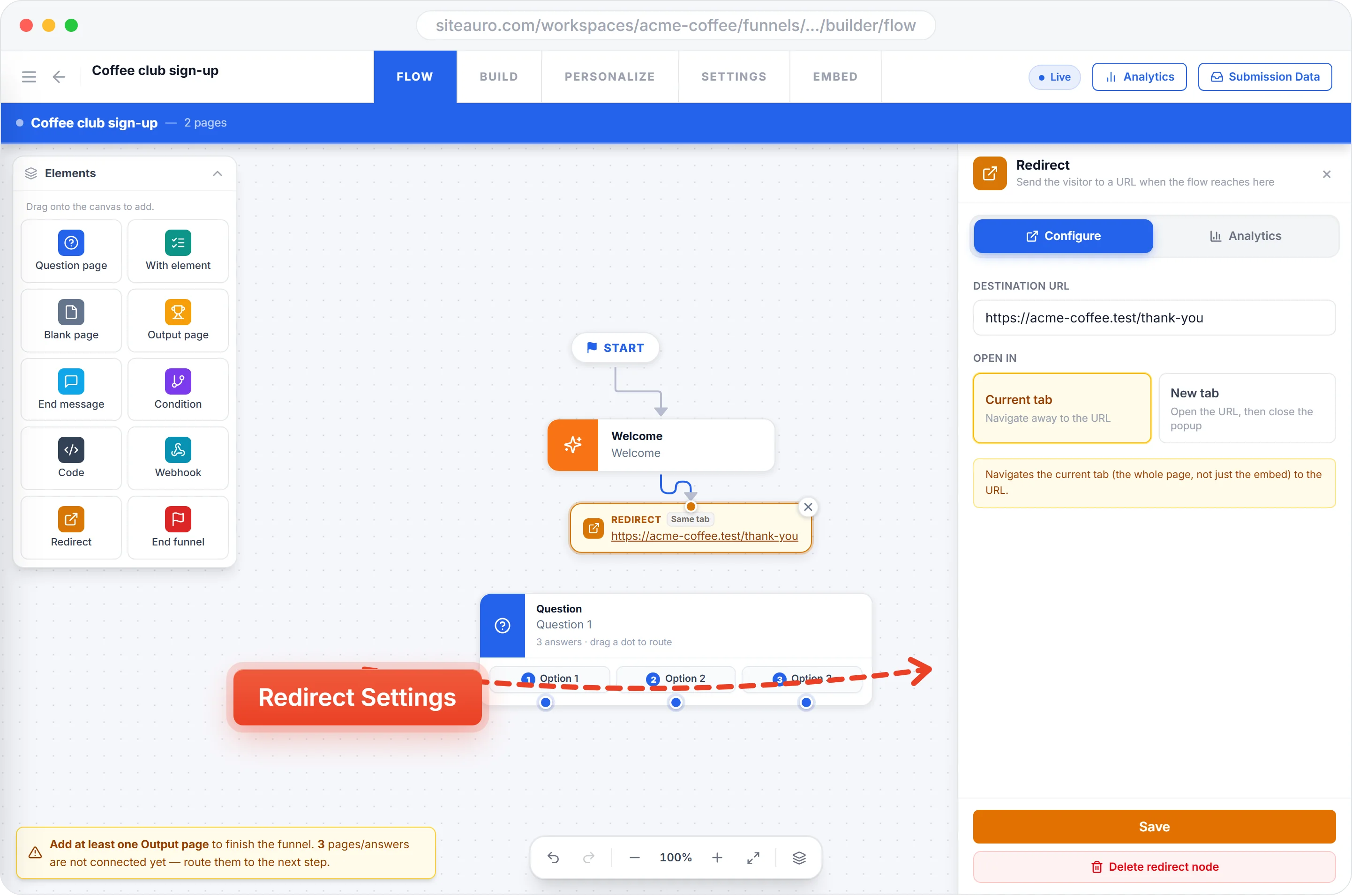
A Redirect step sends the visitor to another web address. Type the DESTINATION URL and choose how it opens:
- Current tab: the whole page goes to the address, not just the popup.
- New tab: the address opens in a new tab, and the popup closes.
End funnel
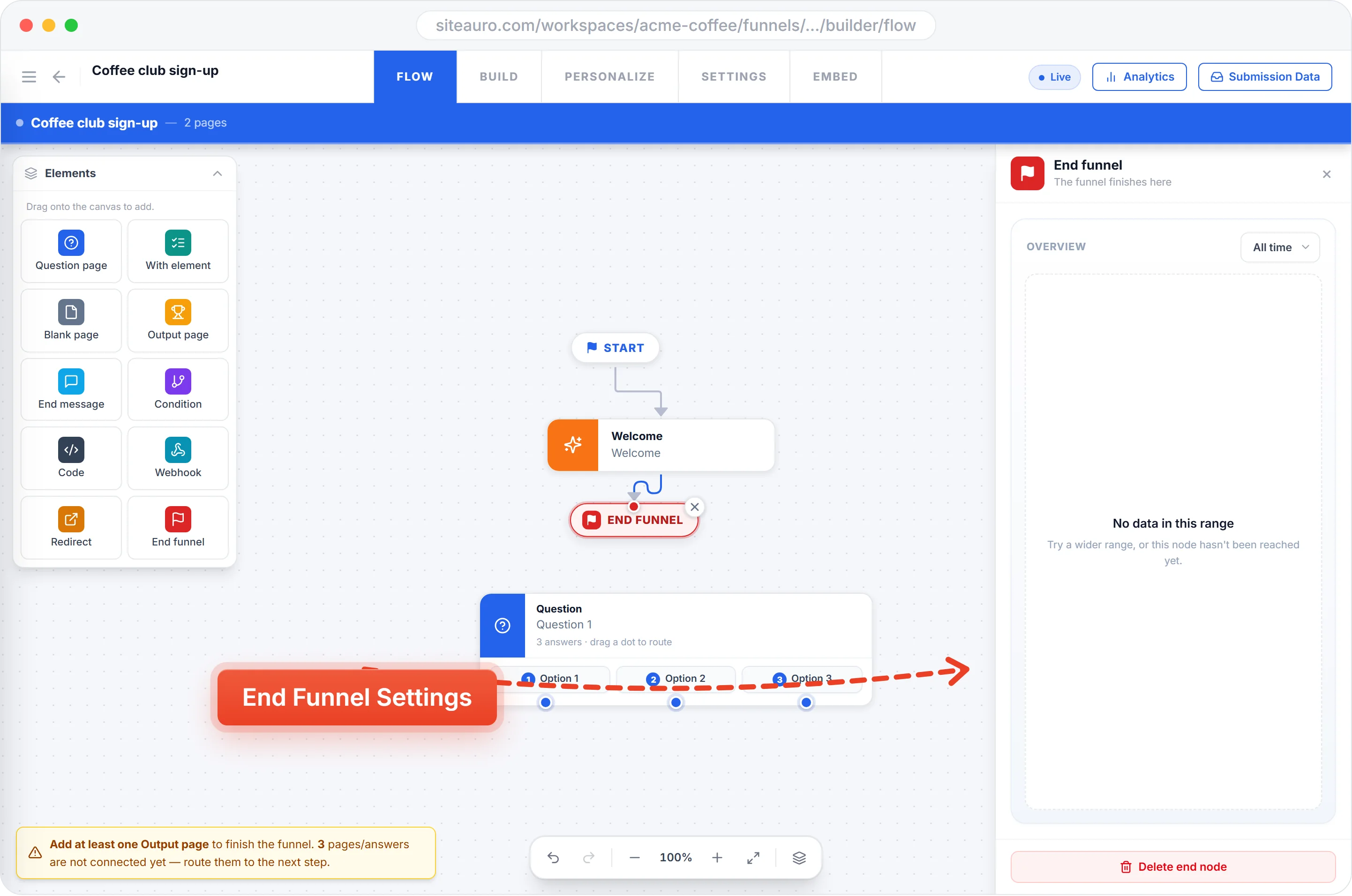
An End funnel step finishes the funnel there. It has nothing to set; its panel shows how many people ended there.
Warnings
The note at the bottom of the canvas tells you what is unfinished:
- Add at least one Output page to finish the funnel.
- How many pages or answers are not connected yet. Connect each one to the next step.
Next step
The Builder: Pages, Elements and Submission Behaviour covers the BUILD tab.