Your own visits to your website, and your team's, make the figures less true. Excluding an IP address stops the pixel recording visits from it, so they don't appear in Visitor Logs or the dashboard figures.
Exclude an Address
Open Excluded IPs
In the menu, click Visitor Logs, then Excluded IPs at the top.
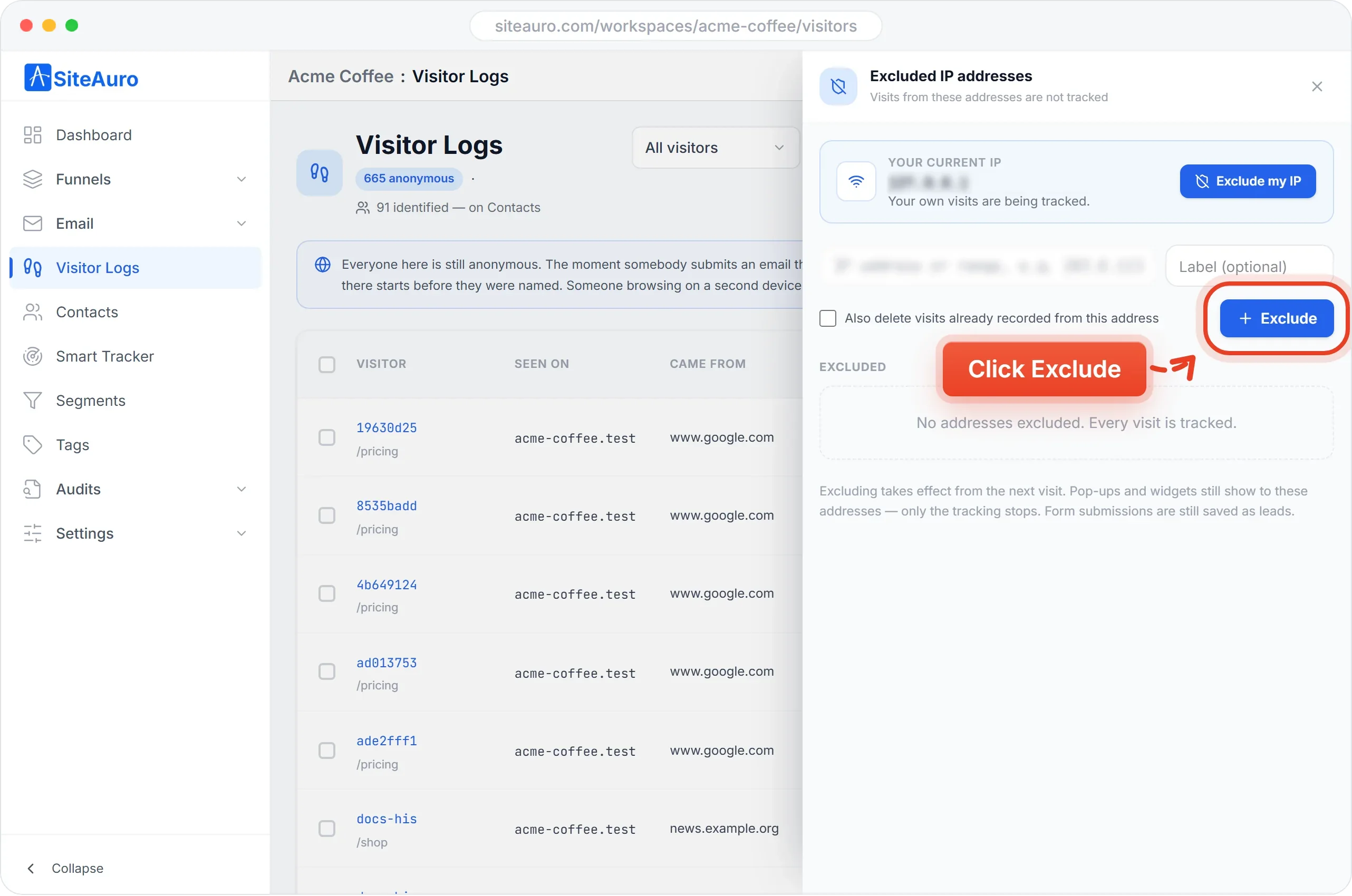
Excluded IP addresses. Enter the address
Type an IP address, or a range in CIDR form such as
203.0.113.0/24. Exclude my IP fills in the address you are on now.Add a label
Optionally, a Label to remember what it is, such as
Office.Choose what happens to past visits
Tick Also delete visits already recorded from this address to remove what was recorded from it before. Leave it unticked to keep them.
Click Exclude
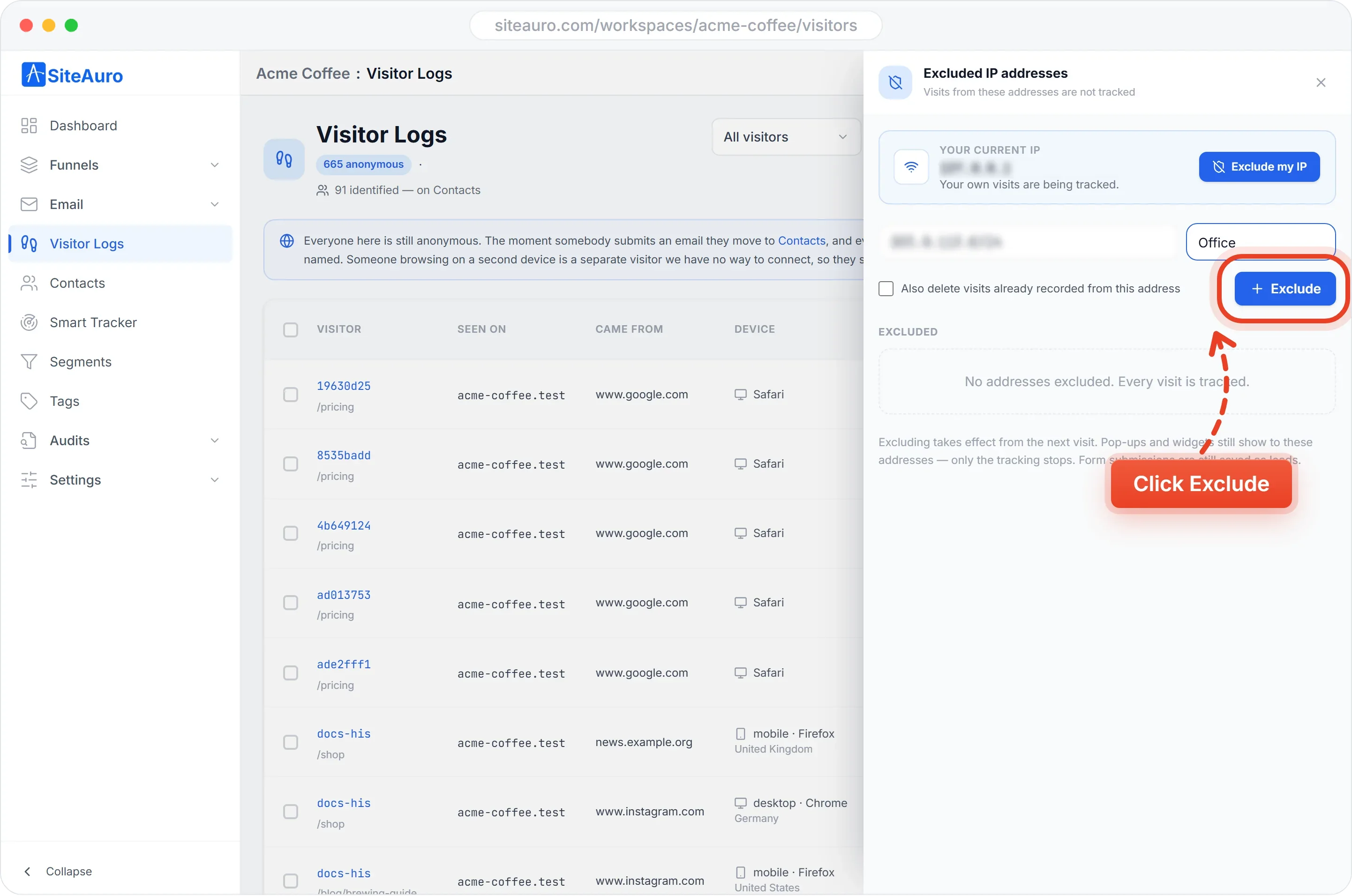
An address typed in. The address is listed under Excluded, with its label and when it was added.
What Changes
- From the next visit, visits from the address are no longer recorded.
- Popups and widgets still show to it, and forms submitted from it are still saved. Only the recording of visits stops.
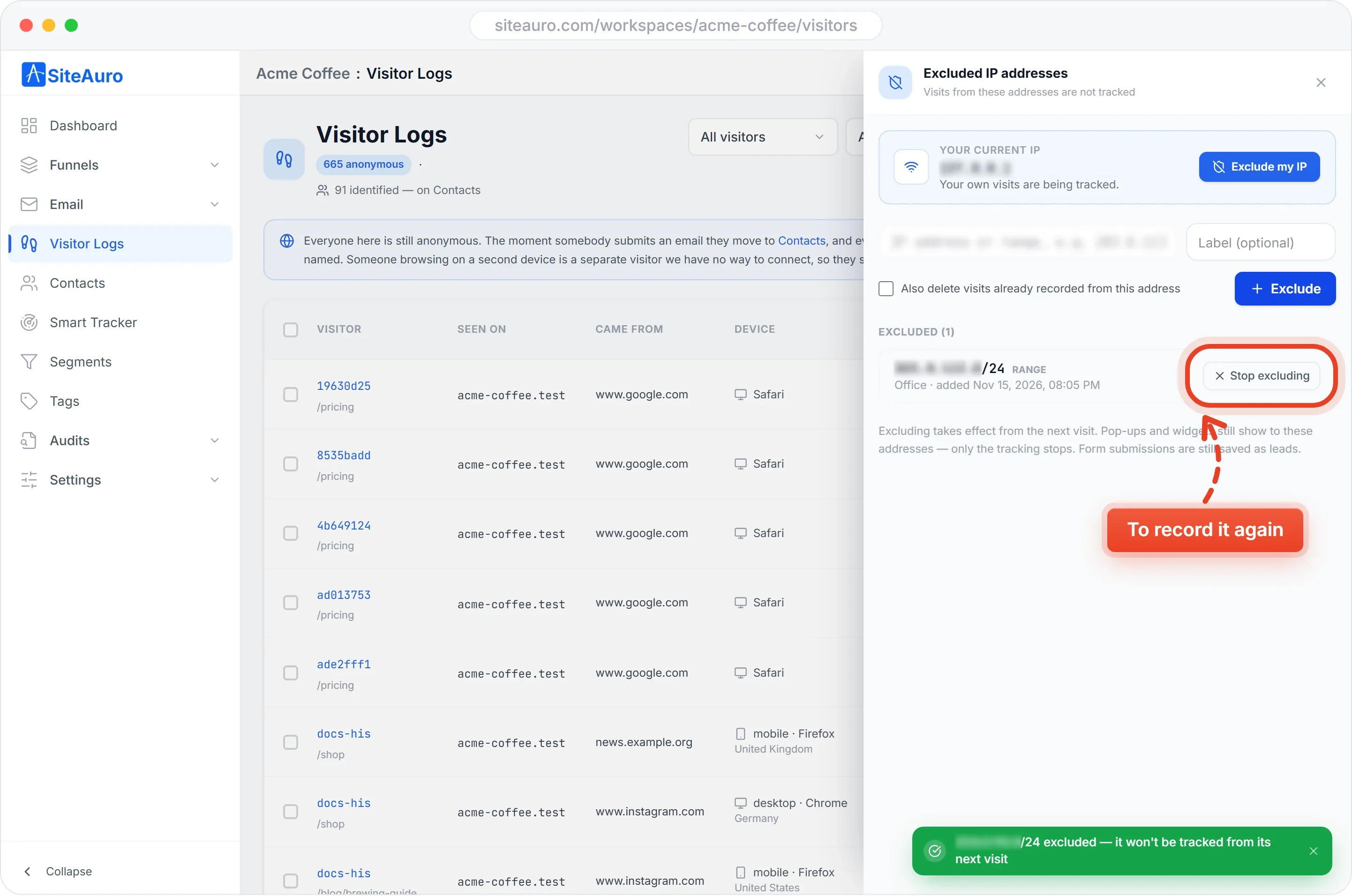
To record an address again, click Stop excluding beside it.