Every audit report has its own page and link. You can share it, make it private, give it a clearer address, change what it says, and see how often it's opened and clicked.
Share a Report
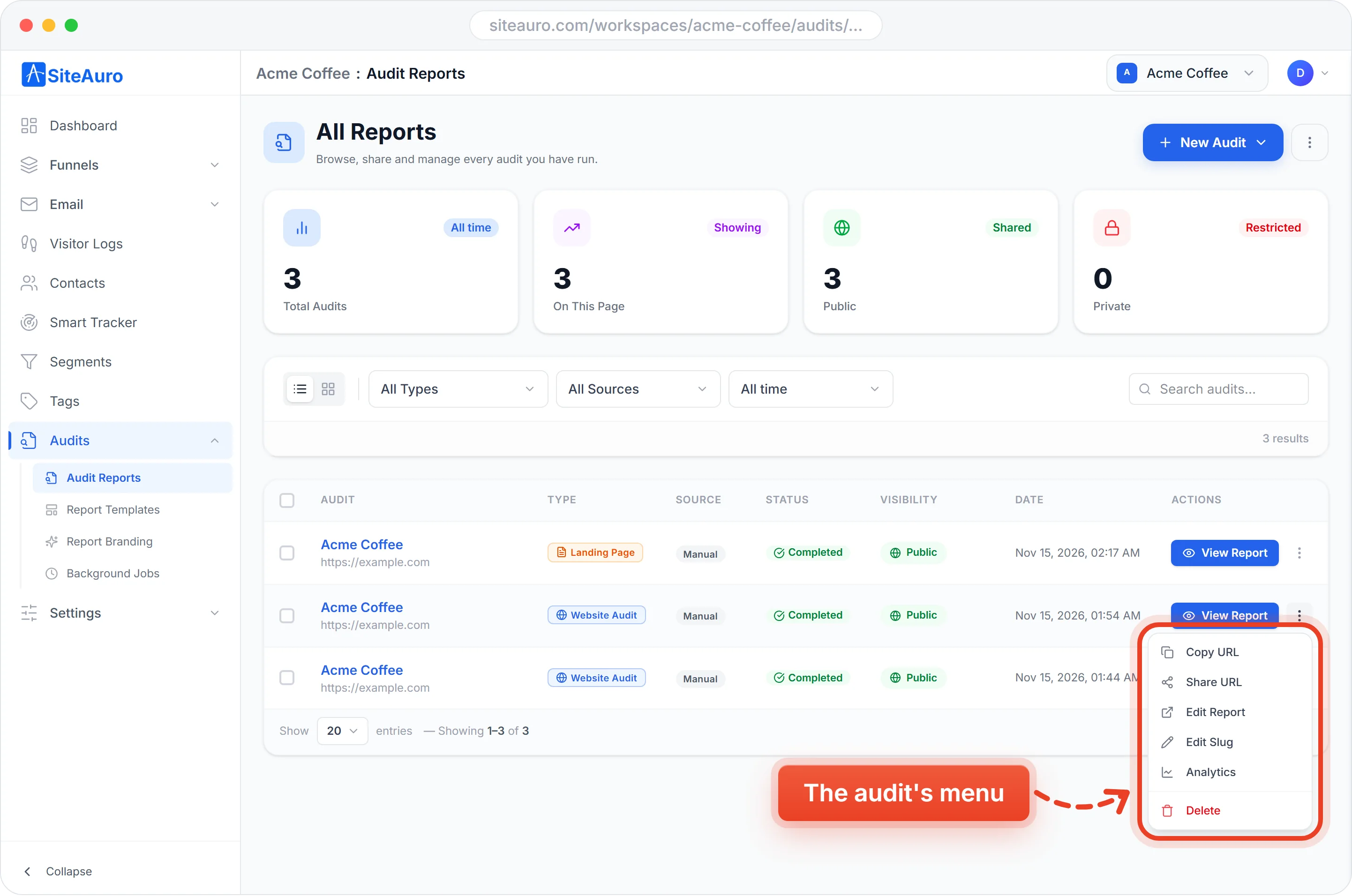
In Audits, open Audit Reports. Click the audit's name, or open its ⋮ menu and choose Share URL.
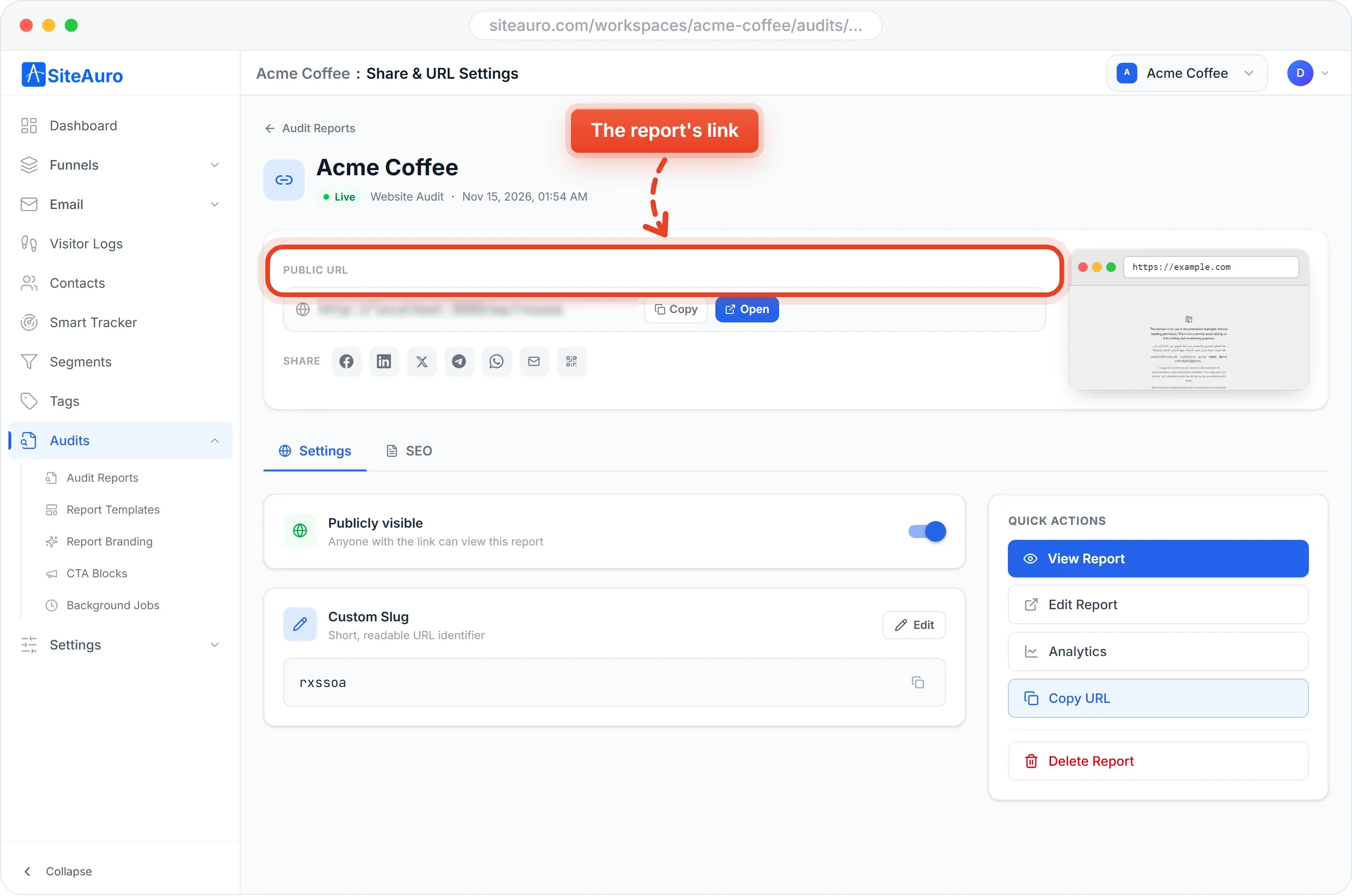
- Public URL: the report's link. Copy copies it, and Open opens the report.
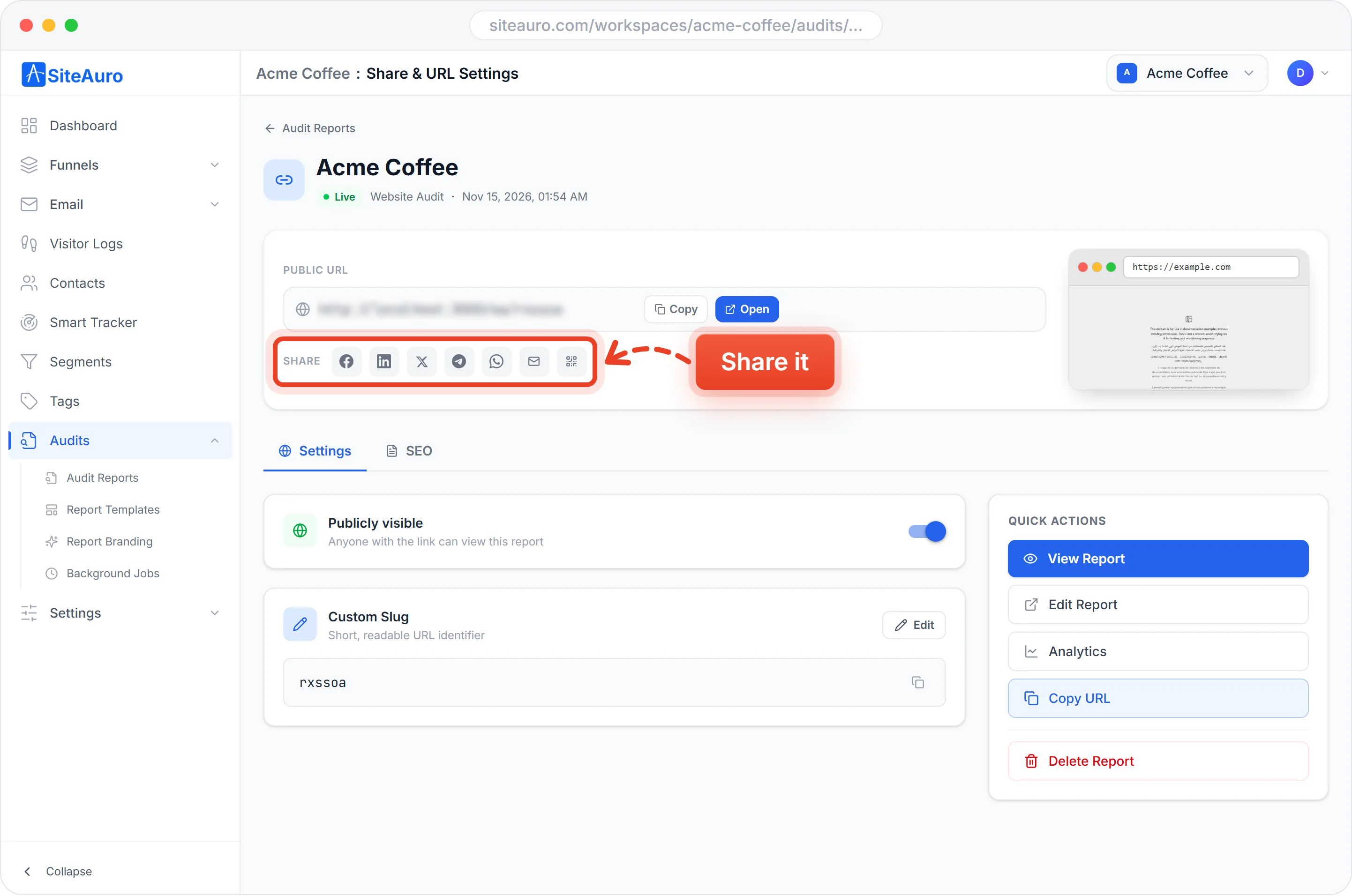
- Share: post the link to Facebook, LinkedIn, X, Telegram or WhatsApp, or send it by email.
- QR code: a code that opens the report. Download QR PNG saves it as a picture.
The ⋮ menu on Audit Reports also has Copy URL, to copy the link without opening this page.
Public or Private
A new report is public: anyone with the link can view it. On the share page's Settings tab, switch visibility off to make it private: only you can view it, and anyone else who opens the link sees This report is private. You can also click the Public or Private label on the report's row in Audit Reports.
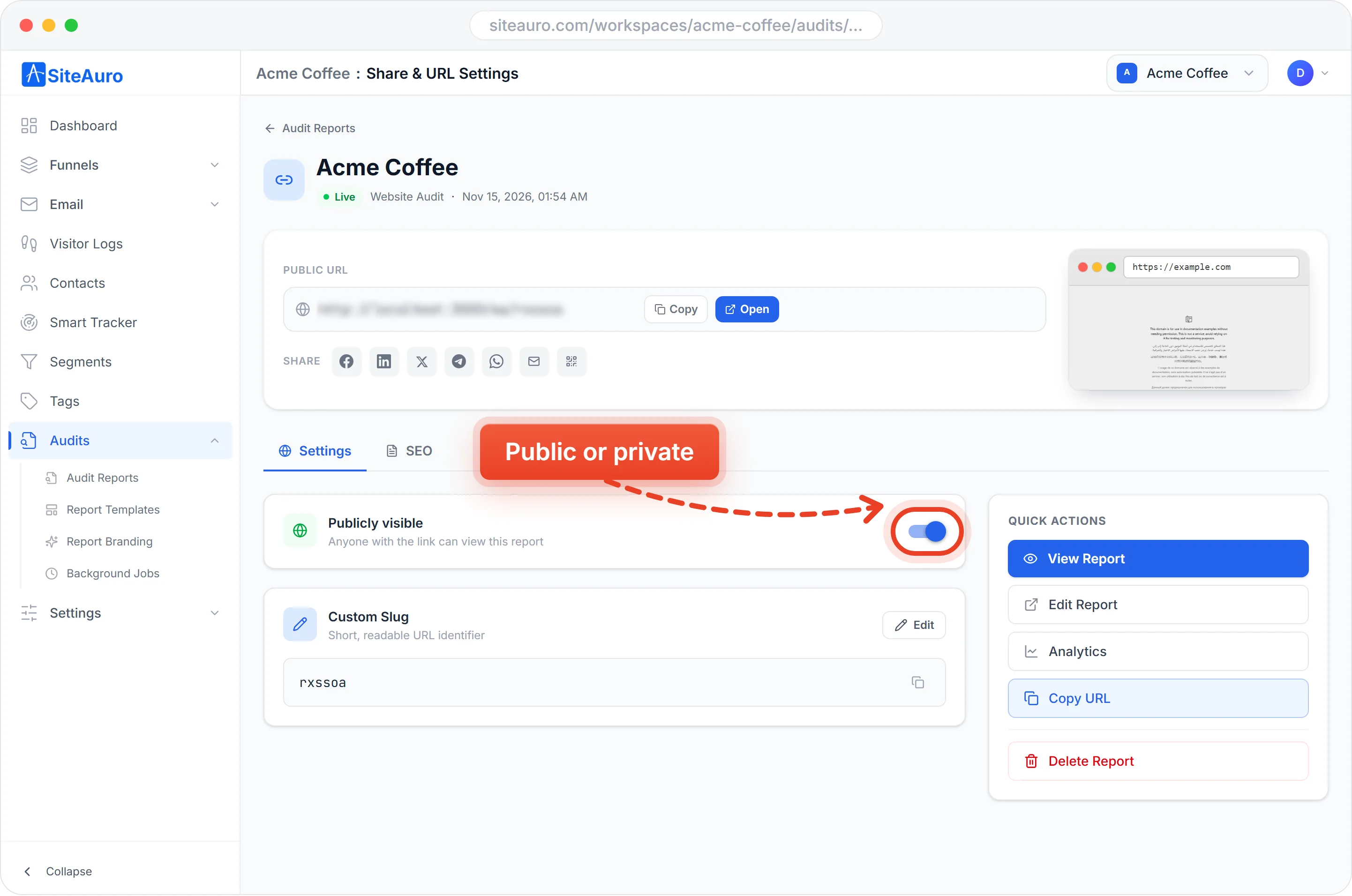
If your workspace has a custom domain, the Custom Domain switch here shows the report on your own domain.
Change Its Address
On the Settings tab, under Custom Slug, click Edit. Edit Slug in the ⋮ menu on Audit Reports opens a window that changes it too.
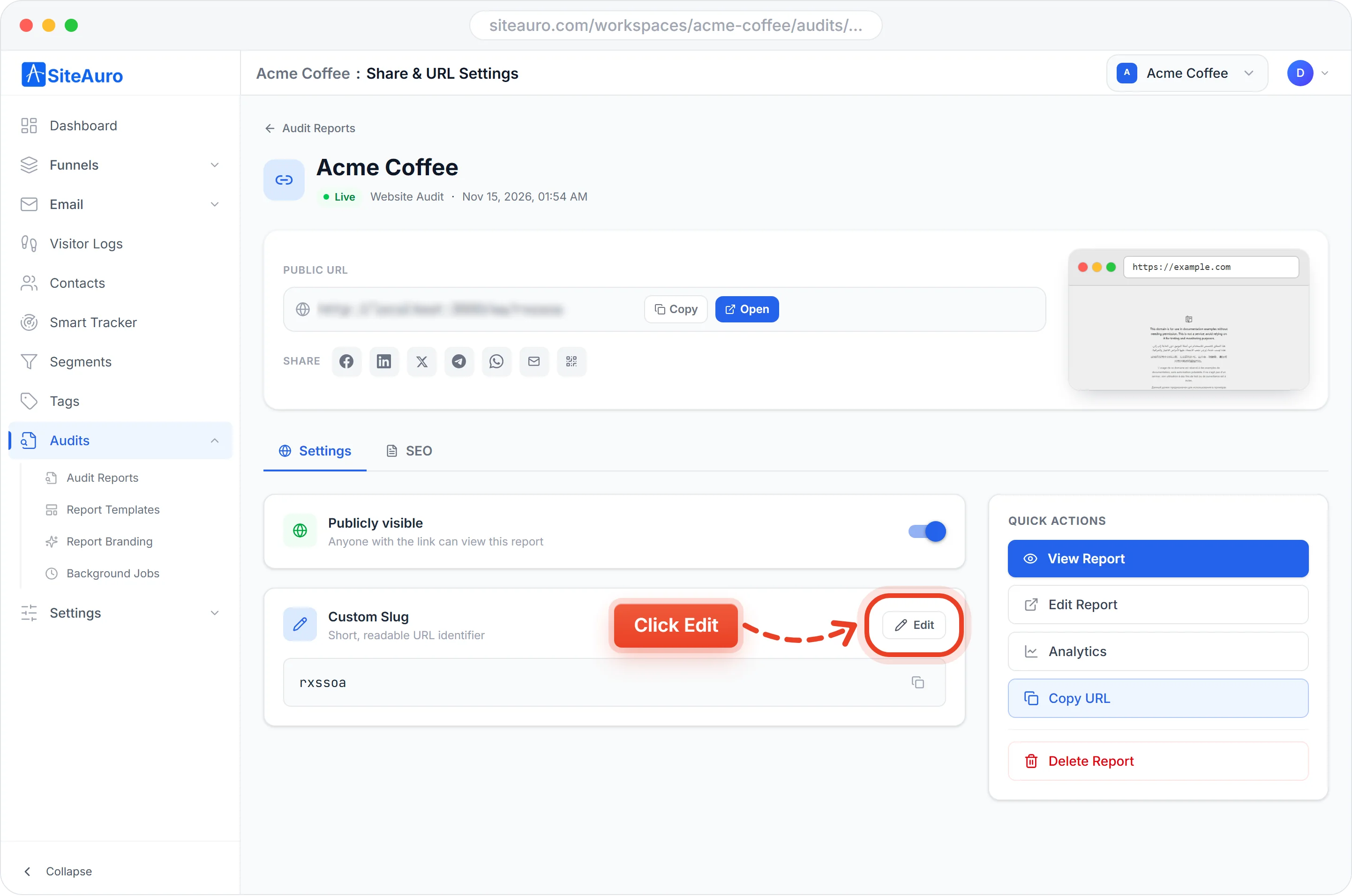
Type the end of the address, for example acme-seo-review, using lowercase letters, numbers and hyphens, at least 3 characters, not starting or ending with a hyphen. URL Preview shows the full link. Click Save Slug.
The report's original link keeps working as well. A custom slug you set earlier is replaced by the new one.
How It Looks When Shared
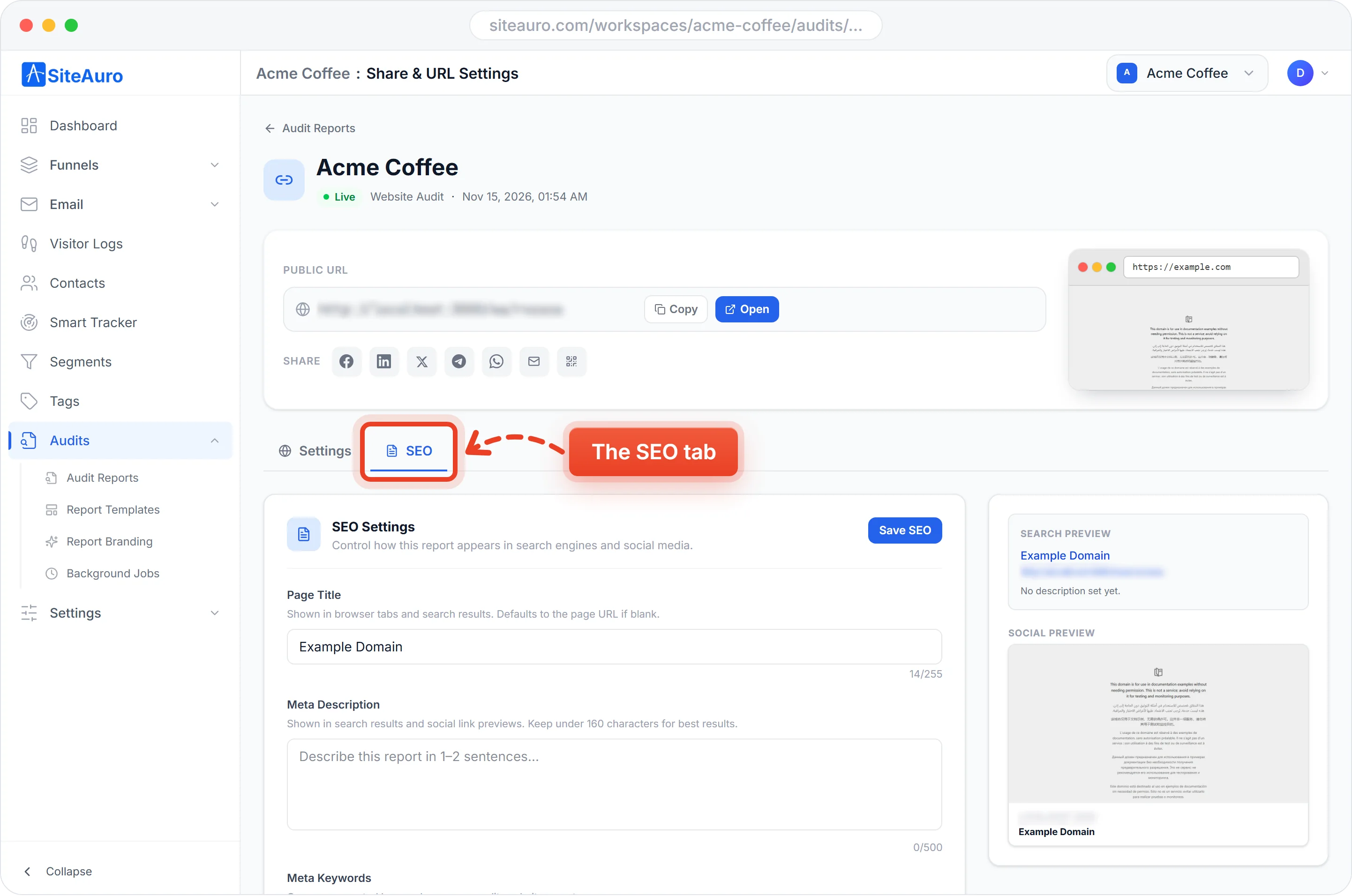
On the SEO tab, set the report's Page Title, Meta Description (keep it under 160 characters), Meta Keywords, Favicon URL and OG Image URL (1200 × 630 px), then click Save SEO. Search Preview and Social Preview show how the link will look in search results and when it's shared.
Edit a Report
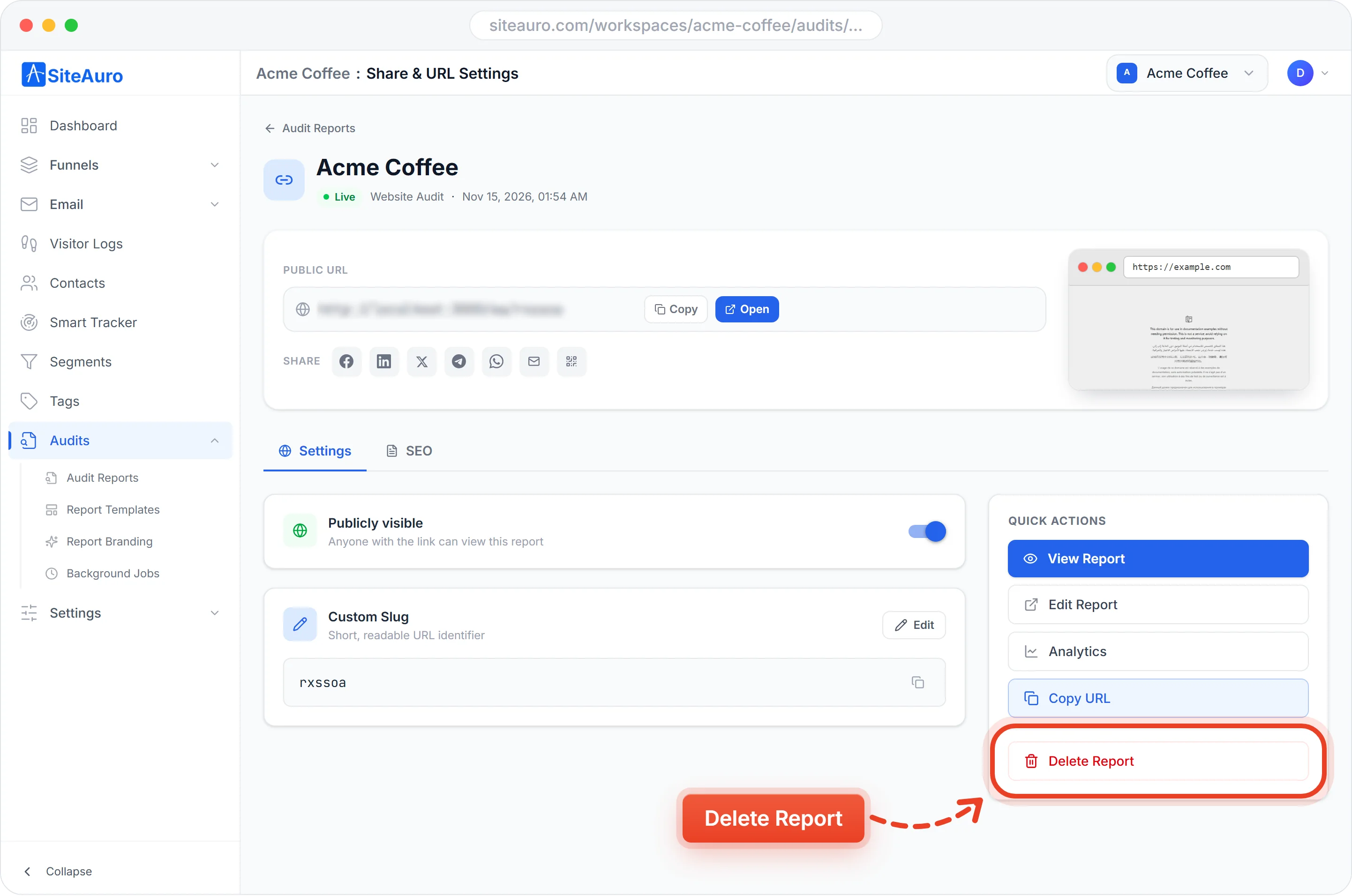
Choose Edit Report in the ⋮ menu, or on the share page, to change the report's words, pages, categories and tasks before your client sees it. Every step is in Edit a Report.
See Who Viewed It
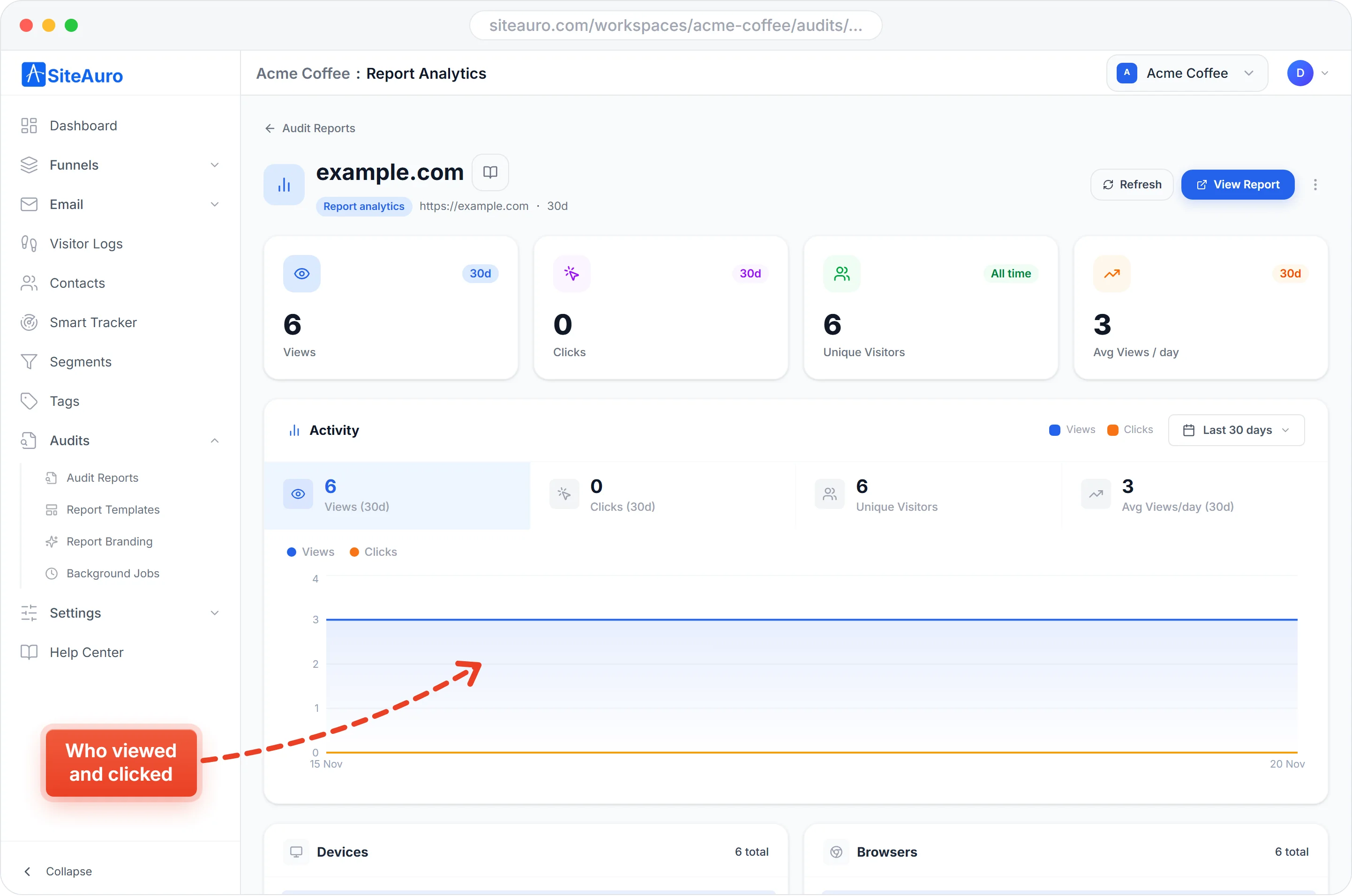
Choose Analytics, from the share page or the ⋮ menu. Report Analytics shows, for the dates you choose (the last 30 days to start):
- Views: each browser session that opened the report counts once.
- Clicks: clicks on links in the report, including your call-to-action buttons, email and phone links.
- Unique Visitors and Avg Views / day.
- Activity: views and clicks over time.
- Devices, Browsers, Operating Systems and Countries.
- Clicked Links: each link, with how many times it was clicked.
Delete a Report
Choose Delete in the ⋮ menu, or Delete Report on the share page. The report and its link are gone for good.