
SiteAuro sees what visitors do on your website, but not who they are. When someone fills in one of your forms, they become a contact on their own. When someone signs in to your website or app, SiteAuro cannot see it: your site has to say so, with one line of code.
That line tells SiteAuro the person's email address. The visitor becomes a contact, and the pages they viewed in that browser before they signed in stay attached to them.
What you need
- The SiteAuro pixel on your website. See Install the SiteAuro Pixel.
- Pages that know who is signed in, so they can print the person's email address. If a page can already say "Hi, Ada", it has what this needs.
Add the line
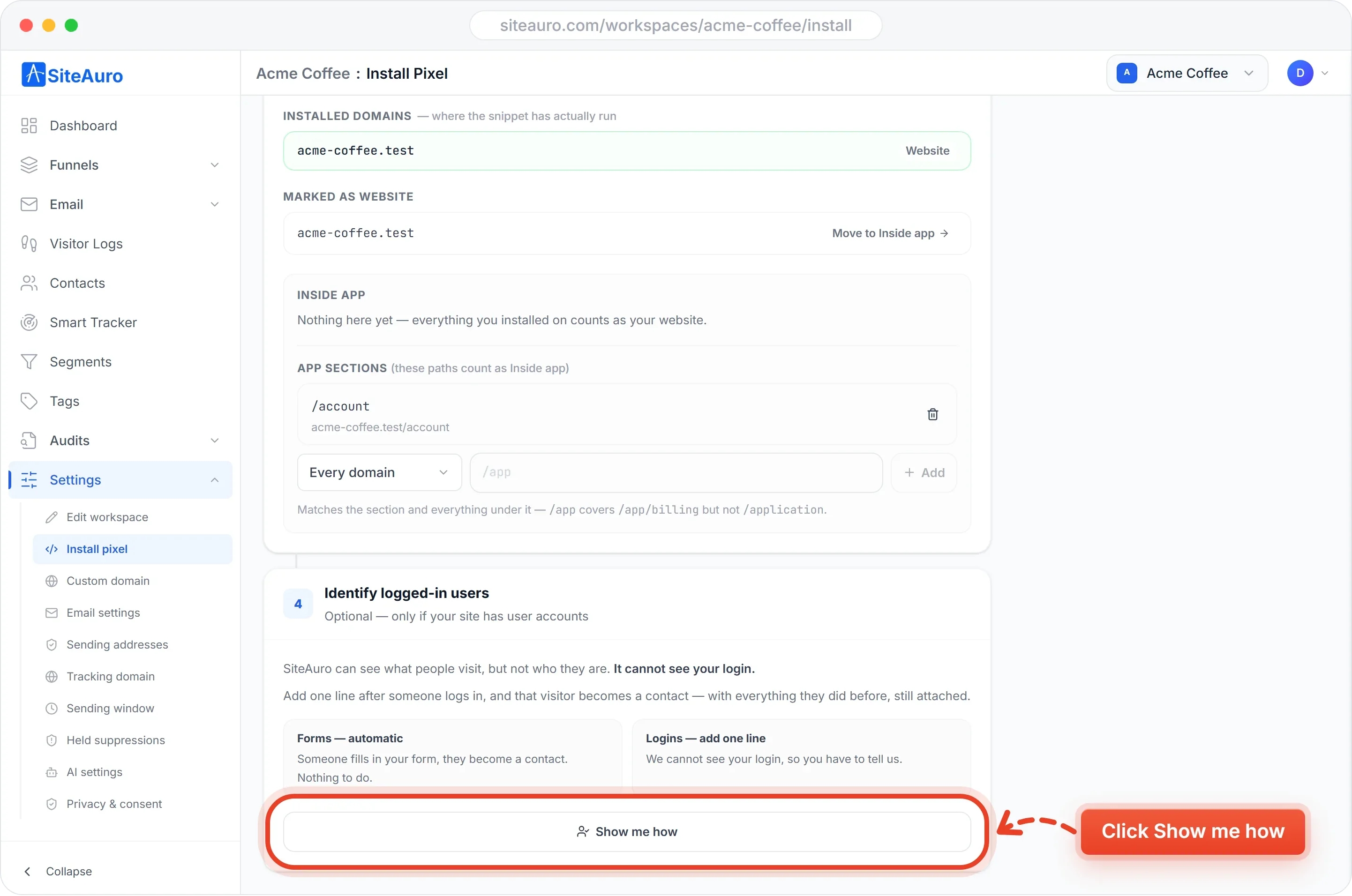
The Website Installation screen shows this line too. In the menu, open Settings and choose Install pixel. Step 4, Identify logged-in users, appears once step 3 has marked part of your site as your app: a domain moved to Inside app, or an app section such as /account. Click Show me how.
Add this after login shows the line, with Where it goes and an example for each kind of site below it.
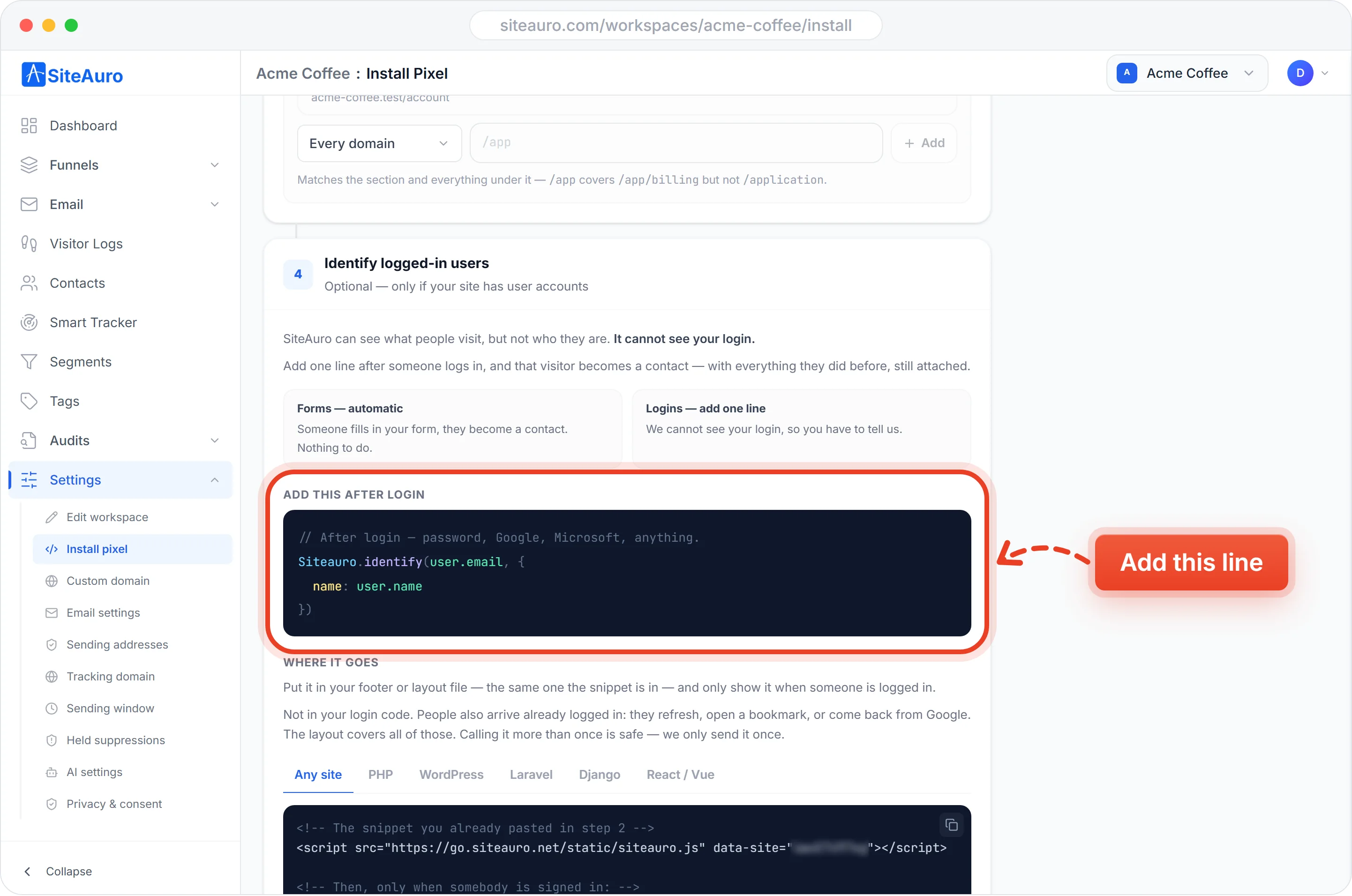
Add this to your pages, after the pixel snippet, with the signed-in person's details in place of Ada's:
Siteauro.identify("ada@example.com", { name: "Ada Lovelace" })The email address comes first and is the only thing you must send. The rest is optional:
| Detail | What it is | Up to |
|---|---|---|
email |
The person's email address. Required. | 255 characters |
name |
Their name. | 255 characters |
phone |
Their phone number. | 50 characters |
company |
Their company. | 255 characters |
website |
Their website. | 255 characters |
A detail longer than this is refused, and nothing from that call is saved. With every detail it looks like this:
Siteauro.identify("ada@example.com", {
  name: "Ada Lovelace",
  phone: "+44 20 7946 0000",
  company: "Analytical Engines Ltd",
  website: "https://analytical-engines.example.com"
})
Where to put it
Put the line in your footer or layout file, the same one the pixel snippet is in, and only show it when someone is signed in.
Not only in your sign-in code. People also arrive already signed in: they refresh a page, open a bookmark, or come back from signing in with Google. A layout covers all of them.
Calling it on every page is safe. In each browser tab the same address is sent only once, and a different address, such as another person signing in, is sent straight away. The line can also run before the pixel has finished loading: the call waits, and is sent as soon as the pixel is ready.
Examples for your site
The same line, written for the way your site is built.
Any site
<!-- The snippet you already pasted -->
<script src="https://go.siteauro.net/static/siteauro.js" data-site="YOUR_SITE_KEY"></script>

<!-- Then, only when somebody is signed in: -->
<script>
  Siteauro.identify("ada@example.com", { name: "Ada Lovelace" })
</script>
PHP
<?php
// The only two lines to change. Point them at whatever your site already
// has for the signed-in user; the rest works unchanged.
$saEmail = $user['email'] ?? null;
$saName  = $user['name']  ?? null;

if (!empty($saEmail)): ?>
<script>
  Siteauro.identify(<?= json_encode($saEmail, JSON_HEX_TAG | JSON_HEX_AMP) ?>,
                    { name: <?= json_encode((string) $saName, JSON_HEX_TAG | JSON_HEX_AMP) ?> })
</script>
<?php endif; ?>
Where the email and name come from depends on what your site is built with: in plain PHP, call session_start() and use $_SESSION['email']; in CodeIgniter 4, session()->get('email'); in CodeIgniter 3, $this->session->userdata('email'). An error about $_SESSION means the session has not been started: call session_start() first.
WordPress
<?php // footer.php
if ( is_user_logged_in() ) : $u = wp_get_current_user(); ?>
<script>
  Siteauro.identify("<?php echo esc_js( $u->user_email ); ?>",
                    { name: "<?php echo esc_js( $u->display_name ); ?>" })
</script>
<?php endif; ?>
Laravel
{{-- resources/views/layouts/app.blade.php --}}
@auth
<script>
  Siteauro.identify(@json(auth()->user()->email),
                    { name: @json(auth()->user()->name) })
</script>
@endauth
Django
{# base.html #}
{% if user.is_authenticated %}
<script>
  Siteauro.identify("{{ user.email|escapejs }}",
                    { name: "{{ user.get_full_name|escapejs }}" })
</script>
{% endif %}
React / Vue
// Wherever you already hold the user. Runs again on every mount,
// which is what you want: the second call in a session is dropped,
// so there is nothing to guard.
useEffect(() => {
  if (user?.email) {
    window.Siteauro?.identify(user.email, { name: user.name })
  }
}, [user])
In the Any site example, use your own snippet from the Website Installation screen: it carries your site key in place of YOUR_SITE_KEY.
What happens next
The next time that person loads a page while signed in, they become a contact.
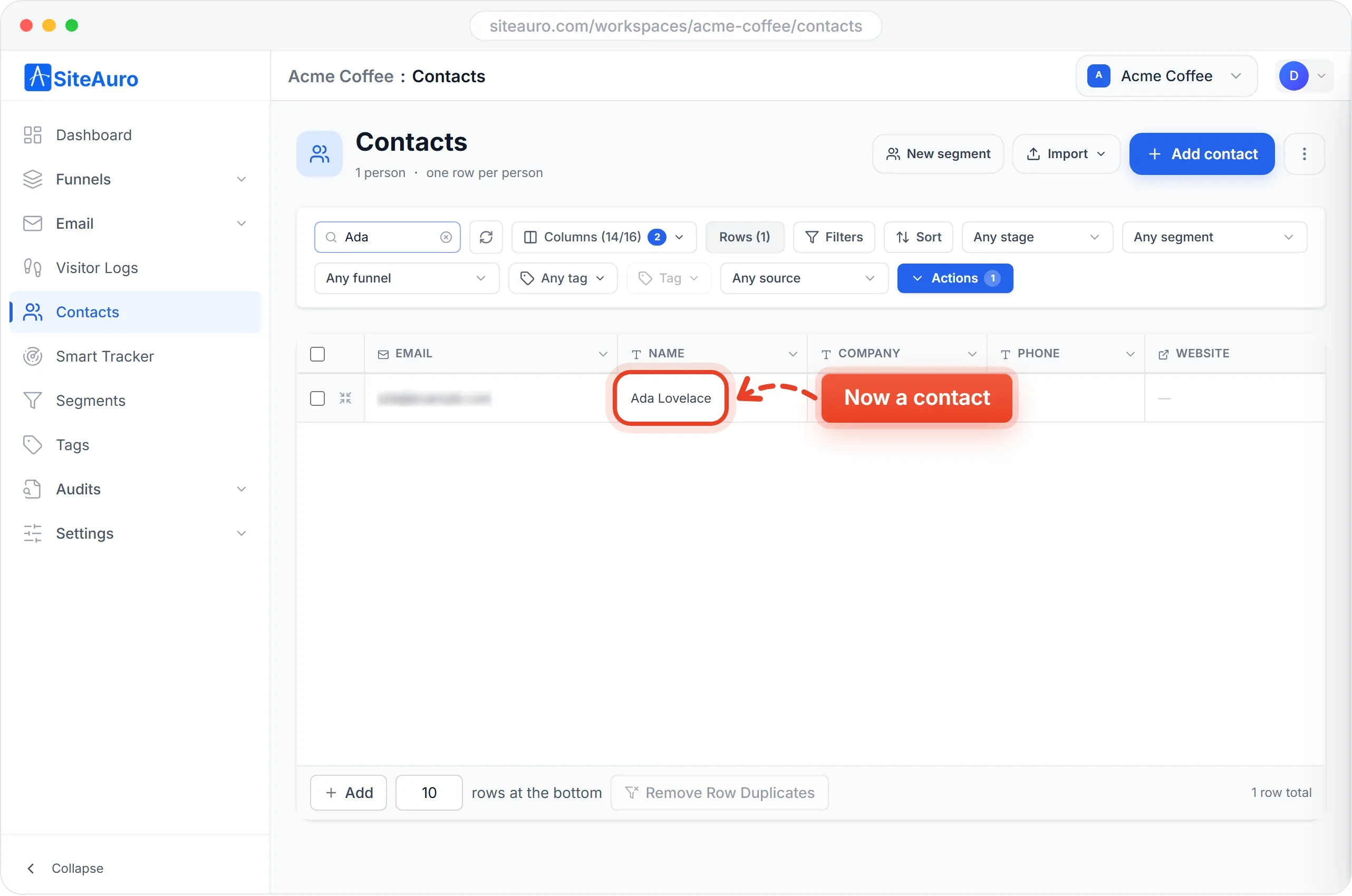
- Their history comes with them. The pages they viewed in that browser before signing in are attached to the contact. Open the contact and choose Timeline: everything below the amber line happened before they told you who they were. If the visitor never agreed to tracking, there is nothing earlier to attach, and the contact starts from the moment they signed in. Make sure your own privacy notice covers identifying signed-in users.
- An existing contact keeps their details. If the address already belongs to a contact, the call adds only what is missing. It never replaces a name, phone, company or website the contact already has.
- Capitals do not matter.
Ada@Example.comandada@example.comare the same contact.
Tip
Any way of signing in works the same: a password, Google, Microsoft, GitHub, single sign-on or a magic link. Once the person is back on your site, your site knows their email address, and that is all the line needs.
Good to know
- Call it from the browser, not your server. SiteAuro recognises the visitor by a cookie in their browser. A call from your server has no cookie, so the contact is created without any of their history.
- One browser at a time. Someone who browsed on a laptop and signed in on a phone is linked on the phone only.
- The email address is the identity. If someone changes their email address in your app and you send the new one, you get a second contact.
- It only runs on your own website. Like the pixel, the call is accepted only from the domain your workspace is set up for.
Note
If the box Tracking from a shared domain shows on your Website Installation screen, Safari deletes the visitor cookie after seven days. The contact is still created, but there may be less history to attach. Connecting your own domain fixes this.
Next step
Your contacts now include the people who sign in to your site. Go back to Getting Started with SiteAuro to find your way around.