
Skip to content
SiteAuro

Connect Your Email Provider

Connect SMTP, SendGrid, Mailgun or Resend, so SiteAuro can send your funnel emails from your own address.

Table of Contents
  1. Add an Email Config
  2. What Each Provider Asks For
  3. Check That It Works
  4. Bounces and Complaints
  5. Manage Your Configs
  6. Next Step

SiteAuro sends your emails, such as a funnel's autoresponder, through an email provider you connect. Each connection is an email config. A workspace can have several, and mix SMTP with API providers.

In the menu, open Settings and choose Email settings. Your configs are listed with their provider, who they send from, and whether they have been tested.
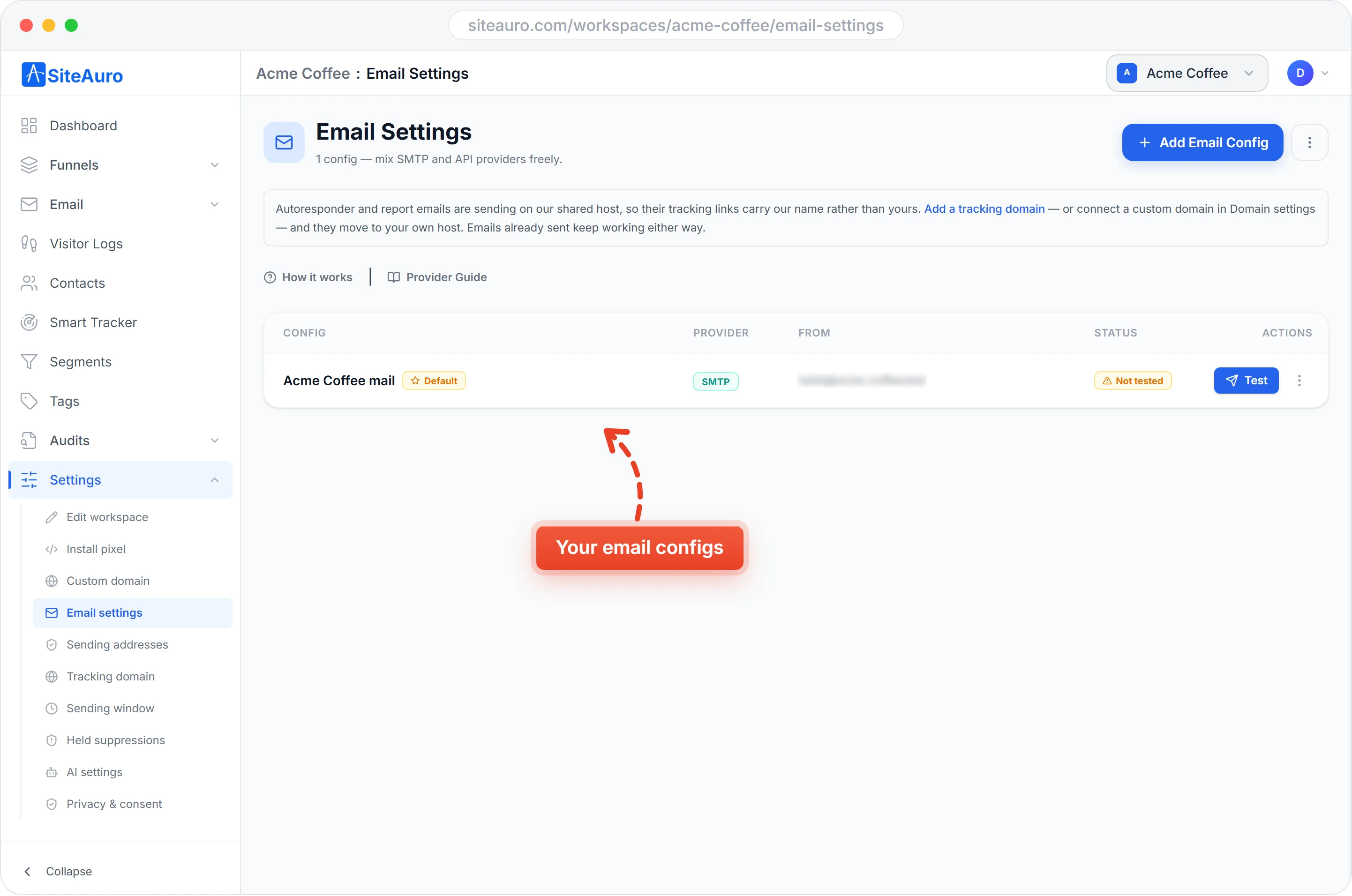
The Email Settings page of the Acme Coffee workspace with one config, Acme Coffee mail, marked Default, on SMTP, its From address blurred, Not tested, with a Test button. Below the list, a red label reads "Your email configs", with a dashed arrow up to it.
Your email configs.

Add an Email Config

  1. Click Add Email Config

    The New Email Config panel opens.
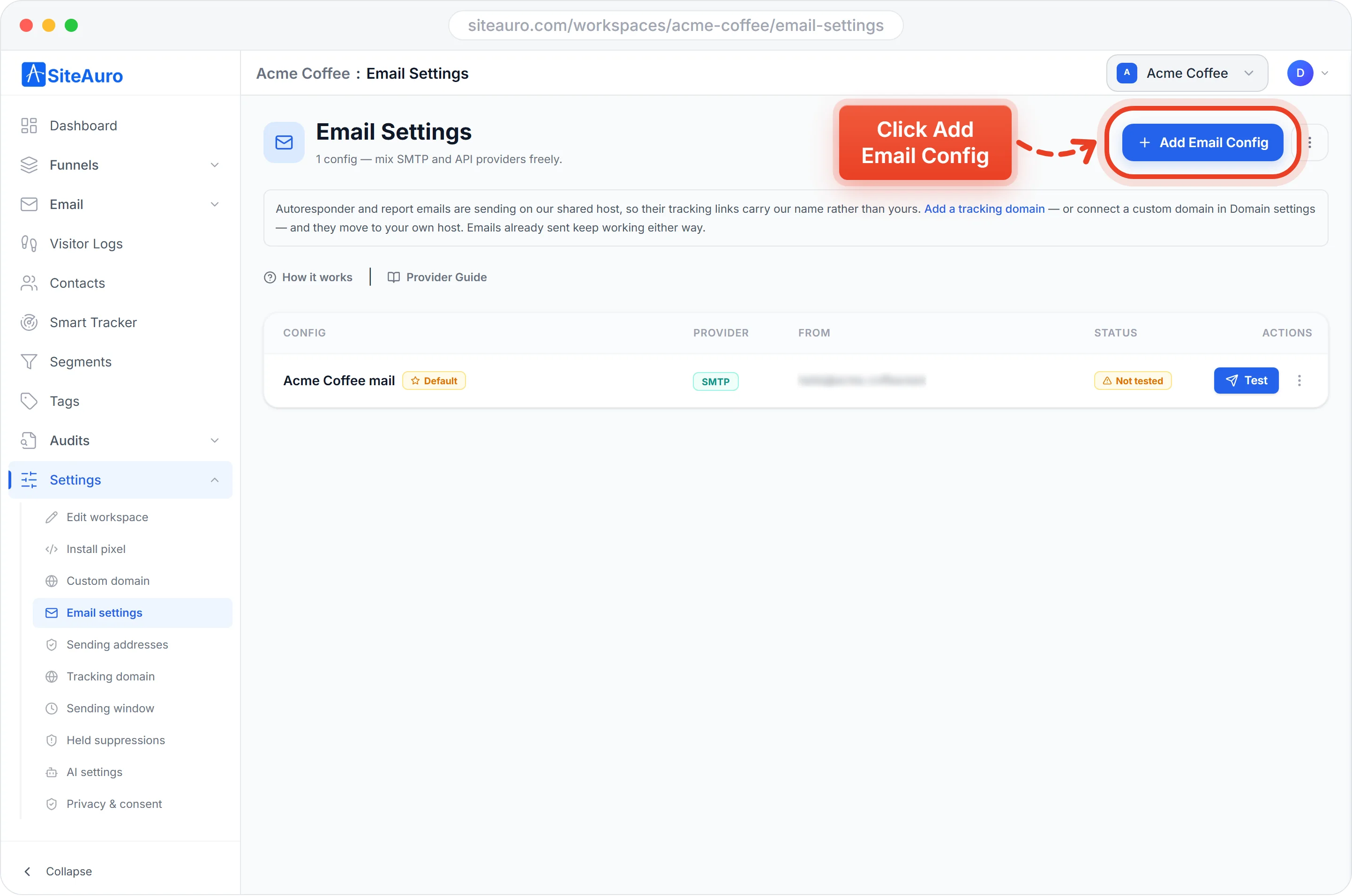
    The Email Settings page with the Add Email Config button at the top right outlined in red, with a red arrow labelled Click Add Email Config.
    Email Settings.
  2. Choose the provider

    Under Provider, choose SMTP, SendGrid, Mailgun or Resend, and give the config a Config Name you'll recognise.
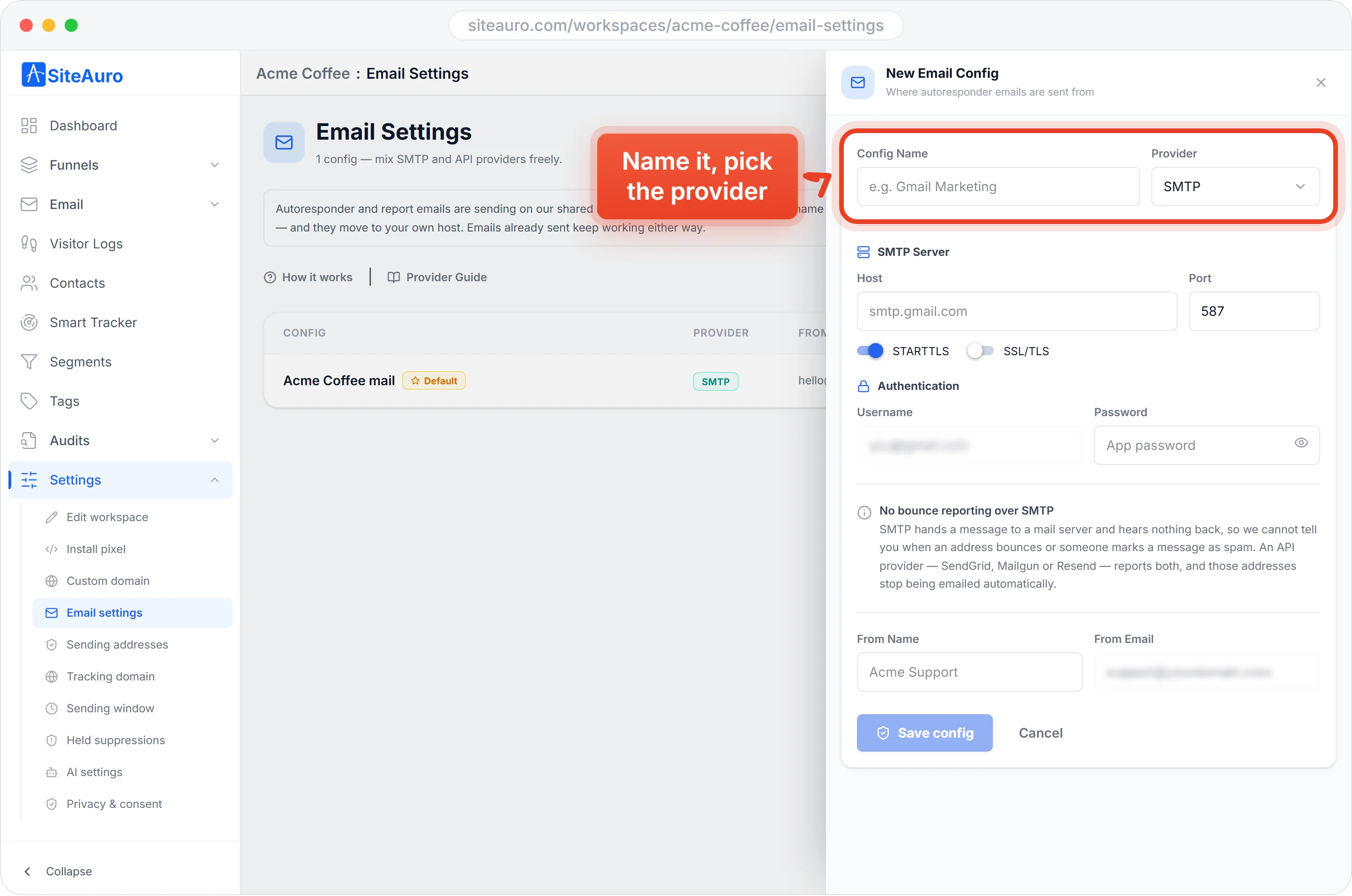
    The New Email Config panel open on the right of Email Settings, in a browser window, with SMTP chosen under Provider: the SMTP Server section with Host, Port 587 and the STARTTLS and SSL/TLS switches, the Authentication section with Username and Password, a note that there is no bounce reporting over SMTP, and From Name and From Email, then Save config and Cancel. The sample addresses in Username and From Email are blurred. Config Name and Provider, at the top of the panel, are outlined in red, with the label "Name it, pick the provider" and a dashed arrow pointing to them.
    The New Email Config panel.
  3. Fill in the provider's details

    What it asks for depends on the provider: see What each provider asks for below.

    How it works and Provider Guide, at the top of the panel, have notes for Gmail, Outlook, SendGrid, Mailgun and Resend.

  4. Say who it's from

    Fill in From Name and From Email: what people see in their inbox.

  5. Click Save config

    Save config is at the foot of the panel. You see Email config added.
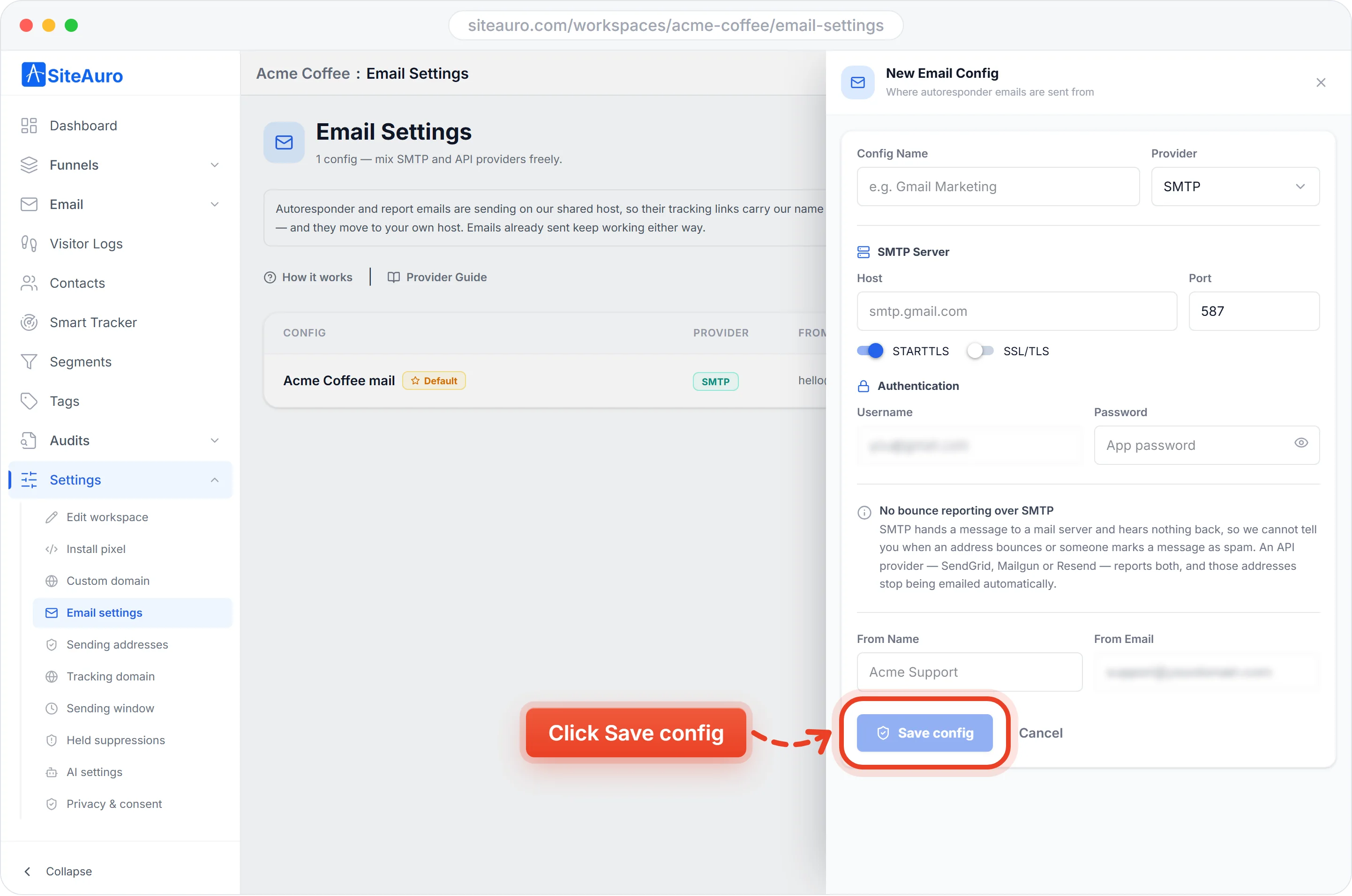
    The New Email Config panel with the Save config button at its foot outlined in red, with the label "Click Save config" and a dashed arrow pointing to it.
    Save config.

What Each Provider Asks For

SMTP

  • Host and Port of your mail server (587 unless your provider says otherwise), and whether it uses STARTTLS or SSL/TLS.
  • Username and Password. With Gmail or Outlook, use an app password, not your normal one.

SendGrid

  • API Key: a key from your SendGrid account.
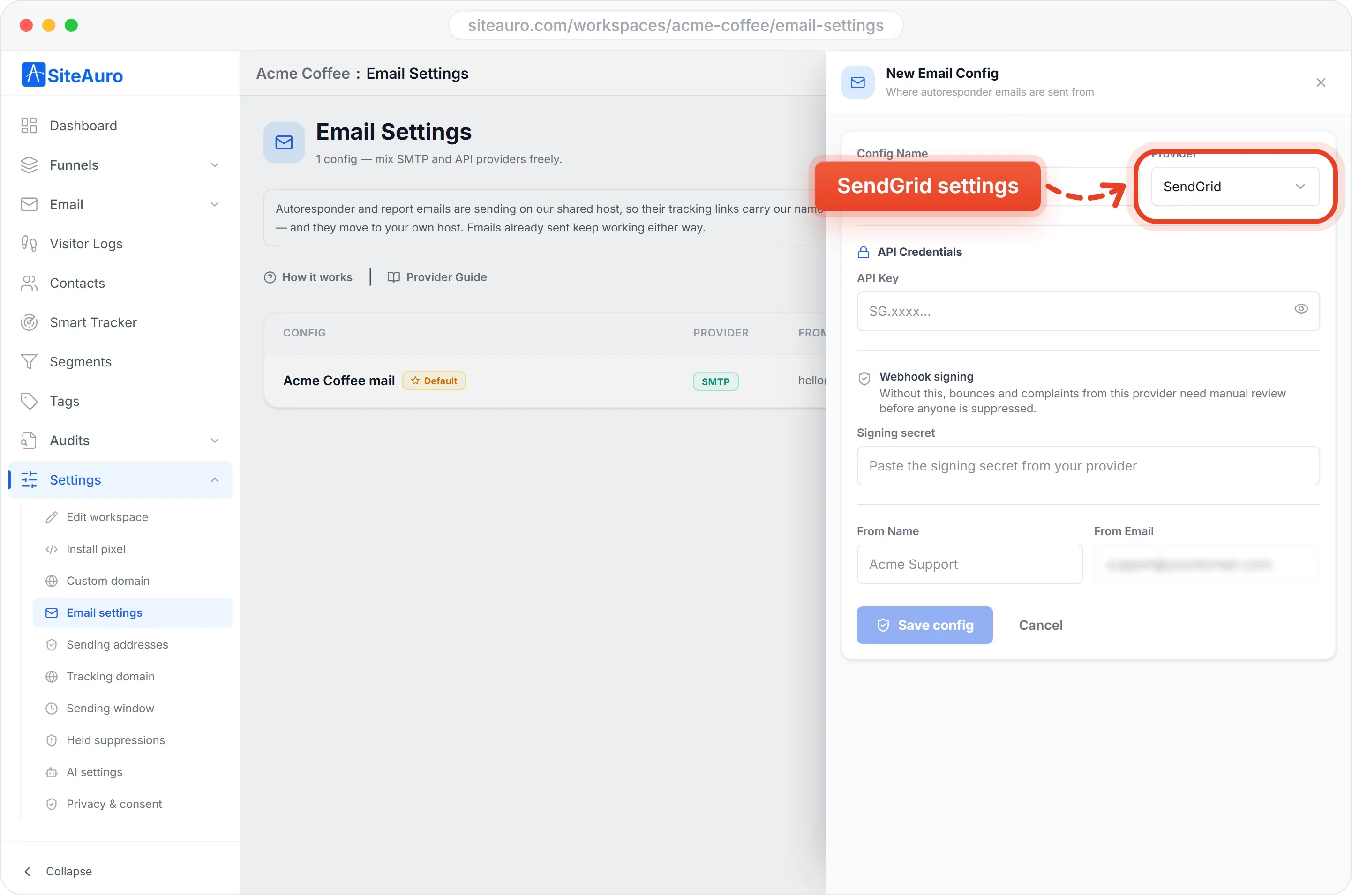
The New Email Config panel with SendGrid chosen: Config Name, API Credentials with the API Key box, Webhook signing with a Signing secret box, and From Name and From Email (its sample address blurred), then Save config and Cancel. The part this step is about is outlined in red, with the label "SendGrid settings" and a dashed arrow pointing to it.
SendGrid.

Mailgun

  • API Key: a key from your Mailgun account.
  • Mailgun Domain: the sending domain set up in Mailgun.
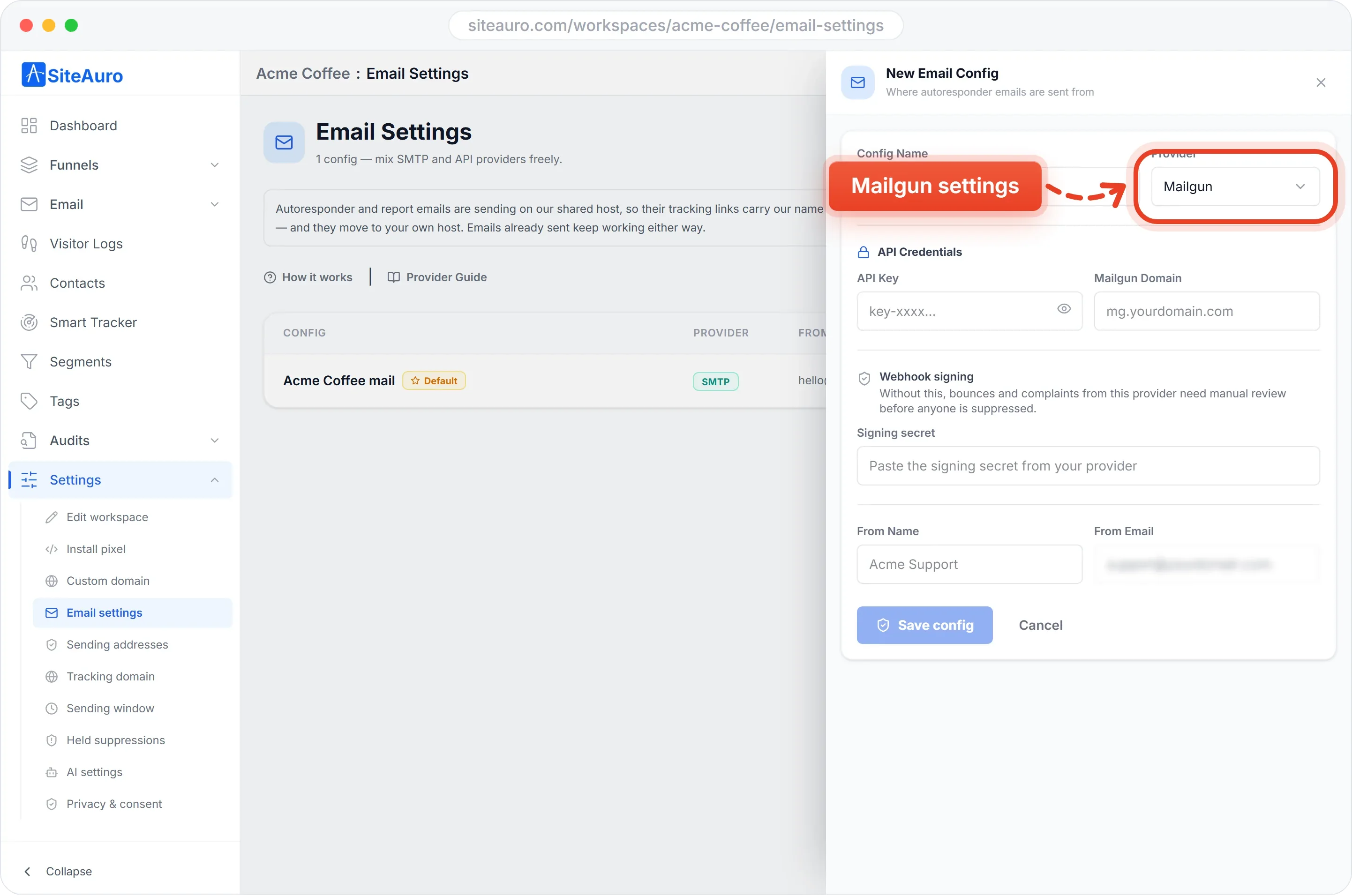
The New Email Config panel with Mailgun chosen: API Credentials with API Key and Mailgun Domain, Webhook signing with a Signing secret box, and From Name and From Email (its sample address blurred). The part this step is about is outlined in red, with the label "Mailgun settings" and a dashed arrow pointing to it.
Mailgun.

Resend

  • API Key: a key from your Resend account.
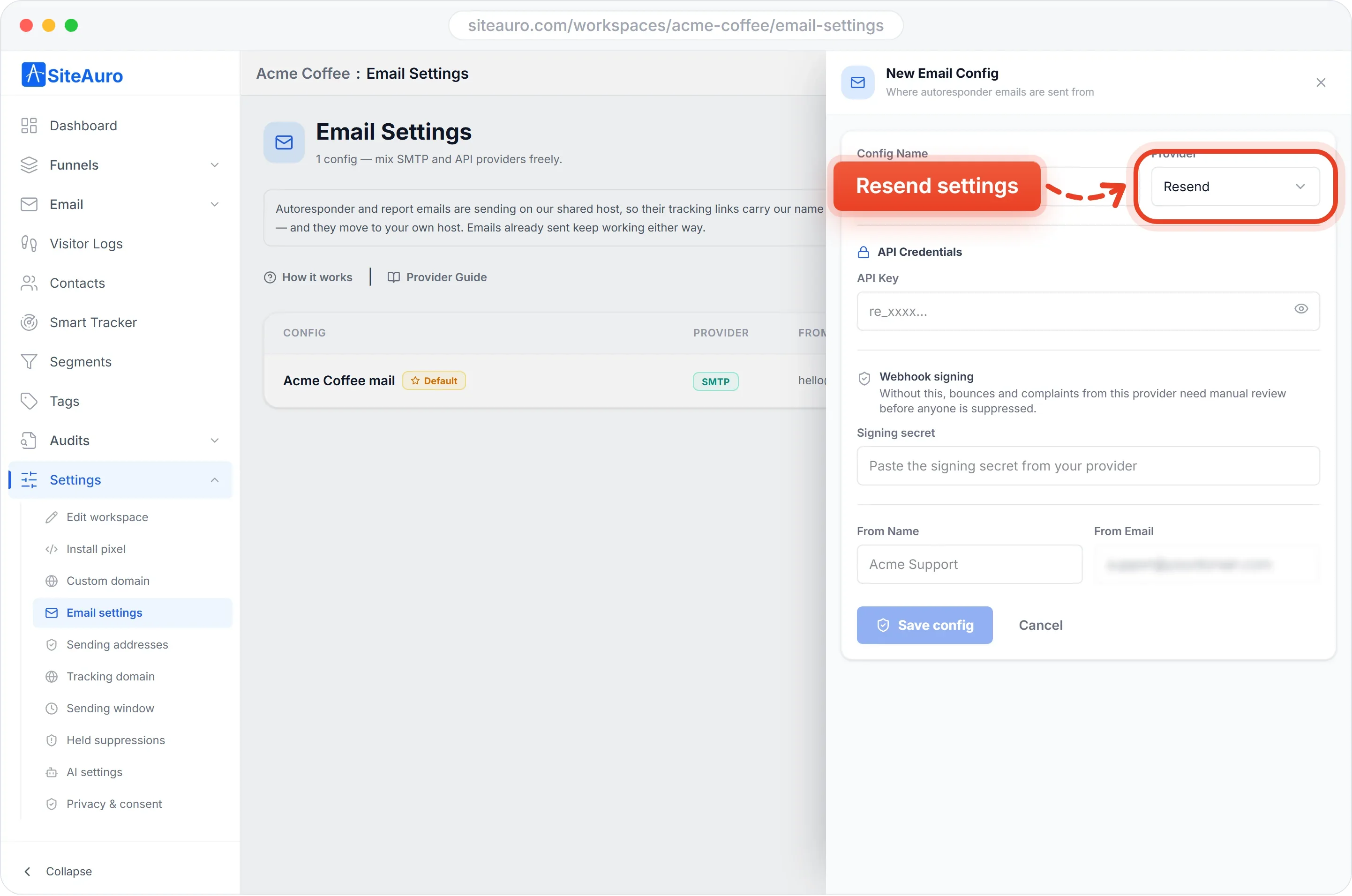
The New Email Config panel with Resend chosen: API Credentials with the API Key box, Webhook signing with a Signing secret box, and From Name and From Email (its sample address blurred). The part this step is about is outlined in red, with the label "Resend settings" and a dashed arrow pointing to it.
Resend.

Check That It Works

Click Test on the config. You see Connection verified when SiteAuro could reach the provider, and the config is marked Verified. If it fails, the provider's own message is shown under the config.
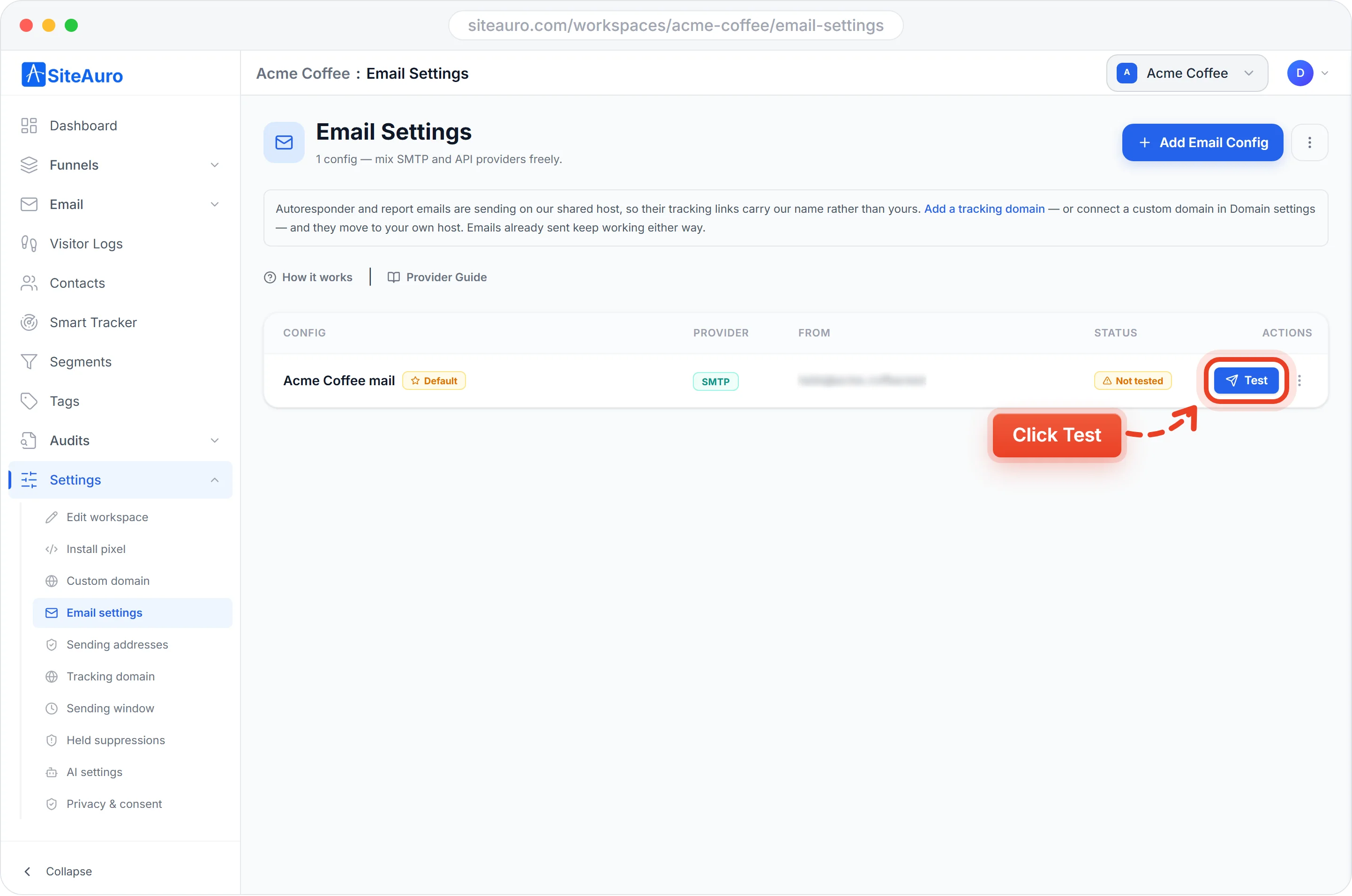
The Email Settings list with the Test button of Acme Coffee mail outlined in red, with the label "Click Test" and a dashed arrow pointing to it.
Test a config.

Bounces and Complaints

With SendGrid, Mailgun or Resend, paste the Signing secret from your provider under Webhook signing, when you add the config or later with Edit. Edit also shows a Webhook URL to paste into your provider's dashboard. With the secret stored, bounces and complaints are checked and applied straight away. Without it, they wait in Held suppressions for you to decide.

SMTP has no bounce reporting.

Manage Your Configs

Open a config's … menu:

  • Edit changes its details.
  • Set as default, on a config that isn't the default already: new autoresponders use the default config unless you choose another for them.
  • Delete removes it. A config that an automation uses can't be deleted: SiteAuro names the automations, so you can point them at another config first. Funnel emails that use the deleted config under Send via don't switch to another config: they aren't sent until you choose a config under Send via again. If you delete the default config, your oldest remaining config becomes the default.
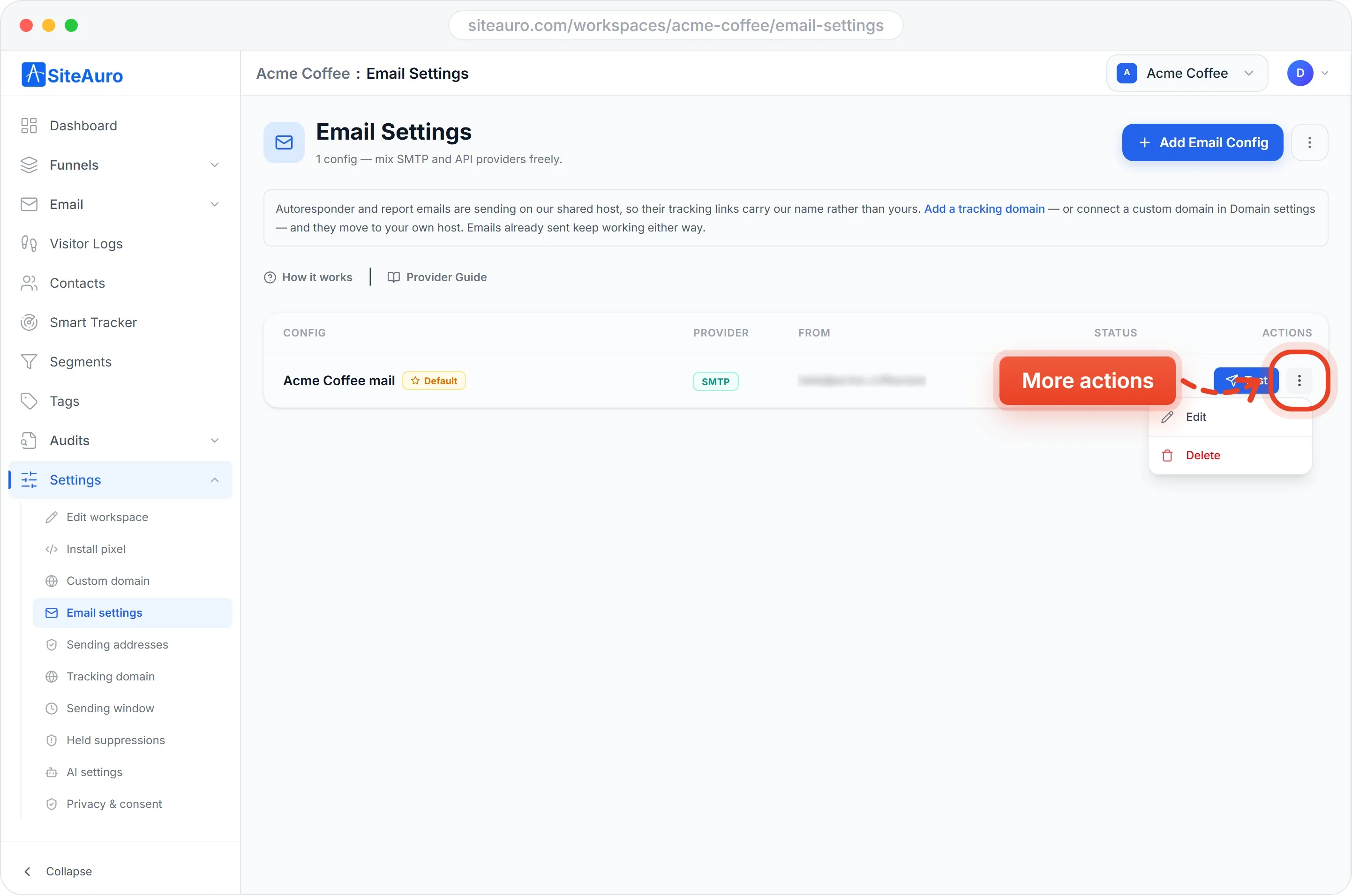
The Email Settings list with the Acme Coffee mail config, marked Default, and its menu open beside the Test button: Edit and Delete. Its From address is blurred. The part this step is about is outlined in red, with the label "More actions" and a dashed arrow pointing to it.
A config's menu.

Next Step

Verify your sending addresses, so your provider lets you send from them.

Last updated