
Personalization lets one popup or landing page say different things to different visitors. For example, people who came from an ad can see a heading about that ad, while everyone else sees your usual heading. You write the change once for a segment, and SiteAuro shows it to the visitors in that segment.
The page you built on the BUILD tab is the Default. Anyone who is not in one of your segments sees the Default, so nothing changes for them.
Turn It On for a Funnel
Open the funnel in the builder and click the PERSONALIZE tab.
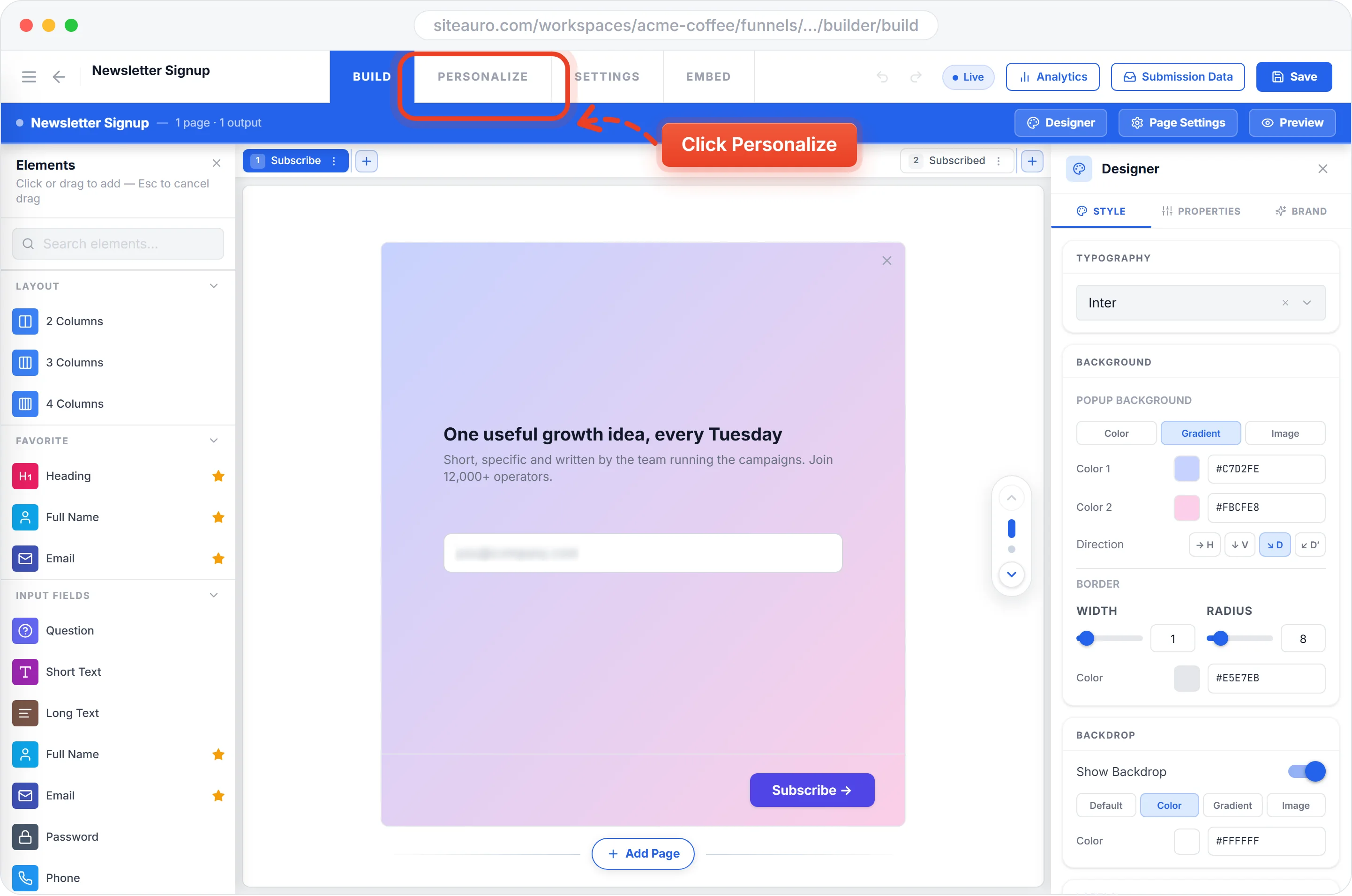
The PERSONALIZE tab. Click Turn on Personalization. Visitors keep seeing the original until you change something.
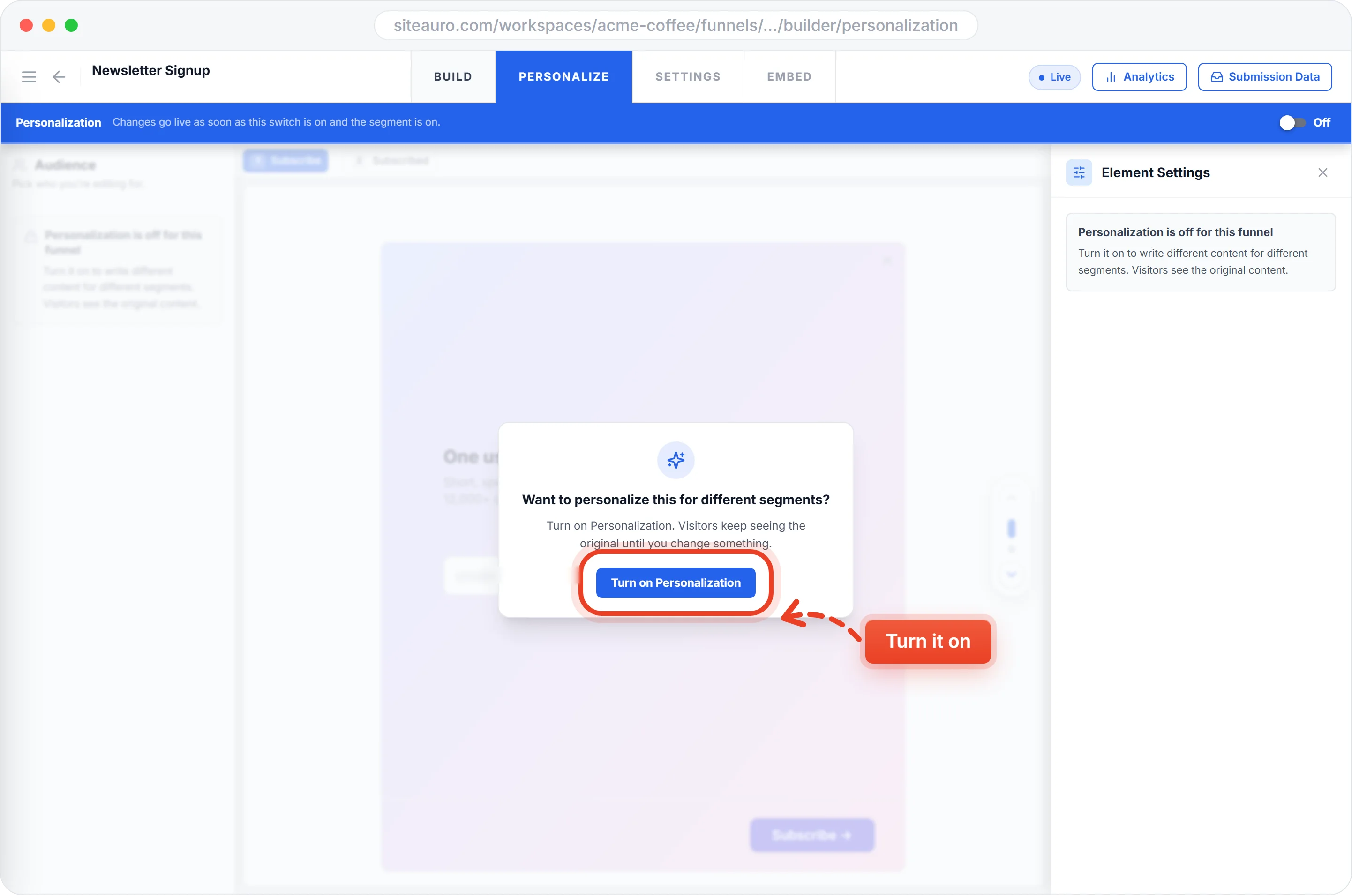
Turn it on.
The switch at the right of the blue bar turns personalization on or off for this funnel. Changes go live as soon as this switch is on and the segment is on.
Write for an Audience
The Audience list on the left shows who you are writing for. Default is everyone else; you change it on the BUILD tab.
Click + Write for another audience.
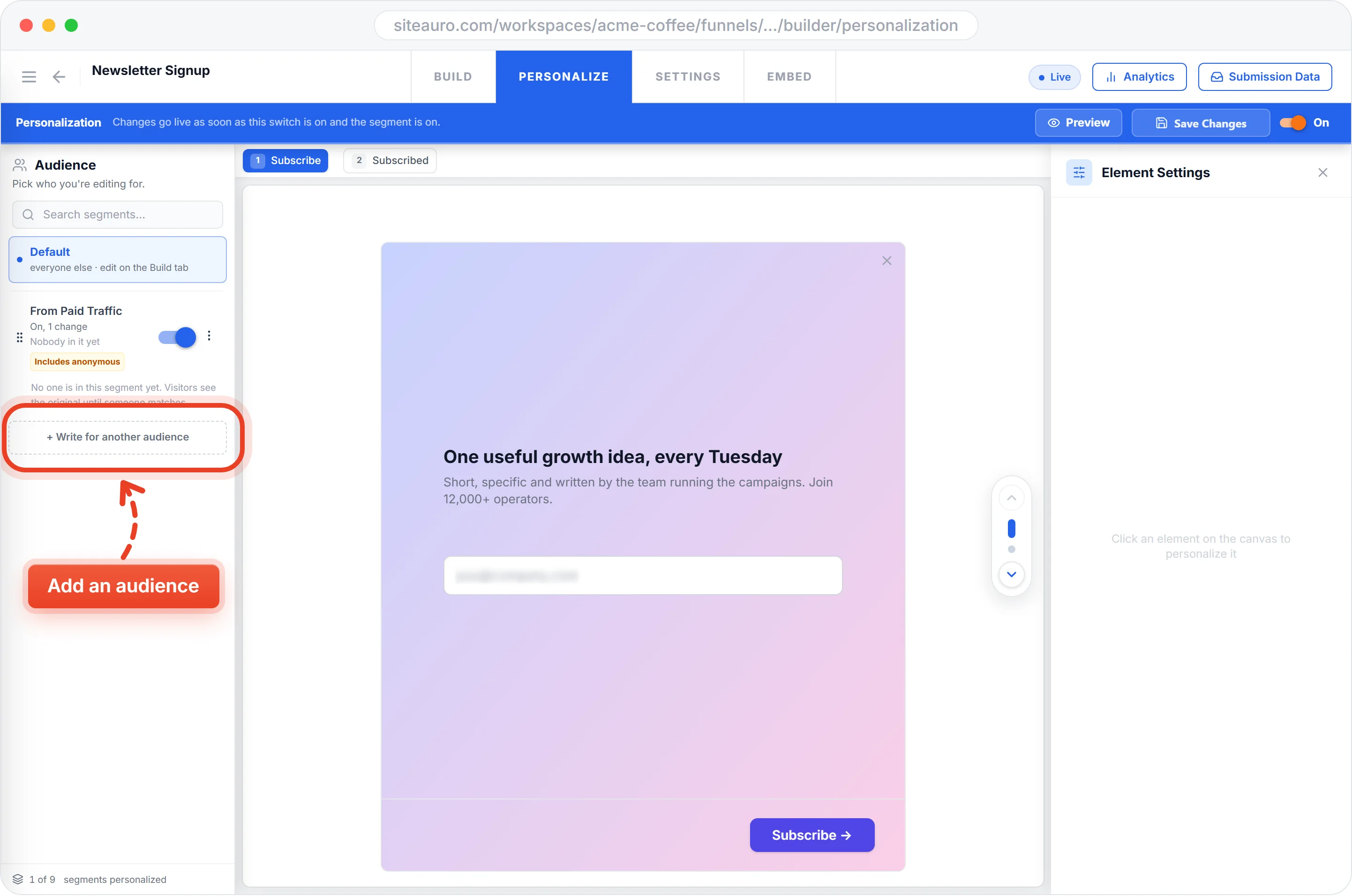
Add an audience. Choose a segment. Only segments that don't have a version yet are listed. Each one says how many people are in it, and either Includes anonymous (people who have not given an email can be in it) or Known contacts only.
The new version is selected in the list. The page in the middle now shows what this audience will see.
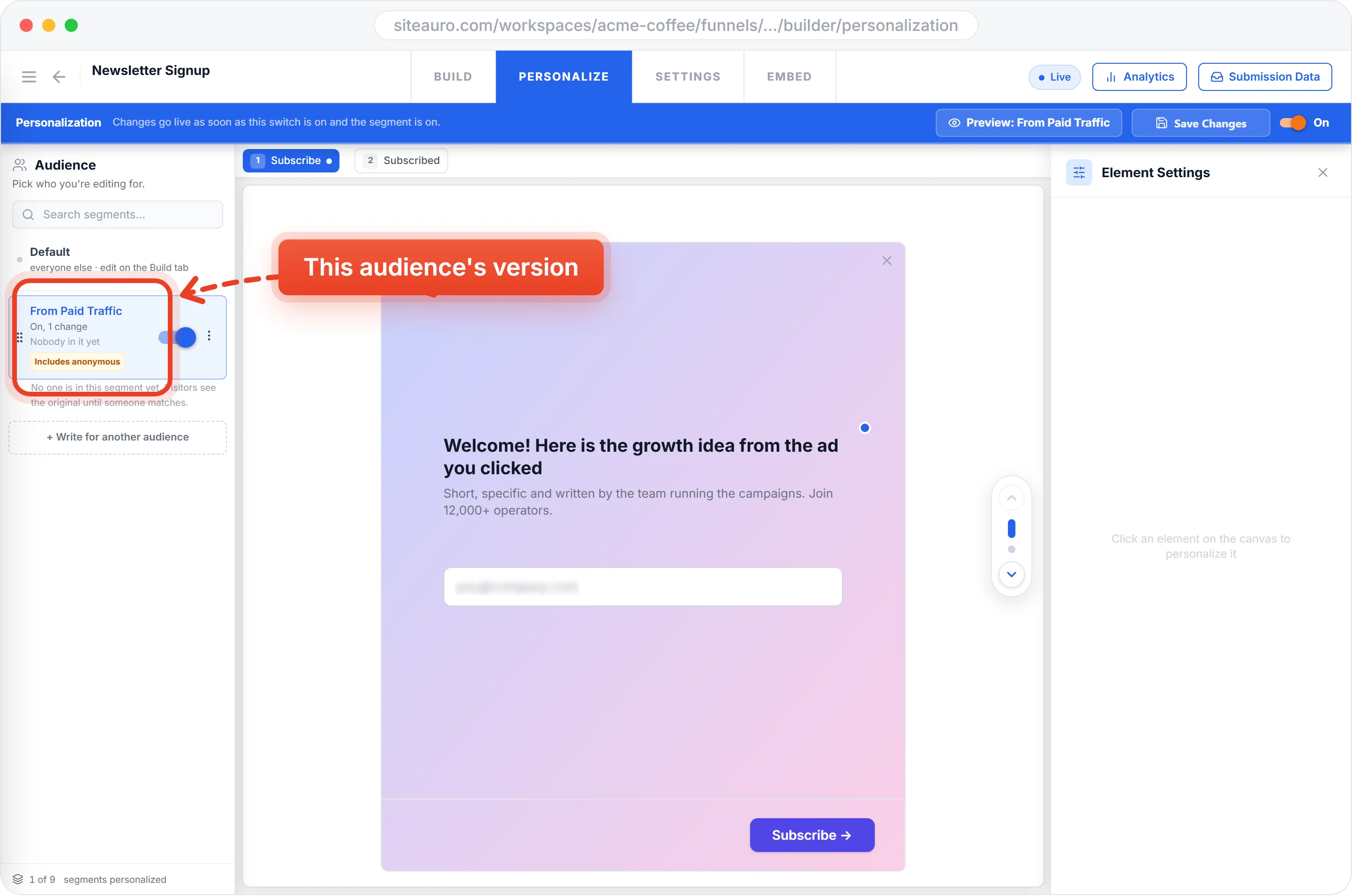
The version for From Paid Traffic.
You can only write for segments you have made. See Segments.
Change the Words
With the audience selected, click an element on the page, such as the heading.
On the right, the Content tab shows each text of the element twice: the Default, and a box for this audience. Type the words this audience should see. { } Variable adds a value about the visitor, such as their first name.
Click Save Changes. Your changes also save on their own a moment after you stop typing.
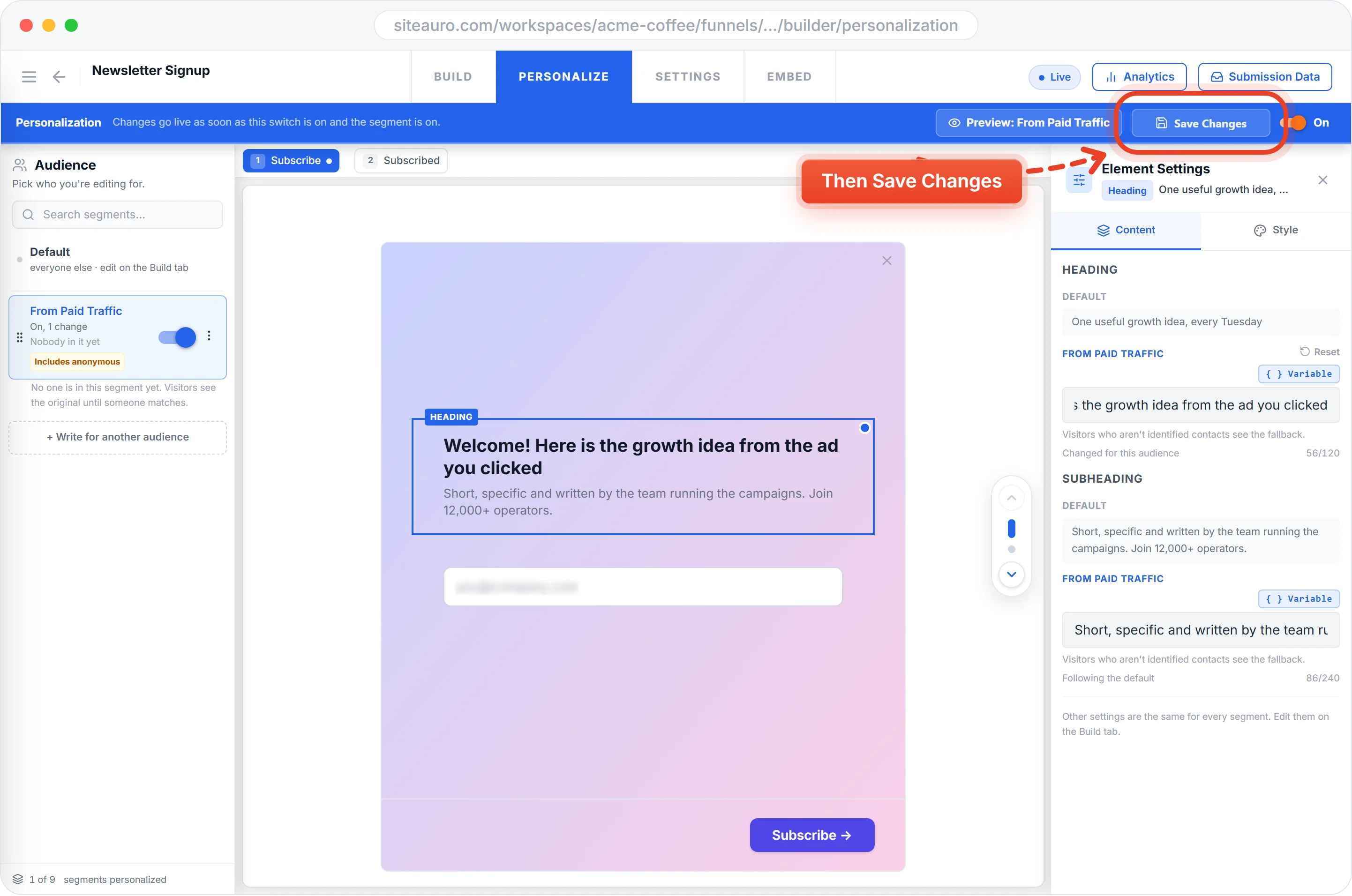
Write the new words, then Save Changes.
Under each box, the panel says Changed for this audience or Following the default. Reset puts a text back to the Default. The Style tab changes how the element looks for this audience in the same way. Other settings are the same for every segment; change them on the BUILD tab.
To see the page as this audience will, click Preview in the blue bar. It opens in a new tab.
Turn a Version Off or Remove It
Each version in the Audience list has its own switch. Turn it off to stop showing it: your changes are kept, and the visitors in that segment see the Default.
To delete a version, open its ⋮ menu and choose Remove this version. This deletes everything written for that segment and cannot be undone.
When Someone Is in More Than One Segment
A visitor sees one version at most. Drag the versions in the Audience list to set which one is tried first: the first switched-on version whose segment the visitor is in is the one they see. A version that is switched off is skipped.
Next Step
Learn how segments decide who is in them in Segments.