Skip to content
SiteAuro

Privacy and Consent

Choose whether your website asks visitors before tracking them, and design the cookie banner they see.

Table of Contents
  1. How Visitors Are Asked
  2. Design the Banner
  3. Next Step

In some places, the law says you must ask visitors before tracking them: GDPR in the European Union, and PDPA in Singapore. Privacy & consent decides whether your website asks, and what the question looks like.

In the menu, open Settings and choose Privacy & consent. Changes save on their own.
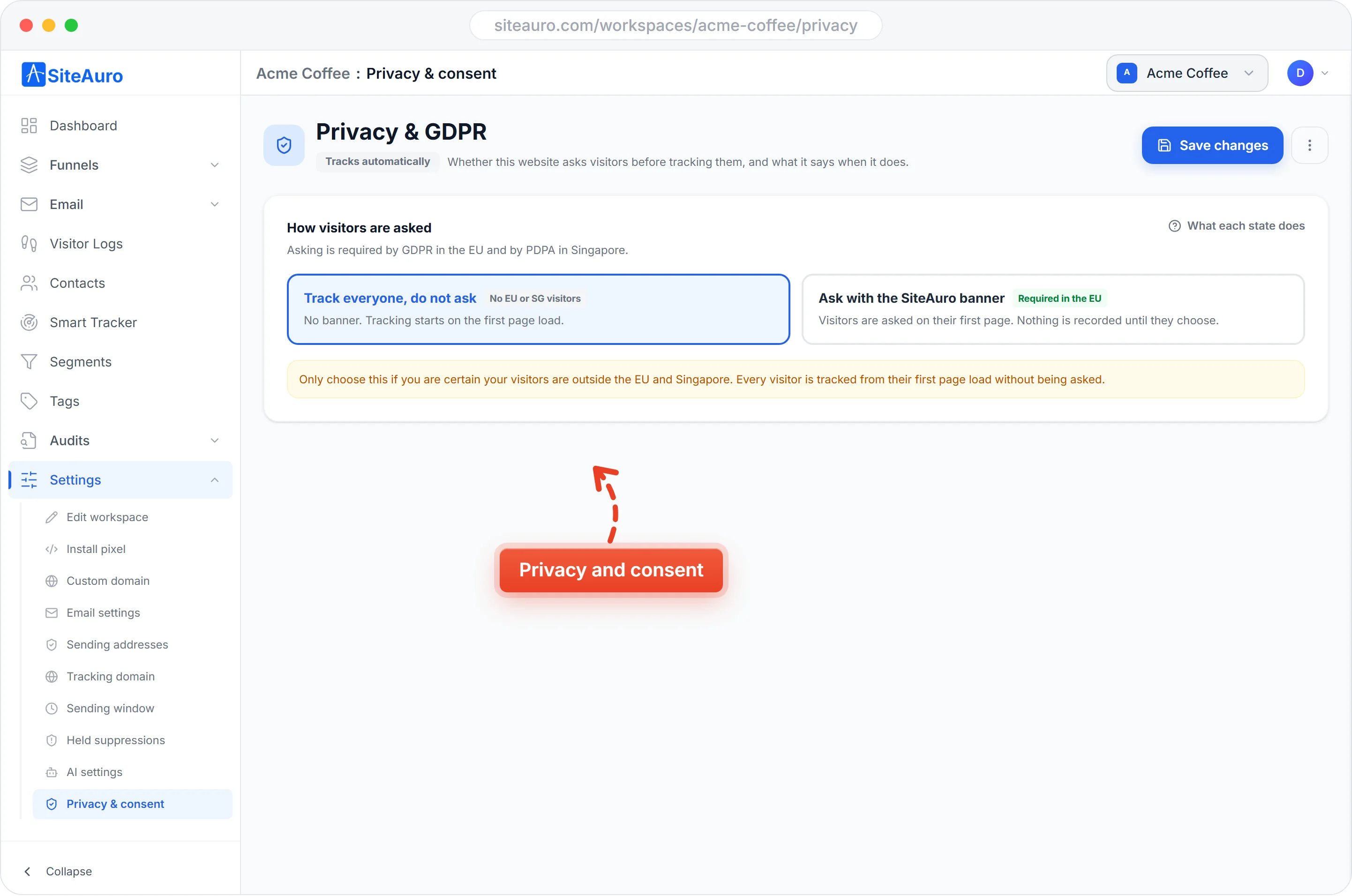
The Privacy & GDPR page, marked Tracks automatically: How visitors are asked, with Track everyone, do not ask chosen and Ask with the SiteAuro banner beside it, and a yellow note. Below the card, a red label reads "Privacy and consent", with a dashed arrow up to it.
Privacy & GDPR.

How Visitors Are Asked

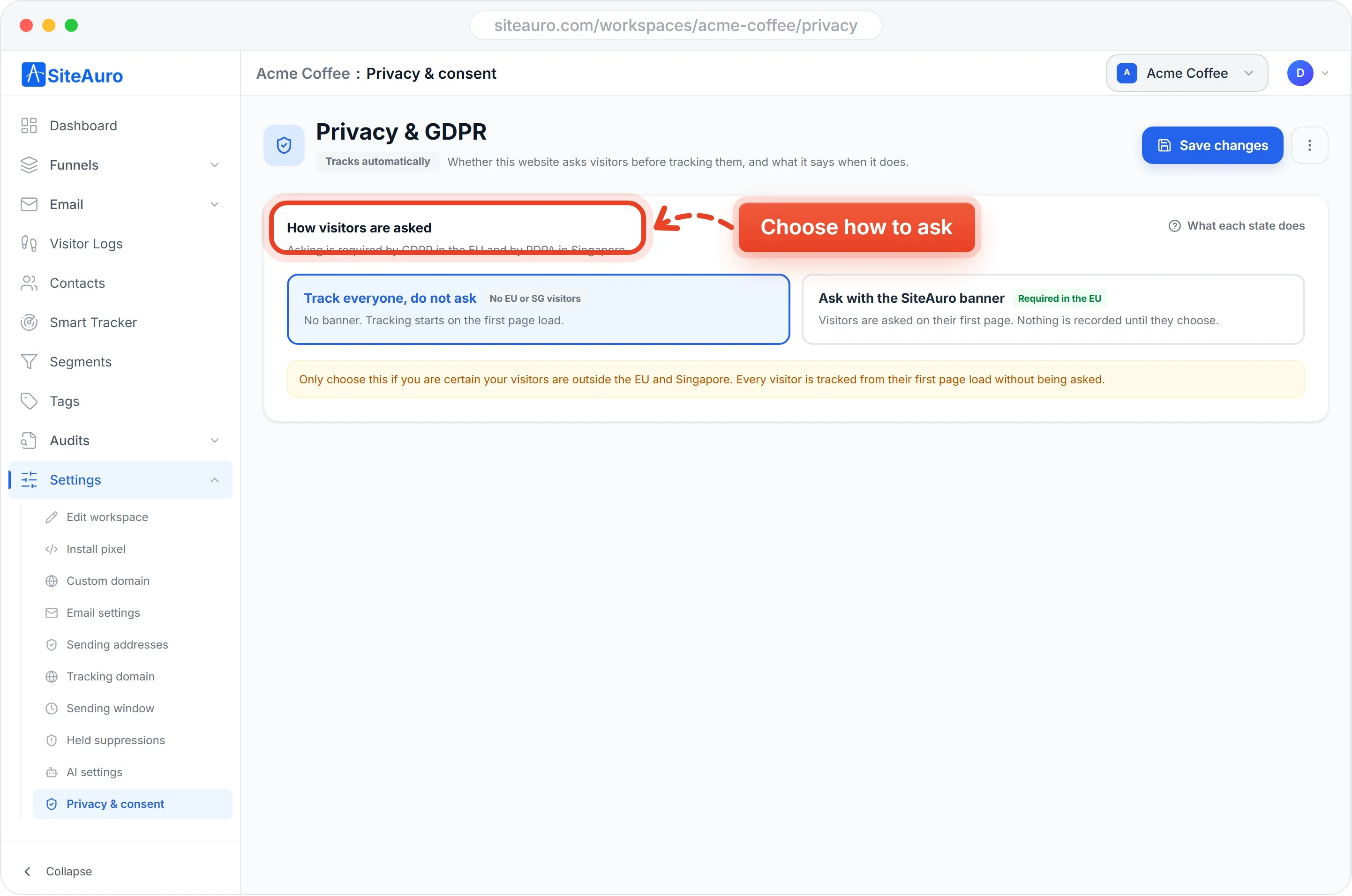
The Privacy & GDPR page under Settings, in a browser window, marked Tracks automatically: How visitors are asked, with Track everyone, do not ask chosen (No EU or SG visitors) and Ask with the SiteAuro banner (Required in the EU) beside it, and a yellow note to choose the first only if your visitors are outside the EU and Singapore. How visitors are asked is outlined in red, with the label "Choose how to ask" and a dashed arrow pointing to it.
Privacy & GDPR.
  • Track everyone, do not ask: no banner, and tracking starts on the first page. Choose this only if you are sure your visitors are outside the EU and Singapore. A new workspace starts on this.
  • Ask with the SiteAuro banner: visitors see a banner on their first page, and nothing about them is recorded until they choose.
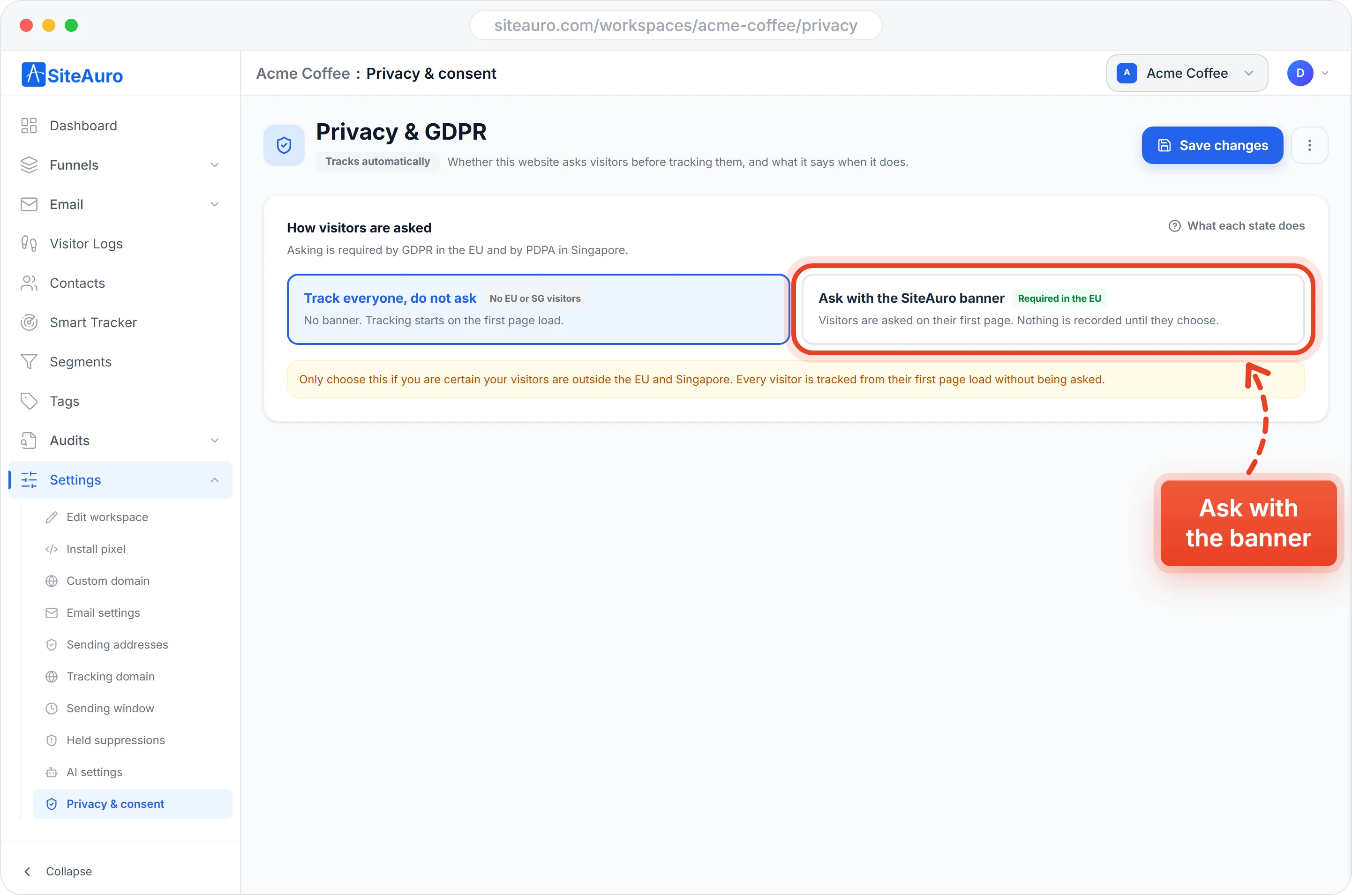
How visitors are asked, with the Ask with the SiteAuro banner choice, Required in the EU, outlined in red, with the label "Ask with the banner" and a dashed arrow pointing to it.
Ask with the banner.

With the banner on:

Visitor Banner Tracking
Hasn't chosen yet Shown Held
Accepted Gone Runs
Declined Gone Never

An accept is remembered on the visitor's device for two years. A decline is remembered for their visit, and they're asked again on a later visit.

Design the Banner

Under What the banner says:

  • Title, Message, Accept button and Decline button: the banner's words.

  • Policy link text and Policy URL: a link to your privacy policy. Leave Policy URL empty to show no link.
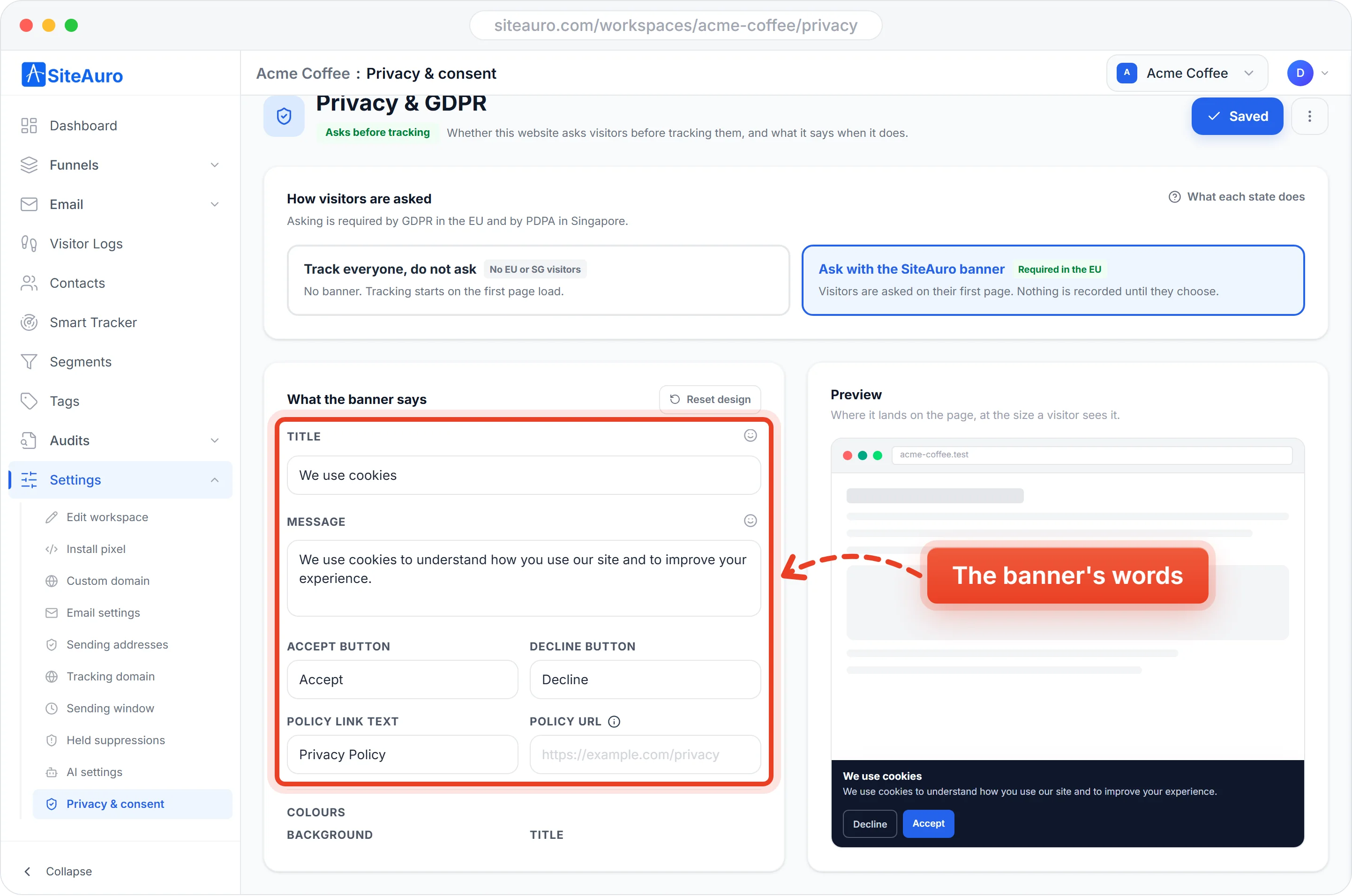
    What the banner says, with Title We use cookies, Message, Accept button, Decline button, Policy link text and Policy URL, outlined in red, with the label "The banner's words" and a dashed arrow pointing to them; the Preview on the right.
    The banner's words.
  • Colours: the background, the title, the message, the policy link, and each button and its label.
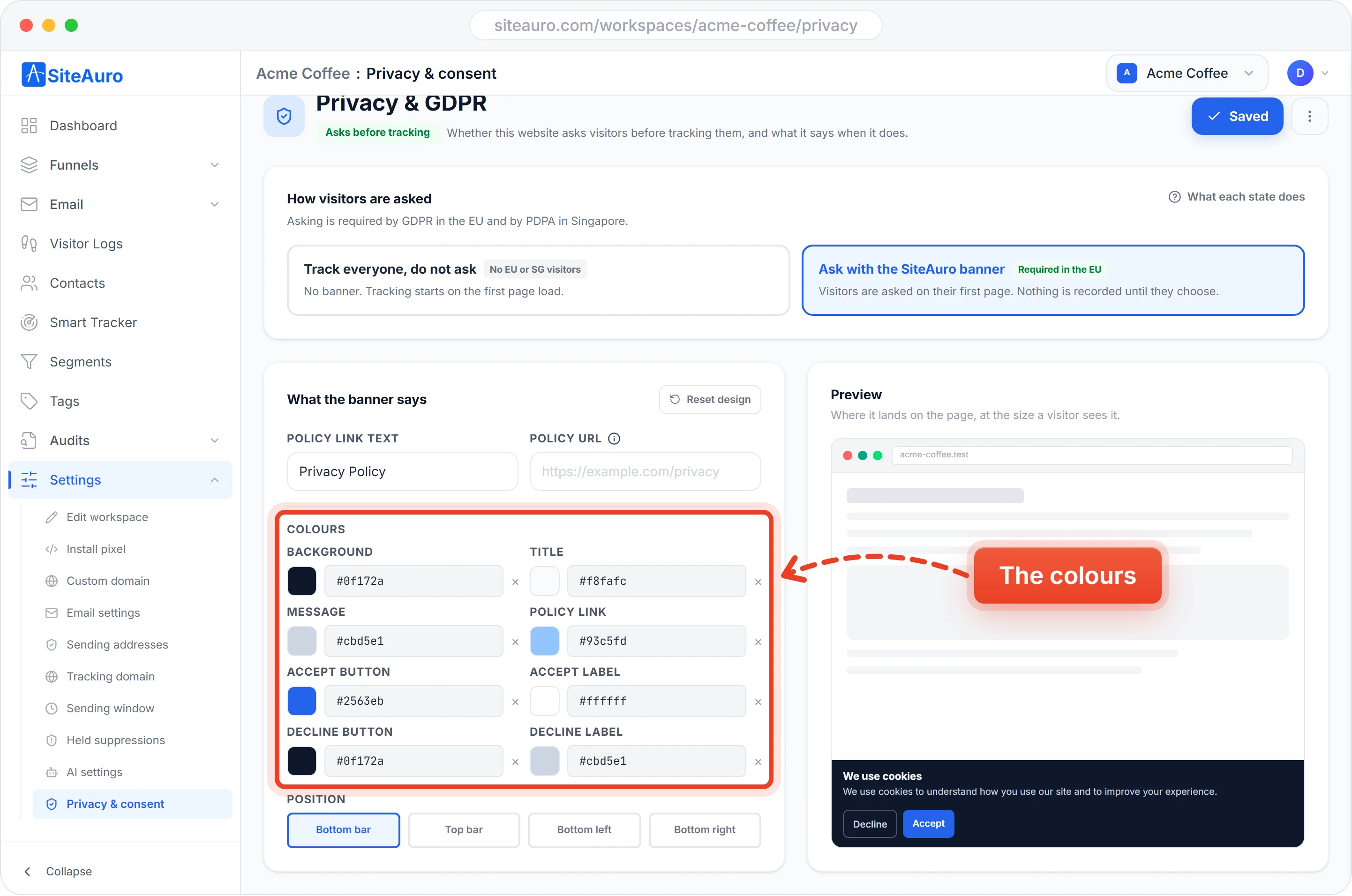
    Colours, with Background, Title, Message, Policy link, Accept button, Accept label, Decline button and Decline label, each a colour swatch and its code, outlined in red, with the label "The colours" and a dashed arrow pointing to them.
    The colours.
  • Position: Bottom bar, Top bar, Bottom left or Bottom right.
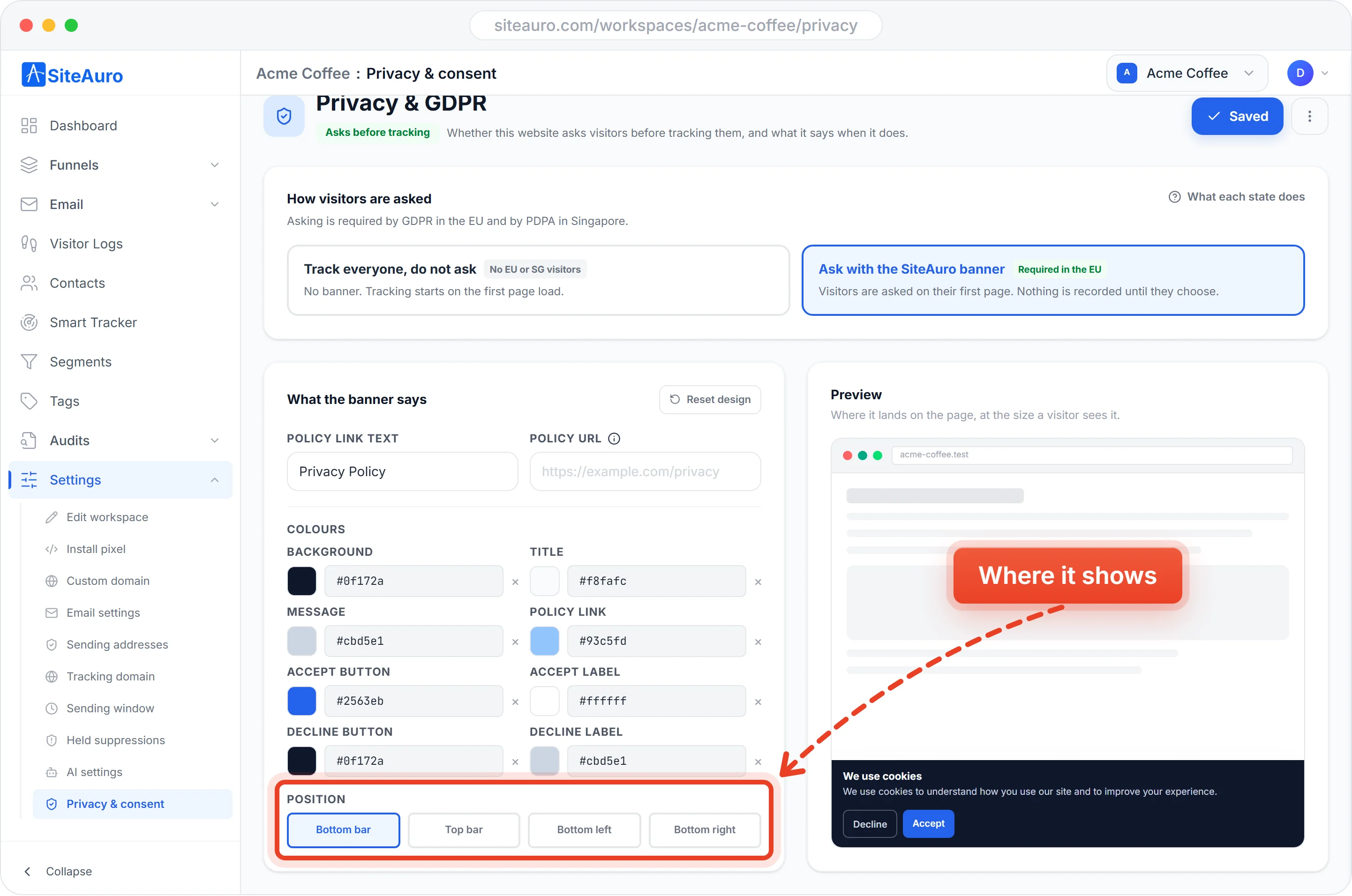
    Position, with Bottom bar chosen, Top bar, Bottom left and Bottom right, outlined in red, with the label "Where it shows" and a dashed arrow pointing to it.
    Where it shows.

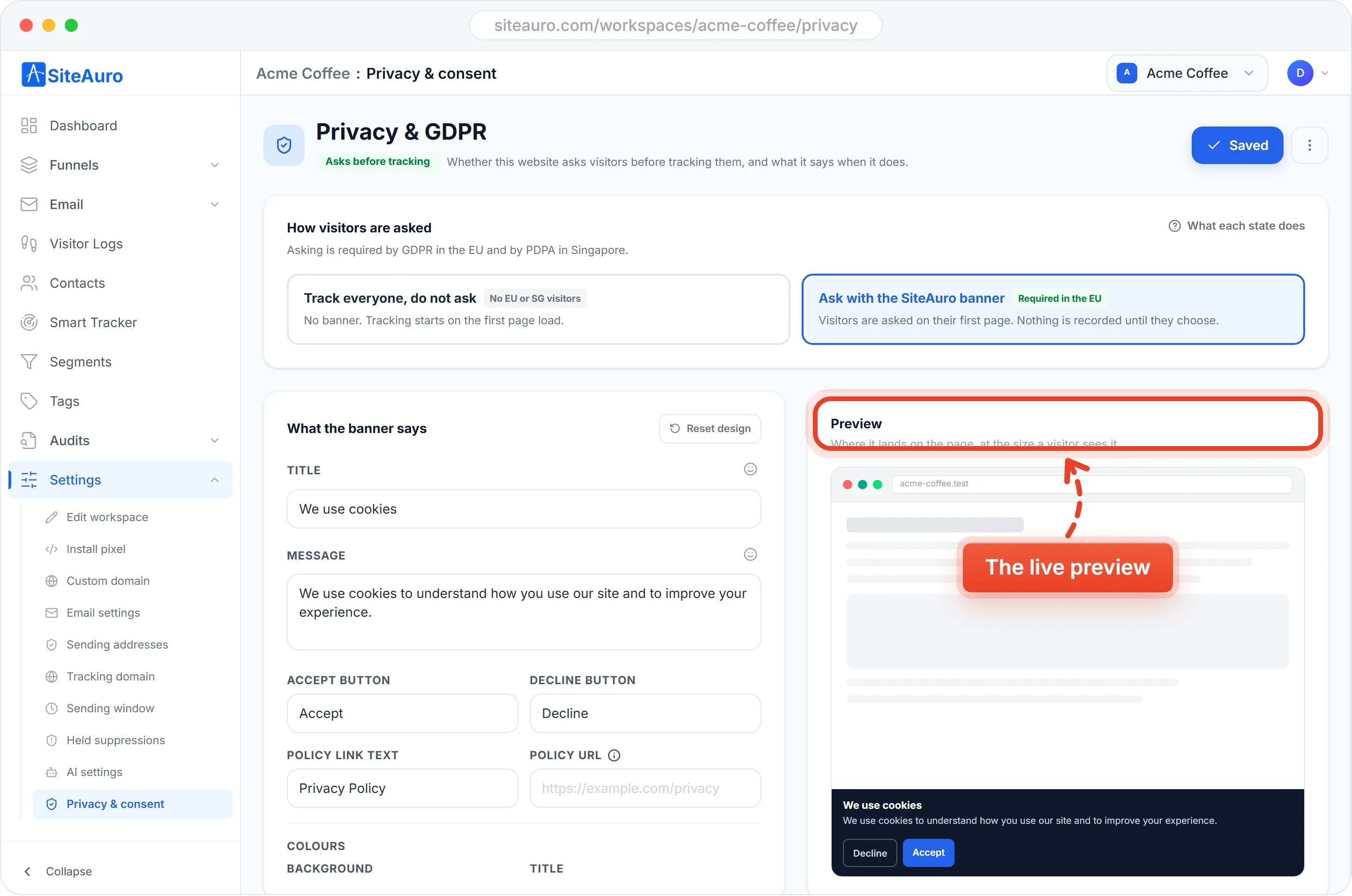
Preview shows the banner as you change it. Reset design puts the words, colours and position back to the original, and leaves your choice of how visitors are asked as it is.
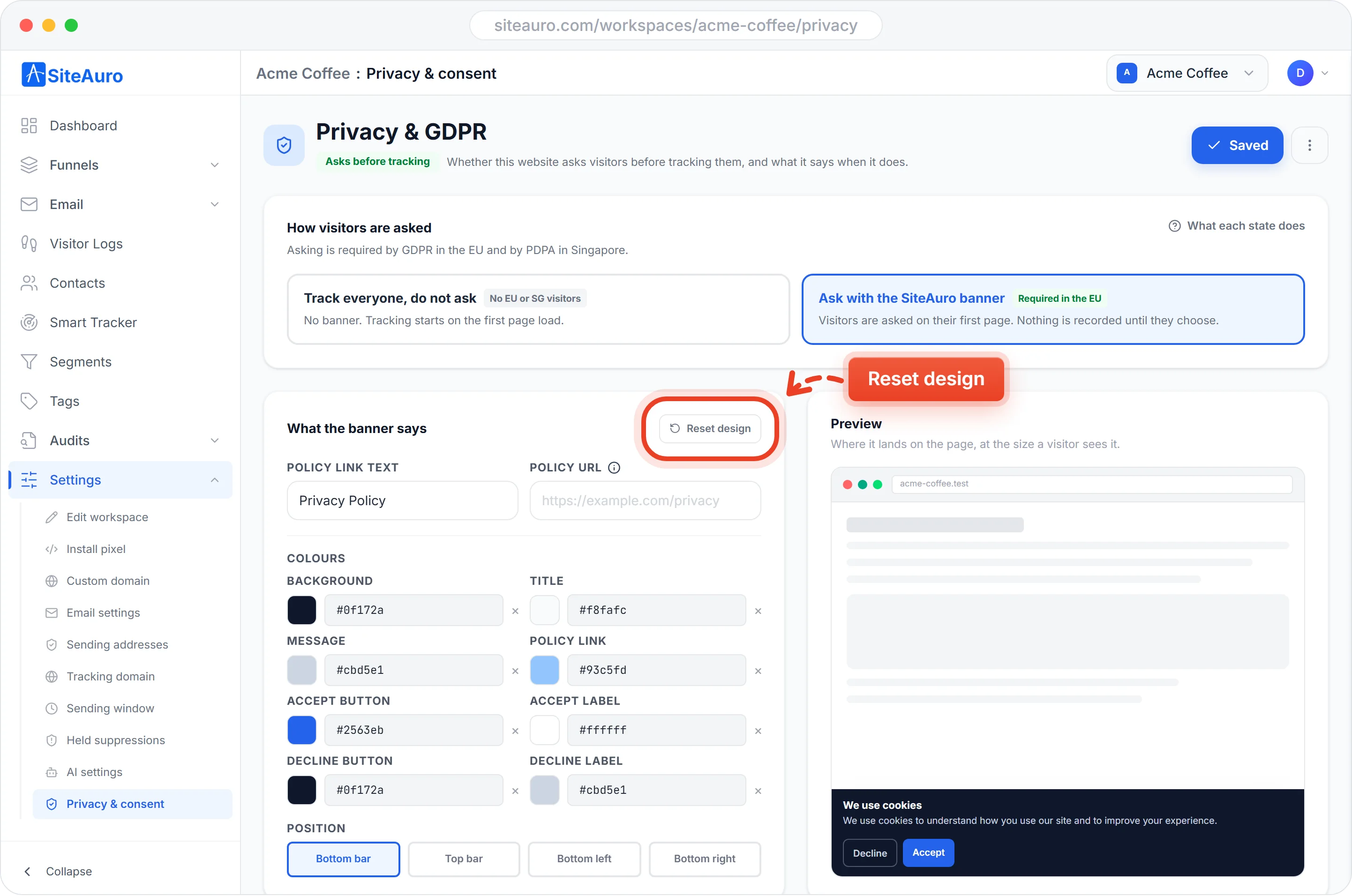
What the banner says with its Reset design button, at the top right of the card, outlined in red, with the label "Reset design" and a dashed arrow pointing to it.
Reset design.
The Privacy & GDPR page with Ask with the SiteAuro banner chosen, marked Asks before tracking and Saved: What the banner says, with Title We use cookies, Message, Accept button, Decline button, Policy link text and Policy URL, and Reset design; on the right, Preview shows the banner at the foot of a page, with Decline and Accept. Preview is outlined in red, with the label "The live preview" and a dashed arrow pointing to it.
The banner and its preview.

Next Step

Custom Domain.

Last updated