
A segment is a group of people defined by rules, such as "visited the pricing page three times" or "came from a paid ad". SiteAuro keeps each segment up to date by itself: people join as soon as they match the rules, and leave when they no longer do.
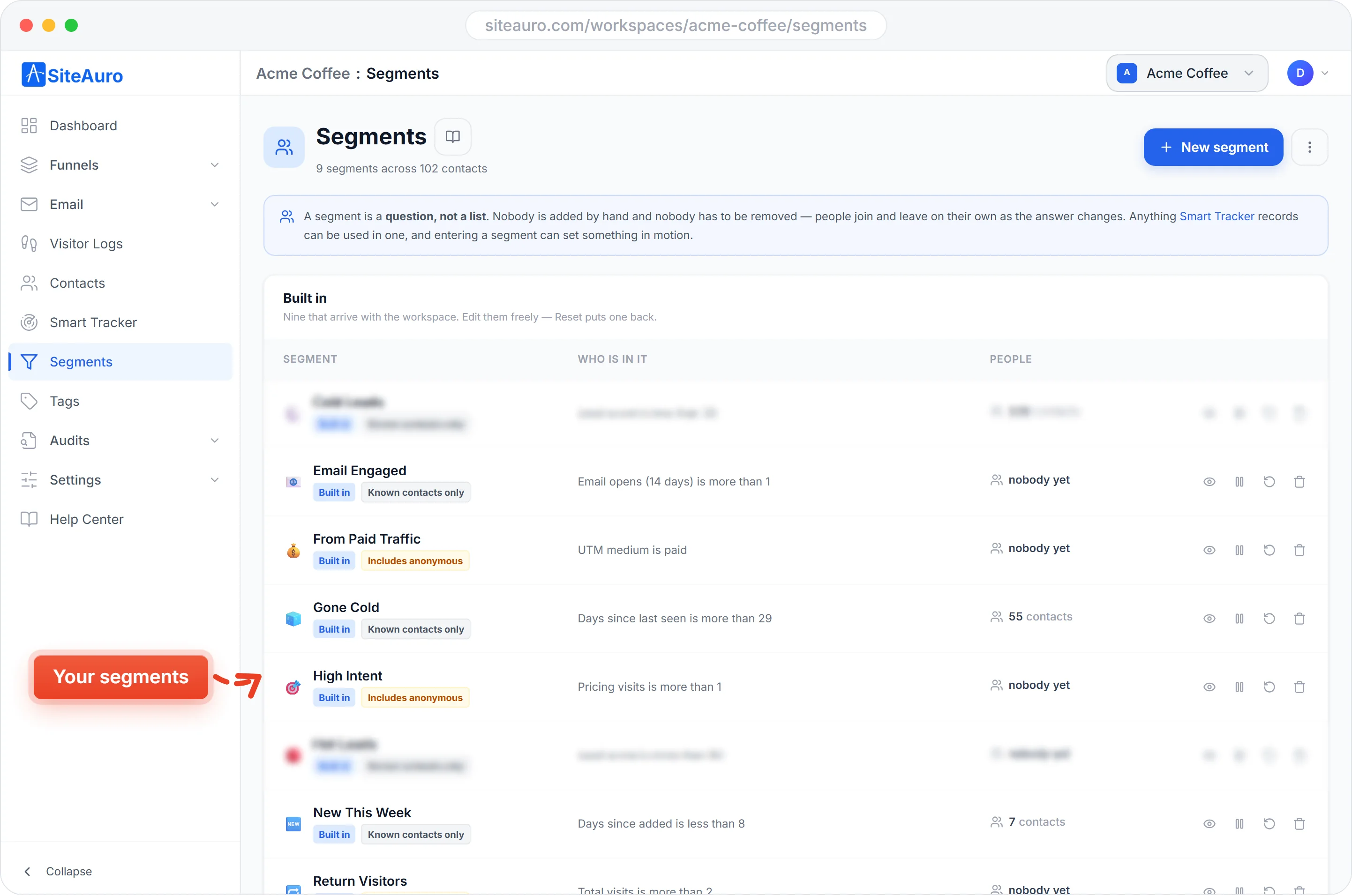
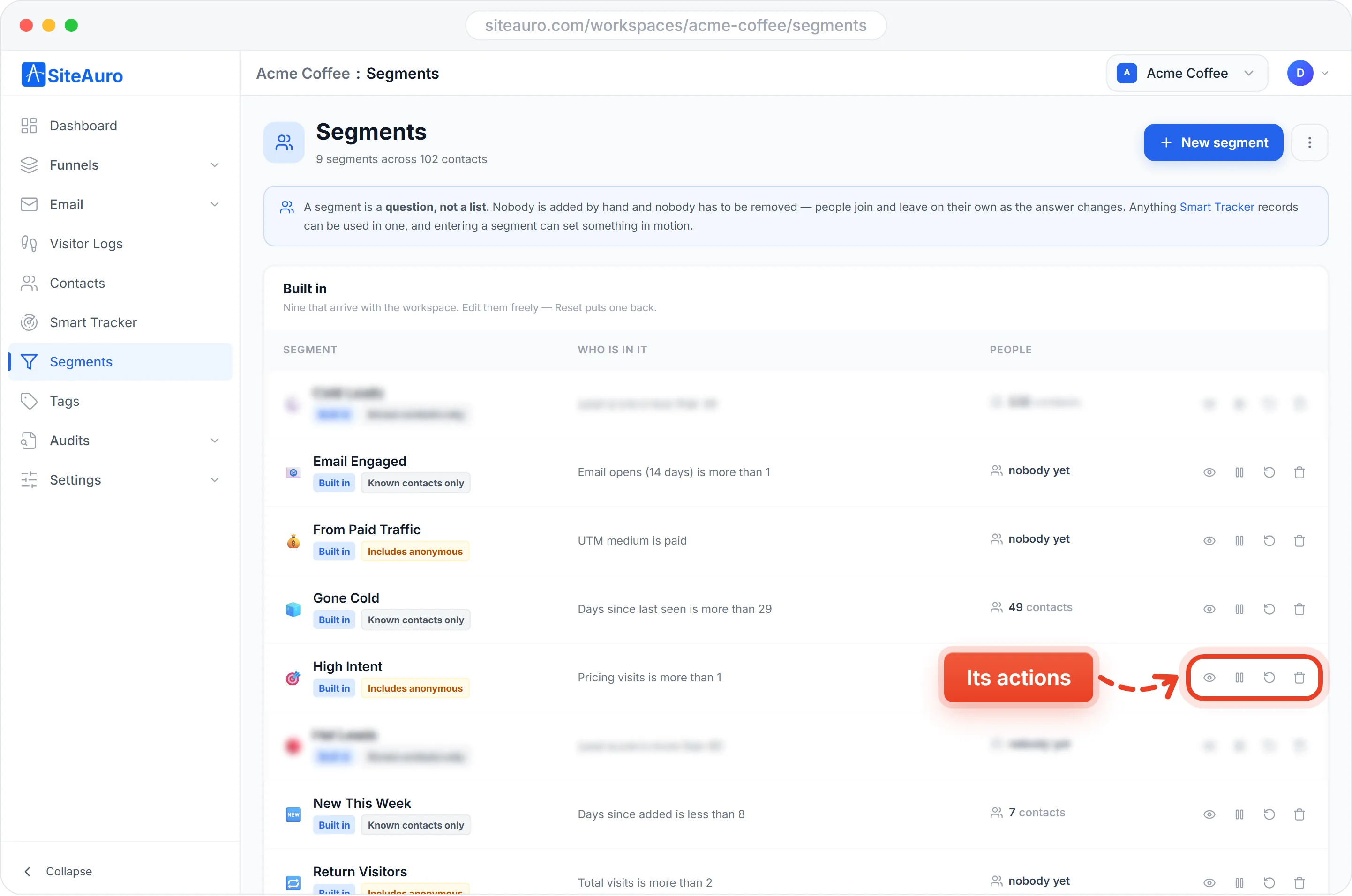
In the menu, click Segments. Your segments are listed with who is in them (their rules) and how many People match. Click a segment's count to see those people in Contacts.
Note
Lead scoring is coming soon.
Ready-Made Segments
A workspace starts with segments you can use straight away, or change: High Intent, Email Engaged, Gone Cold, New This Week, From Paid Traffic and Return Visitors. If you change one, Reset to default puts it back as it was.
Create a Segment
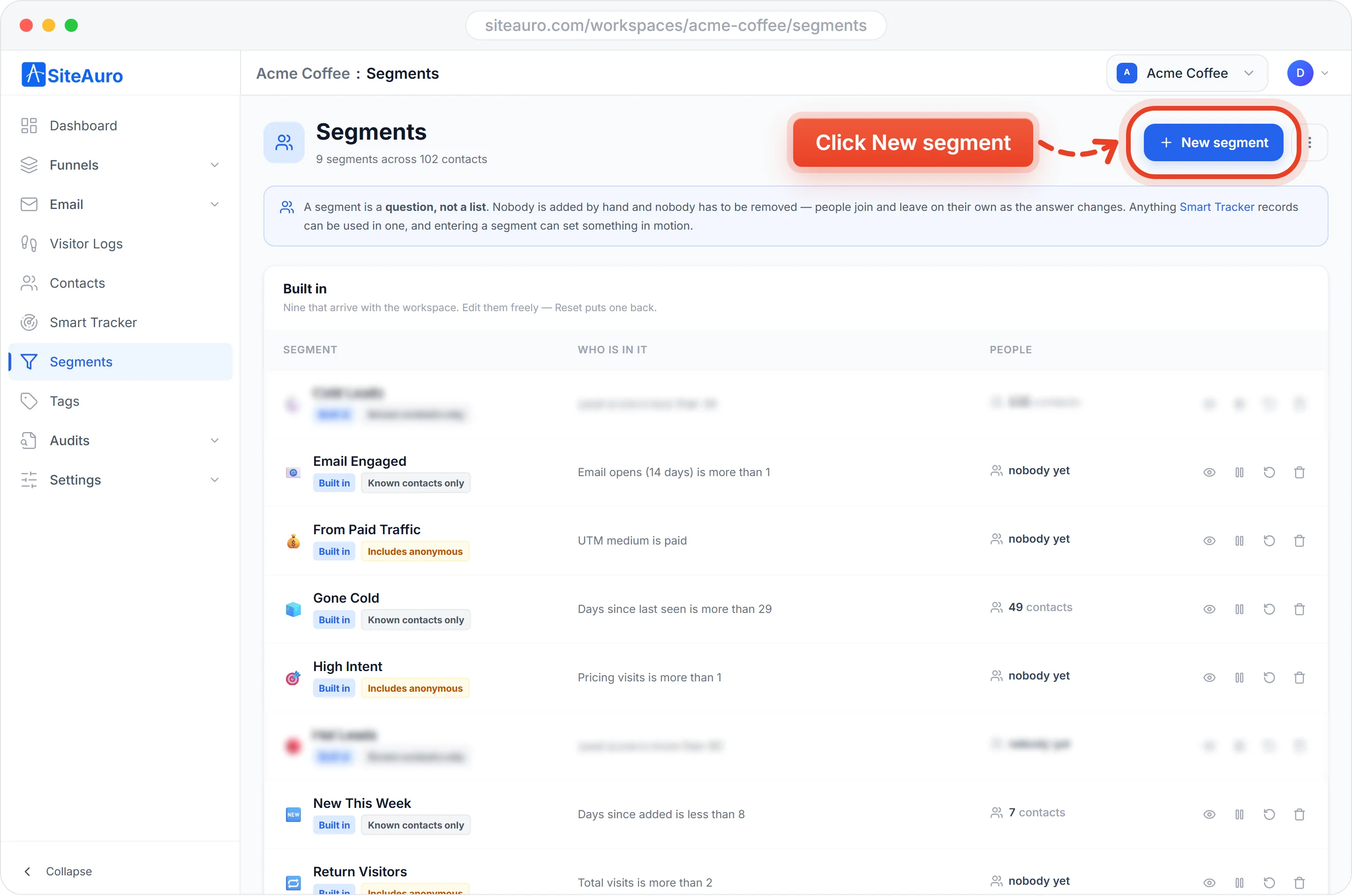
Click New segment
New segment is at the top right of the Segments page. You can also start one from the Contacts page.
New segment. Name it
Give it a Name you'll recognise.
Choose who is in it
Under Who is in it, choose whether people must match all of these rules or any of these, then add the rules with Add a condition. Each rule picks a detail and a condition, such as is, contains, is more than or is set. The details come from:
- Contact: email, name, company, status and others.
- Acquisition: UTM parameters, traffic source, referring site, device and country.
- Behaviour: pricing-page visits, total visits, days since last seen and days since added.
- Email: email opens.
- Tags: the tags people have.
- From your rules: what your Smart Tracker rules record.
Check who matches
The count under the rules shows how many people match right now, with some of their names. Switch on Include people who have not given an email if the segment should cover visitors who aren't contacts yet; only rules about how they arrived and what they did can match them.
Click Create segment
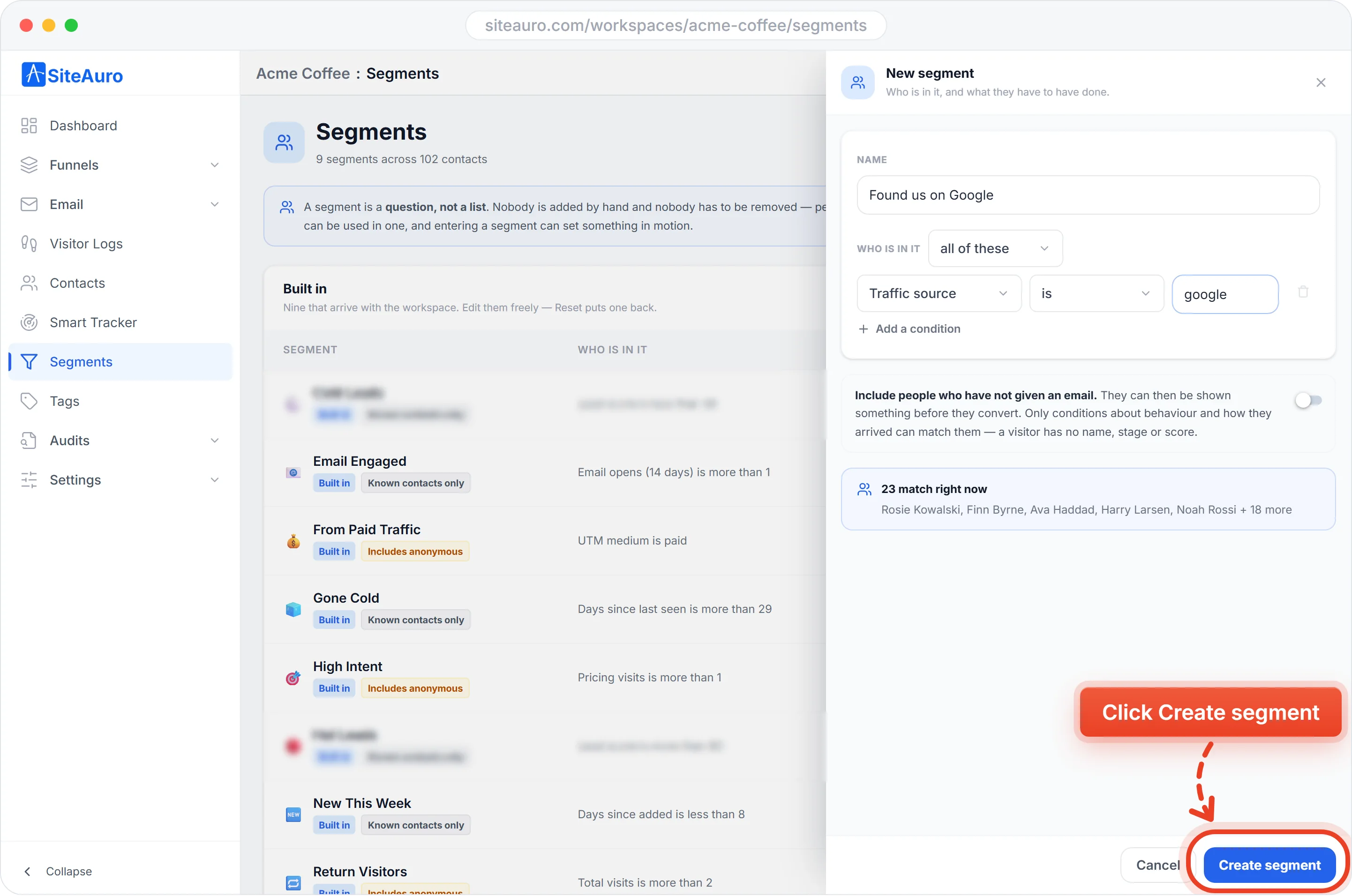
Create a segment. You see Segment created.
To do something when someone joins a segment, use an automation that starts with the trigger Someone enters a segment. If you delete the segment, nobody can join it, so that automation won't start again.
Change a Segment
Click a segment's name to open it. Change its name or its rules, then click Save changes. The count shows who would match.
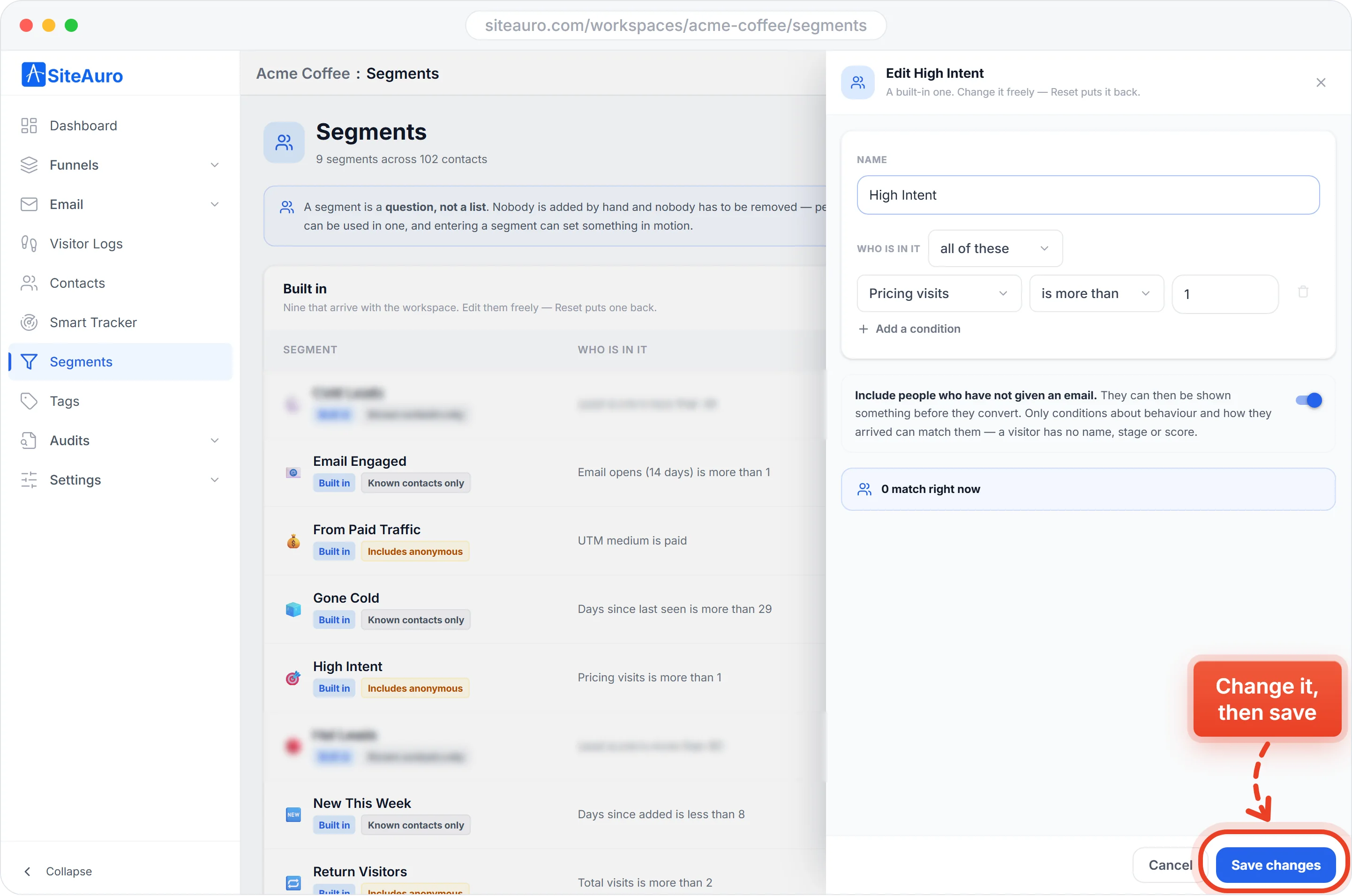
Manage Segments
Each segment has four buttons at the end of its row:
- View opens the segment, as clicking its name does.
- Pause stops it updating who is in it. Resume starts it again.
- Reset to default puts a built-in segment back as it was.
- Delete deletes the segment, after you confirm. The people in it are not affected.
Segments are also used elsewhere: to choose who sees a popup or widget (Specific segments on its EMBED or Triggers tab), and to filter the Contacts and Visitor Logs lists.
Next Step
Tags.