
A landing page is a complete page with its own web address, hosted by SiteAuro. It doesn't need your website or the pixel: anyone with the link can open it. You build it in the builder like any funnel, then publish it from its PUBLISH tab.
Build It
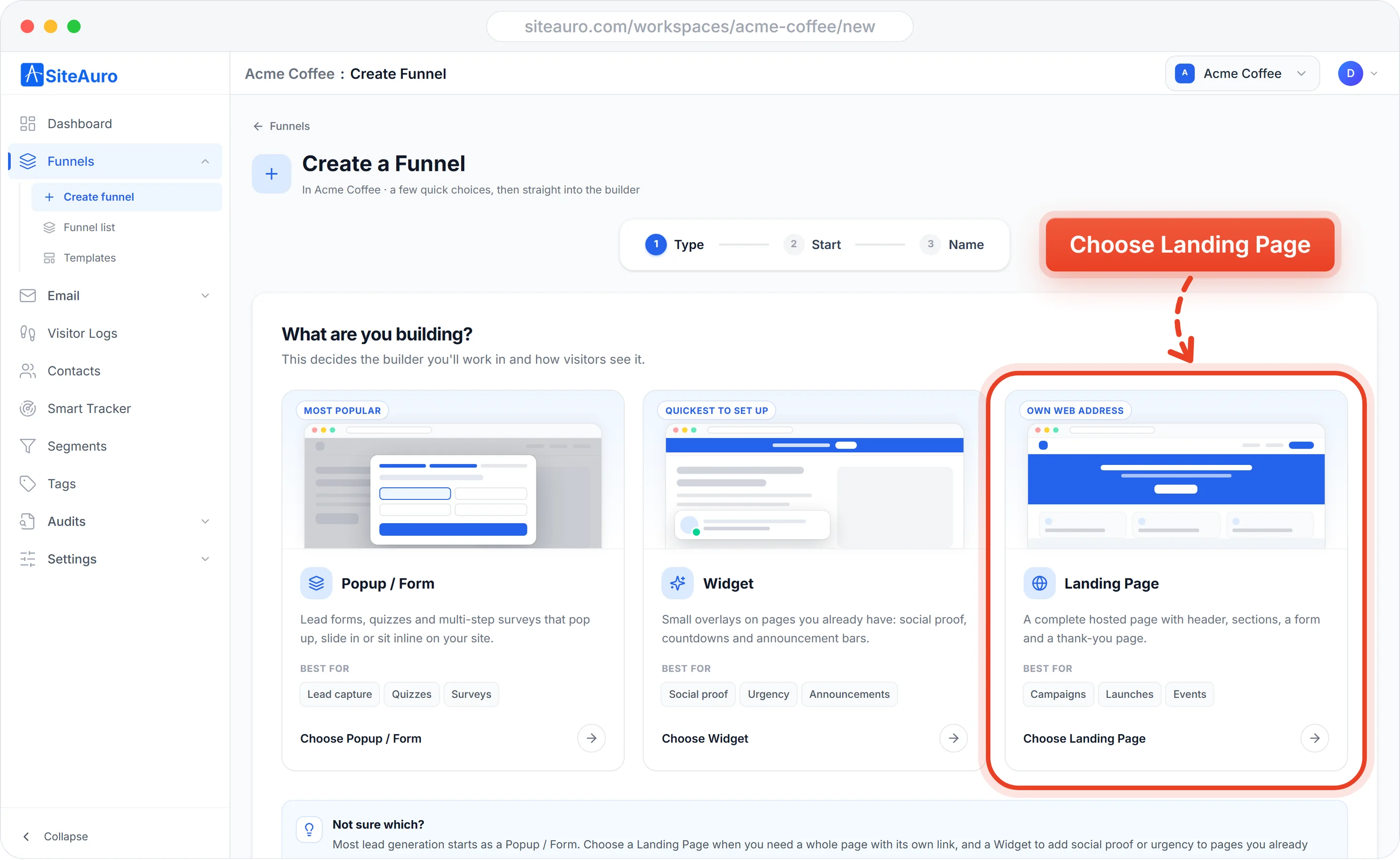
Open Funnels in the menu, click Create funnel and choose Landing Page. Then choose how to start, from a blank canvas or a template, and give it a name. The builder opens.
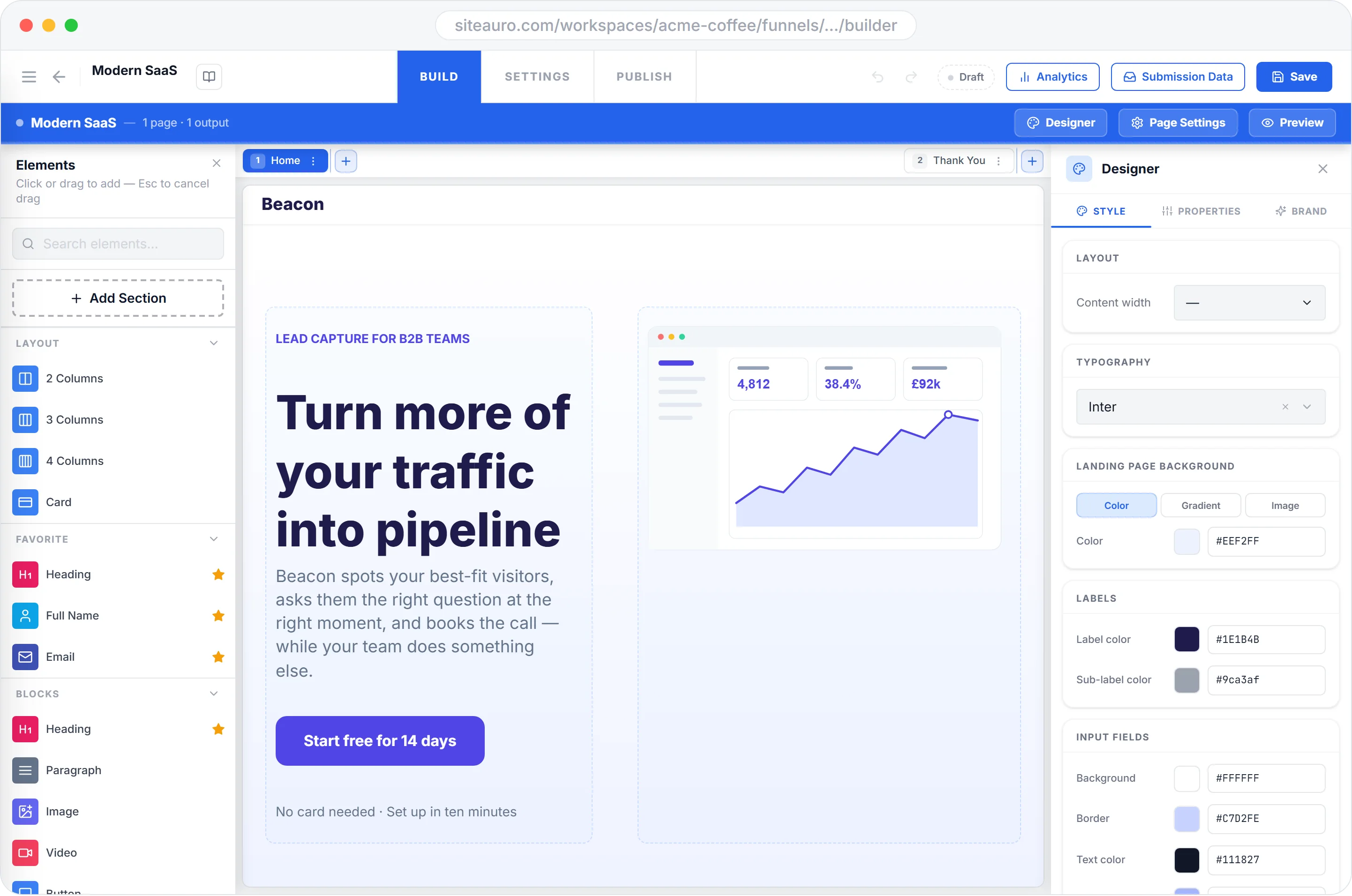
A landing page is built in the same builder as a popup: you add pages and elements, style them, and choose what happens when someone submits. In the landing page builder, the page you are building fills the middle, with Elements on the left to add to it and the Designer on the right for its colours, fonts and background. Its pages, such as Home and Thank You, are along the top.
Two things are different from a popup:
- It has a PUBLISH tab instead of EMBED, because the page lives at its own address. The rest of this article is about that tab.
- There is no Smart or Standard choice, so there is no FLOW tab.
The Builder explains every part of it in detail.
Publish It
Open PUBLISH
Open the landing page in the builder and click PUBLISH. Until you publish, it says Draft — Not Published.
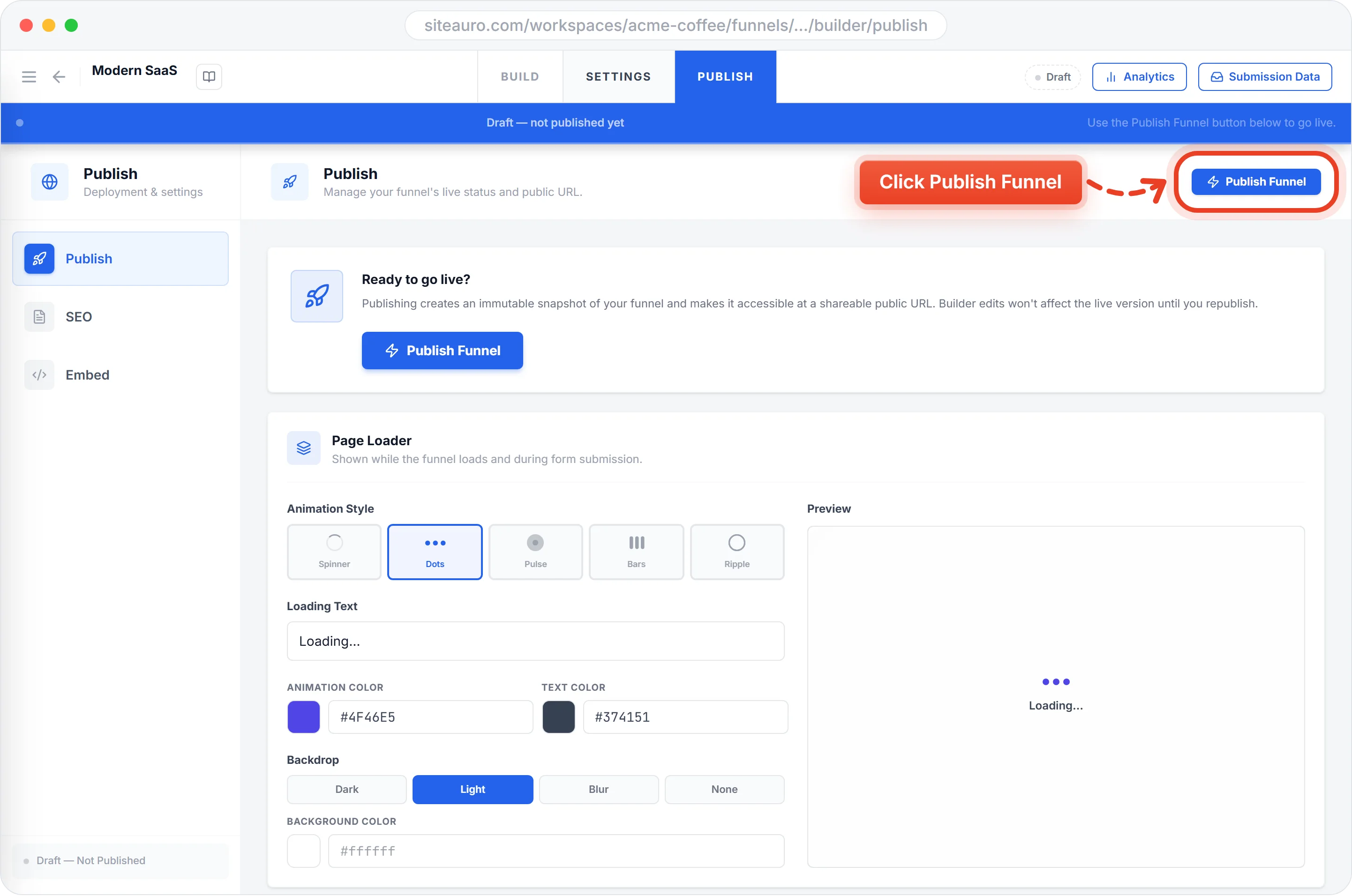
PUBLISH, before publishing. Click Publish Funnel
SiteAuro asks Publish this funnel? and says it will make the funnel publicly accessible at a shareable address. Click Yes, Publish.
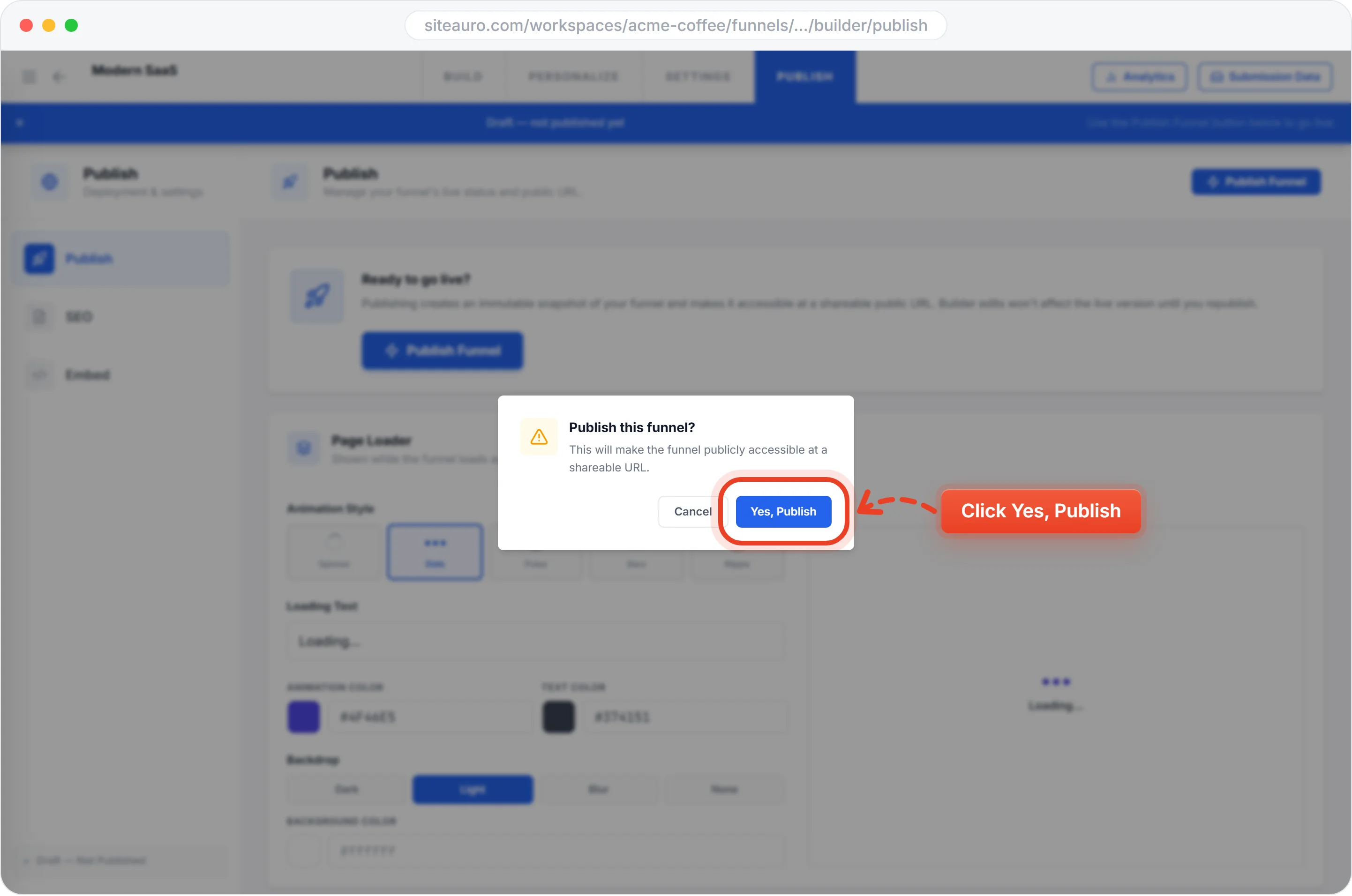
Publish this funnel?
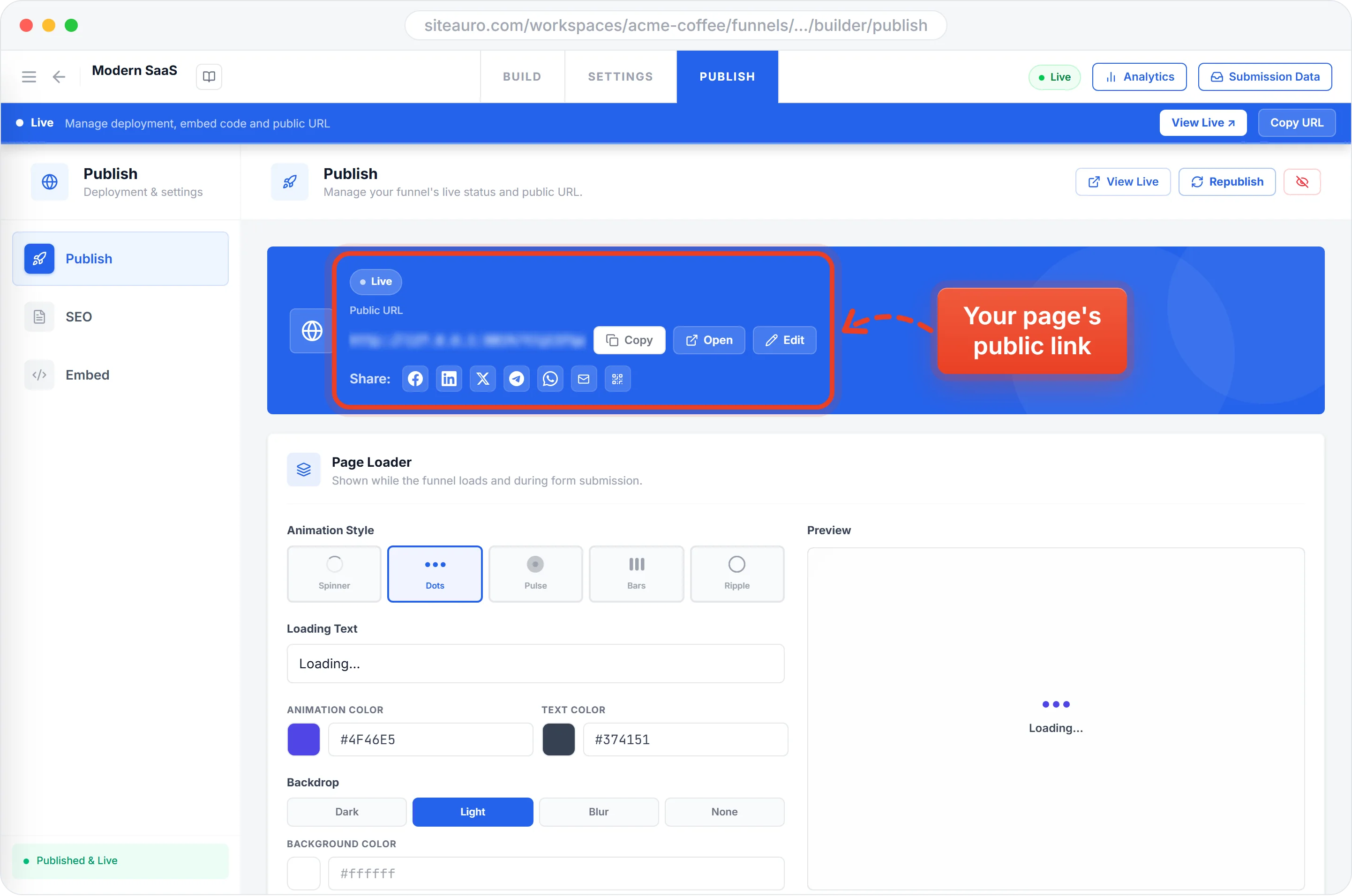
You see Funnel published!, the status changes to Published & Live, and the badge at the top of the builder says Live. The Public URL is the page's address: Copy it, Open it, or share it with the buttons for Facebook, LinkedIn, X, Telegram, WhatsApp and email, or as a QR code.
Warning
Once the page is published, every change you save in the builder goes live straight away. There is no separate draft of a published page.
Page Loader, below, chooses what visitors see while the page loads and while a form is sent: the Animation Style, the Loading Text, its colours and the Backdrop.
Change Its Address
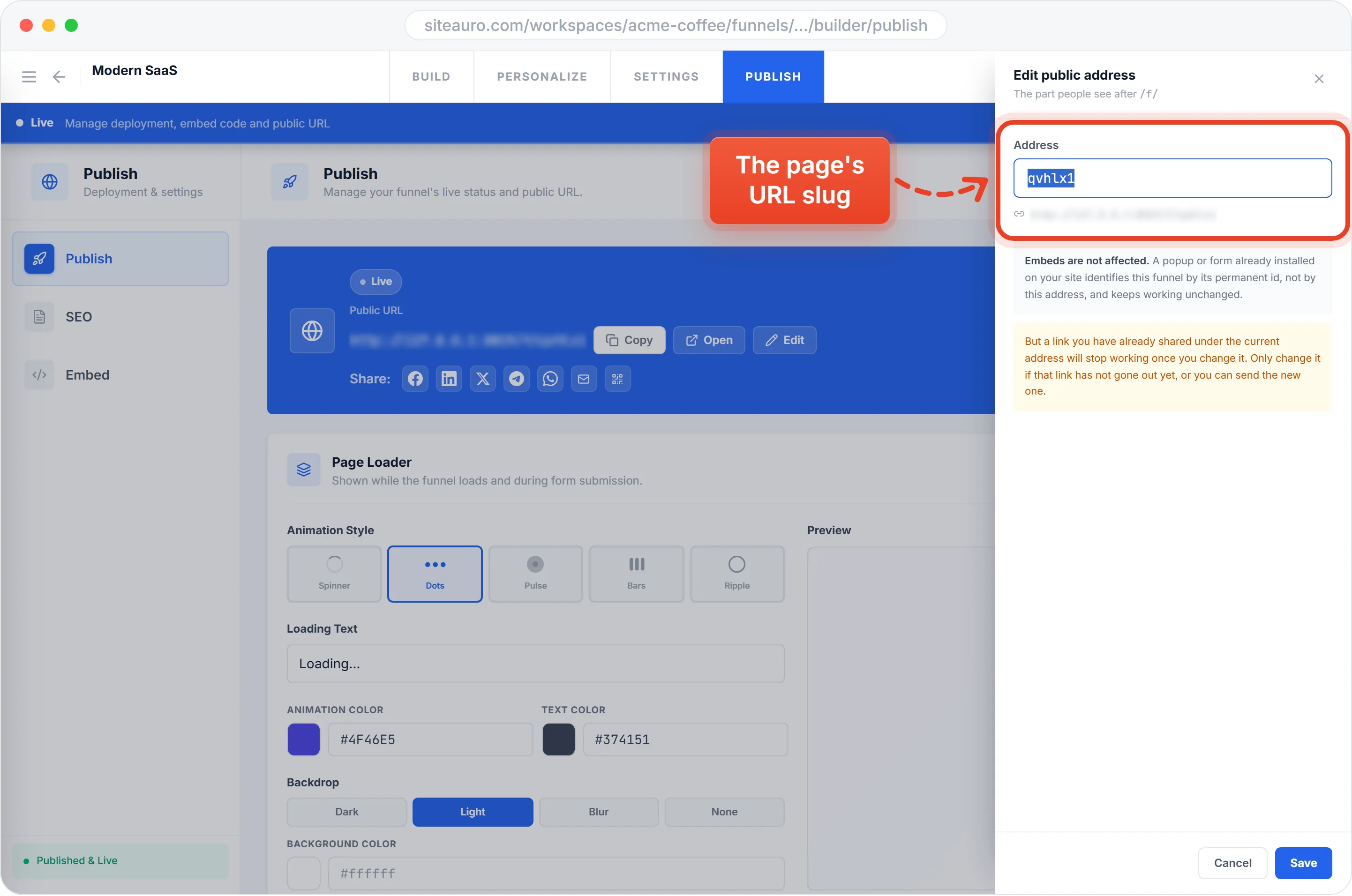
Click Edit beside the address to open Edit public address. The Address box holds the page's URL slug: the part of its link after /f/. A slug needs at least 3 characters: lowercase letters, numbers and hyphens, not starting or ending with a hyphen. Click Save, and you see Address updated.
Warning
Changing the address breaks the old link. Anyone who saved or shared it reaches nothing. Embeds are not affected.
To use your own domain, such as offers.example.com, see Custom Domain.
Search Engines and Sharing
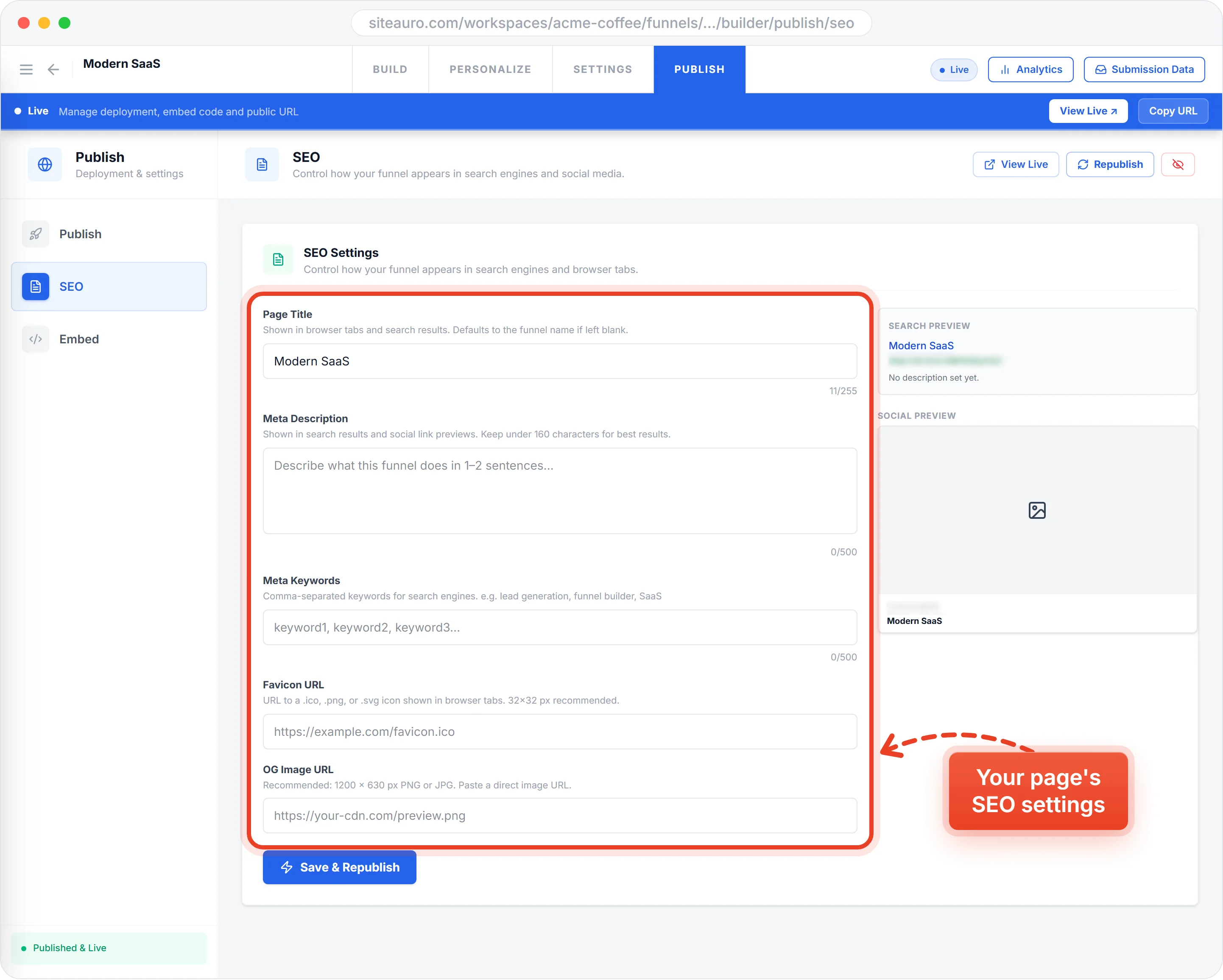
The SEO tab controls how the page appears in search results, browser tabs and links shared on social media:
- Page Title and Meta Description: what search results show.
- Meta Keywords.
- Favicon URL: the small icon in the browser tab.
- OG Image URL: the picture shown when the link is shared.
The Search preview and Social preview on the right show the result as you type. Click Save & Publish to apply them (Save & Republish once the page is live).
Put It Inside Another Page
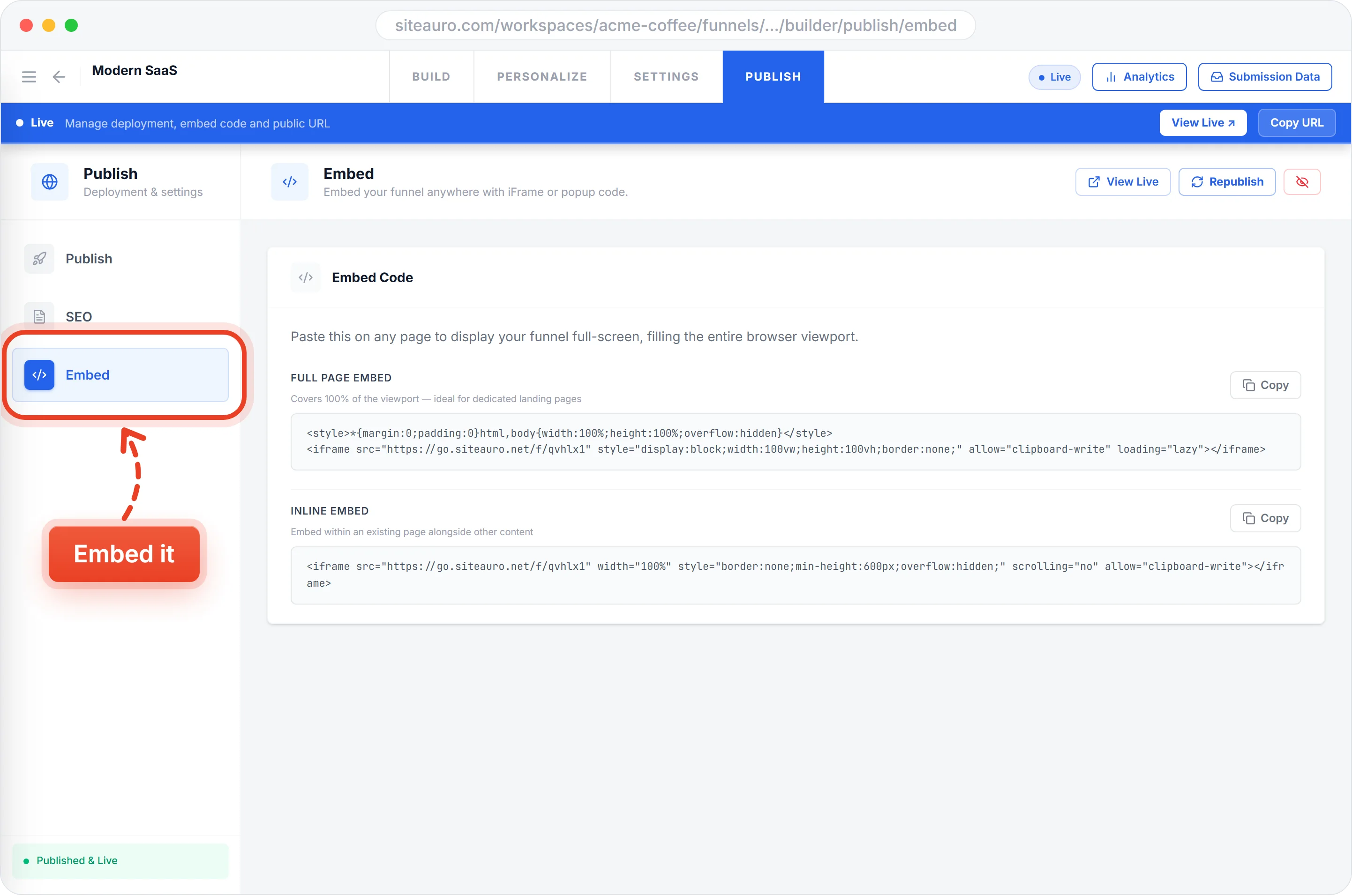
The Embed tab gives you code to place the page inside another website: Full Page Embed, which fills the whole browser window, or Inline Embed, which sits among the page's other content. Click Copy beside the one you want.
Unpublish It
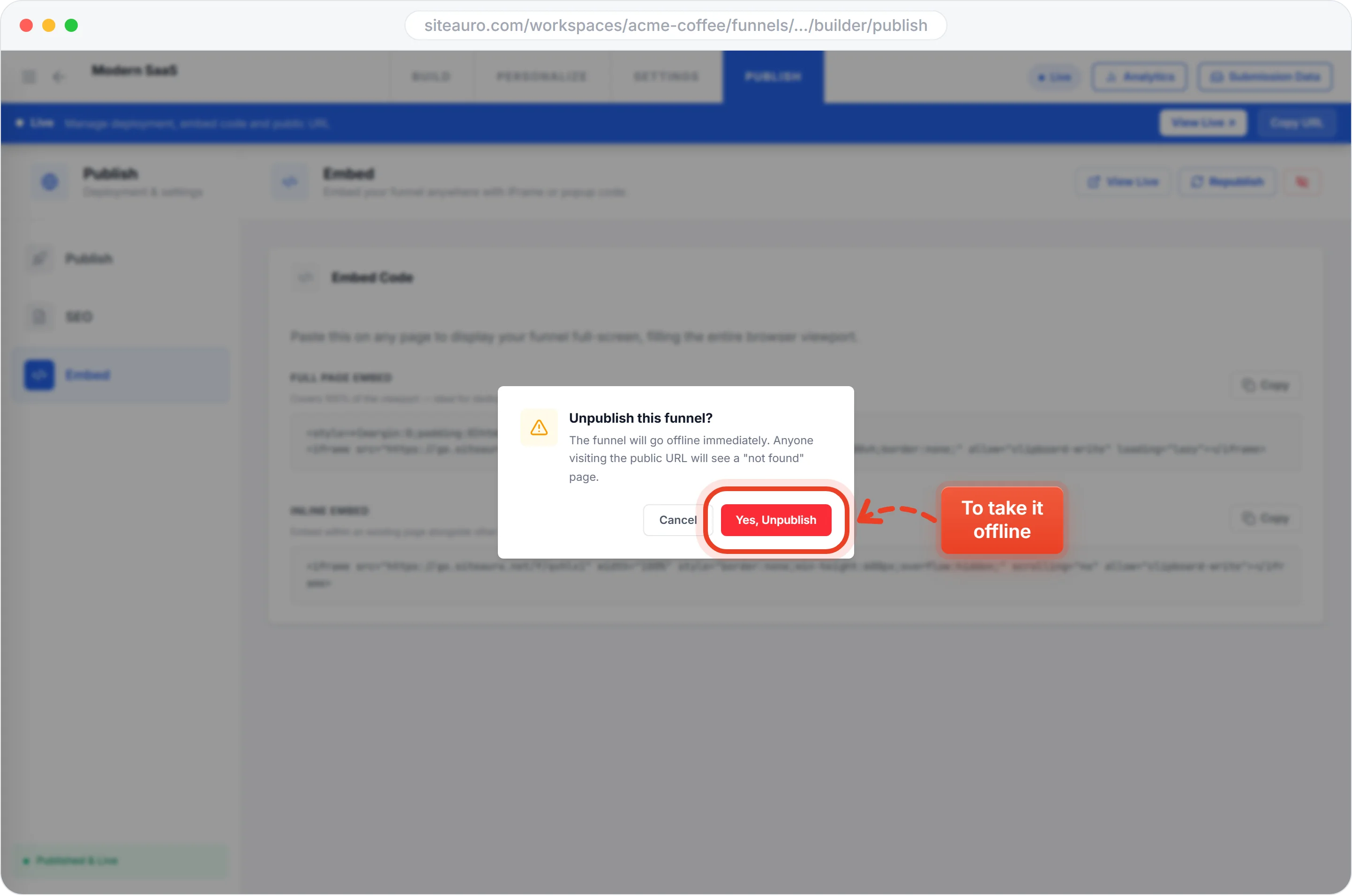
Click the red button at the top right, beside Republish, and confirm with Yes, Unpublish. You see Funnel unpublished, and the address stops working: visitors see a page that says it can't be found. The badge at the top of the builder now says Inactive.
Next Step
Manage Your Funnels from the Funnel list.