
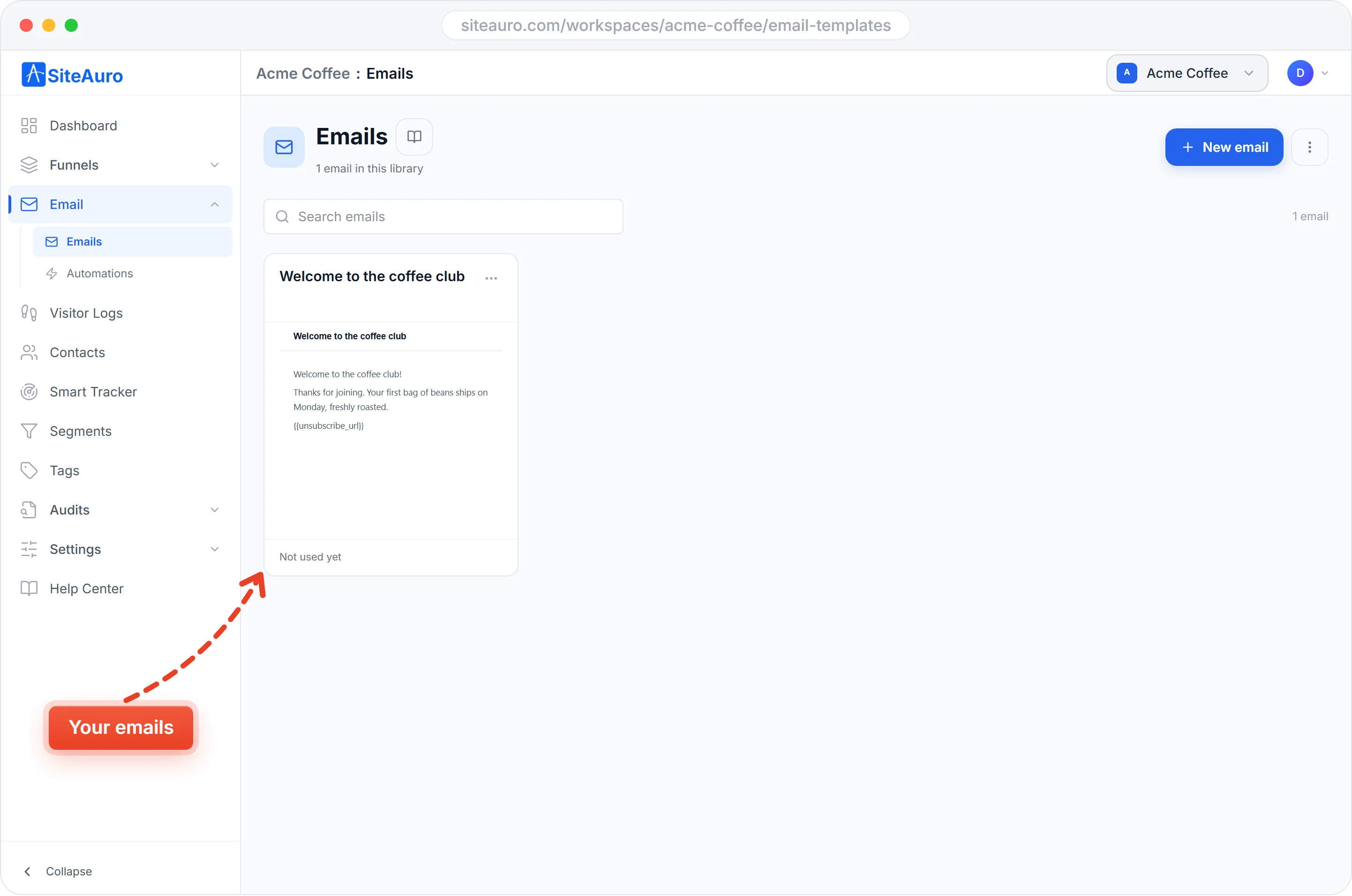
Emails is your library of emails. Write one once, and an automation's Send email step can send it. Using an email copies it, so editing the original later never changes anything already sent.
In the menu, open Email and choose Emails.
Write an Email
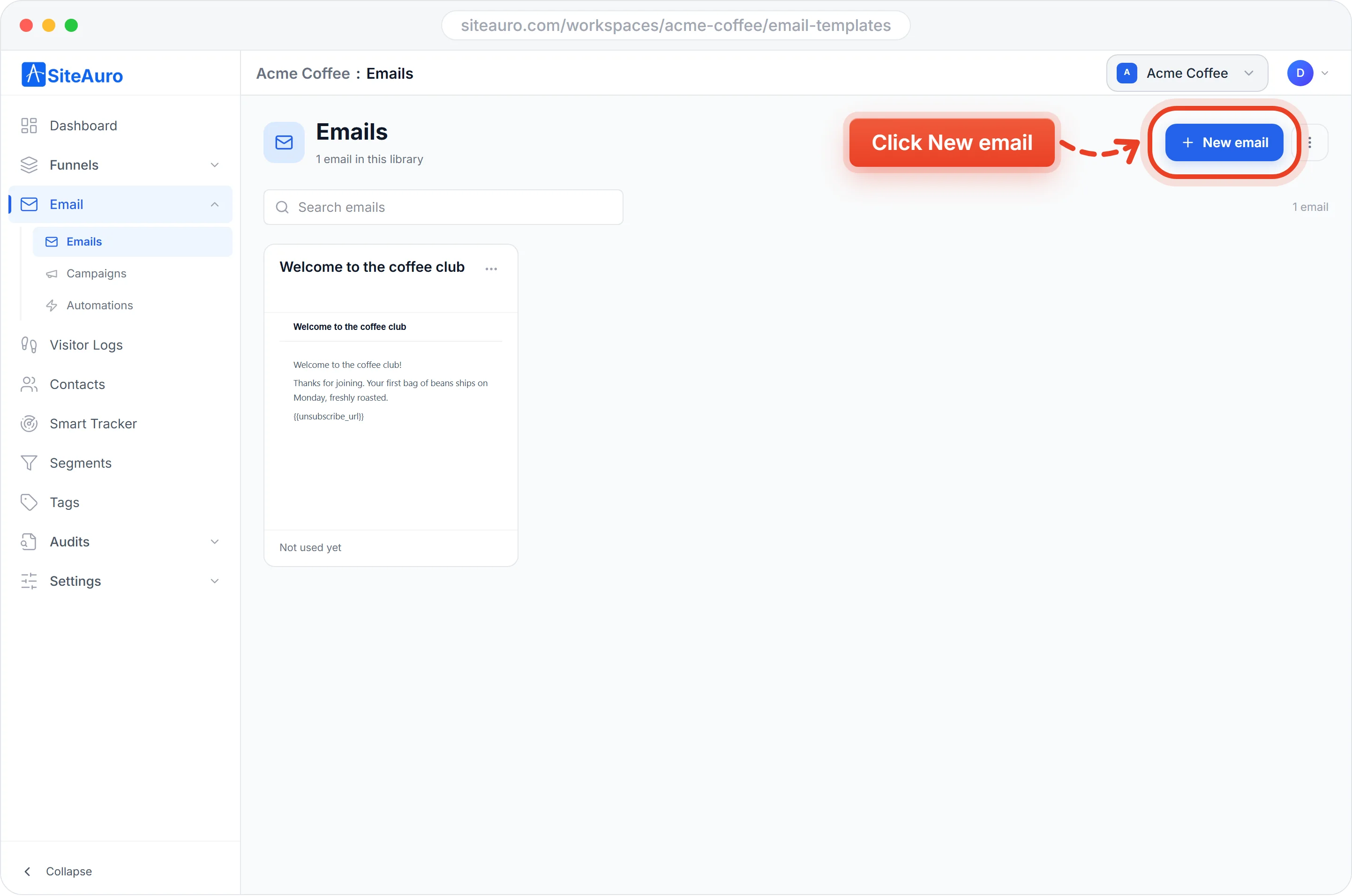
Click New email
New email is at the top right of the Emails page. The editor opens.
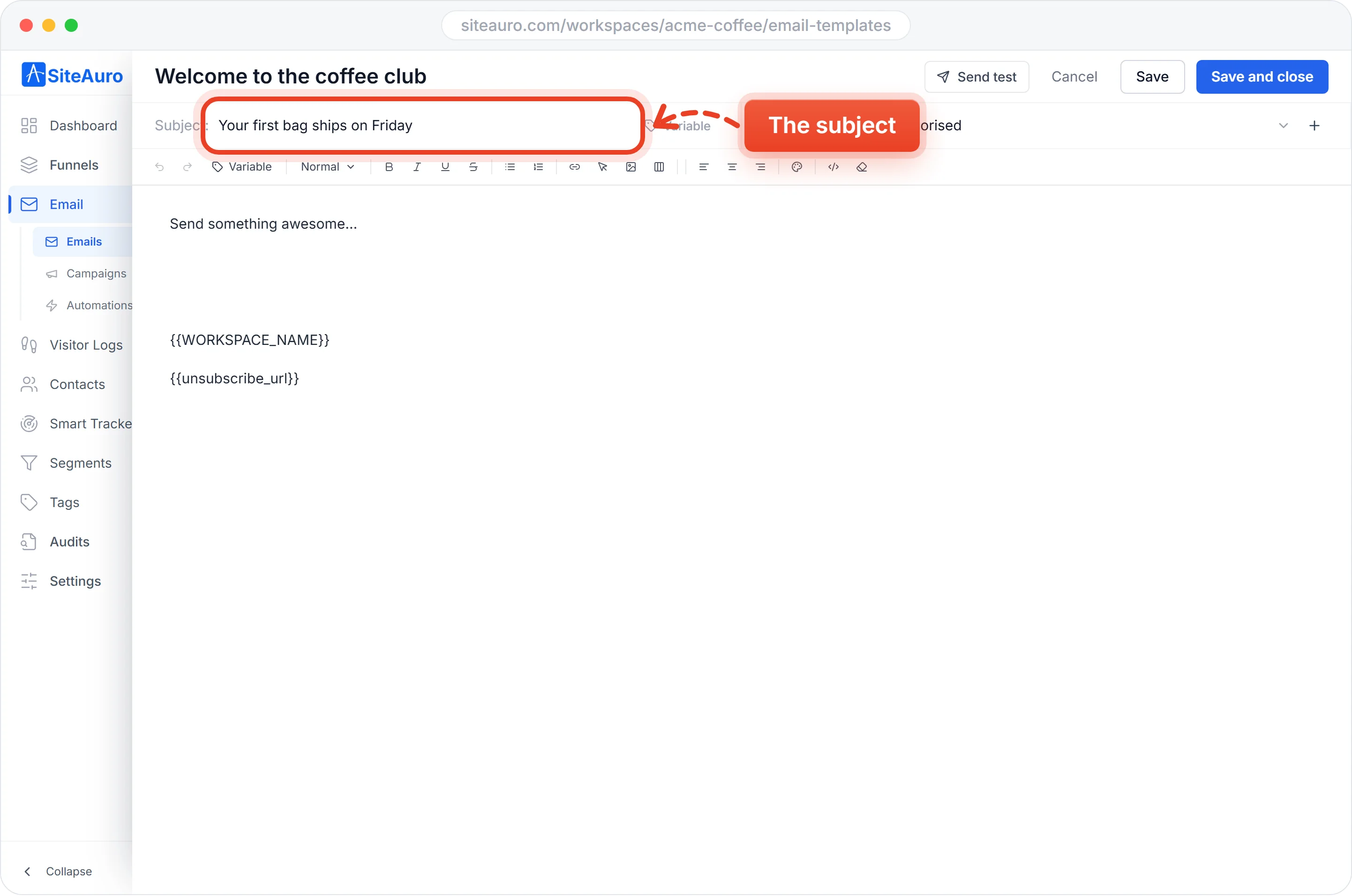
New email. Name it and write the subject
Give it a name you'll recognise in the library, at the top, and write the Subject: what people see in their inbox.
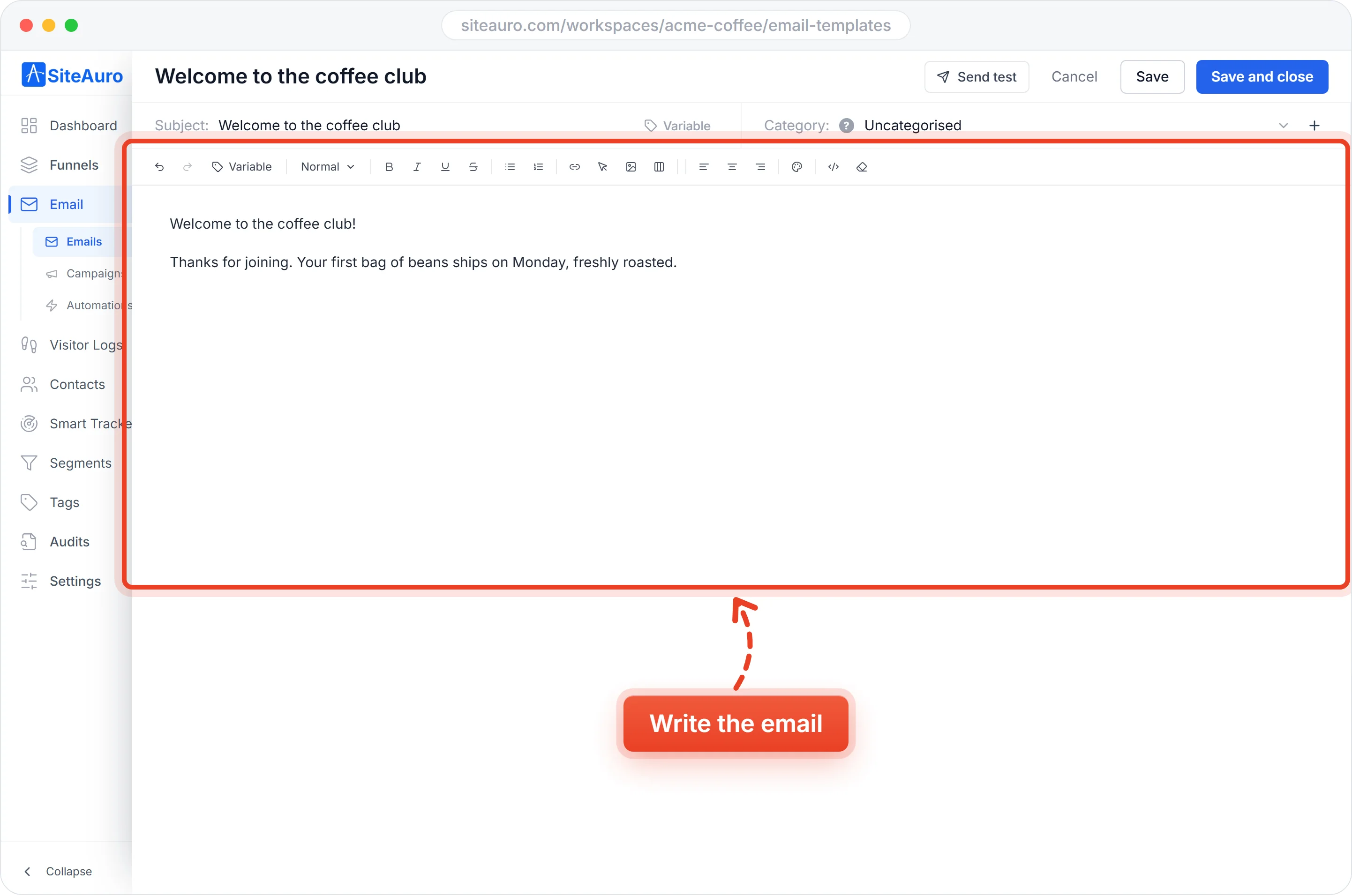
Write the email
The editor starts with a few lines of sample text: replace them with yours. Write with headings, lists, links, buttons and images.
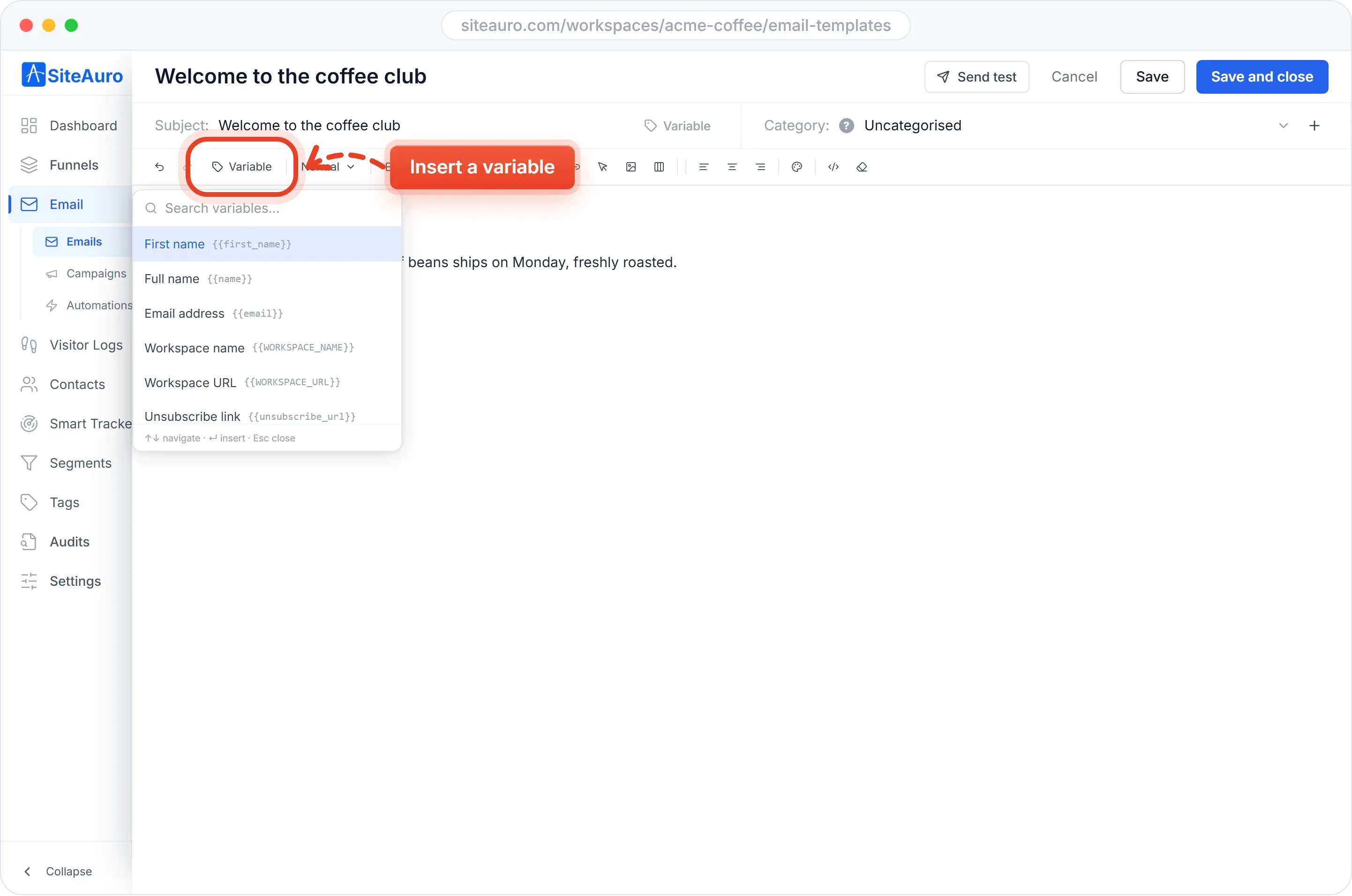
Writing an email. Variable inserts a merge tag, such as the person's name or email address, or your workspace's name. Each person sees their own.
Variable. Choose a category, if you like
Category groups emails in the library. It isn't sent.
Save it
Save keeps the editor open; Save and close goes back to the library. You see Saved.
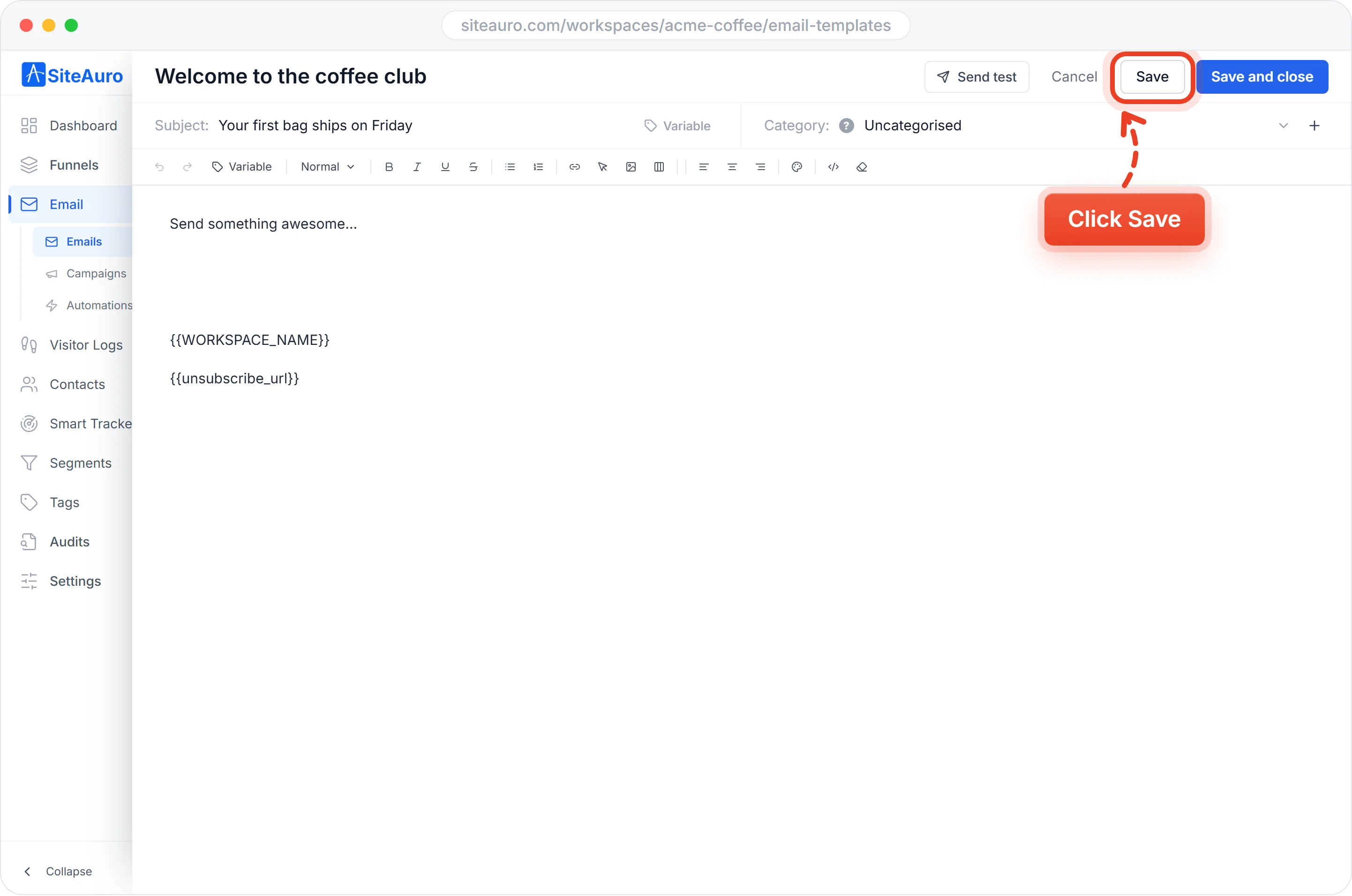
Save.
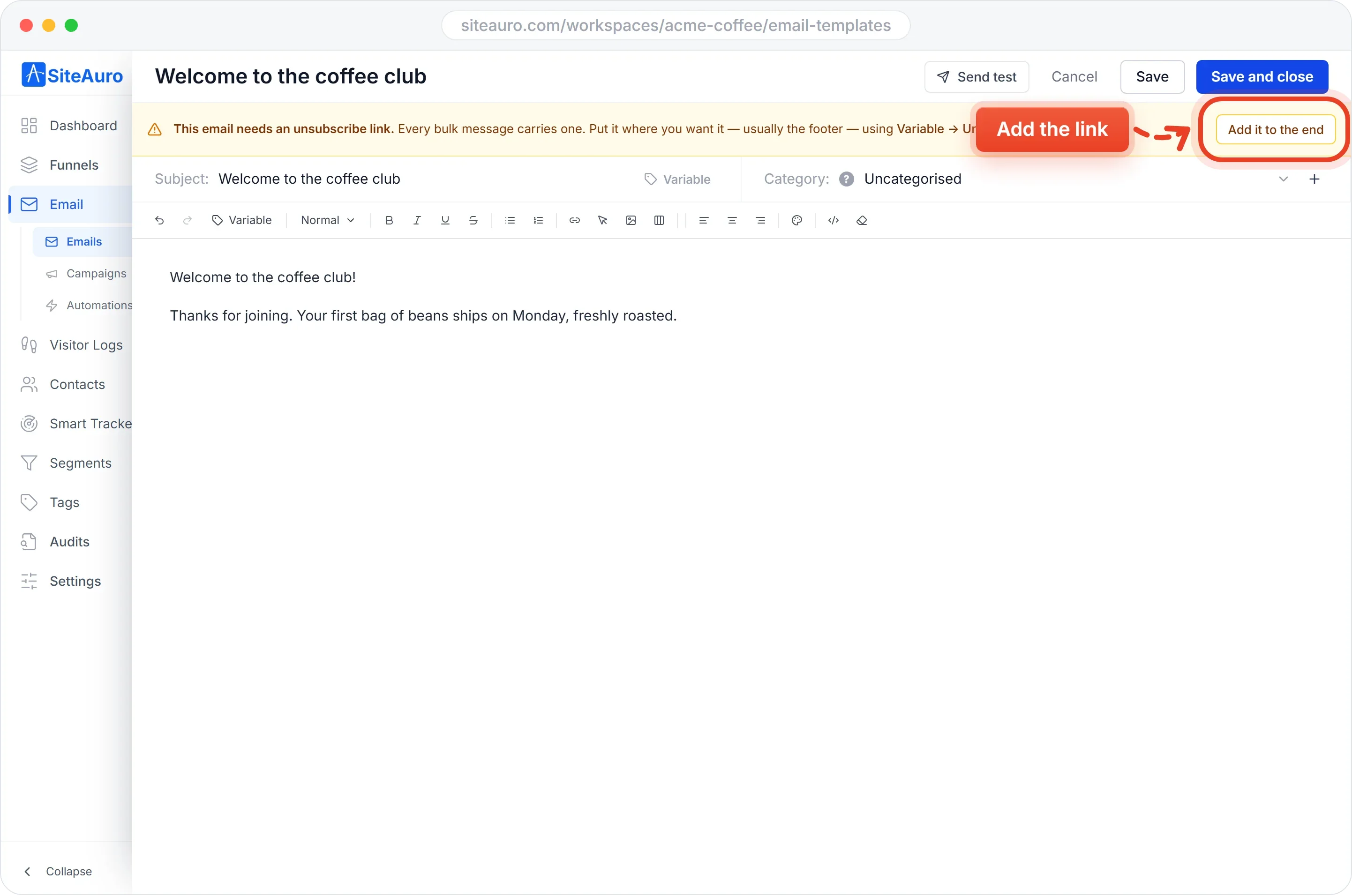
Warning
Every email needs an unsubscribe link. If yours has none, the editor says so when you save: click Add it to the end, or insert it yourself with Variable, Unsubscribe link.
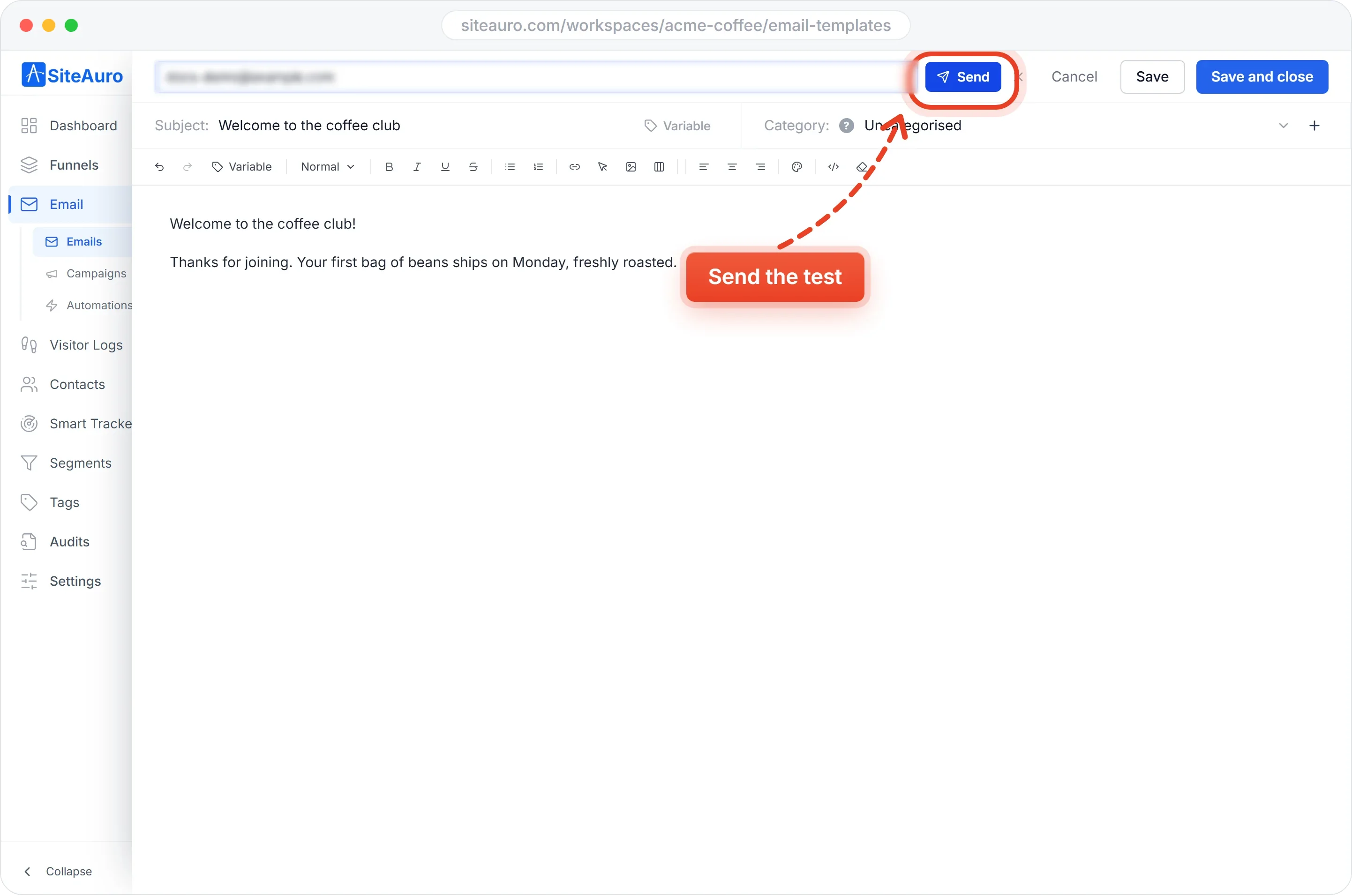
Send Yourself a Test
Click Send test, type your address in the bar that opens along the top, and click Send. The × beside it closes the bar without sending.
You see Test sent to and the address. Give it a minute to arrive. Test emails go through your email provider, so connect one first.
Manage Your Emails
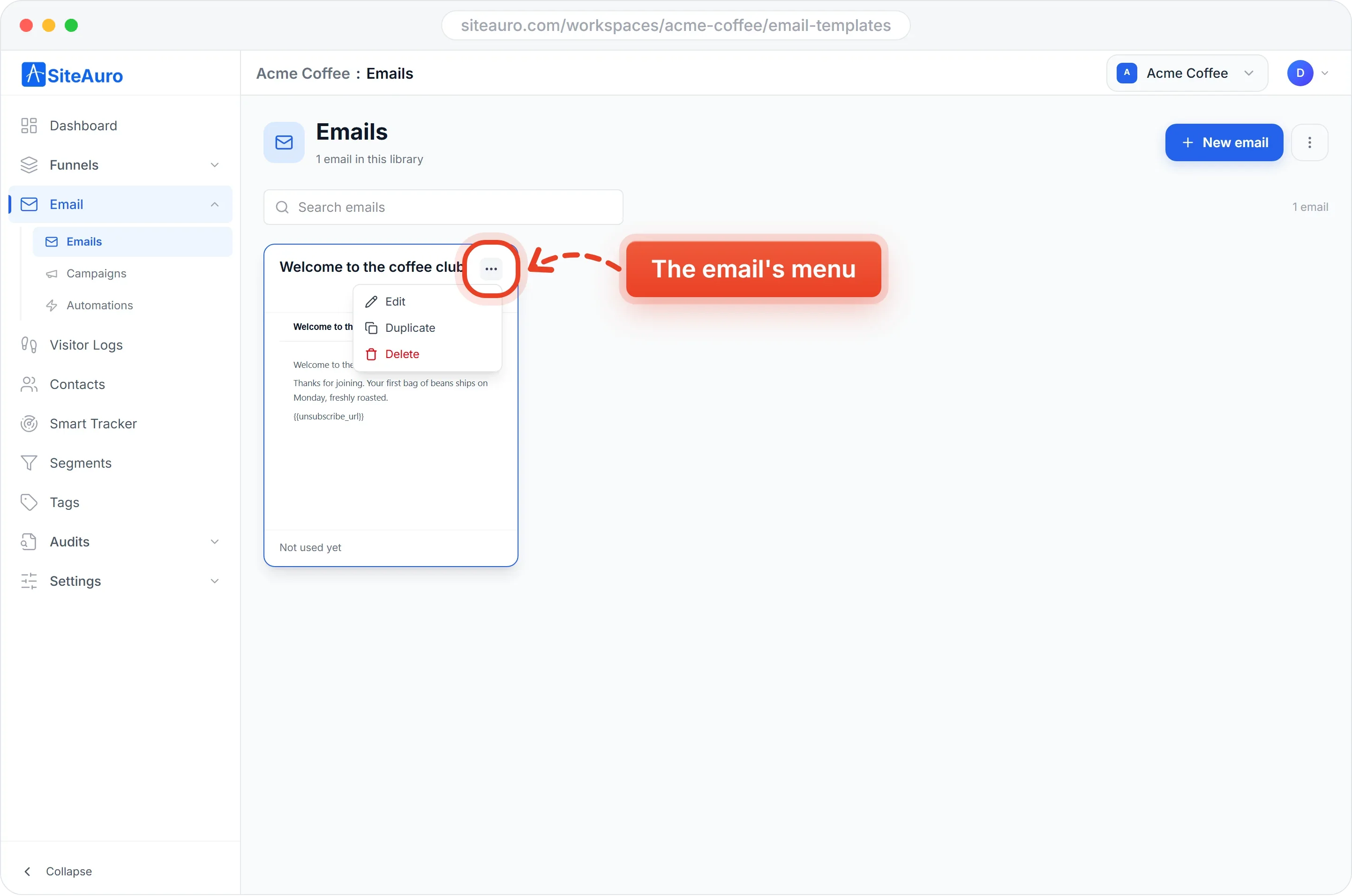
Click an email in the library to open it. Its … menu has Edit, Duplicate and Delete. SiteAuro asks before it duplicates or deletes.
Next Step
Connect your email provider, if you haven't yet.