
A funnel can take bookings: add the Appointment element to a page, and visitors pick a date and time as part of the form. SiteAuro offers the times you set as available, takes each time off the list once it is booked, and keeps every booking for you to see.
Add the Appointment Element
Add Appointment to a page
In the builder's BUILD tab, add the Appointment element from Input Fields. Its settings open on the right.
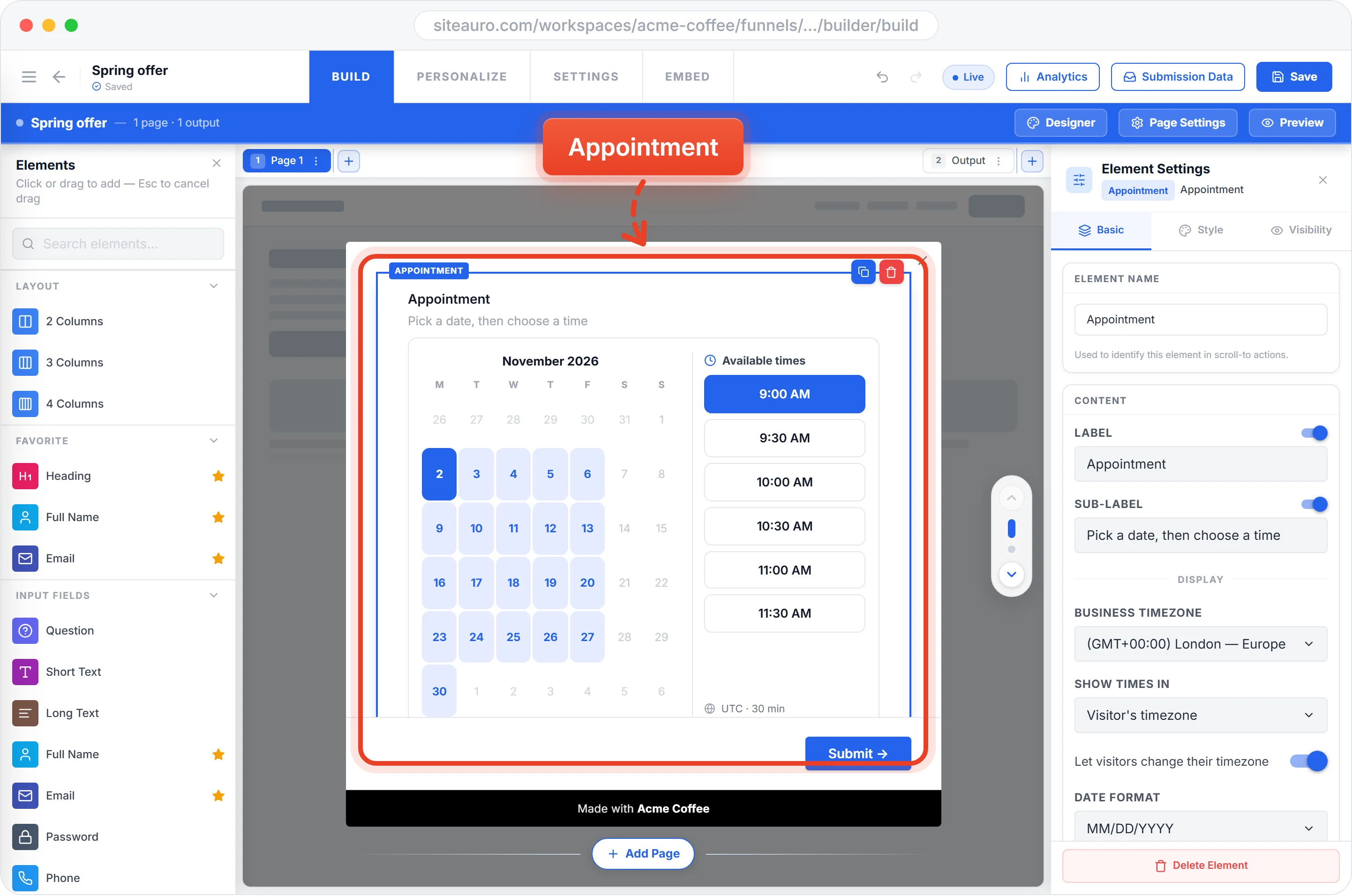
The Appointment element and its settings. Set when you are available
Under Availability: the Available days, and the hours for each of them (+ Add interval for a second stretch on the same day); the Appointment duration and Slot interval; and Blocked dates, the days you aren't taking bookings.
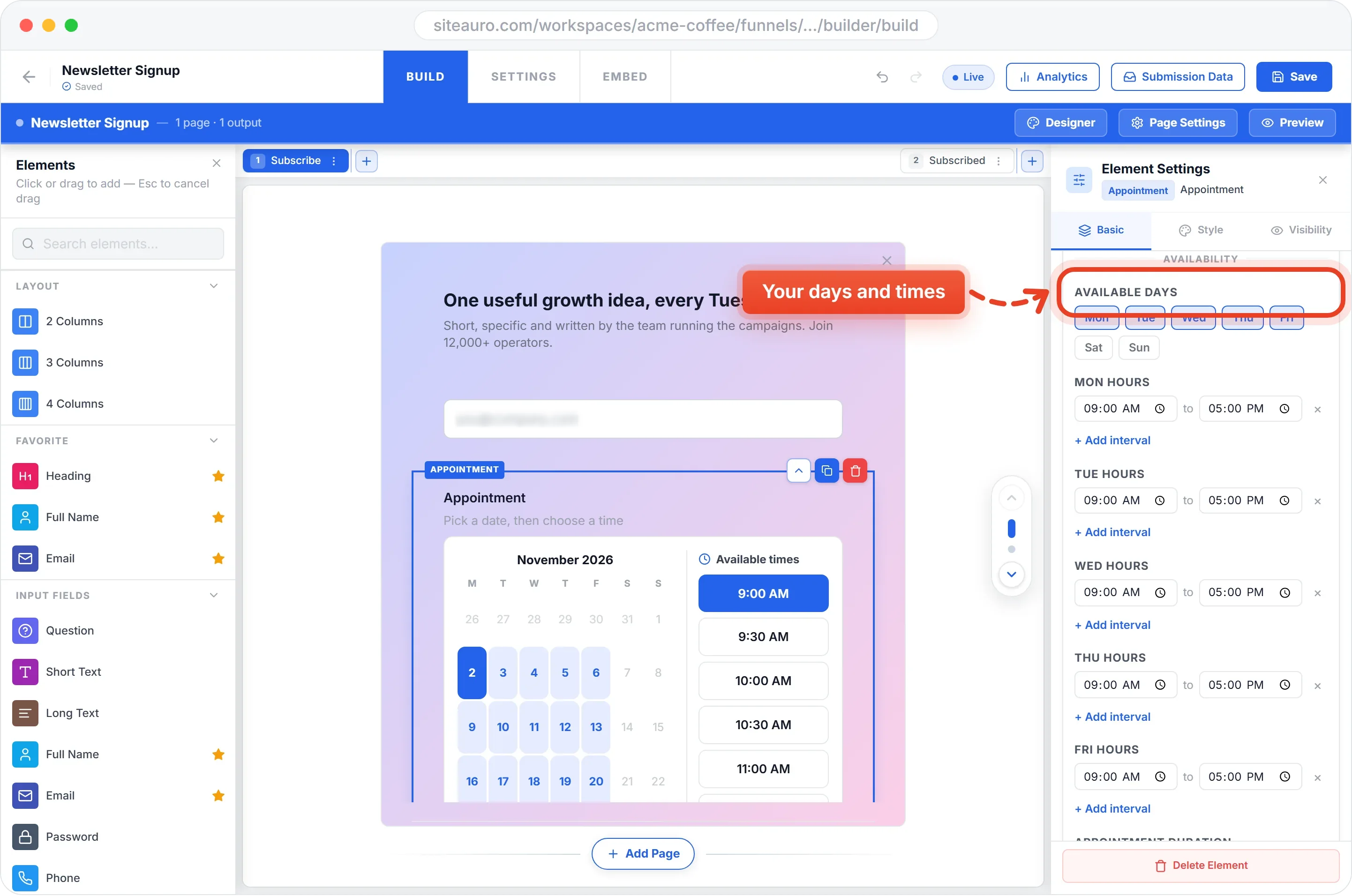
Availability. Set the booking window
Under Booking window: Minimum notice (minutes), how soon a booking can start; Book up to (days ahead); and the First bookable date and Last bookable date, if there are any.
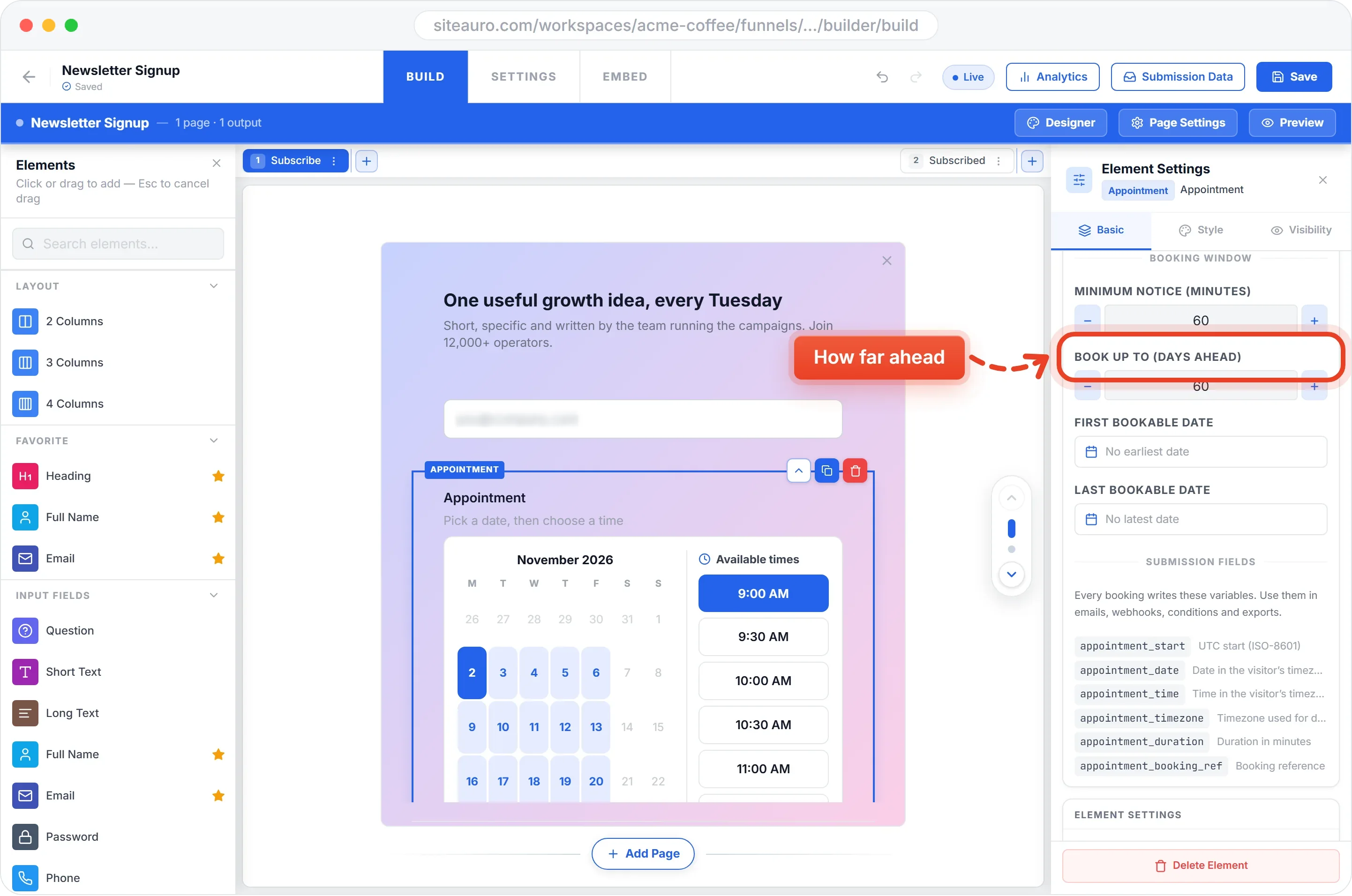
The booking window. Choose how times are shown
Under Display: the Business timezone, whether times show in the visitor's timezone, and whether to Let visitors change their timezone; and the date and time formats.
Each booking also saves its date, time, timezone, length and booking reference with the submission, listed under Submission fields. Use them in emails, webhooks and exports.
You don't need to connect a calendar: the days and times you set above are the times visitors can book, and SiteAuro keeps the bookings.
See the Bookings
Open Appointments
Once a funnel has an Appointment element, its overview has an Appointments card. Click it.
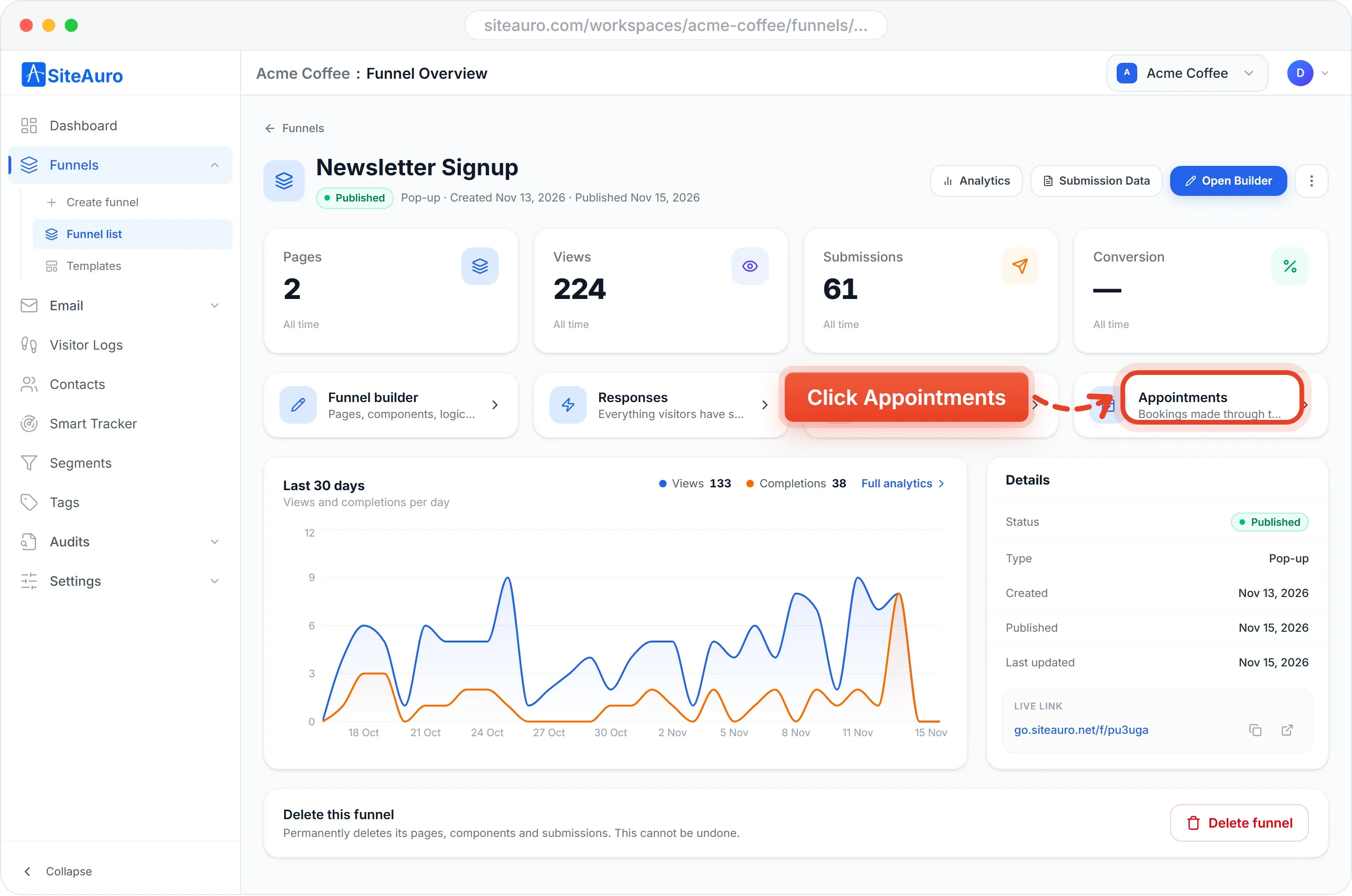
The Appointments card. Find a booking
Bookings are under Upcoming, Past and Cancelled, with the date and time, who booked (their address is shown too) and the booking reference. Times are in the business timezone.
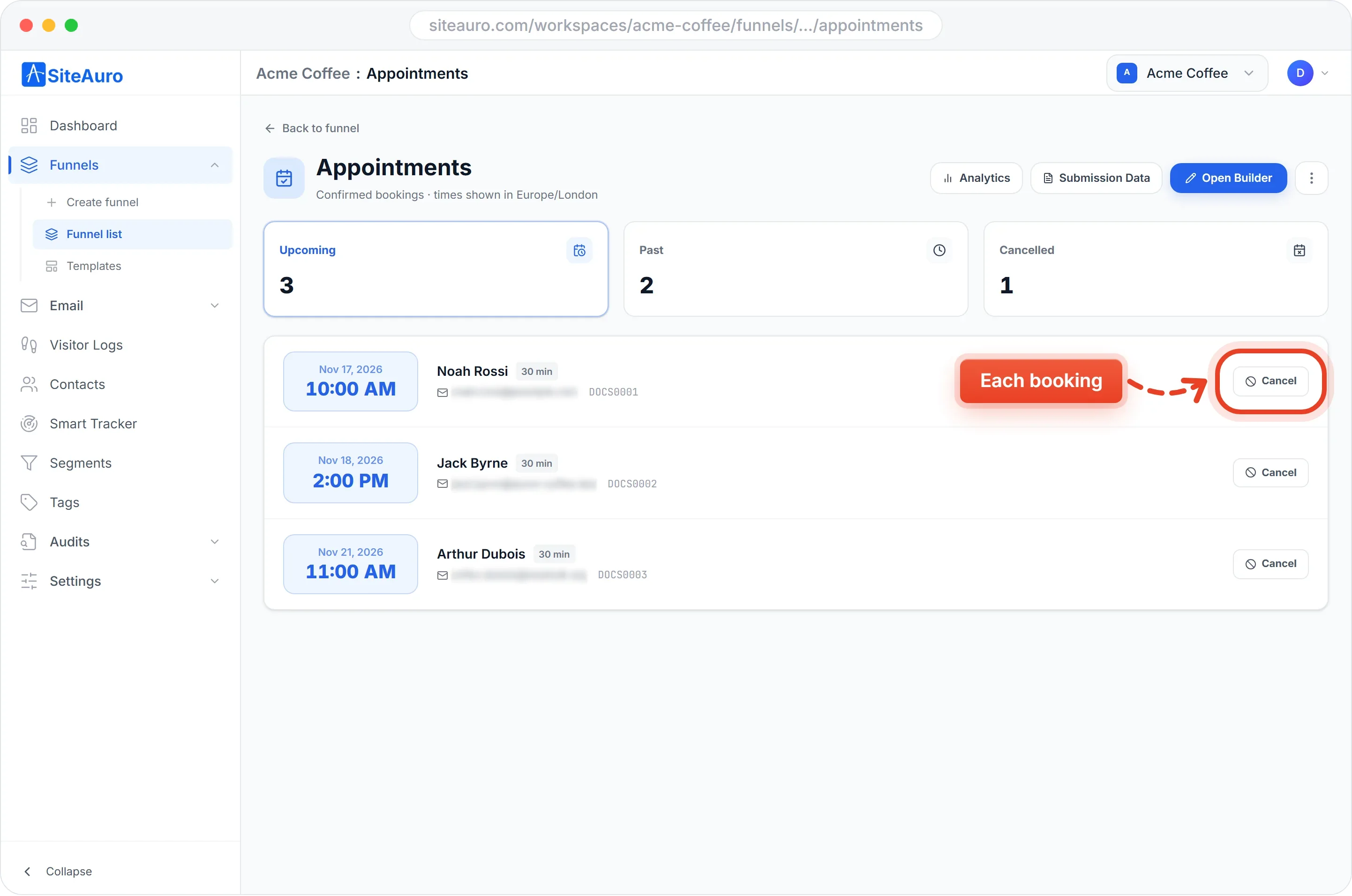
Upcoming bookings. Cancel one, if you need to
Click Cancel on its row. SiteAuro asks first; click Cancel appointment. You see Appointment cancelled — the time slot is available again. The submission is kept.
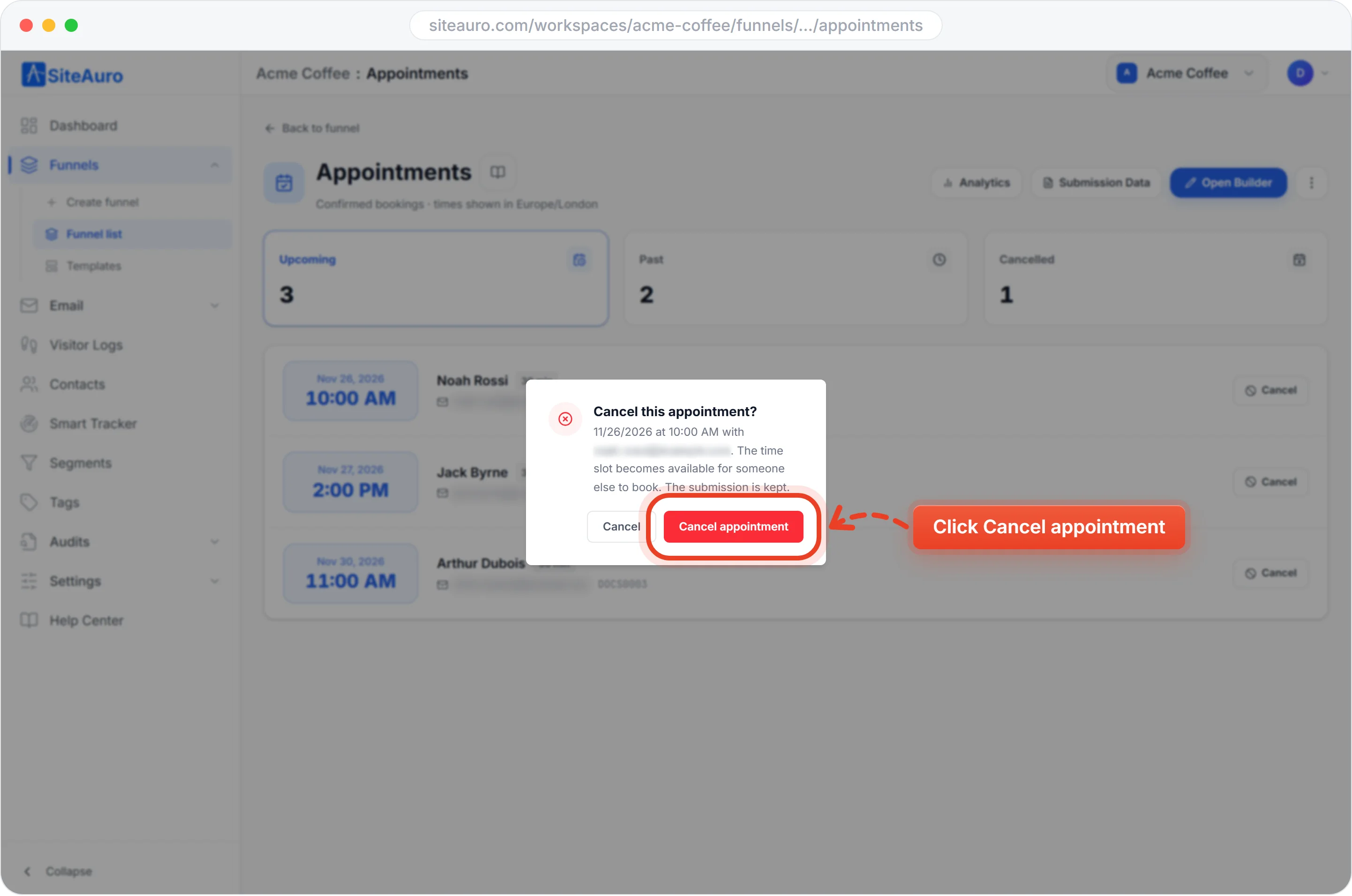
The cancel question.
To cancel or move a booking, the visitor contacts you directly.