
Some parts of SiteAuro can use AI: a funnel's AI result page, and the AI review in a landing page audit. They run on your own account with an AI provider, using your API key. You pay the provider directly for what you use.
In the menu, open Settings and choose AI settings.
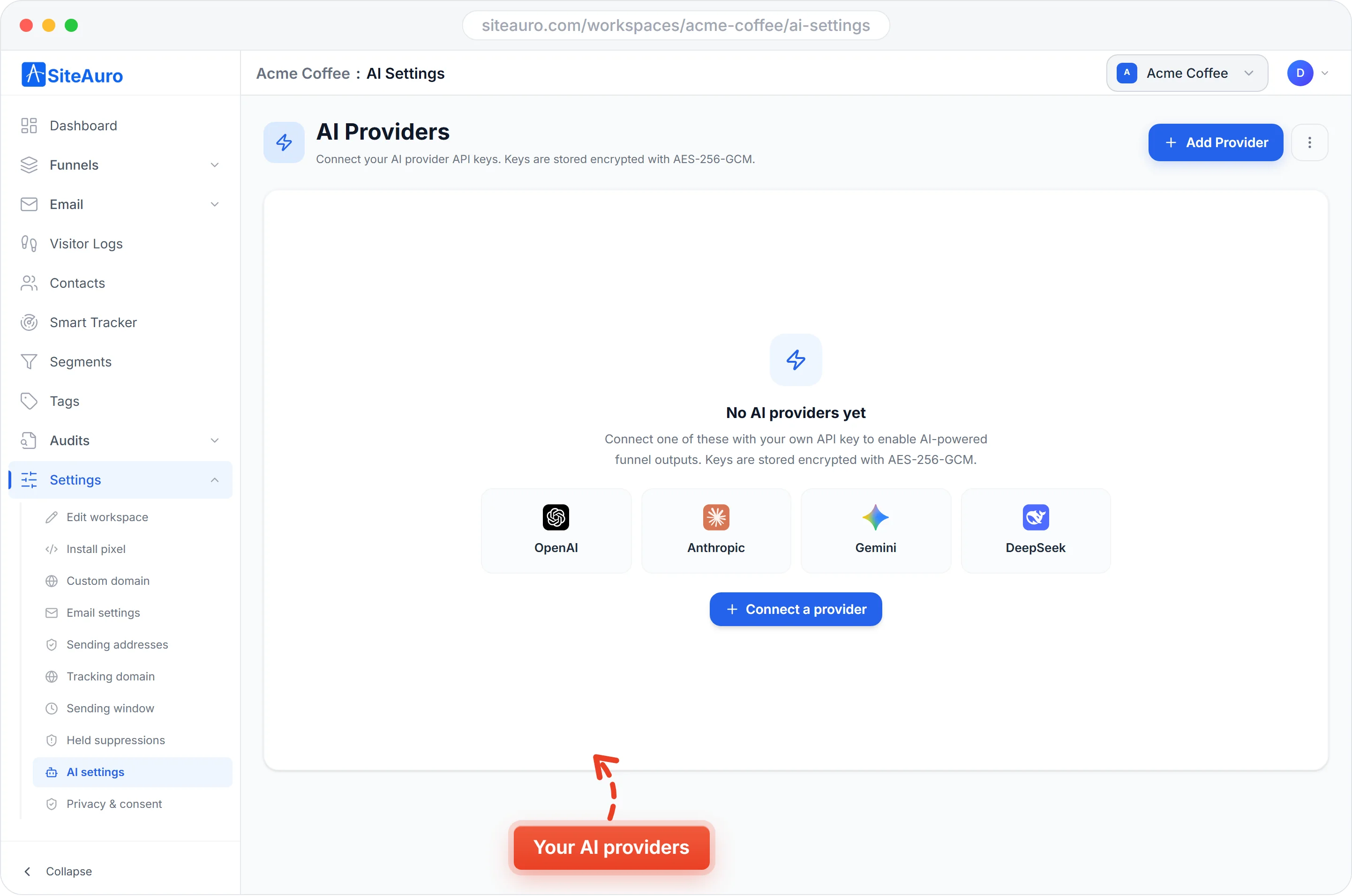
Connect a Provider
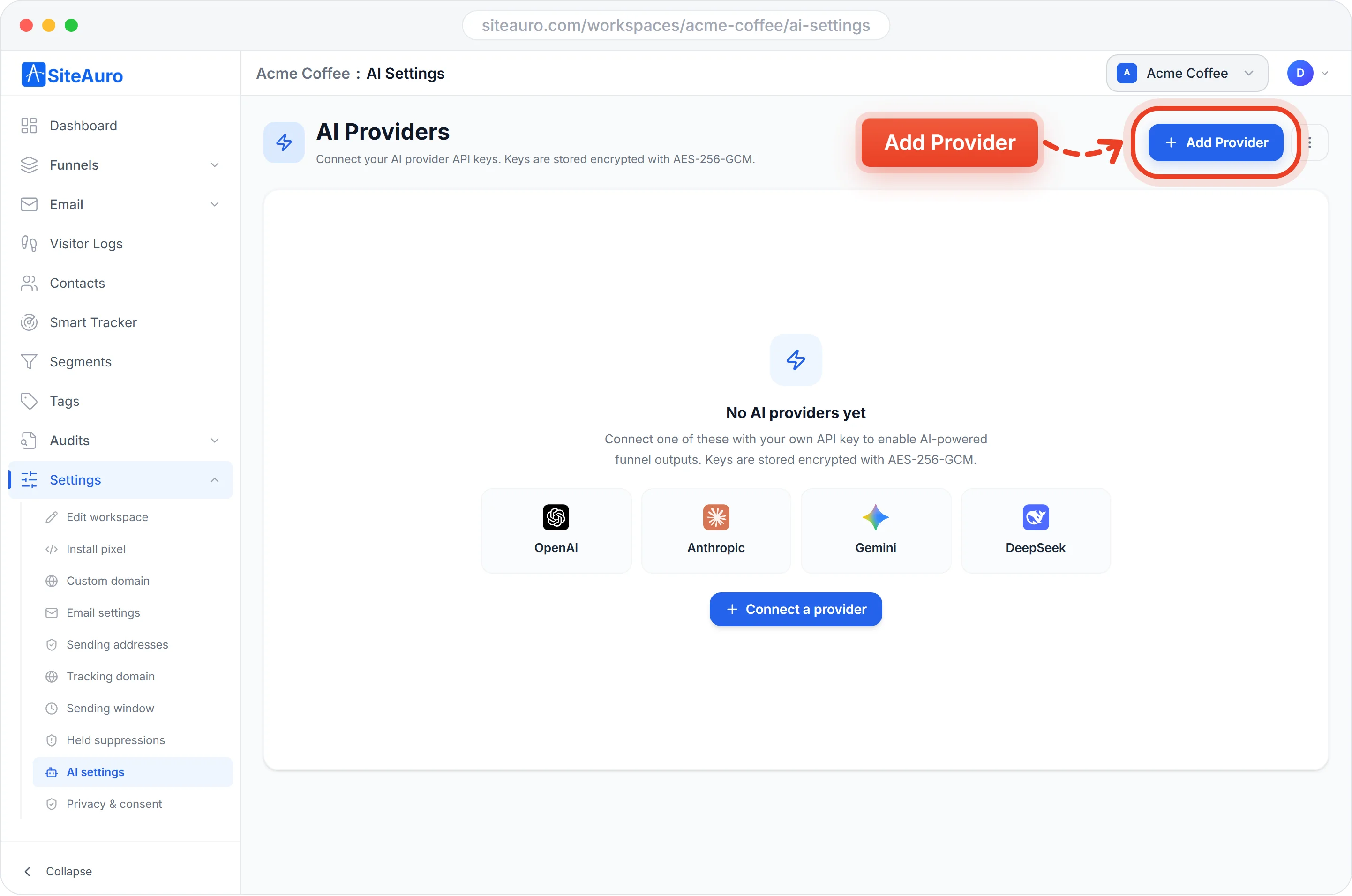
Click Add Provider
Click Add Provider at the top right.
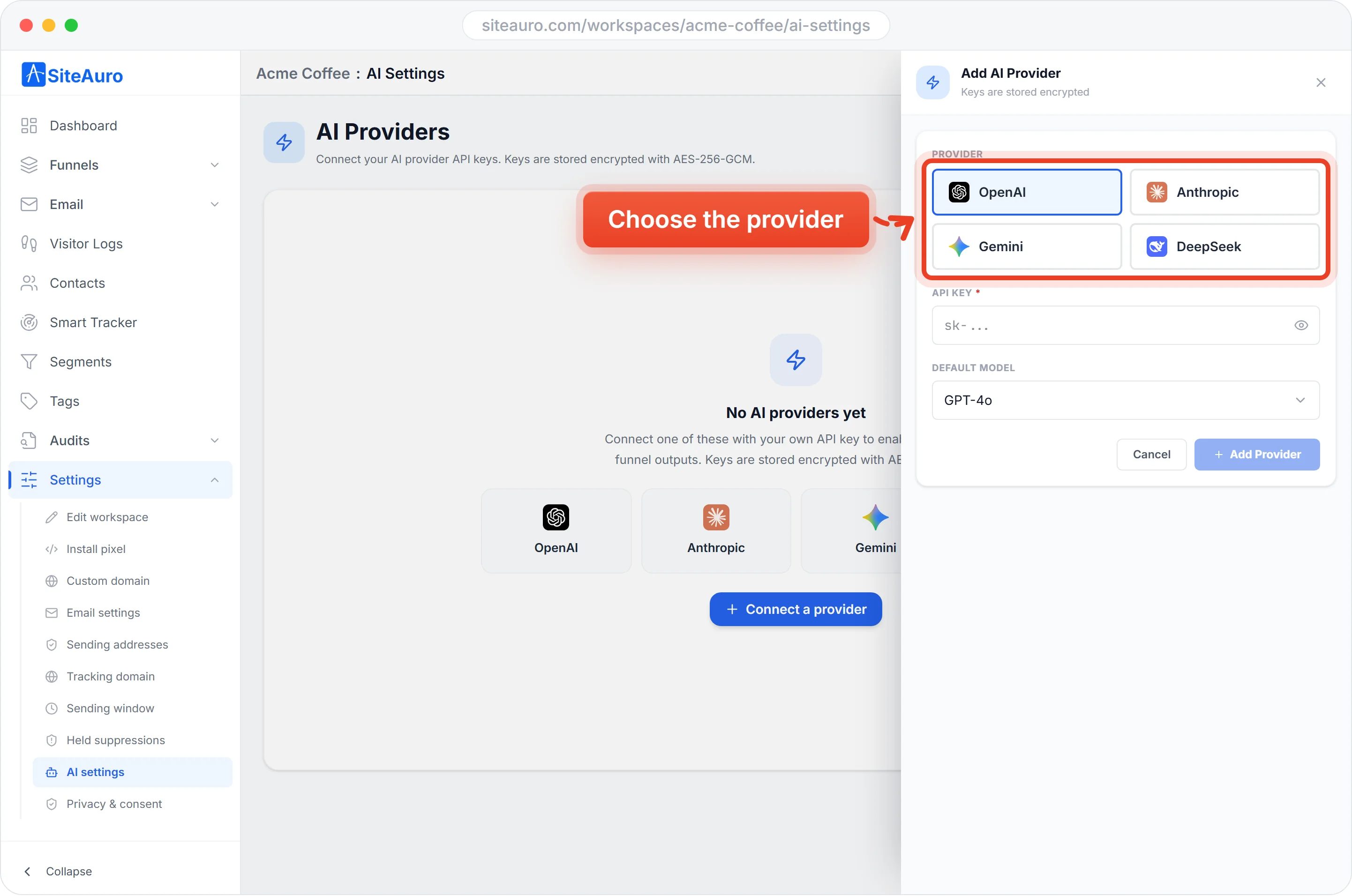
AI Providers. Choose the provider
OpenAI, Anthropic, Gemini or DeepSeek.
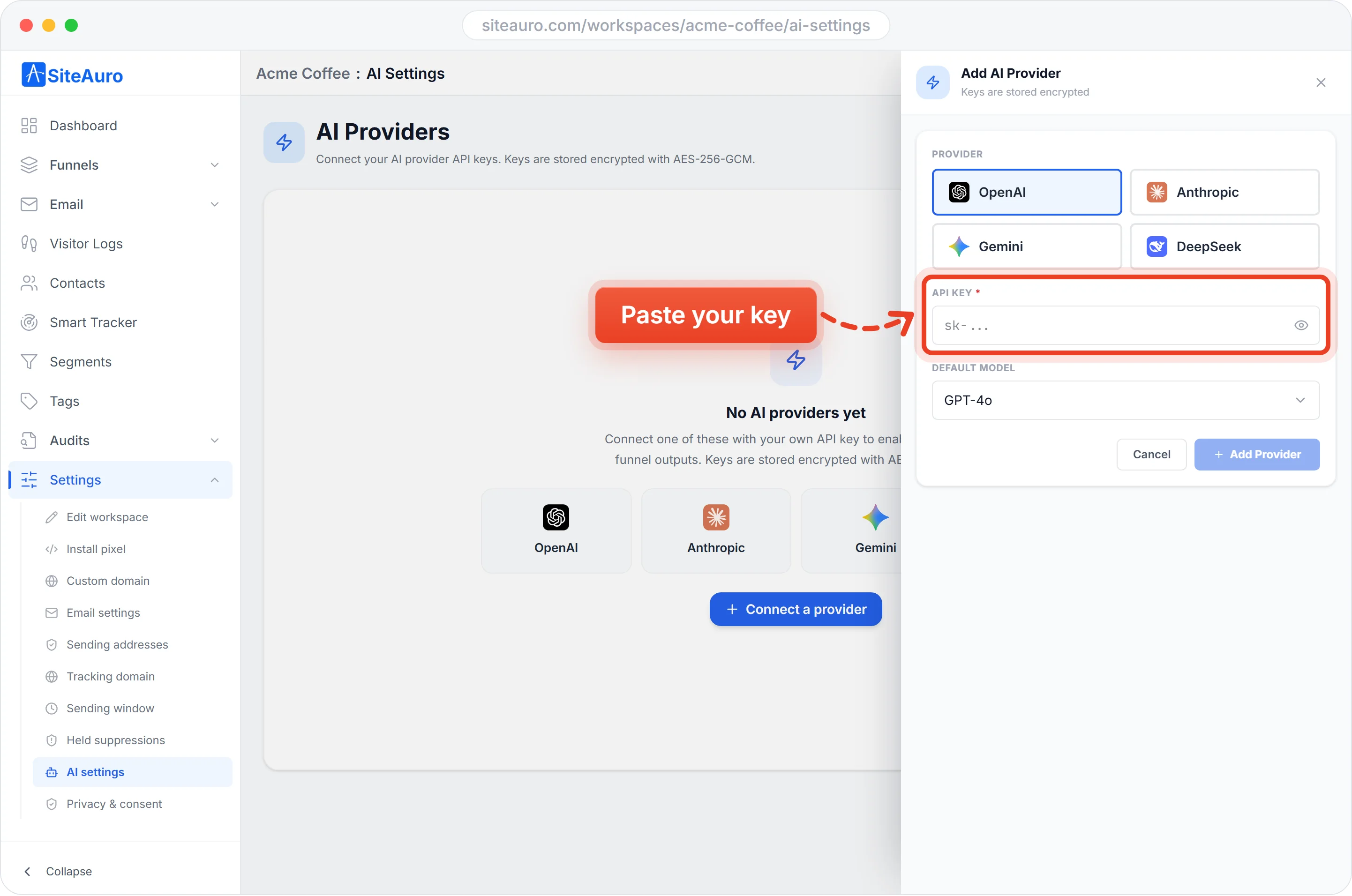
Choose the provider. Paste your API key
Create a key in your account with that provider, and paste it into API Key. Keys are stored encrypted.
Paste your key. Choose the default model
Default Model is the model used unless something asks for another one.
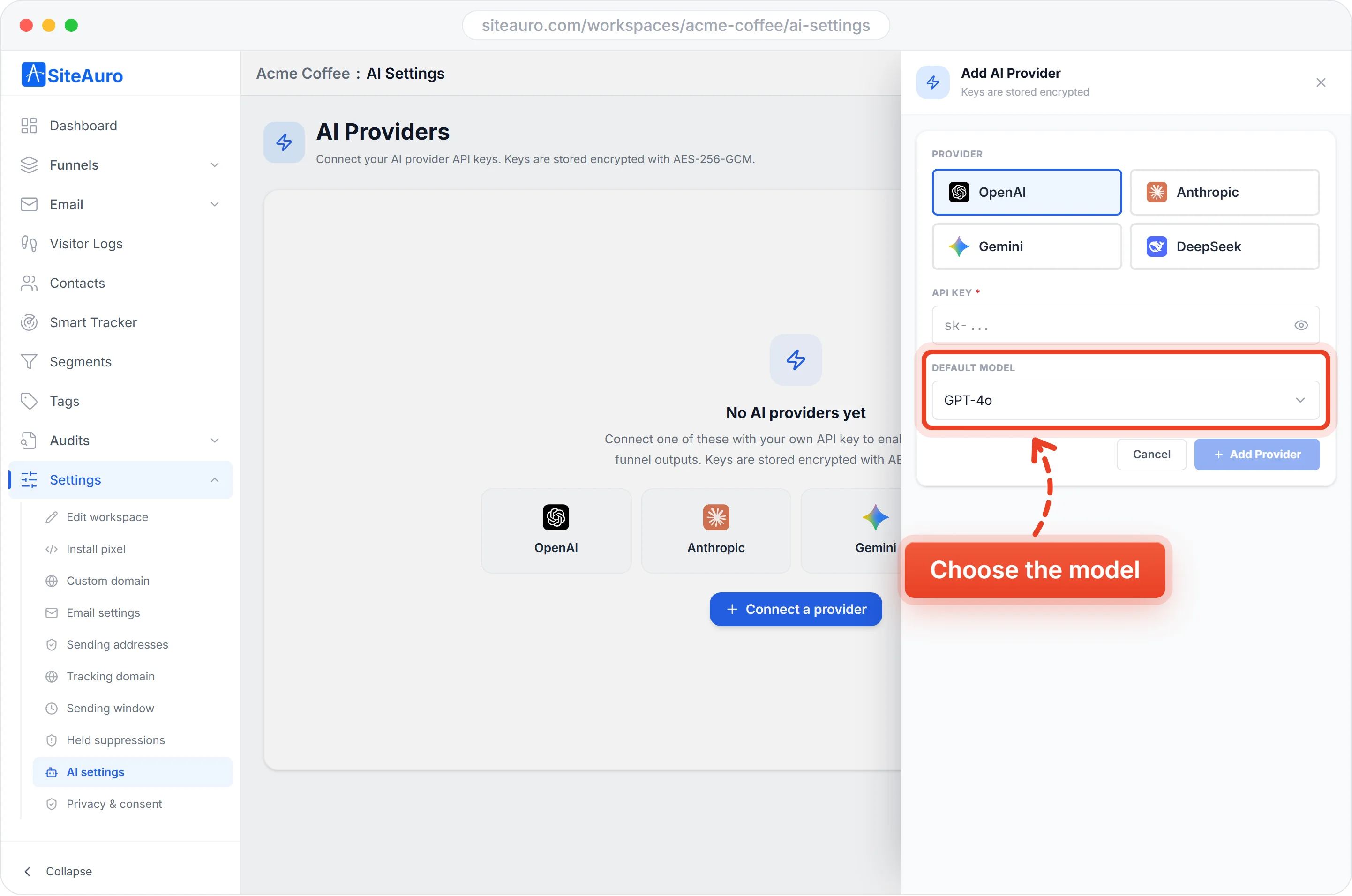
Choose the model. Click Add Provider
You see AI provider added. Your first provider becomes the default.
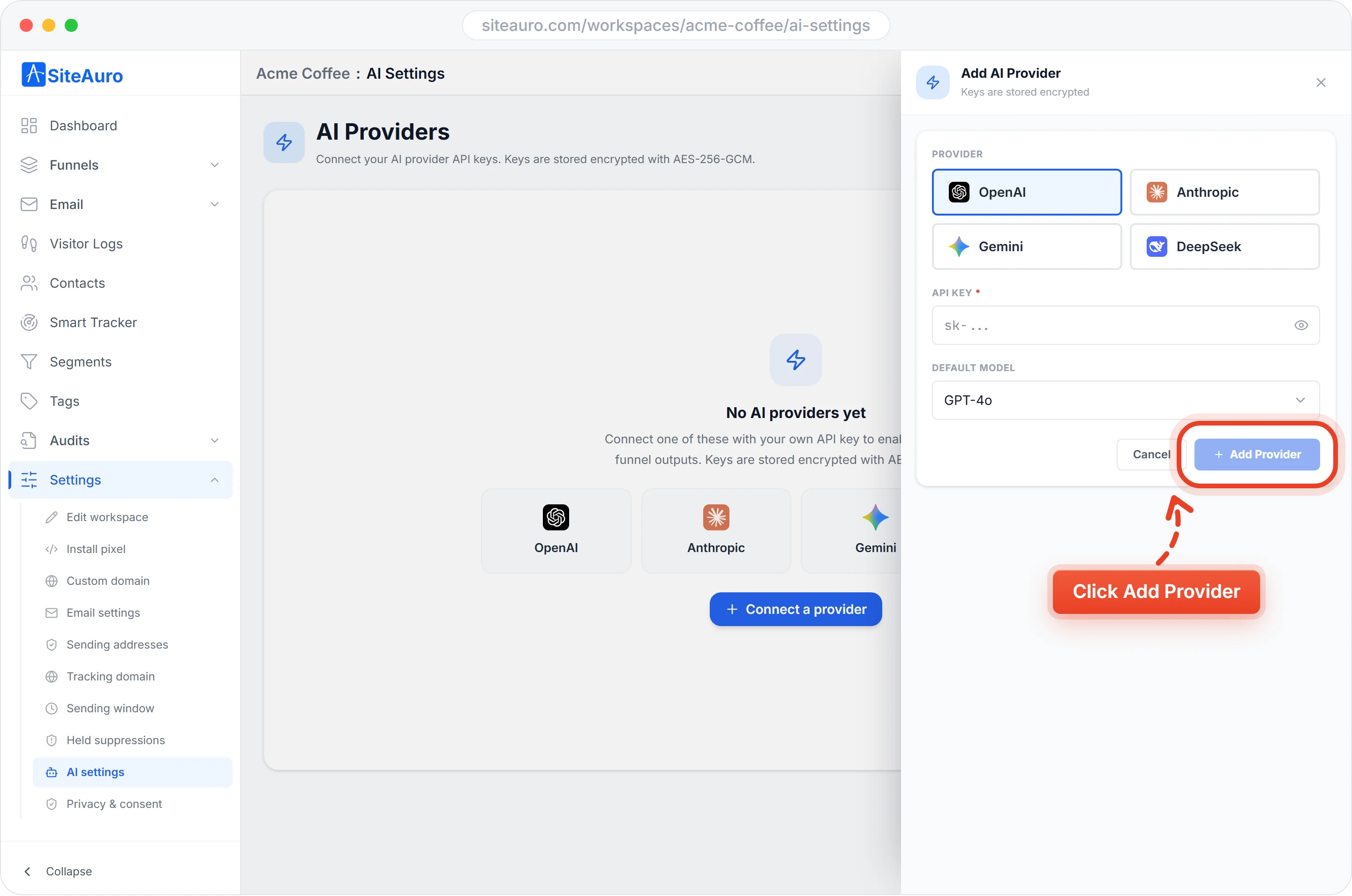
Click Add Provider.
Manage Your Providers
Your providers are listed in a table, one row each:
- Test checks the key works, with a live call to the provider.
- The switch turns a provider on or off without removing it: Active or Inactive.
- The ⋮ menu at the end of the row has Edit, Set as default and Remove. The default provider, the one used first, has a Default badge.
- Edit opens the provider's settings: Change to enter a new key, and Default Model. Click Save.
- Remove deletes the provider and its key for good. Anything that uses it stops producing AI output until you connect another.