Skip to content
SiteAuro

Tags

Label contacts with tags you choose, such as "Webinar attendee", and use them to find and group people.

Table of Contents
  1. Your Tags
  2. Create a Tag
  3. Tag Contacts
  4. Delete a Tag
  5. Next Step

A tag is a label you put on contacts, such as Webinar attendee or Trade show 2026. Tags are yours to name: use them to mark people however suits you, then filter contacts or build segments with them.

Your Tags

In the menu, click Tags. Your tags are listed with how many contacts are Wearing it. Click a tag's count to see those contacts in Contacts. The pencil renames or recolours a tag.
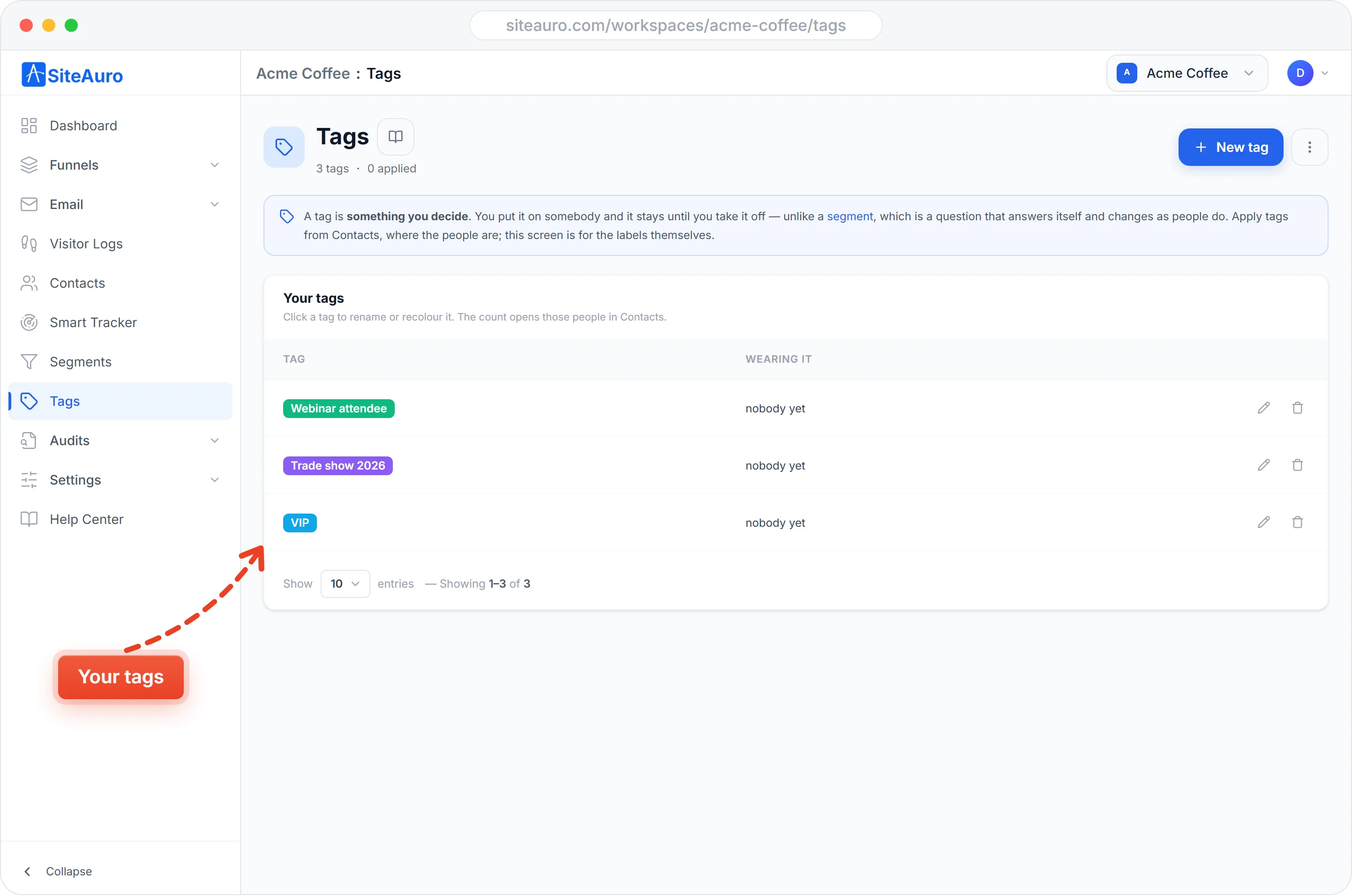
The Tags page with three tags, Webinar attendee, Trade show 2026 and VIP, each with Wearing it, and a pencil and a bin on its right. In the menu below Settings, a red label reads "Your tags", with a dashed arrow to the list.
Your tags.

Create a Tag

  1. Click New tag

    New tag is at the top right of the Tags page.
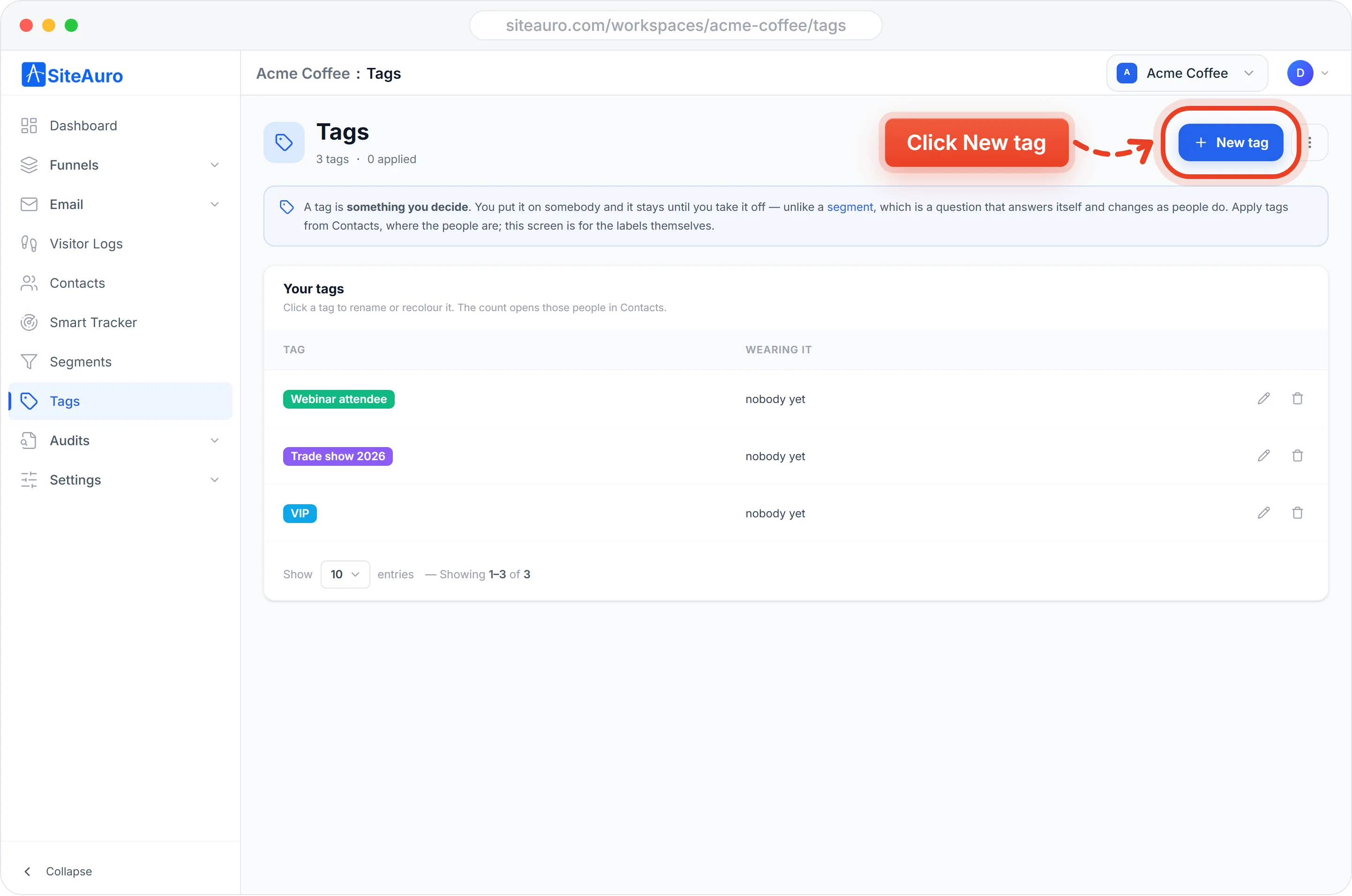
    The Tags page with the New tag button at the top right outlined in red, with the label "Click New tag" and a dashed arrow pointing to it.
    New tag.
  2. Name it, pick a colour, and create it

    Type its Name and pick a Colour. How it will look shows the tag as it will appear. Click Create tag. You see Tag created.
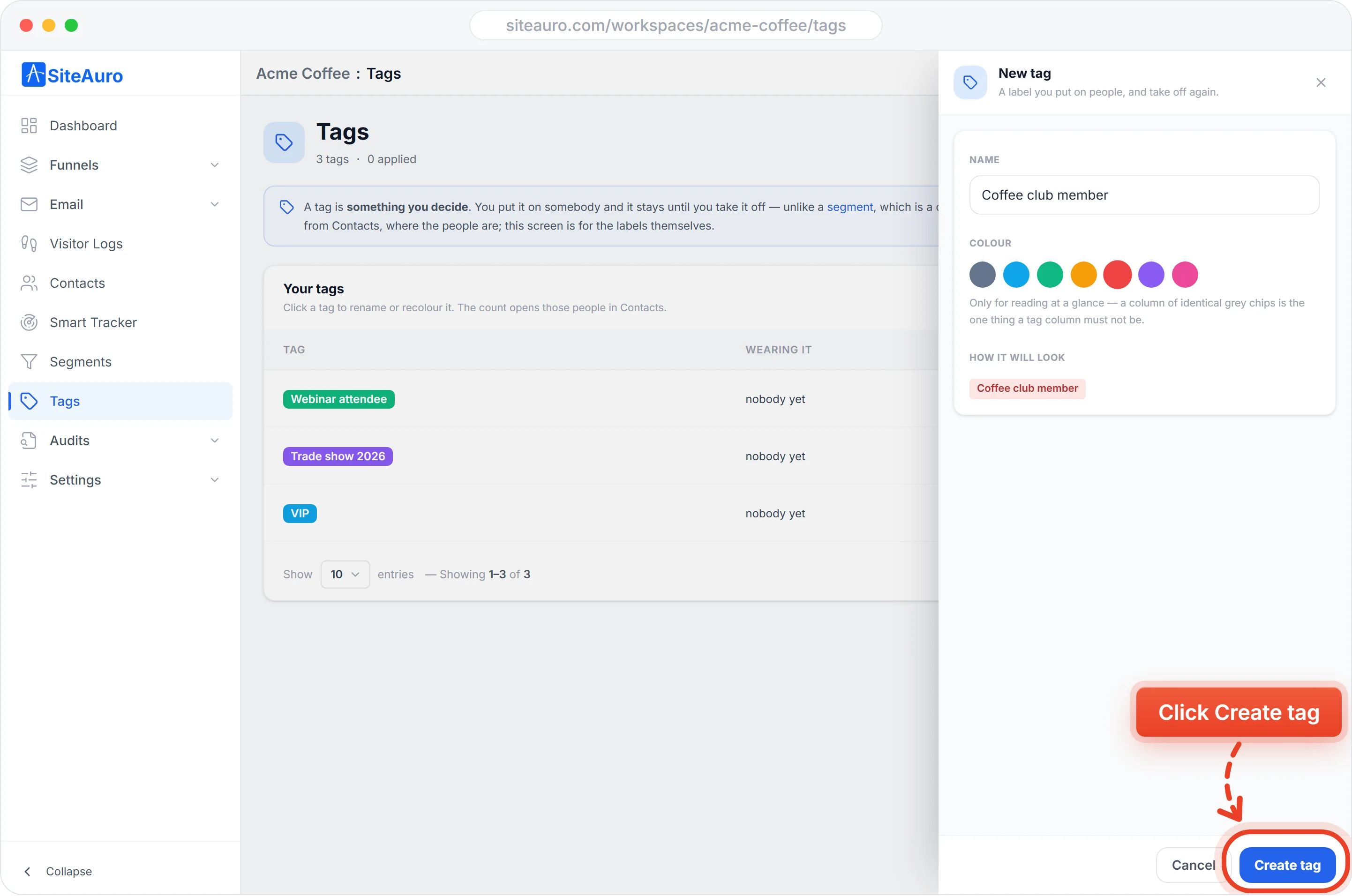
    The New tag panel open on the right: Name Coffee club member, a row of colours, and How it will look showing the tag. The Create tag button at the bottom is outlined in red, with the label "Click Create tag" and a dashed arrow pointing to it.
    Create a tag.

Each name can be used once: SiteAuro tells you if a tag with that name already exists.

Tag Contacts

  • One contact: on the Contacts page, click the + in their Tags cell and tick the tag.
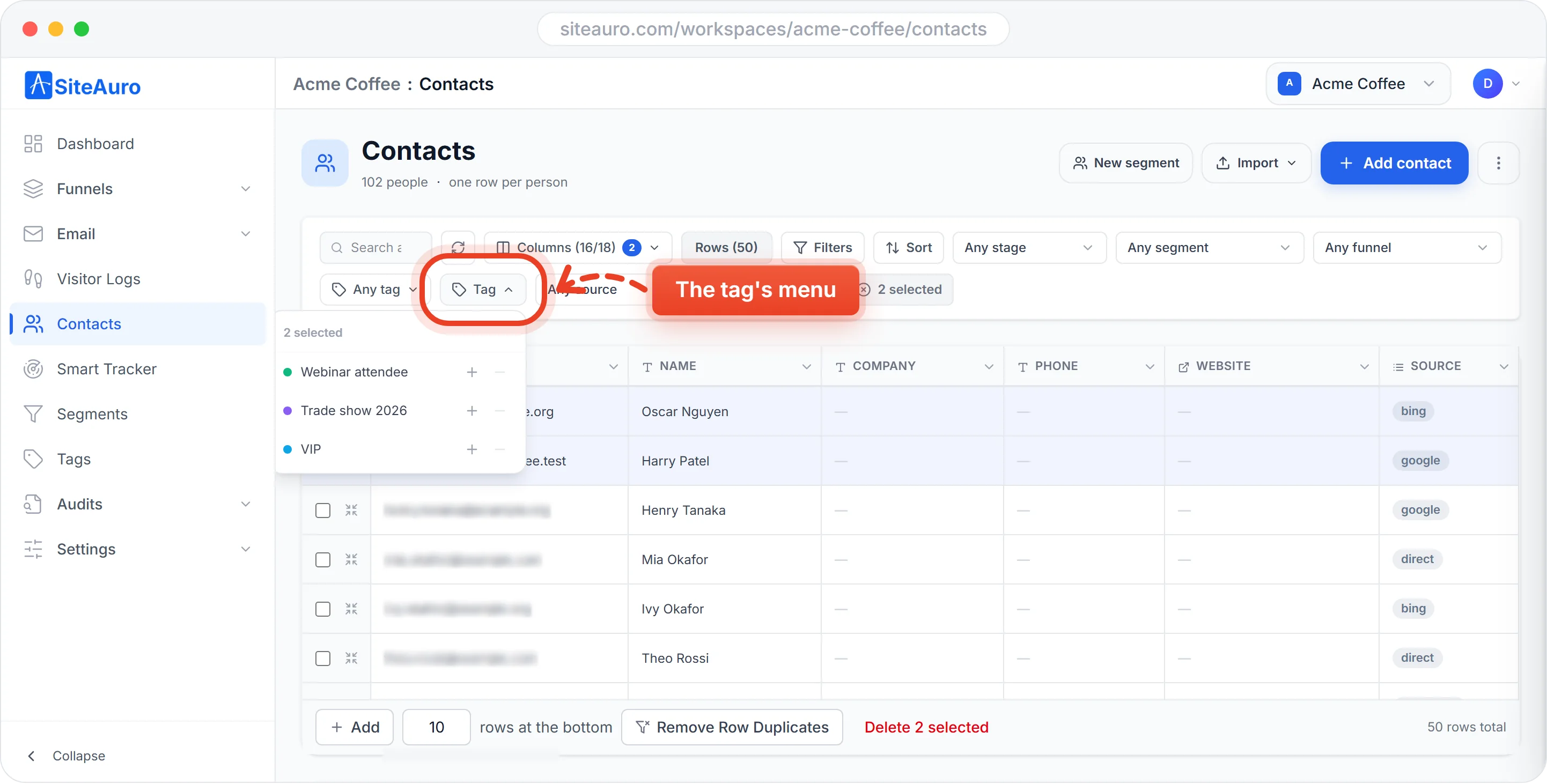
  • Many at once: tick the contacts on the Contacts page, click Tag, and click the + beside the tag to add it to all of them (or − to take it off).
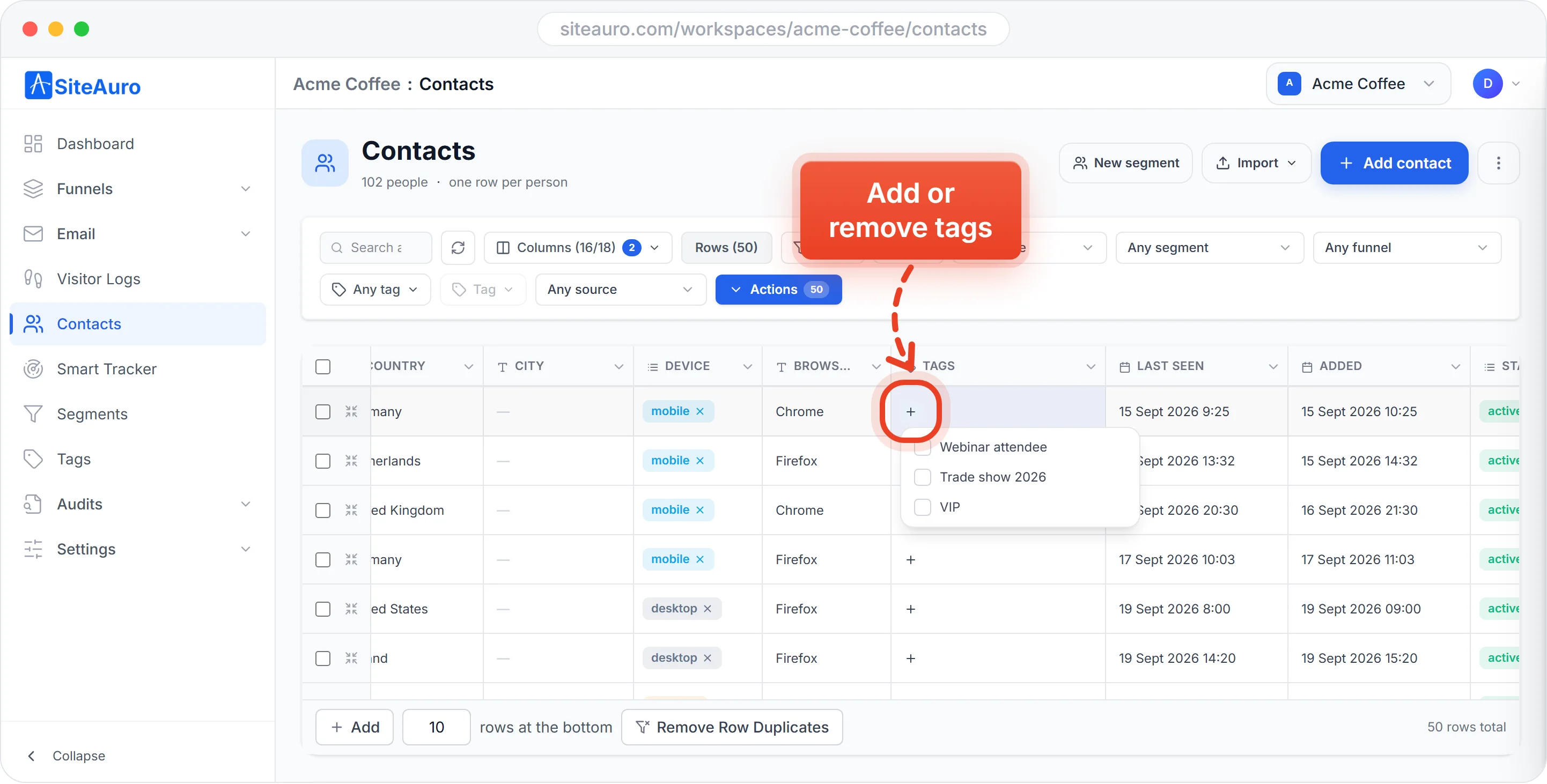
The Contacts page scrolled to the Tags column, with the first contact's Tags cell open: a tick box for Webinar attendee, Trade show 2026 and VIP. The part this step is about is outlined in red, with the label "Add or remove tags" and a dashed arrow pointing to it.
Tag one contact.
Two contacts ticked and the Tag menu open: 2 selected, and Webinar attendee, Trade show 2026 and VIP, each with a + and a −. The part this step is about is outlined in red, with the label "The tag's menu" and a dashed arrow pointing to it.
Tag several contacts.

Delete a Tag

Click the bin beside the tag. SiteAuro tells you how many contacts will lose the tag; click Delete tag to confirm, or Cancel to keep it. Deleting a tag removes it from every contact that has it. The contacts themselves are not deleted.
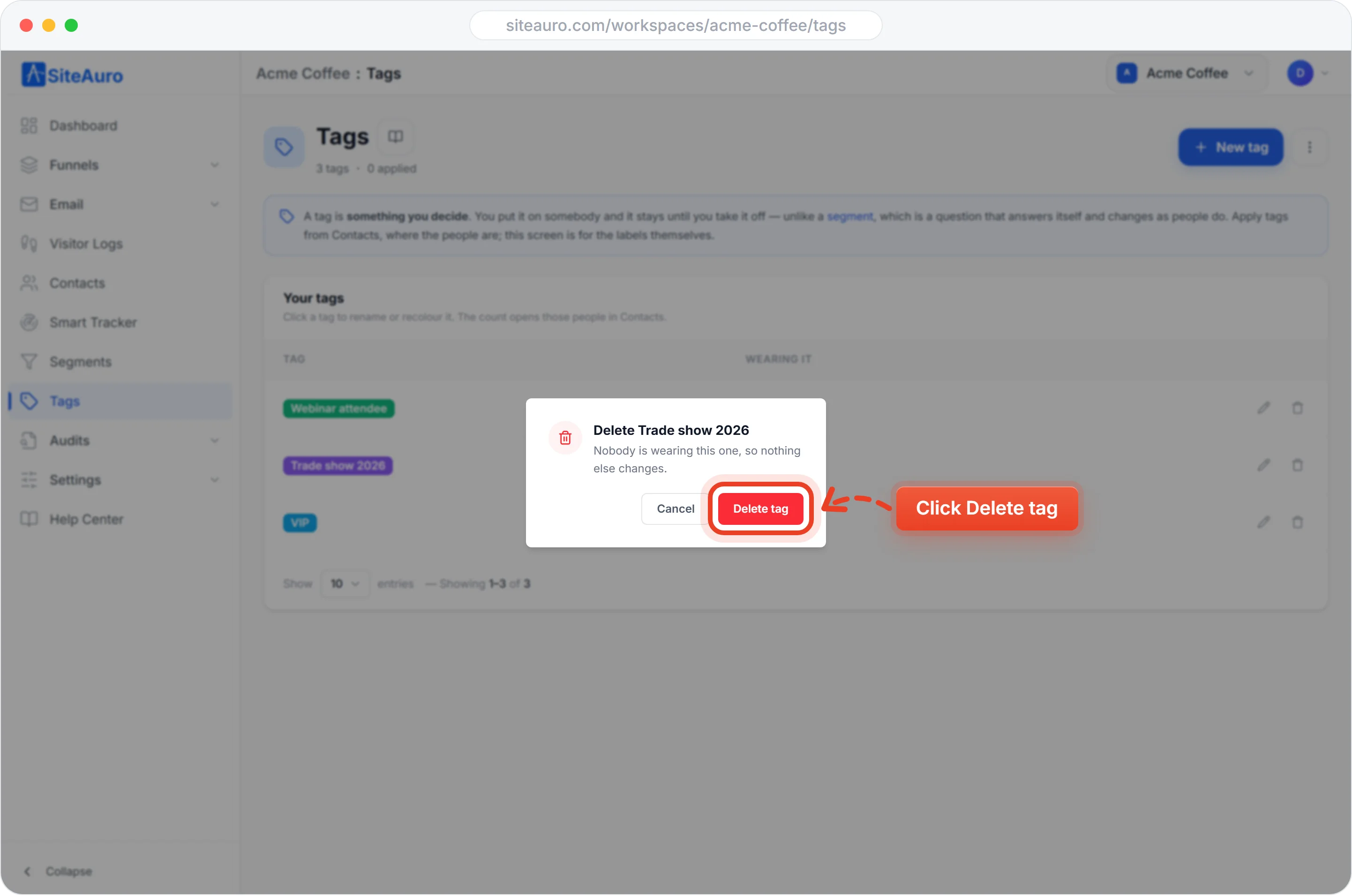
The question Delete Trade show 2026, saying nobody is wearing this one, so nothing else changes, with Cancel and Delete tag. Delete tag is outlined in red, with a red arrow labelled Click Delete tag.
The delete question.

Next Step

Contacts.

Last updated