
Templates are ready-made funnels, with the design done and the words written. Starting from one is the quickest way to a popup or landing page that looks finished. Everything in it can be changed afterwards.
Choose a template
Open Templates
In the menu, open Funnels and choose Templates. Or, when you create a funnel, choose Template under How do you want to start?
Pick the kind
Along the top, choose Standard Funnels, Smart Funnels or Landing Pages. Each card shows the template's name, how many pages it has, what it is for and how it shows on your site, such as Popup or Sticky bar.
The buttons under the kinds narrow the list by purpose, such as Lead Gen, Consultation, Webinar or Feedback. All shows every template of that kind.
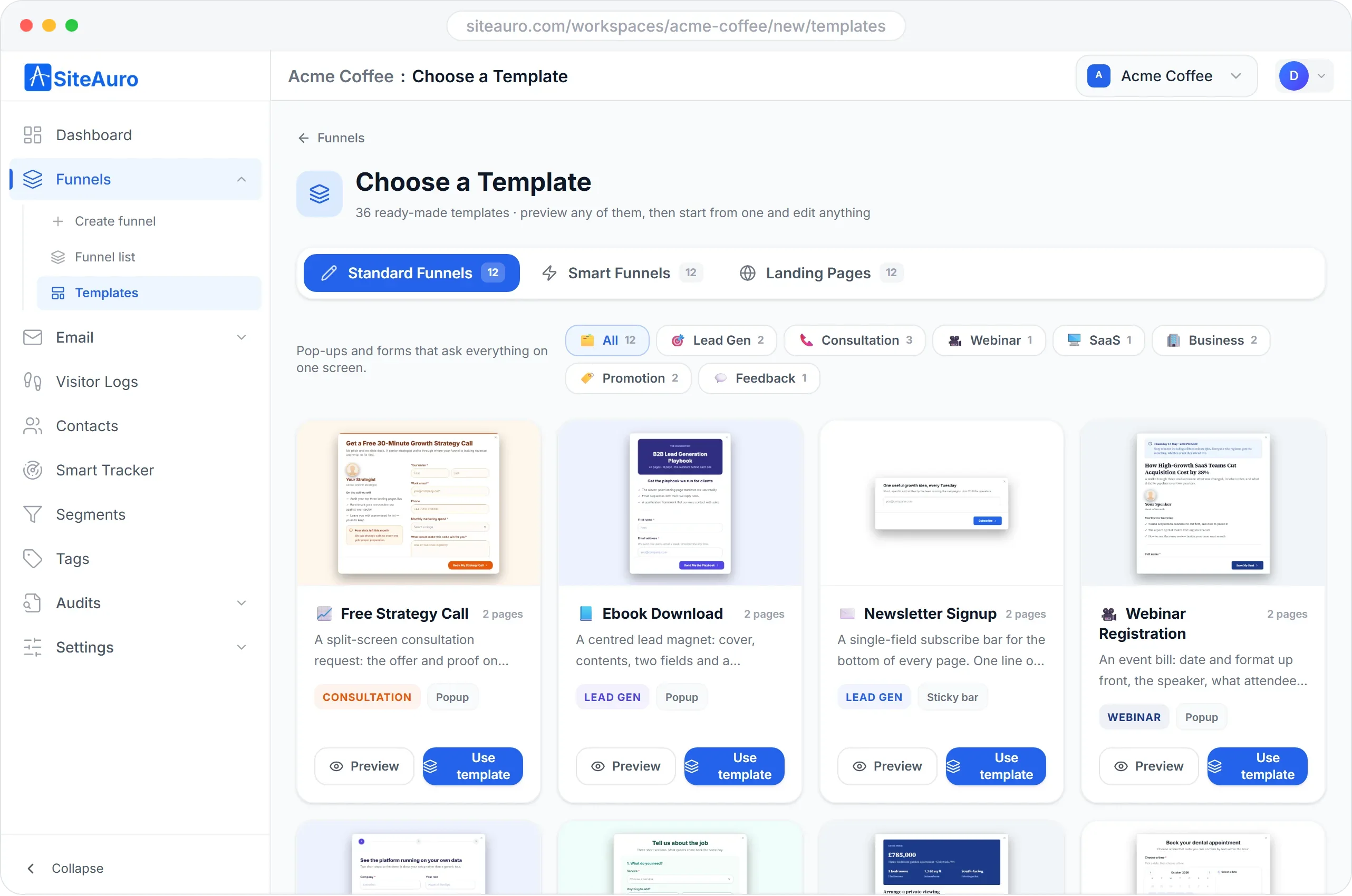
Choose a Template. Preview it
Click Preview on a card, or the card itself, to see the template full size. Click through it as a visitor would: nothing you enter is saved. The buttons at the top switch between a desktop and a phone view.
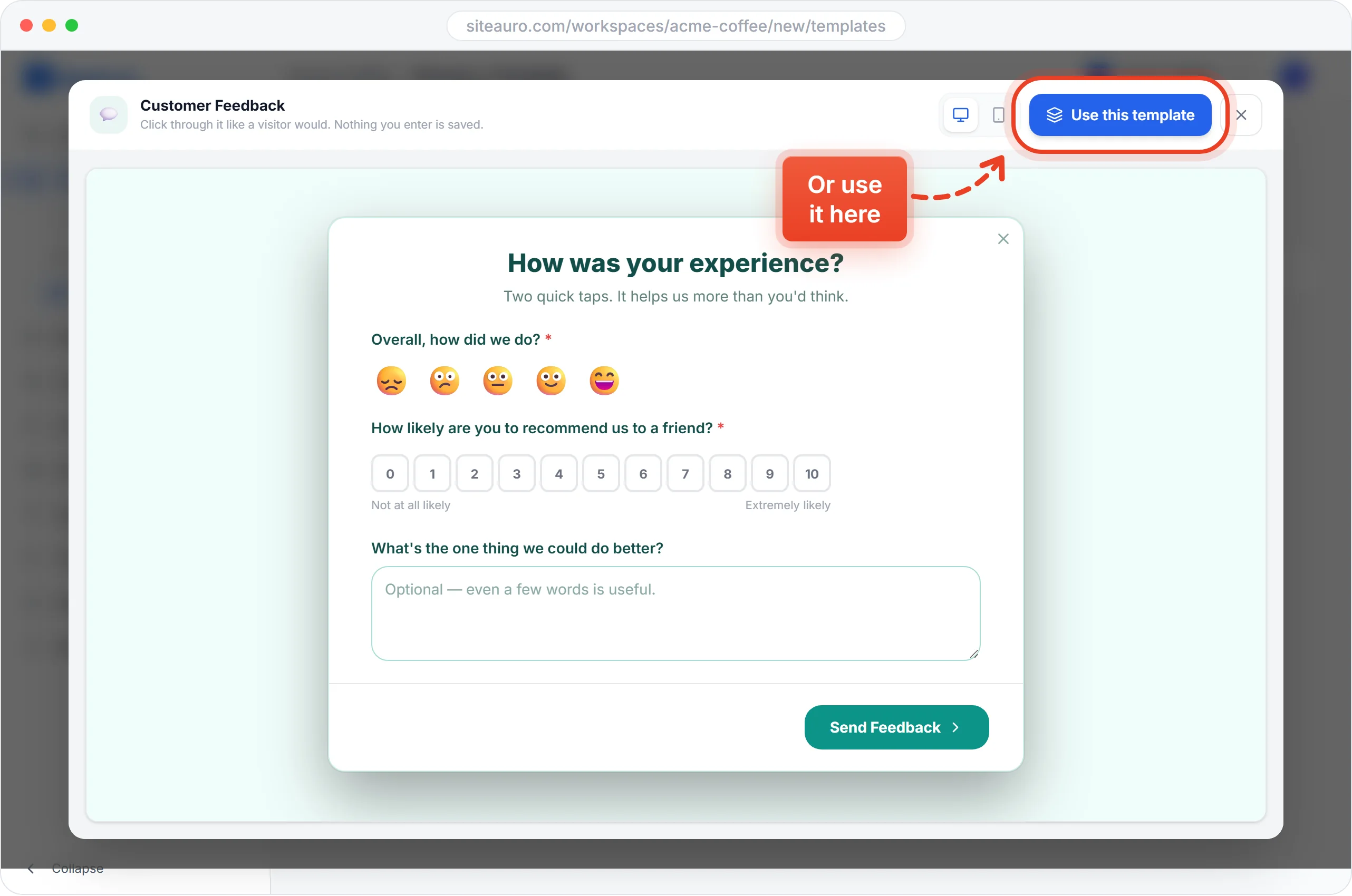
A template's preview. To use the template from here, click Use this template.
Click Use template
SiteAuro asks Use this template? and says it will create a new funnel from the template in this workspace. Click Create funnel.
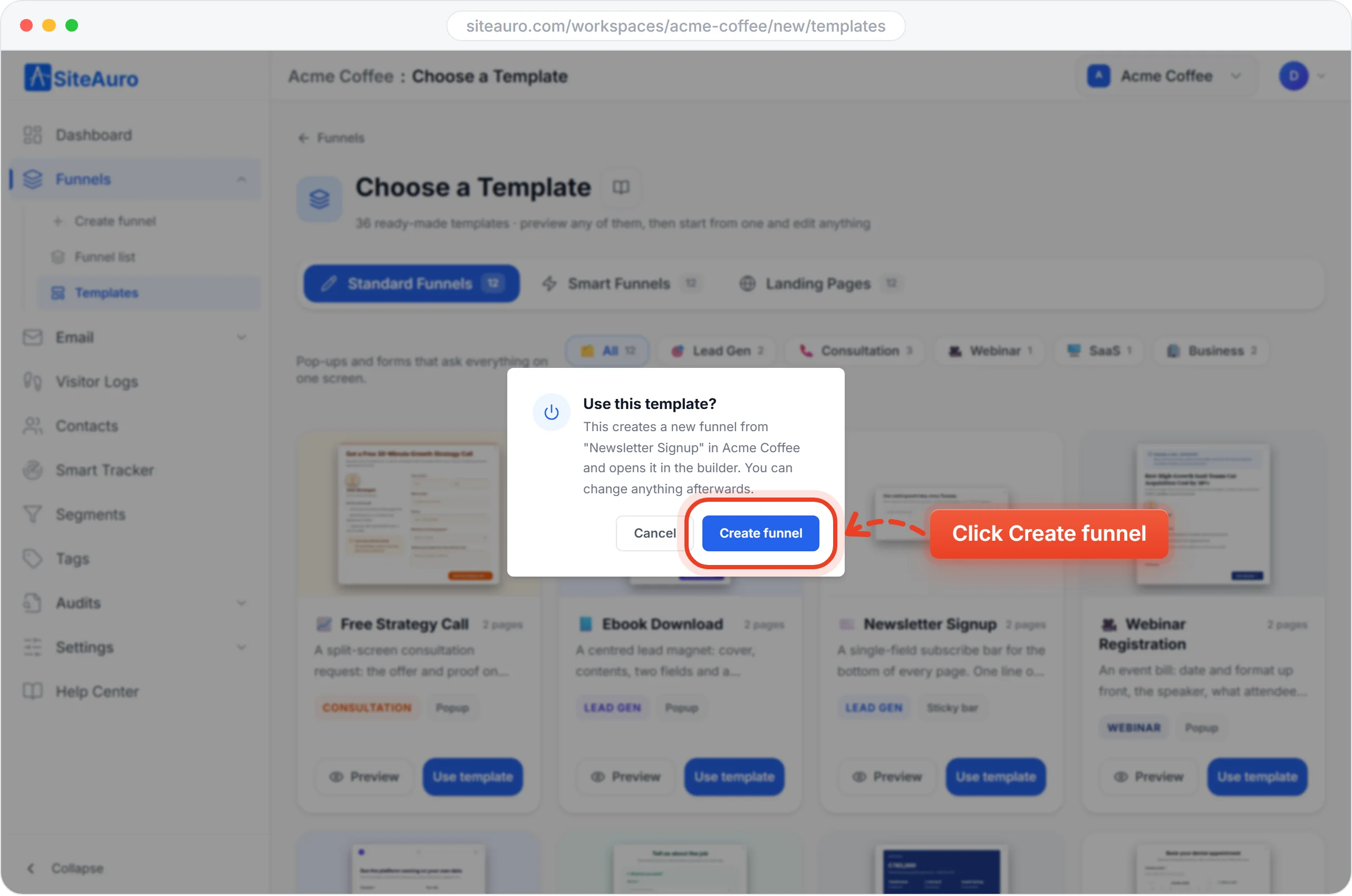
Using a template creates a new funnel.
The new funnel opens in the builder. Change its words, images and colours there.
Tip
The template itself never changes. Use the same one as often as you like: each time, you get a new funnel of your own.
Next step
The Builder: Pages, Elements and Submission Behaviour shows what to do next.