
Each email config sends from one address: its From Email. Before you send from it, your email provider has to agree that the address is yours. Sending Addresses shows each address, its provider and where it stands.
In the menu, open Settings and choose Sending addresses. At the top it says how many of your addresses are verified, and a yellow notice lists anything still to fix.
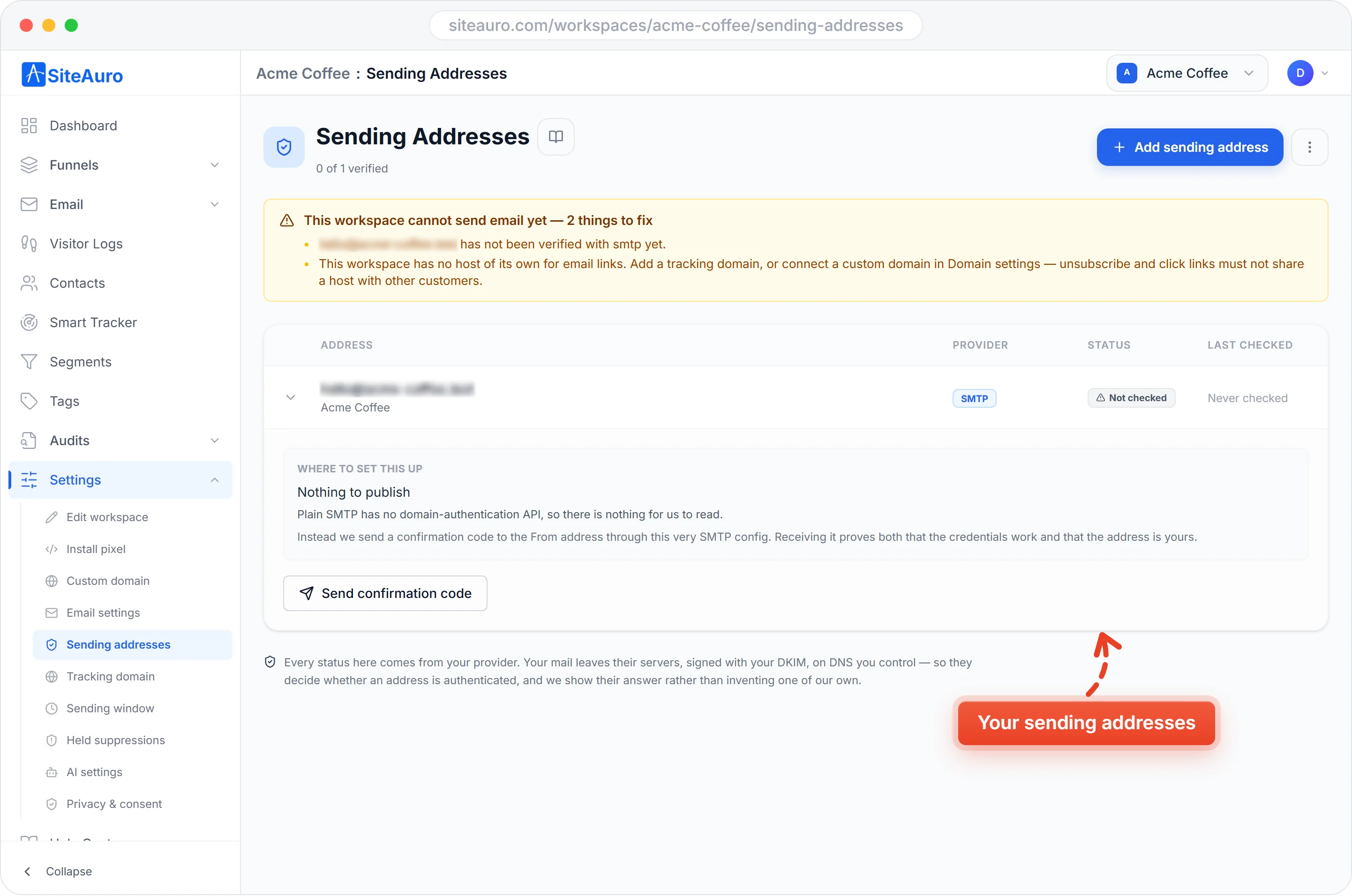
To add an address, click Add sending address: a sending address is an email config's From Email, so this opens Email settings with the form for a new config already open.
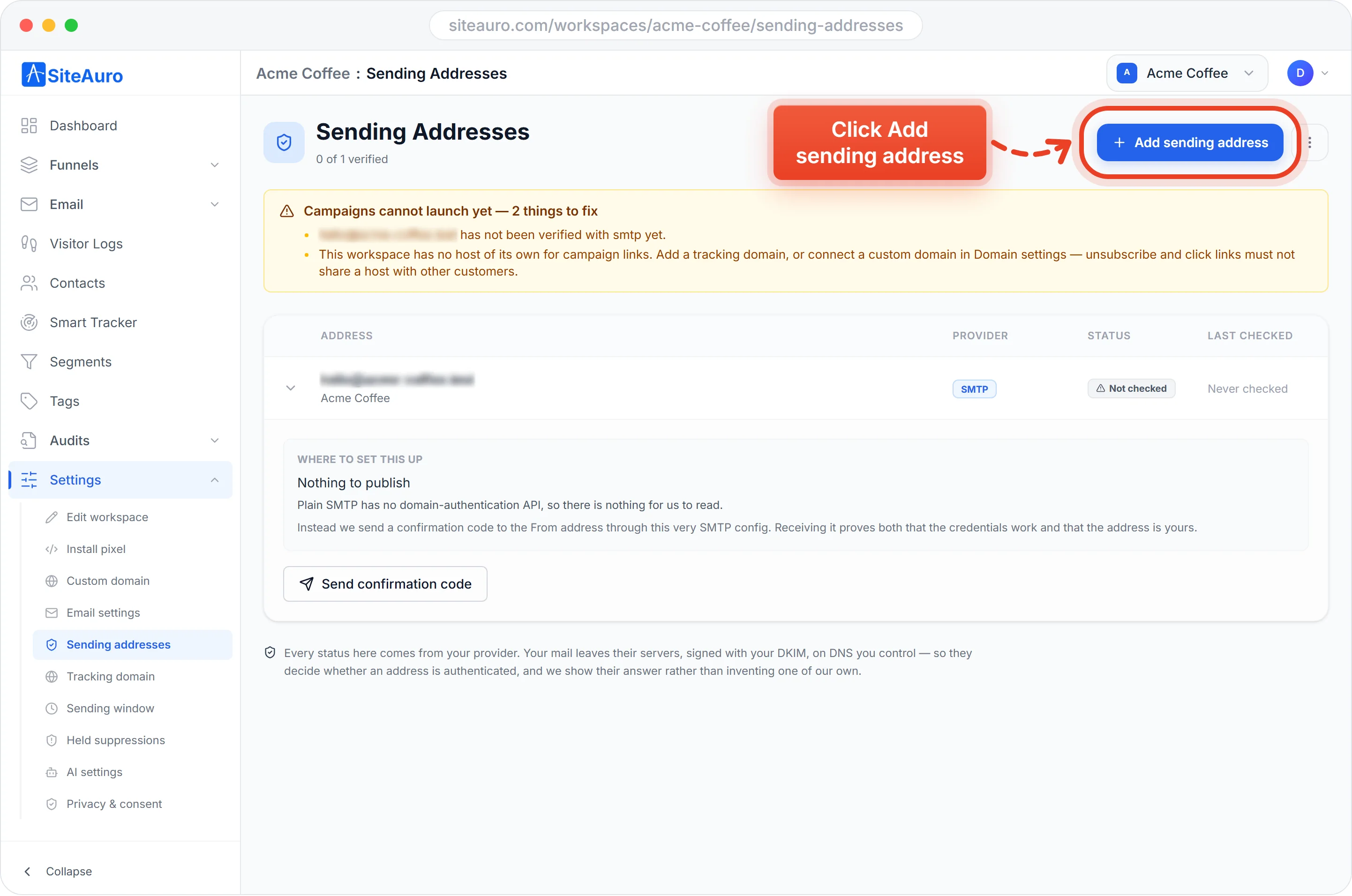
Each address shows one of: Verified, Pending, Not verified or Not checked. An address that isn't verified yet opens with its row expanded, showing Where to set this up.
SMTP Addresses
SMTP has no way to ask the mail server whether an address is yours, so SiteAuro sends a code to it instead, through that same SMTP config. Getting the code proves both that the config works and that the address is yours.
Click Send confirmation code
Send confirmation code is in the address's open row. You see Code sent to and the address. Open that inbox.
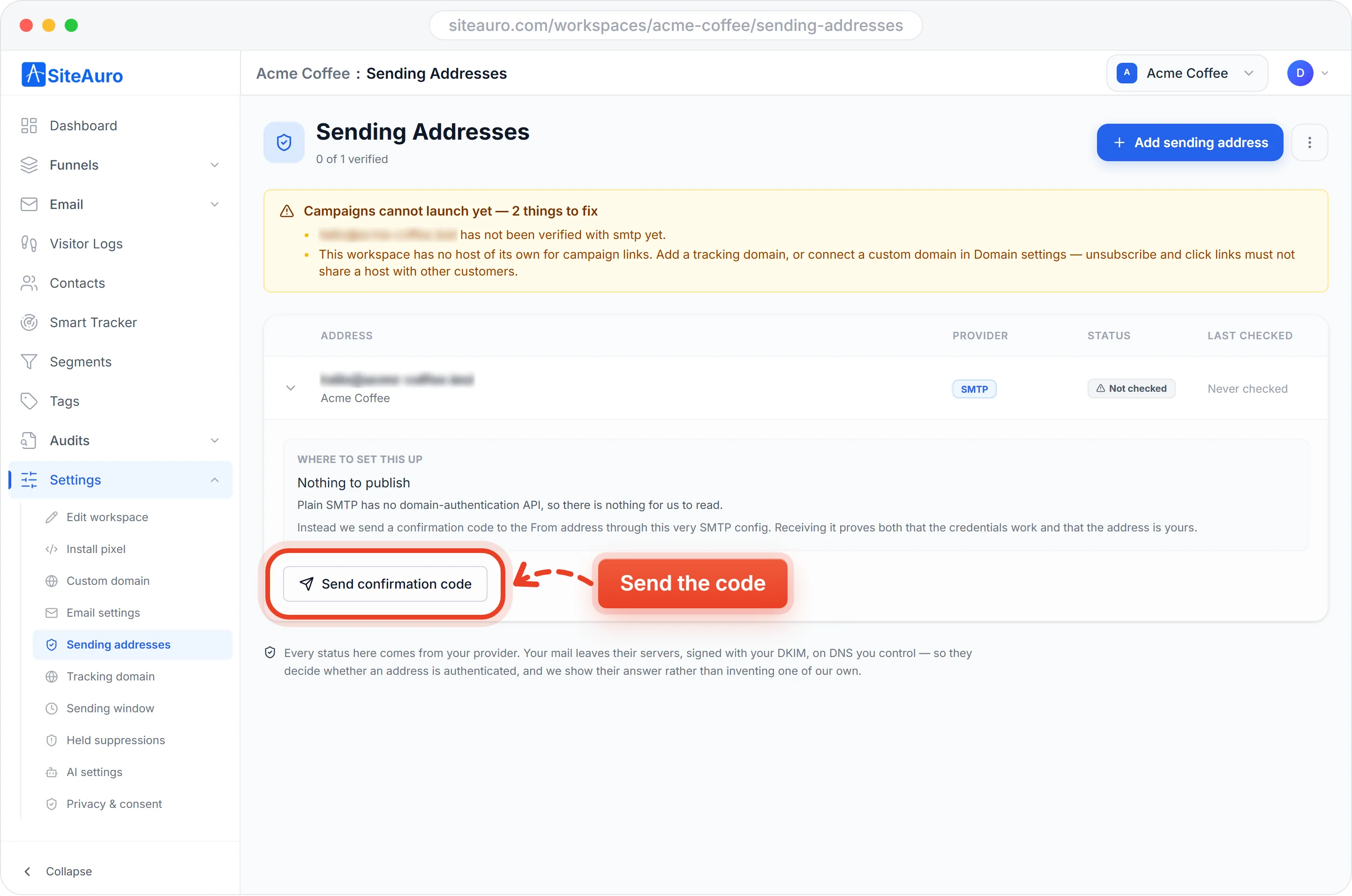
Send the code. Type the code and click Confirm
Type the code from the email into the box and click Confirm. You see Sending address confirmed.
If the code doesn't arrive, click Send a new code.
SendGrid, Mailgun and Resend Addresses
These providers decide for themselves whether an address or its domain is verified, using the records you set up with them. Where to set this up says where to do that in your provider's account.
When it's done, click Check with and the provider's name. SiteAuro asks the provider for its answer and shows it: SiteAuro never checks your DNS itself.
Next Step
Connect your email provider, if you haven't yet.