
When an email bounces, or someone marks it as spam, your email provider tells SiteAuro, and the address is suppressed: it stops receiving mail from this workspace. SiteAuro only acts on its own when it can check that the report really came from your provider. Reports it can't check are held here for you to decide.
In the menu, open Settings and choose Held suppressions.
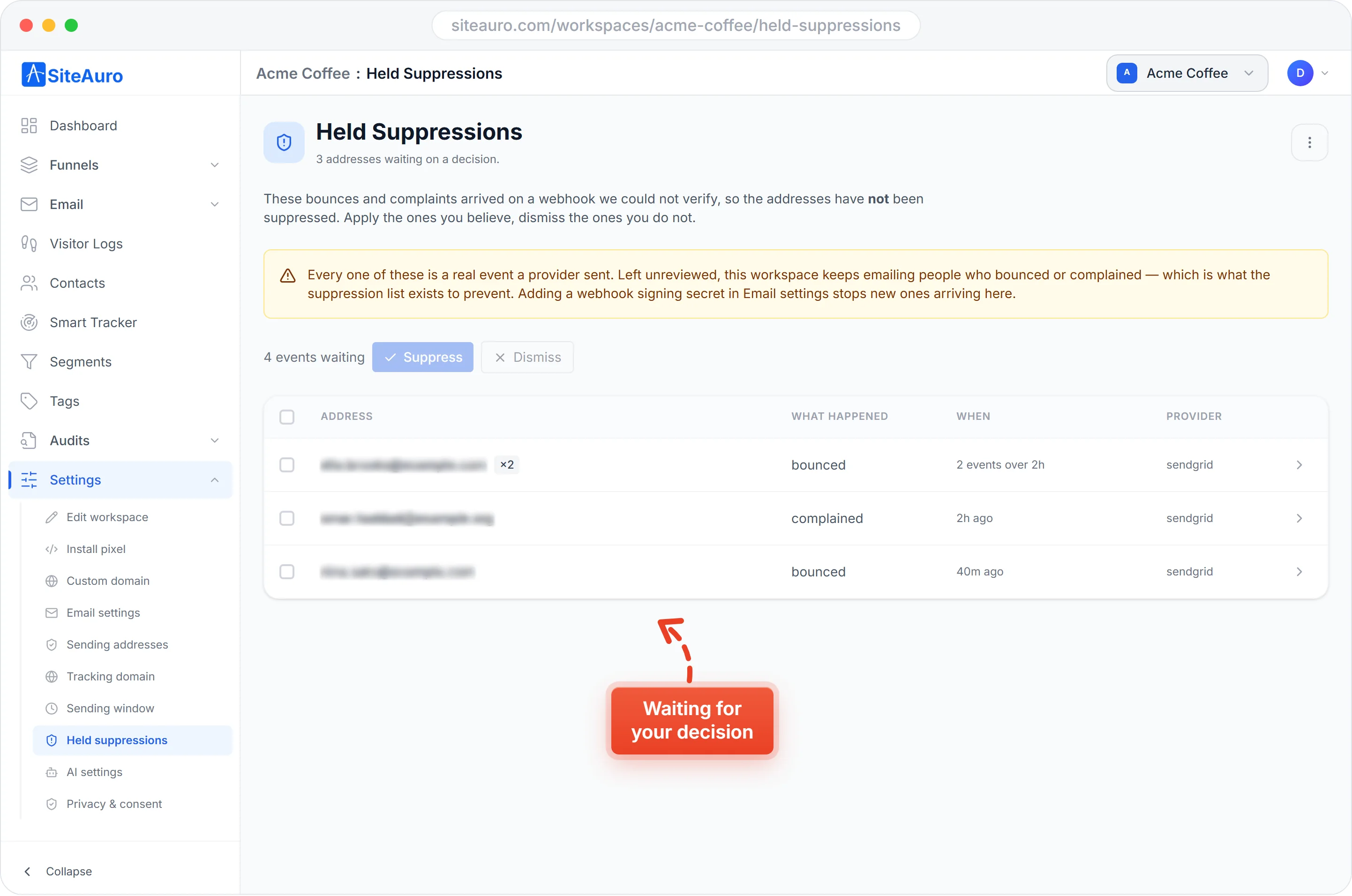
Why reports are held
A report is held when it arrives from a provider whose Signing secret isn't stored in its email config. Add the secret, and that provider's bounces and complaints are applied straight away from then on.
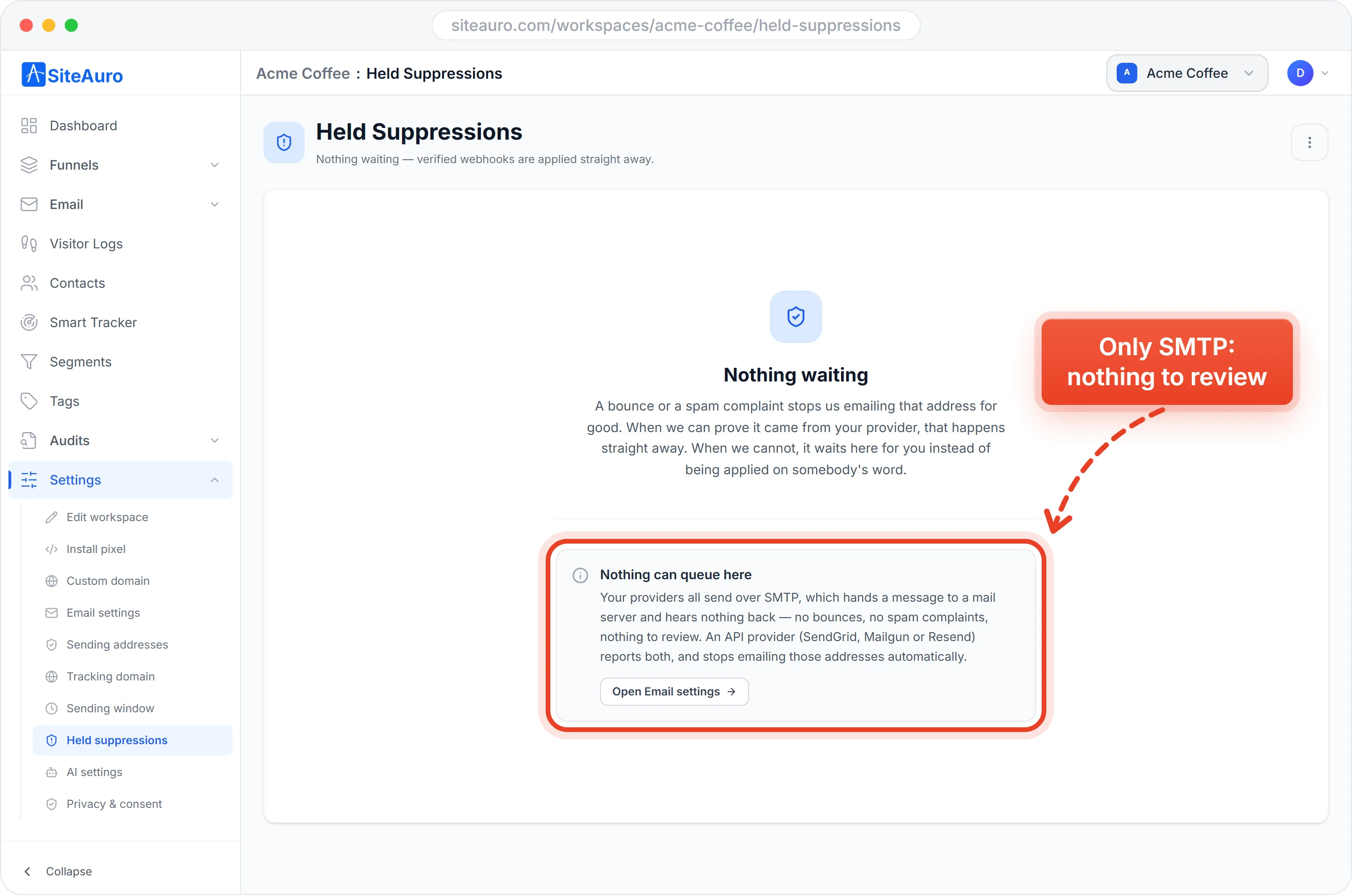
SMTP sends no reports at all, so a workspace that sends only over SMTP never has anything here.
Decide
Each row shows the Address, What happened, When and the Provider. An address reported more than once shows how many times, such as ×2.
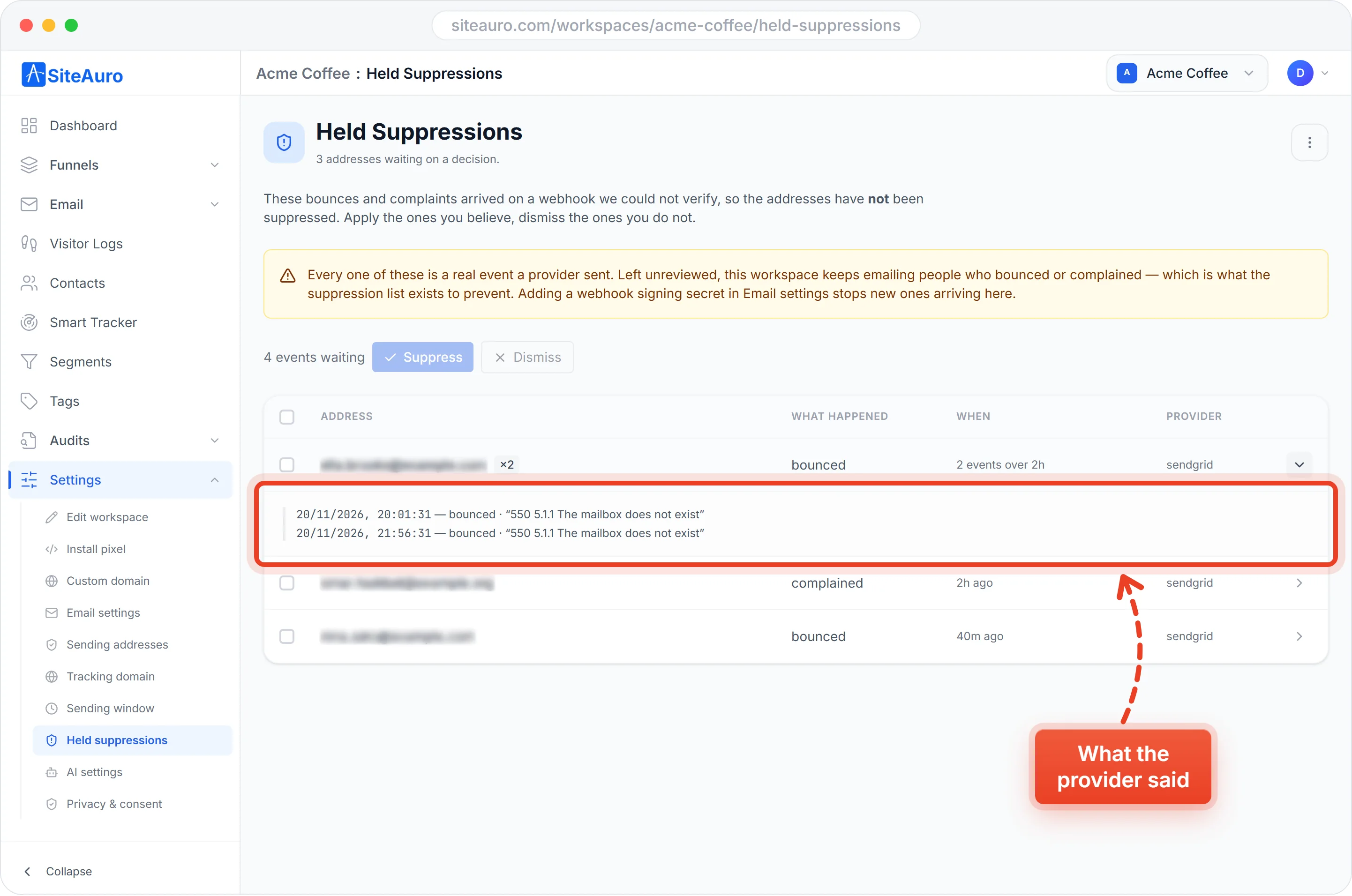
Click the › at the end of a row to see exactly what the provider said, with the time of each event.
Tick the addresses you want. The box in the header ticks them all.
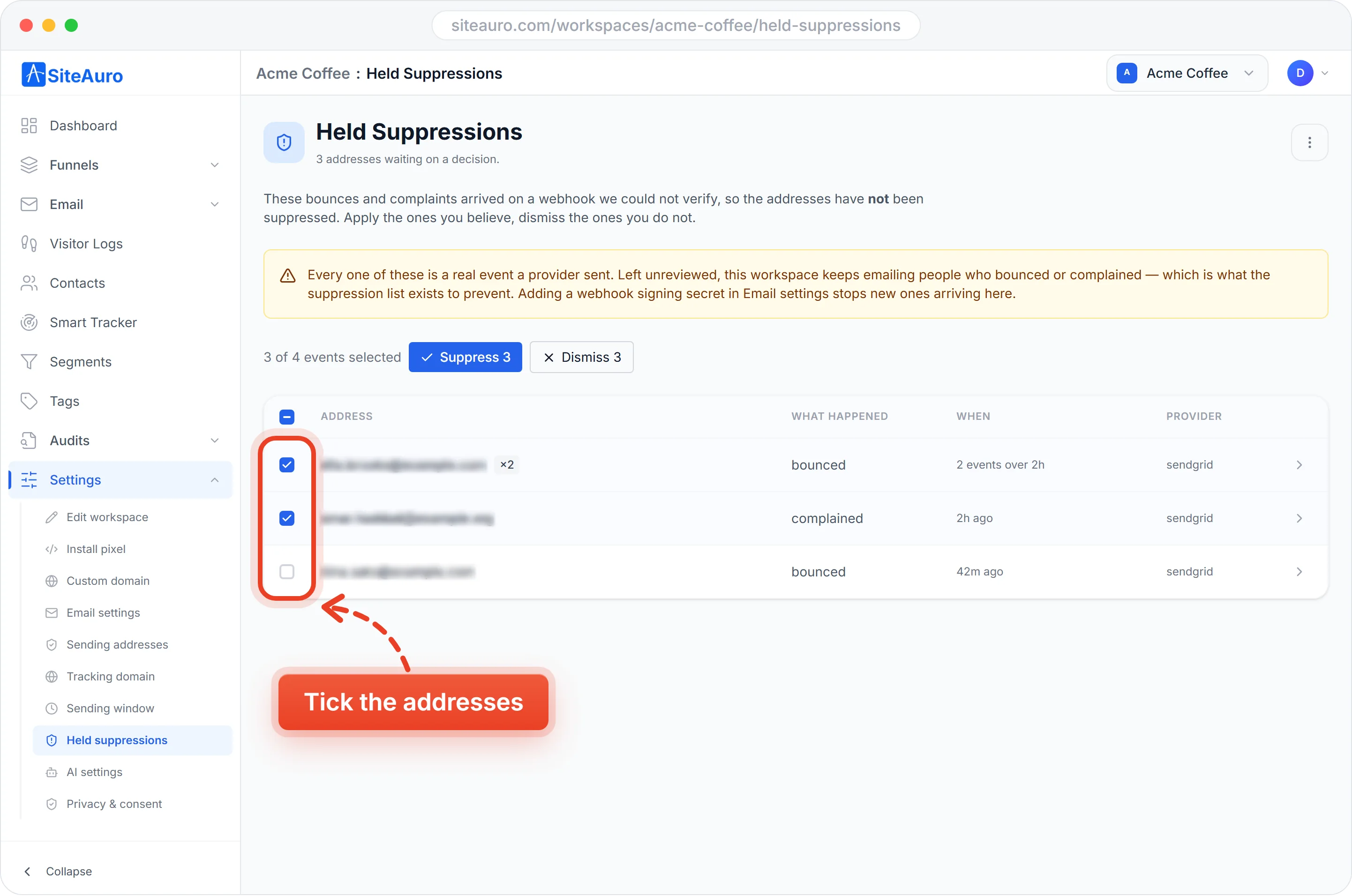
Then click one of the two buttons above the table:
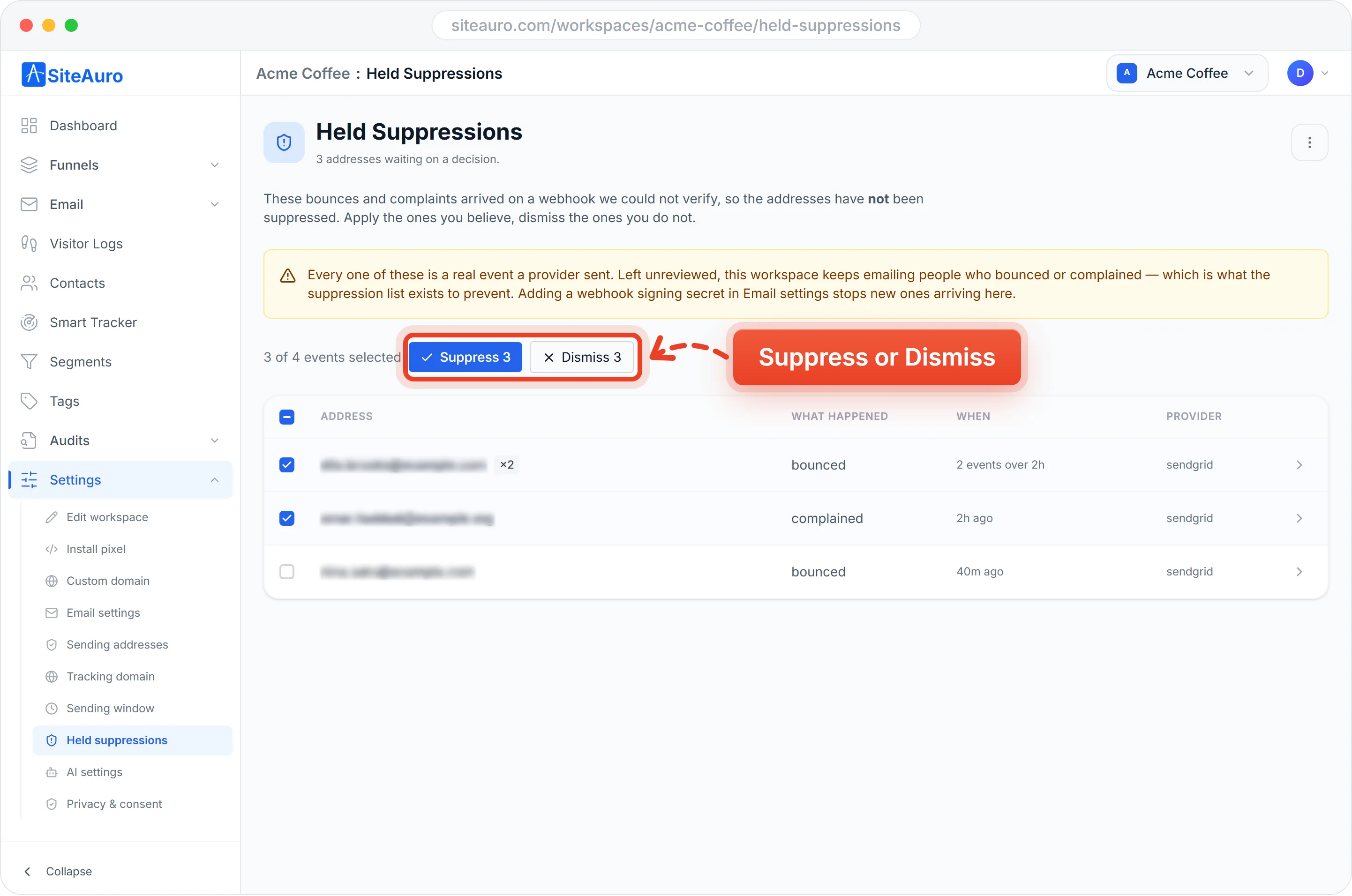
- Suppress: these addresses stop receiving mail from this workspace.
- Dismiss: leave them alone. They keep receiving mail, and the rows leave the list.
You see Suppressed or Dismissed with the number. If some of them were already handled, for example in another browser tab, it says how many.
Note
Until you decide, a held address is not suppressed: it keeps receiving mail.
Note
A funnel's autoresponder skips suppressed addresses only while its Include unsubscribe link switch is on. See Funnel Emails.
Next step
Connect your email provider and add its signing secret, so reports no longer need your review.