With a custom domain, your landing pages, funnels and audit reports appear on an address of your own, such as funnels.yourcompany.com, instead of SiteAuro's. You add one record at your domain provider, and SiteAuro sets up the secure certificate for you.
In the menu, open Settings and choose Custom domain.
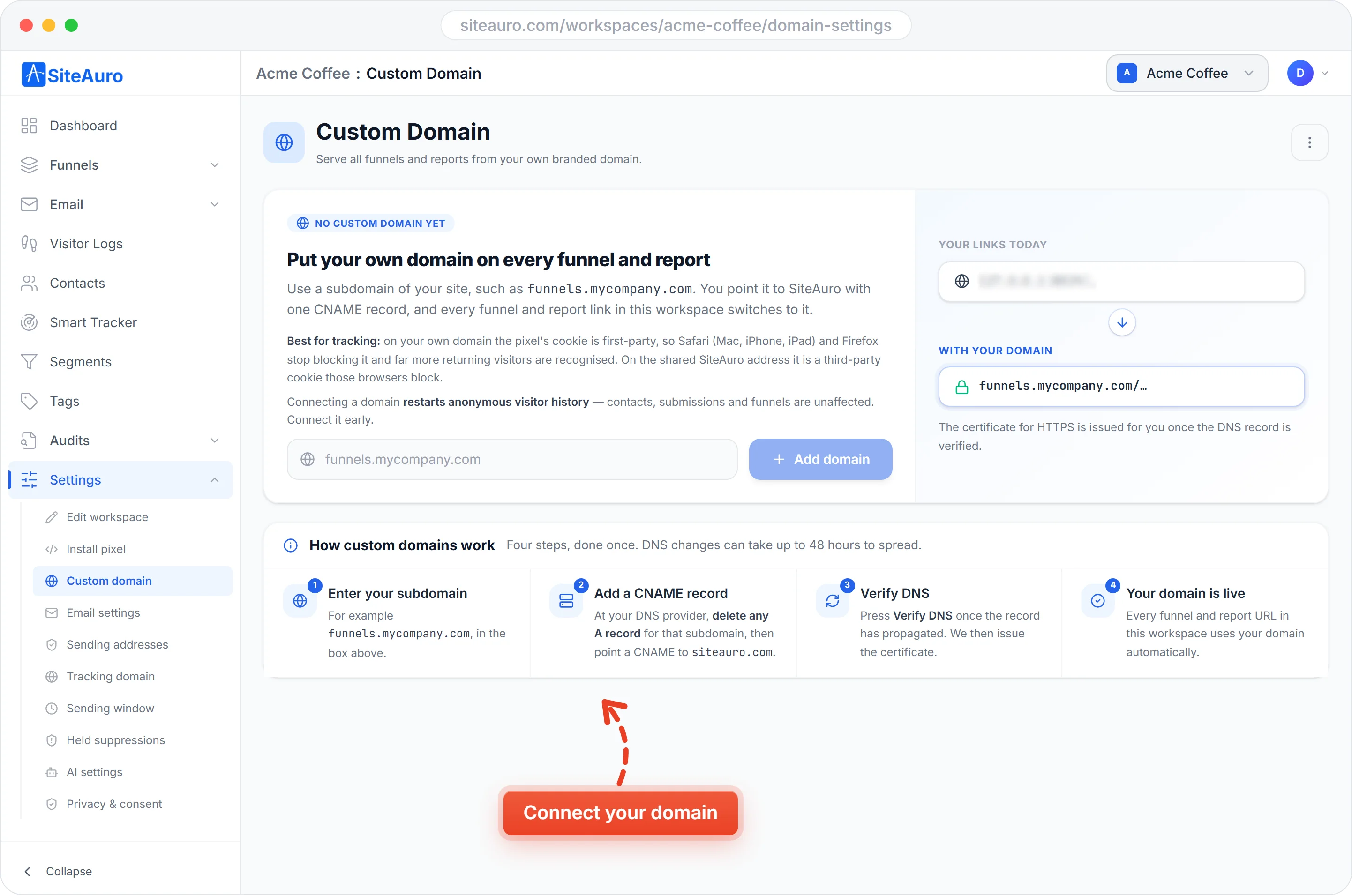
Before You Start
- Set your website first. The domain must be your workspace's website, or a part of it such as
funnels.yourcompany.com. In Edit workspace, set Domain Name to your website, and switch on Also allow subdomains to use a subdomain. - Best for tracking. On your own domain, the pixel's cookie is first-party, so Safari and Firefox stop blocking it and far more returning visitors are recognised.
- Connect it early. Connecting a domain restarts the history of anonymous visitors. Contacts, submissions and funnels are not affected.
- One domain per workspace. Adding a new one replaces the one before.
Connect Your Domain
Add the domain
In Your subdomain, type the domain, for example
funnels.yourcompany.com, and click Add domain.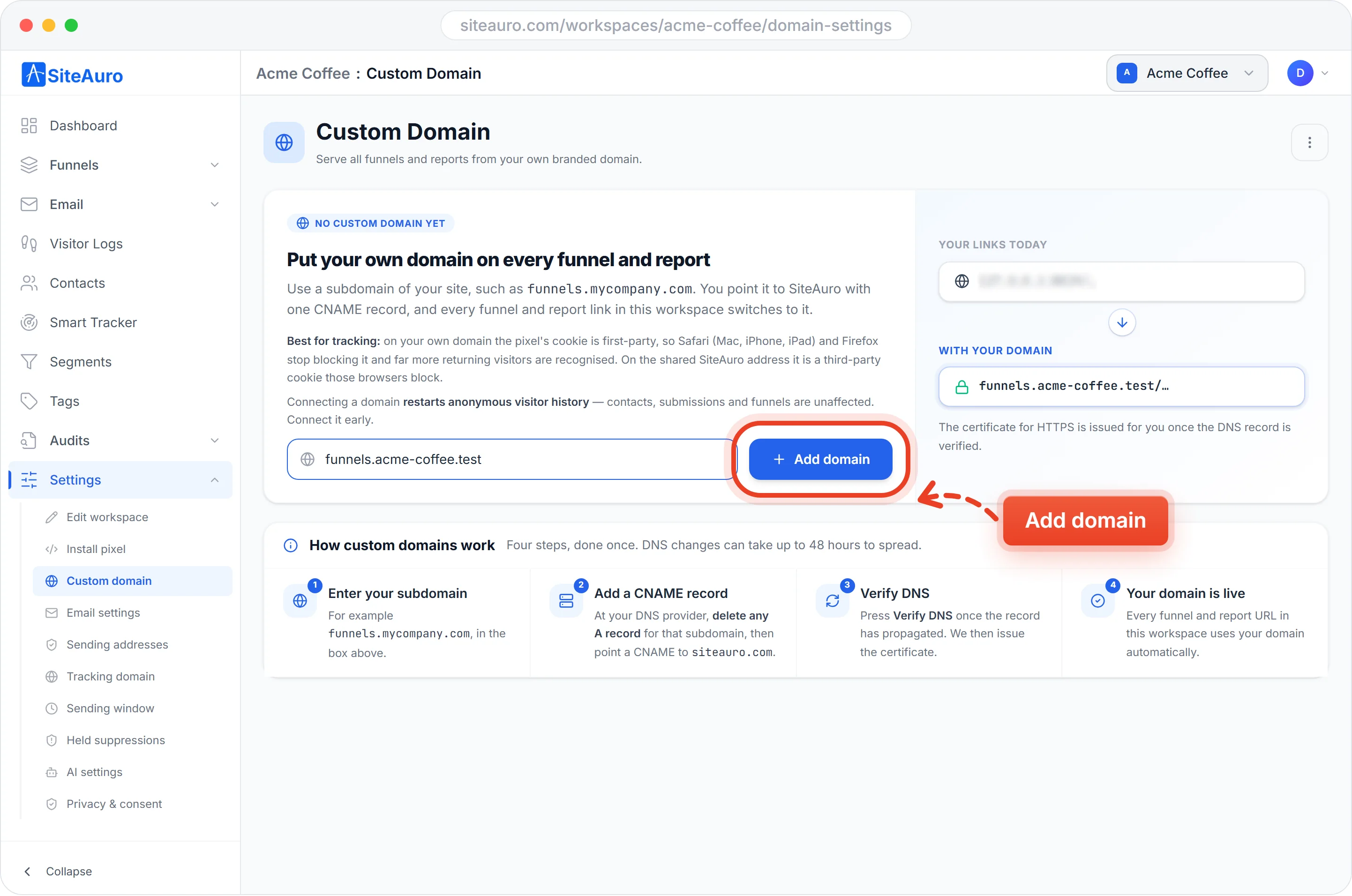
Add domain. Add the CNAME record at your domain provider
Add this record at your DNS provider shows what to add: the Type
CNAME, the Name (the first part of your domain, such asfunnels) and the Valuesiteauro.com. The name and value each have a copy button. Most providers add the rest of your domain to the name for you, so type only the first part.If your provider already has an A record with the same name, delete it first: a name can't have both.
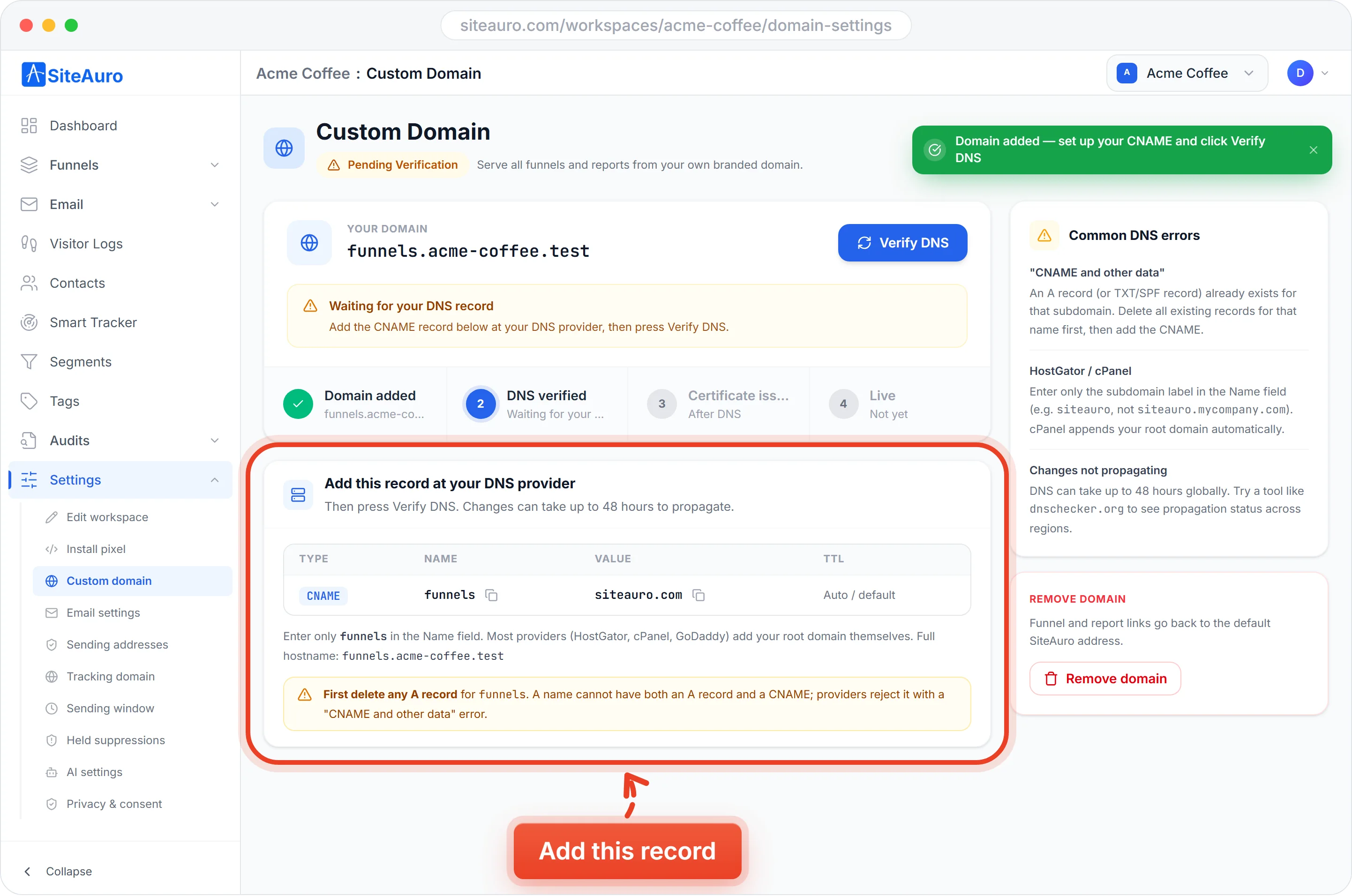
The CNAME record to add. Click Verify DNS
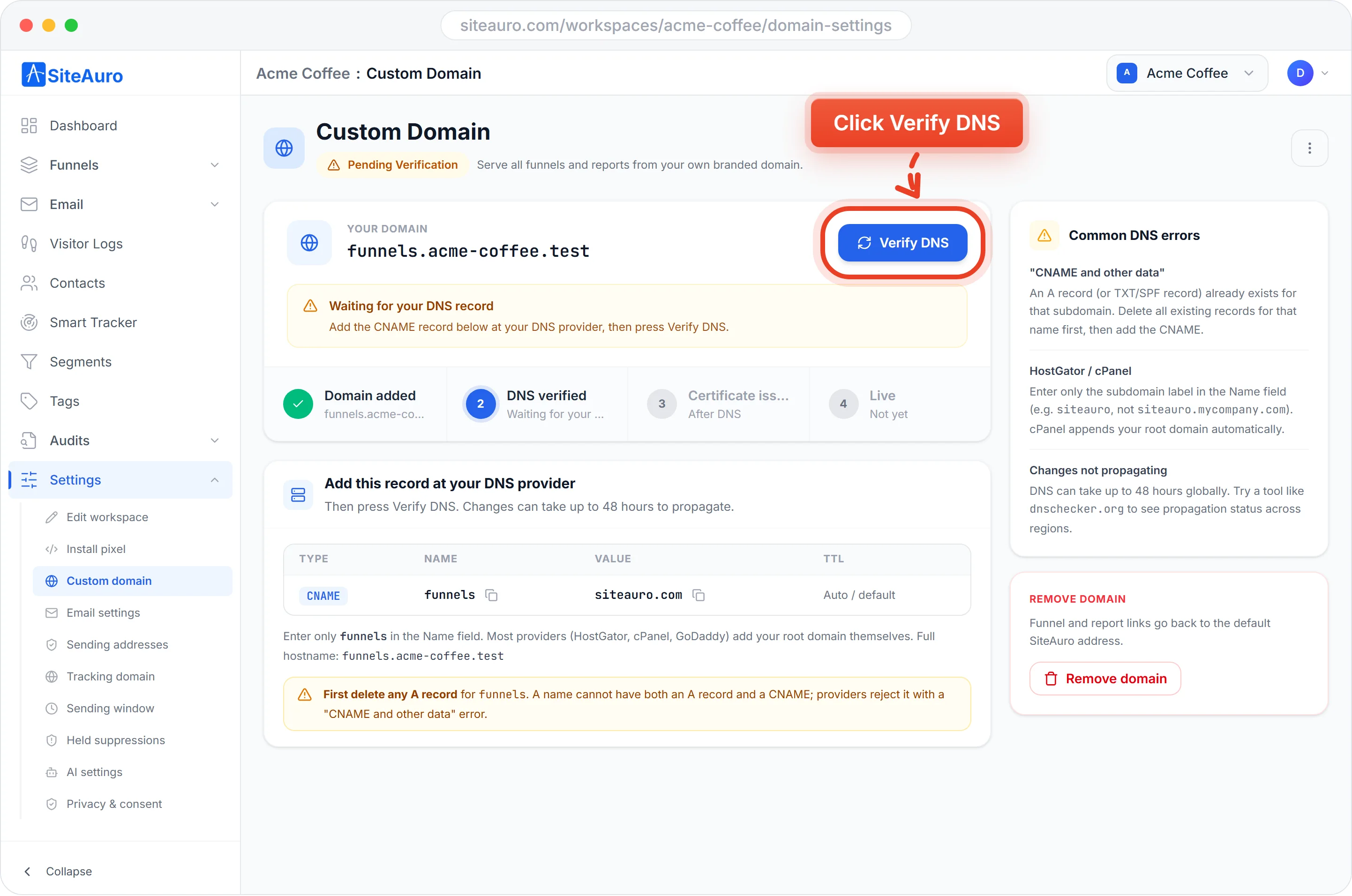
Verify DNS. Changes at your provider can take up to 48 hours to reach everyone, but usually take minutes. When your domain points to SiteAuro, the secure certificate is issued, which takes about 30 seconds. The status changes to Connected.
Some domains are refused when you add them. This domain is already in use means it is already a custom, report or tracking domain, in this workspace or another: each domain can be used once. This domain can't be used as a custom domain means it belongs to SiteAuro itself. Use a domain on your own website.
If verification fails, the page says why: for example, the domain doesn't point to SiteAuro yet, or isn't part of your workspace's website. Fix it at your provider, wait a little, and click Verify DNS again. Common DNS errors on the right lists the usual causes.
Once It's Connected
The page shows Connected beside your domain, with a button to copy its address, and Your domain is live: every funnel and report link in this workspace now uses it.
Opening the domain on its own, with nothing after it, takes visitors to your workspace's website: the Domain Name in Edit workspace. An address on it that isn't one of your funnels or reports shows a plain Page not found, with no SiteAuro name on it.
Remove It
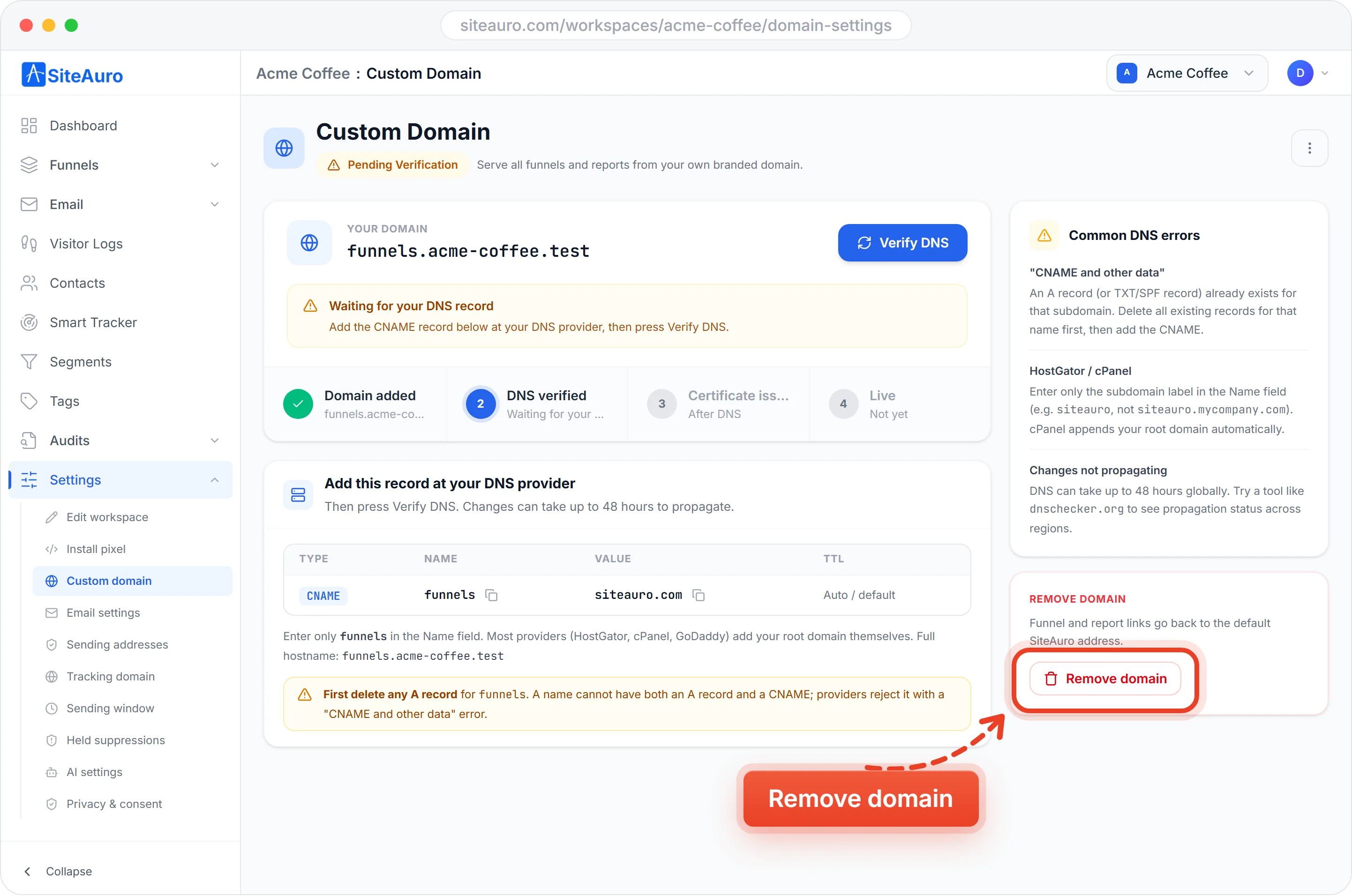
Click Remove domain, in its own card on the right, then confirm with Remove Domain. Your funnel and report addresses go back to SiteAuro's.
If emails you have already sent contain links on this domain, you're warned first: those links will stop working. Click Remove anyway only if that's fine.