
Some changes decide what your visitors see or who gets your emails. A connected AI app never makes these on its own: it shows you what will happen and asks you first, every time. Nothing changes until you say yes.
All of them need Allow this app to make changes, switched on when you connected the app. See Connect an AI App.
Which Changes Ask First
Seven changes ask you first:
- Publish a funnel, or publish the latest changes to a live one.
- Unpublish a funnel. A landing page or widget goes back to draft; a pop-up or form is switched off. The funnel is kept.
- Resume a paused automation. The emails it was holding then send.
- Switch a Smart Tracker rule on.
- Pause a Smart Tracker rule.
- Switch a segment on.
- Pause a segment. The people in it stay in it.
Pausing an automation happens straight away, without asking: it only stops emails. You resume it later, after you confirm, or in SiteAuro.
Everything else an app may change, such as creating a draft funnel or tagging contacts, doesn't ask: it creates things paused or as drafts, or changes nothing your visitors see. See What Connected Apps Can Do.
Confirm a Change
Ask for the change
In your AI app, ask for it in your own words, for example "Publish my Black Friday pop-up".
Read what will happen
SiteAuro tells your AI app, in plain words, exactly what the change will do, and your AI app shows it to you. For example: "This will make the pop-up ‘Black Friday popup’ live on your website: it starts showing to visitors on the pages, and at the moment, set in its display settings." To resume an automation, it also says how many held emails will send.
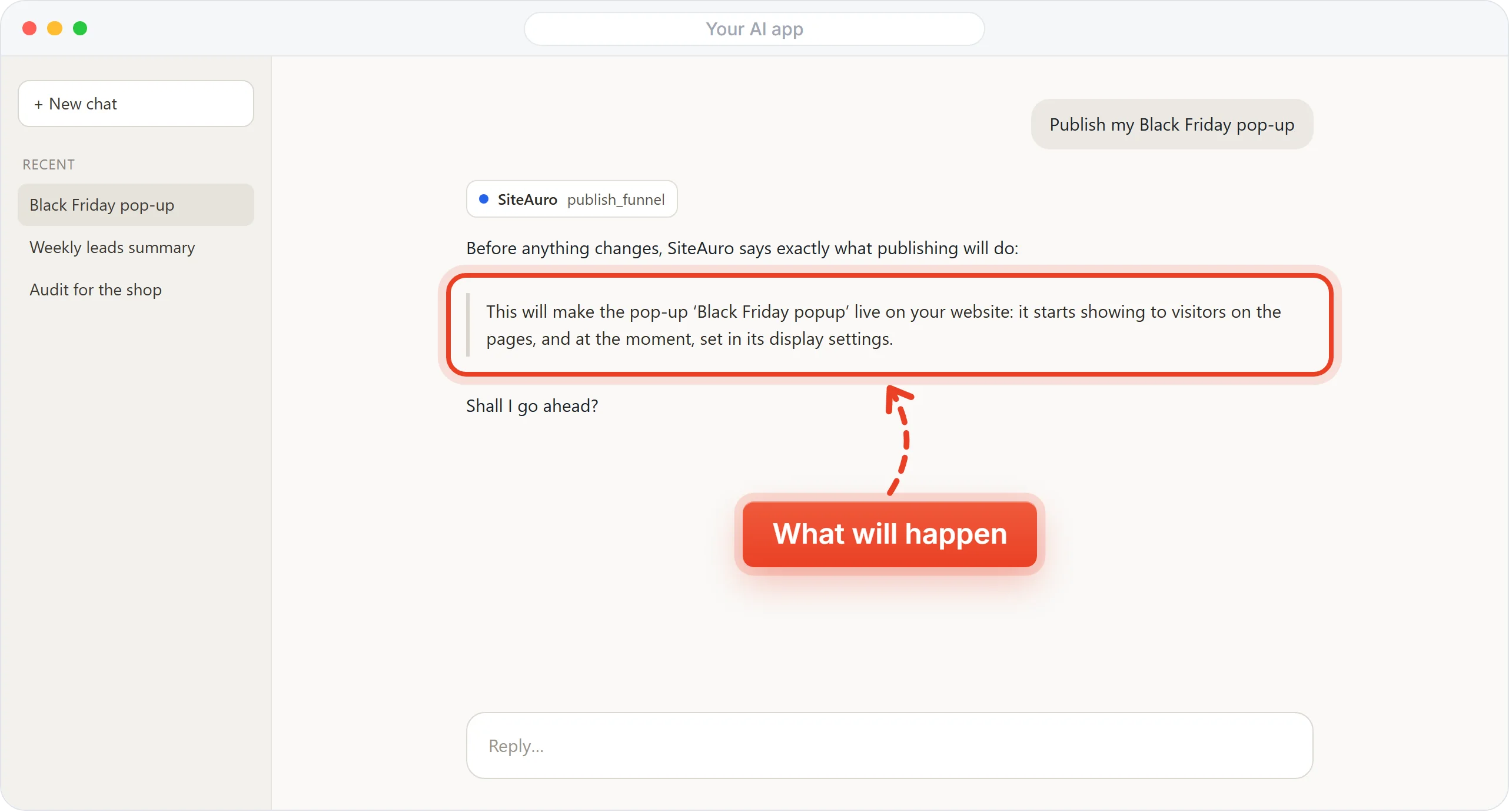
Read what will happen. Say yes, or no
Depending on your AI app, you get one of two things:
- A confirmation box titled like "SiteAuro requests your input", with the same sentence ending in "Go ahead?" and the app's own buttons, such as Submit (or Accept) and Decline. Only Submit or Accept makes the change.
- A question in the chat. Reply "yes" to make the change.
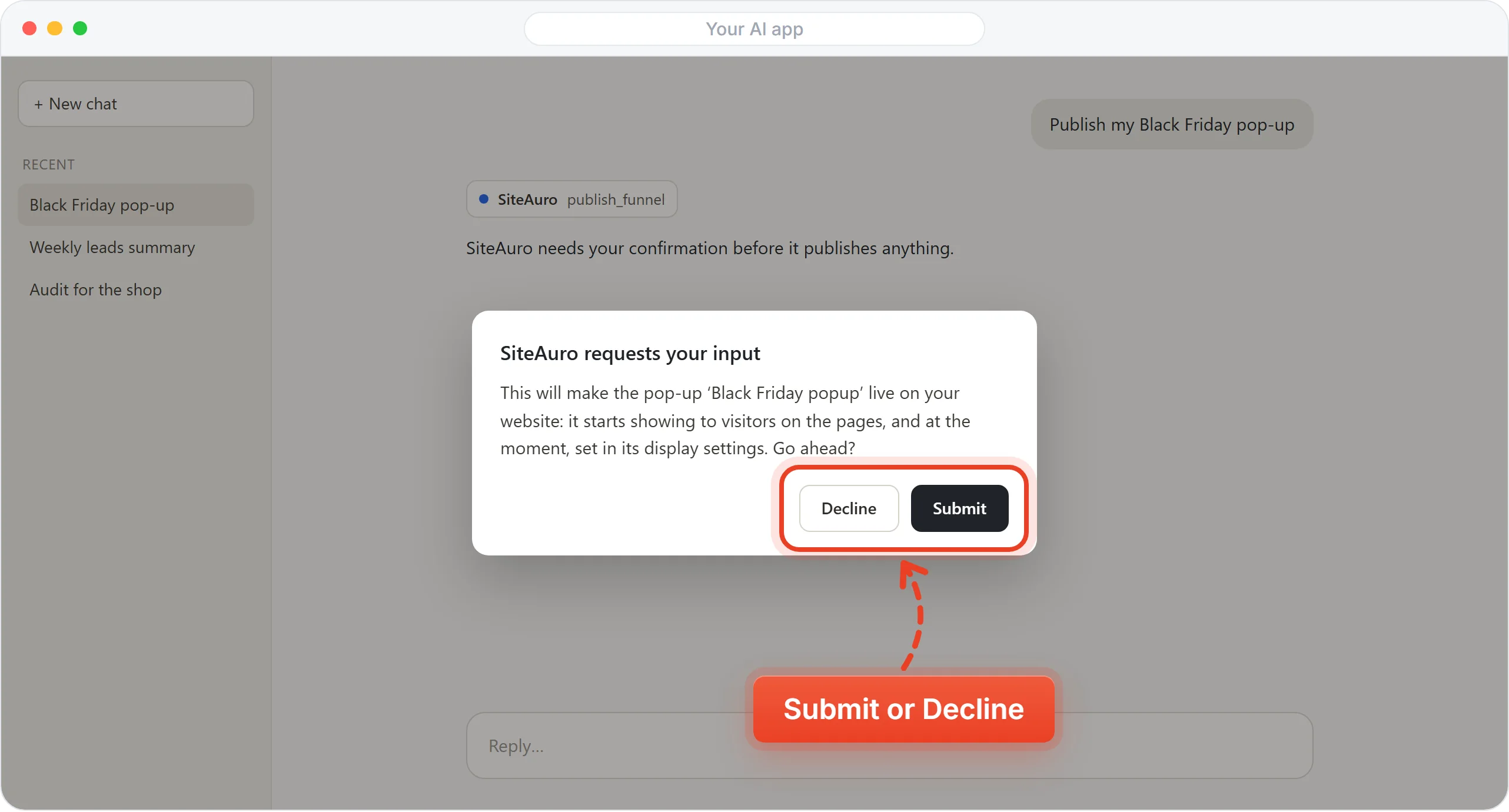
Submit or Decline. See it done
Your AI app tells you it's done. You'll see the change in SiteAuro straight away.
If You Say No
- Decline: nothing changes. Your AI app is told you said no, and not to try again unless you ask.
- Closing the box without choosing: nothing changes. Your AI app may ask you in the chat instead; only a yes there makes the change.
- In the chat, any answer but yes changes nothing.
To make the change later, ask again.
Good Once, for 10 Minutes
- A yes counts once, for 10 minutes. After that, or if you change your mind later, ask again: you get a fresh preview.
- If something changes first, you're asked again. If the thing changed after you saw the preview (someone published it, more emails are now waiting), nothing happens, and your AI app gets a fresh preview to show you.
- Nothing to do is not a change. If a funnel is already live with nothing new, or a segment is already paused, your AI app is simply told so.
The preview counts as a call, and only the change you confirm counts as a change. See Usage Limits.
Next Steps
- What Connected Apps Can Do: what an app reads, what it may change, and what it never does.
- AI Connector Use Cases: step-by-step jobs to hand to your AI app.
- Example Prompts: ready-made questions to copy.
- Connect an AI App: set up a connection, or change what an app may do.
- Connected Apps: see the apps you've connected, and disconnect one.
- Usage Limits: how much your AI apps can do, and what you've used.